


By default, Microsoft Edge shares your OS details with website authors who seek to tailor experiences by region. This keeps your browser feed up-to-date. However, allowing Edge to share additional operating system region details can undermine telemetry policies and potentially increase vulnerability.
Manage your organization’s Edge settings to limit passive fingerprinting. This article explains how to turn “Share additional OS regional format with sites” on or off to help protect your info from being used by Microsoft. See their data collection summary here.
Control when you share MS Edge OS region format details
There are numerous ways you can manage MS Edge settings to protect your OS region data. Consider your organization’s technological limitations while selecting the best fix.
📌 Prerequisites: Here’s what you’ll need to manage Edge’s sharing of additional operating system region data.
- Microsoft Edge (Chromium-based browser)
- Any edition of Windows 11
- GUI toggle in MS Edge settings
- Administrator privileges (for Registry and Group Policy methods)
- Group Policy Objects (for enterprise control)
🎥 Pull up the video and take in all four methods on screen — How to Enable or Disable Share Additional OS Regional Format with Sites in Microsoft Edge.
📌 Recommended deployment strategies:
| Click to Choose a Method | 💻 Best for Individual Users | 💻💻💻 Best for Enterprises |
| Method 1: Edge Settings | ✓ | |
| Method 2: Group Policy | ✓ | |
| Method 3: Registry | ✓ | |
| Method 4: PowerShell | ✓ | ✓ |
Method 1: Enable or disable via Microsoft Edge settings (GUI)
Configure OS region share easily with Microsoft Edge’s in-browser settings.
📌 Use Cases: Use this for support-led assistance scenarios.
- Open Microsoft Edge.
- Press Alt + F to open Settings and more.
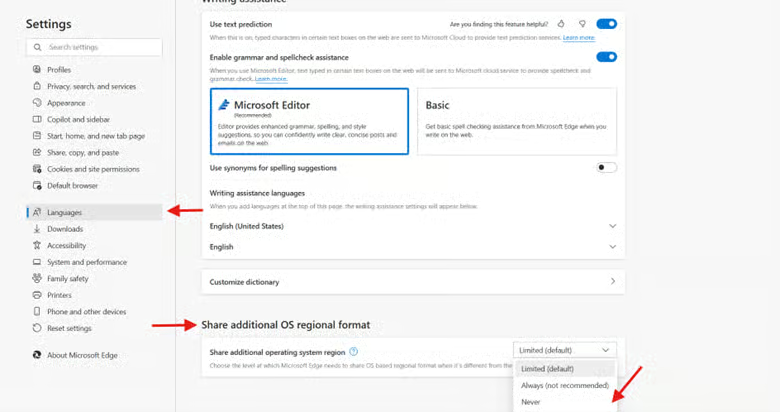
- Go to Settings > Languages.
- Scroll to the section Share additional OS regional format.
- Open the drop-down list.
- Choose Limited (Default) to share your regional format only when your language matches Edge’s displayed language.
- Choose Always (not recommended) to use Edge to share additional operating system region data.
- Choose Never to prevent OS regional format sharing.
Method 2: Configure via Group Policy (Recommended for enterprise)
⚠️ This requires administrator rights and the latest Microsoft Edge ADMX templates installed.
Group Policy protects your OS region information by bolstering your organization’s security settings, domain policies, and more.
📌 Use Cases: Use this for Enterprise-wide deployments.
- Press Win + R, type gpedit.msc, and press Ctrl + Shift + Enter.
- Navigate to:
Computer Configuration > Administrative Templates > Microsoft Edge > International settings.
- Double-click Share additional OS regional formats with websites.
- Set to:
- Enabled to allow sharing of regional formats
- Disabled to hamper websites from accessing this data
- Not configured to return edge region format sharing to its default setting
- Click OK.
- Open Command Prompt and run gpupdate /force to apply your changes.
Method 3: Configure via Registry Editor
⚠️ Important: This requires administrative privileges and modifies important system settings. Before you proceed, create a backup.
Edit system settings to apply lasting changes to your most important apps.
📌 Use Case: Use this for system-wide updates that impact all users on a workstation.
- Press Win + R, type Regedit, and press Ctrl + Shift + Enter.
- Navigate to:
HKEY_LOCAL_MACHINE\SOFTWARE\Policies\Microsoft\Edge
- Navigate to the correct registry path to avoid unintended changes. (See risks here.)
- Double-click DefaultShareAdditionalOSRegionSetting.
- If you don’t see it on your right-hand pane, do the following:
- Right-click an empty space on the right-hand pane.
- Select New > DWORD value (32-bit).
- Name the new value DefaultShareAdditionalOSRegionSetting.
- If you don’t see it on your right-hand pane, do the following:
- Modify the value.
- For limited OS sharing, type 0.
- To always enable OS region format sharing, type 1.
- To never allow OS region format sharing, type 2.
- Restart Microsoft Edge to apply your changes.
Method 4: PowerShell script for automation
Manage Edge region format sharing across multiple devices with PowerShell’s powerful command-line shell.
📌 Use Cases: Use this to deploy scripts and add to your configuration baseline.
- Press Win + R, type Powershell, and press Ctrl + Shift + Enter.
- To allow OS region format sharing, run this script:
Set-ItemProperty -Path "HKLM:\SOFTWARE\Policies\Microsoft\Edge" `
-Name "DefaultShareAdditionalOSRegionSetting" -Value 1
- To never allow OS region format sharing, run this script:
Set-ItemProperty -Path "HKLM:\SOFTWARE\Policies\Microsoft\Edge" `
-Name "DefaultShareAdditionalOSRegionSetting" -Value 2
- For limited OS region format sharing, run this script:
Set-ItemProperty -Path "HKLM:\SOFTWARE\Policies\Microsoft\Edge" `
-Name "DefaultShareAdditionalOSRegionSetting" -Value 0
⚠️ Things to look out for
| Risks | Potential Consequences | Reversals |
| Conflicts with other policies | System-wide impact that can hurt stability |
|
| Accidental deletion of keys | Risk of registry corruption |
|
| Script errors | Possible enterprise-wide effect |
|
Additional considerations for sharing your Edge region format
Keeping your telemetry data secure can strengthen your security posture. That said, the way you apply your changes may impact the browser experience as well as your system behavior. Here are the main considerations you need to account for.
Default behavior
Note that Microsoft Edge has this setting on by default to enhance the browsing experience. Website authors use this data to tailor the experience to their visitors, improving your feed with relevant data. As such, it may be more beneficial to leave it on if your organization relies on updated newsfeeds.
Privacy
Not letting Edge share additional operating system region info protects your metadata. Configure your browser settings based on your organization’s needs to find a balance between privacy and a robust browser feed.
User override
While you can easily set your preferences in Edge’s settings, note that performing any of the Registry and Group Policy methods will override your in-browser changes.
GPO scope
Group Policy Objects can apply your changes at both the computer configuration level and a per-user basis. Setting up these roaming profiles can be useful in school environments where users log into multiple workstations.
Configure Edge to share additional operating system region data when necessary
Optimizing IT management often deals with improving security wherever possible, but balancing privacy and efficient services often leads to success. Always exercise care when sharing your OS regional format in Edge. Adjust when necessary and when your organization’s priorities evolve.
Modern browsers, built-in apps, and other important tools require constant monitoring, especially in data-focused environments. Certain endpoint management software can offer all-in-one solutions, so consider deploying these to ease IT heartburn.
Related topics:






