




Enabling incognito mode or InPrivate browsing on Edge is a common, nonintrusive way to protect user data. However, organizations may want to hide this option to enforce their own monitoring and data protection policies. This guide explores several methods to manage this browser setting, particularly how it can be deployed onto a managed IT environment.
For a visual version of this guide, watch How to Enable or Disable InPrivate Browsing in Microsoft Edge in Windows 11
Method for configuring InPrivate browsing settings (with prerequisites)
Before we proceed, consider these access and system requirements for IT deployment:
✔️ Administrator rights are required for system-level changes.
✔️ The Registry Editor method can be used in all editions of Windows, including Home.
⚠️Warning: Unintended changes to the Windows Registry can affect your system’s performance and stability. Learn how to back up the Registry database and create a restore point before configuring these settings.
Disable InPrivate Browsing via Registry Editor
The Registry Editor can be used in environments without GPO access.
- Press Win + R, type regedit, and tap OK to open the Registry Editor
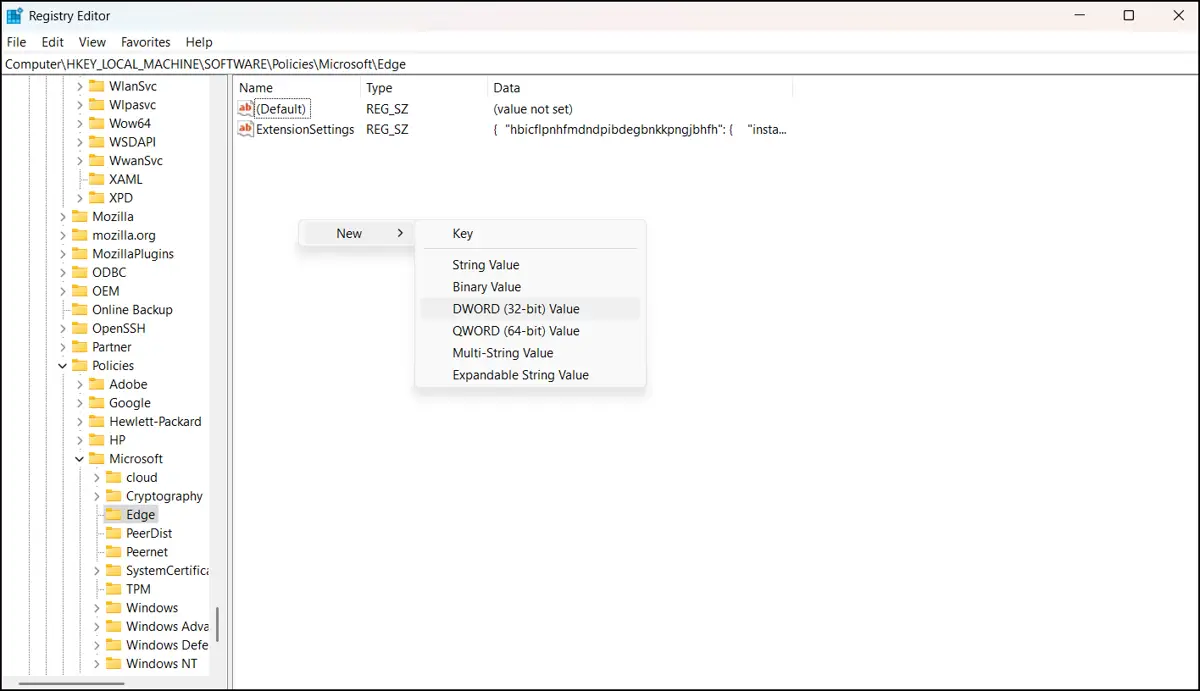
- Navigate to or copy and paste this path into the Registry address bar:
HKEY_LOCAL_MACHINE\SOFTWARE\Policies\Microsoft\Edge
💡 Note: If Edge (key) is not available. Create a new key and name it Edge.
- Look for the InPrivateModeAvailability DWORD (32-bit) value under Edge or create a new one if it doesn’t exist.
- Set the Value data to 1 to disable InPrivate browsing on Microsoft Edge. Set it to 0 (default) to allow or revert to the default settings.
- Relaunch Edge to apply the new settings.
🥷 Tip: Setting the Value data to 2 will force Edge to open with InPrivate always enabled.
Additional considerations and tips on InPrivate browsing settings
Verify policy application via Edge
To check if the Registry changes have been successfully applied, you will need to relaunch the browser and follow these steps:
- Open Microsoft Edge.
- Type edge://policy in the address bar and press Enter.
- Look for the corresponding policy (e.g., InPrivateModeAvailability) and check OK under Status to confirm that it’s active.
Alternatively, the New InPrivate Window option in Edge’s browser settings will be greyed out if you’ve elected to switch off the InPrivate browsing feature.
Solutions only apply to Microsoft Edge
These methods only prevent InPrivate browsing in Edge. It will not turn off private browsing or Incognito Mode in Chrome, Firefox, or other installed browsers.
User bypass prevention
To prevent other users from going around the restrictions, you can use AppLocker or App Control for Business from Windows or your preferred third-party IT management software to limit private browsing across all browsers.
Kiosk mode
Apart from compliance within production, consider disabling InPrivate browsing on public-facing devices to reinforce data security and control over these endpoints. You may also consider uninstalling other browsers that you don’t actively manage or use.
Roaming profile
For dynamic environments, you may apply policies per user or via logon scripts to ensure consistency across various domain environments.
Best practices for managing InPrivate browsing settings
When using an InPrivate tab on Microsoft Edge, the browsing data is not stored on the device or attached to a Microsoft account. This setup can be good for personal or shared devices. Temporary sessions may also be used for testing and troubleshooting.
On the other hand, while administrators can see traces of the session using monitoring tools, a policy for disabling InPrivate browsing might still be deployed for full organizational compliance and endpoint visibility. After all, guest browsing provides limited data protection and observability.
Related topics:
- How to Disable Microsoft Edge from Launching at Startup in Windows
- How to Enable or Disable Automatic Sign-in on Microsoft Edge in Windows 11
- How to Enable or Disable Clear Browsing Data When Microsoft Edge Closes in Windows 11
- How to Enable or Disable Clear Browsing Data When Microsoft Edge Closes in Windows 11(Video)
Quick-Start Guide
NinjaOne MDM provides application management capabilities that can help you control browser settings.
You may be able to manage this through:
- Browser-specific managed configurations
- Group policy settings pushed through MDM
- Application restriction settings






