Key Points
- Access Windows Firewall configuration settings: Open the Windows Security application or the Control Panel to manage which applications are permitted to communicate across your network.
- Enable applications through the firewall interface: Use the “Allow an app or feature through Windows Firewall” menu to grant network access to specific software while maintaining overall system protection.
- Configure permissions for specific network profiles: Assign app permissions based on the network type by selecting Private for trusted home or office environments and Public for restricted access on unsecure connections.
- Manage granular traffic with advanced security rules: Create custom inbound and outbound rules within the Advanced Settings to control specific ports, protocols, and executable file paths for precise security management.
- Apply the principle of least privilege for app exceptions: Limit security risks by only allowing necessary applications to pass through the firewall and regularly auditing the allowed list to remove outdated or unused entries.
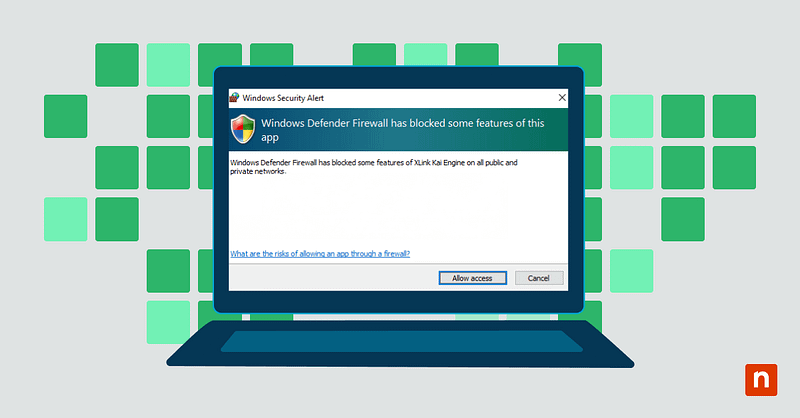
In this article, you will learn how to allow apps through your Windows Firewall safely. Windows Defender Firewall serves as your first line of defense against unwanted network traffic. Unlike earlier versions of the basic Windows XP firewall, today’s Windows Defender Firewall has evolved into a sophisticated security tool that guards your system against unauthorized access while allowing legitimate applications to communicate freely.
If you prefer a visual guide, watch How to Allow Apps Through Your Windows Firewall & The Risks Involved.
Enforce firewall exceptions across every endpoint with NinjaOne.
Understanding Windows Defender Firewall app permissions
Windows Defender Firewall manages network traffic through a system of rules and permissions. These permissions work like a security checkpoint, controlling which applications can send and receive data through your network connections. Each time an application requests network access, the firewall checks if it has the proper credentials to pass through.
The permission system operates across three distinct network profile types:
- Private networks: Used for home or work environments where you trust the connected devices.
- Public networks: Applied in locations like coffee shops or airports where additional security is needed.
- Domain networks: Typically found in corporate environments with managed network policies.
Understanding these profiles helps you make informed decisions about app permissions. For instance, you might want to allow an app through firewall settings on your private network but block it when you’re connected to public WiFi.
Each application in your firewall settings can have different permissions based on:
- The specific ports it uses for communication.
- The network protocols it requires (TCP/UDP).
- The direction of the connection (incoming or outgoing).
- The network profiles where the rule applies.
When to allow an app through Windows Firewall
Deciding when to allow applications through your Windows Defender Firewall requires careful consideration of several factors. While some apps clearly need network access to function, others might request permissions they don’t truly require. Understanding the right scenarios helps you make informed decisions about your system’s security.
Essential app scenarios
Your daily workflow likely includes various applications that require network access. Video conferencing tools, for instance, need firewall permissions to handle audio and video streams effectively. Remote desktop applications must establish secure connections to function properly, while development tools often require network access for package management and updates.
Common applications that typically need firewall access include:
- Video conferencing tools need access to send and receive audio and video streams.
- Remote desktop applications require network access to establish secure connections.
- Collaboration and file-sharing tools require network access to synchronize files and enable real-time teamwork.
- CRM and ERP systems need firewall permissions to securely retrieve and update data from centralized servers.
Network requirements
Understanding network requirements helps you configure appropriate permissions. Applications should clearly document the required ports and protocols in their technical specifications. Review this documentation carefully, as granting excessive network access can create unnecessary security vulnerabilities.
When reviewing network requirements, consider:
- The application should specify which ports it needs for communication.
- Connection protocols (TCP/UDP) should match the developer’s documentation.
- Your network infrastructure must support the application’s bandwidth needs.
Risk assessment factors
Risk assessment involves more than just checking boxes. You need to consider how each application fits into your overall security strategy. Applications with broad network access create larger attack surfaces that require more monitoring and maintenance. Regular updates become crucial for applications with firewall permissions, as security patches help protect against newly discovered vulnerabilities.
The Rule of Least Privilege
When creating custom rules, always follow the “Rule of Least Privilege.” If an application only needs to communicate with devices on your local network (like a printer or a local media server), don’t allow it on the “Public” profile. By restricting the “Scope” of a rule to specific IP addresses, you ensure that even if a port is open, it only talks to the specific devices you trust.
Security risks of allowing app permissions
When you allow an app through firewall settings, you create potential entry points into your system. Understanding these risks helps you make informed decisions about application permissions and implement appropriate safeguards.
Common vulnerabilities
Applications with firewall permissions can introduce several security weaknesses to your system. Outdated or unpatched applications often contain known vulnerabilities that attackers actively exploit. Even legitimate applications might have security flaws in their network communication methods.
Some of the most prevalent vulnerabilities include:
- Buffer overflow exploits can occur when applications improperly handle network data.
- SQL injection becomes possible when applications process external database queries.
- Cross-site scripting vulnerabilities emerge in web-based applications.
Network exposure points
Every application you allow through Windows Defender Firewall creates new network exposure points. Think of each permitted application as a door into your system—the more doors you open, the more points require monitoring and protection.
Network exposure typically occurs when:
- Open ports remain accessible even when applications are not in use.
- Protocol vulnerabilities already exist in the networking stack.
- Unrestricted network profiles could allow access from untrusted networks.
Malware concerns
Malware authors often target applications with firewall permissions because these programs already have network access. A compromised application with firewall permissions becomes a perfect launching point for further attacks.
When malware exploits an allowed application, it can:
- Create backdoors for future unauthorized access.
- Establish command and control connections without triggering alerts.
- Bypass firewall restrictions by piggybacking on legitimate traffic.
App-Based vs. Port-Based Rules
It is important to distinguish between allowing a program and opening a port:
- App-Based: You tell Windows, “Let this specific file (e.g., zoom.exe) talk to the internet.” This is safer because the hole in the firewall closes when the app isn’t running.
- Port-Based: You tell Windows, “Keep Port 8080 open for anything that wants to use it.” This is riskier because any process—including malware—could potentially use that open door. Always prefer App-Based rules whenever possible.
Step-by-step guide: How to allow an app through a firewall
There are several ways to configure your Windows Defender Firewall permissions. Each approach offers different advantages depending on your technical comfort level and specific requirements.
Use the Windows Security settings
The graphical interface provides the most straightforward method to allow an app through Windows Firewall settings. Here’s how to use it:
- Open Windows Security by searching for “Windows Security” in the Start menu.
- Navigate to “Firewall & network protection.”
- Click “Allow an app through firewall.”
- Select “Change settings” to enable modifications.
- Click “Allow another app” to add a new application.
Here’s how to modify permissions for existing applications:
- Locate the app in the list of allowed applications.
- Check or uncheck boxes for private and public networks.
- Verify the correct network profiles are selected.
Note for Windows 11 Users: While the steps are similar, Windows 11 users can quickly access these settings by pressing Win + I, navigating to Privacy & security > Windows Security, and selecting Firewall & network protection. The “Allow an app through firewall” link will then open the classic Control Panel interface.
Command line methods
For IT professionals who prefer command-line tools, both Command Prompt and PowerShell offer efficient ways to manage firewall rules. These methods provide more precise control over rule creation than the graphical interface.
- Command Prompt: “netsh advfirewall firewall add rule name=”My App” dir=in action=allow program=”C:\Path\To\App.exe” enable=yes”
- PowerShell: “New-NetFirewallRule -DisplayName “My Application” -Direction Inbound -Program “C:\Path\To\App.exe” -Action Allow”
The command line provides fast rule creation without menu navigation and enables automation through batch files or scripts. You can specify detailed parameters for complex configurations while easily exporting and importing firewall rules across multiple systems.
Network profile configurations
Understanding network profiles helps you apply the right permissions in different scenarios. You should configure each application’s firewall access based on your network environment:
Private network settings work best when:
- You are connected to a home or work network.
- All devices on the network are trusted.
- You need to share files or printers.
Public network profiles require stricter settings:
- Disable unnecessary inbound connections.
- Limit application permissions to essential functions.
- Enable logging for connection attempts.
To see the process shown step by step, please watch this short video: ‘How to Allow Apps Through Your Windows Firewall & The Risks Involved’.
Secure your environment by centrally managing Windows Firewall policies.
Controlling outbound traffic
Most users focus on “Inbound” traffic (who can get into your computer). However, for high-security environments, managing “Outbound” traffic is just as important. If a piece of spyware infects your system, an Outbound rule can prevent it from sending your data back to its server. This requires using the Windows Defender Firewall with Advanced Security console.
Creating custom app rules for enhanced security
Custom firewall rules give you precise control over how applications interact with your network. Instead of using basic allow/block rules, you can create sophisticated rules that restrict applications to specific IP ranges, limit them to certain times of day, or control which protocols they use. These advanced rules help minimize your attack surface while ensuring applications have exactly the access they need to function properly. To better understand how firewalls function as part of your overall security posture, watch our video: What is a Firewall?.
Managing Windows Defender Firewall settings across numerous endpoints can be challenging. Ninja One’s Endpoint Management platform streamlines this process, letting you control firewall rules, monitor application access, and manage security policies from a single dashboard. Try it for free and see how easy endpoint security management can be.