Screen sharing with NinjaOne Remote
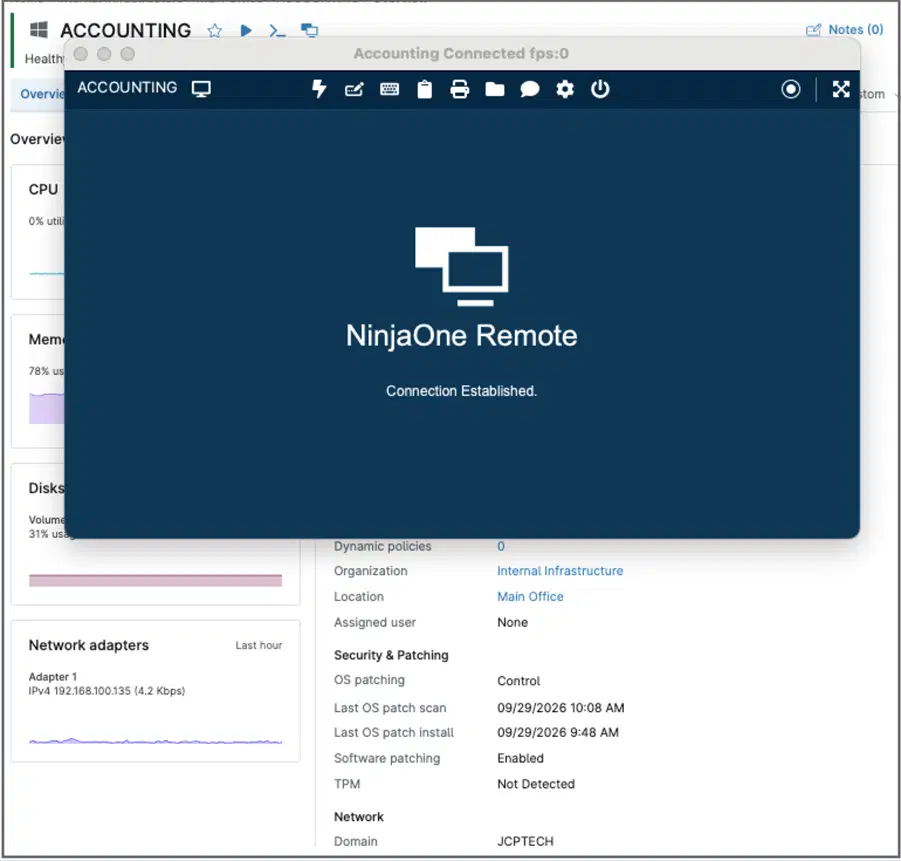
NinjaOne Remote is screen sharing software that lets IT teams and MSPs access devices remotely, with one-click access, multi-monitor viewing, and encrypted connections.






Common screen sharing software challenges
Problem | How NinjaOne Remote resolves it |
Remote support tools that require complex setup slow IT teams down when a device needs immediate attention. | NinjaOne Remote connects to any device with one click, so technicians can start troubleshooting immediately. |
Troubleshooting a device without seeing its full display, or without being able to talk through the issue with the end user, slows down resolution. | NinjaOne Remote provides multi-monitor viewing and built-in live chat, so technicians see the full picture and can communicate with end users in real time. |
Sharing screens and controlling devices remotely risks exposing sensitive data if the connection isn’t secured. | NinjaOne Remote encrypts every session and applies role-based access controls, so remote sessions stay secure. |
Devices that need maintenance outside business hours require someone to be physically present to grant access. | NinjaOne Remote supports unattended access, so technicians can connect to a device without requiring the end user to be present. |
Performing maintenance during business hours risks interrupting the end user’s work. | NinjaOne Remote background mode lets technicians run maintenance tasks on a separate Windows desktop, independent of the user’s session, so the end user can keep working uninterrupted. |
Key screen sharing software capabilities
Faster issue resolution
One-click access and multi-monitor viewing let technicians start troubleshooting immediately instead of setting up a connection first.
Reliable performance on any connection
Bandwidth-adaptive sessions stay smooth even when a device is on a slower network, reducing dropped or laggy connections.
Clear communication during support sessions
Built-in chat lets technicians talk through an issue with the end user without switching to another tool.
Secure remote sessions
Encryption and role-based access controls keep remote sessions protected, so only authorized technicians can connect.
Maintenance without disrupting end users
Unattended access lets technicians resolve issues or perform maintenance outside business hours, without requiring the end user to be present.
Maintenance during business hours without disrupting the user
Background mode on Windows devices lets technicians handle routine maintenance while the end user keeps working, so it doesn’t have to wait until after hours.
Discover NinjaOne’s remote IT support software with powerful, cutting-edge capabilities for seamless IT management

One-click remote access
Connect to any device with a single click, without complicated setup, for immediate troubleshooting.

Bandwidth-adaptive performance
Sessions automatically adjust video quality to the connection speed, so remote access stays smooth even on slower networks.

Multi-monitor viewing
Technicians can view and manage multiple monitors on a device at once, for full visibility and faster troubleshooting.

Live chat during remote sessions
Technicians can chat with end users while troubleshooting, keeping communication clear without leaving the session.

Encrypted sessions with role-based access
Remote sessions are protected with encryption and role-based access controls, so only authorized technicians can connect.

Unattended access from anywhere
Technicians can connect to and manage devices without the end user present, from any location.

Session logging for accountability
Administrators can review remote session activity, giving IT a clear record of who connected to a device and when.

Background mode for non-intrusive maintenance
On Windows devices, technicians can run maintenance tasks, such as file browsing, service and process management, or registry edits, on a separate desktop that runs independently of the signed-in user’s session. Actions that require a reboot or logoff still need to be scheduled outside business hours, and access to background mode is gated by its own distinct permission.
Simplified Remote IT Support for Every Business
Supporting a distributed or remote workforce
When an employee needs help wherever they’re working, technicians can connect to their device in one click instead of scheduling an on-site visit.
Diagnosing an issue that needs visual confirmation
When a problem is hard to describe over the phone, technicians can view the device’s screen directly and talk through the fix using live chat.
Maintaining devices outside business hours
When a device needs attention outside working hours, technicians can use unattended access to resolve the issue without waiting for the end user to be available.
How screen sharing software works
Here’s how screen sharing and remote access are set up and used in NinjaOne Remote, at a high level.
I. Enable NinjaOne Remote
Administrators enable the NinjaOne Remote App and configure session settings.
II. Set access permissions
Administrators configure role-based access, so only authorized technicians can start a remote session.
III. Connect to a device
Technicians start a one-click session for attended support, or use unattended access when the end user isn’t present.
IV. Troubleshoot and communicate
Technicians view the device’s screen, including multiple monitors, and use live chat to communicate with the end user during the session.
V. Review session activity
Administrators can review session logs periodically to confirm remote access is being used appropriately across the team.
Why organizations trust NinjaOne
Citrus Motors, a California auto sales and service company, uses NinjaOne Remote to resolve support issues without needing an on-site visit.
“When we do receive calls, NinjaOne’s remote access reduced our issue resolution time by 89%,”
said Phil Collett, IT Director, Citrus Motors.
This is why customers love us
100,000
Endpoints managed
“NinjaOne is a scalable solution. It’s built on a modern SaaS architecture and it’s future-proof.”
40%
More Cost Effective
“NinjaOne’s price point is 40% less than any other endpoint management tool on the market, while being more powerful and easy to use.”

10-15
Tools Replaced
“Before, I needed 10-15 different tools to execute what NinjaOne does in its centralized, single pane of glass.”

30%
Less time for patching
“We observed a 30% reduction in the time taken for patch deployments compared to our previous solution.”

2,000
Endpoints managed
“NinjaOne gives me much more flexibility and security in my work”

30%
Annual ROI
“[NinjaOne] has already shown its value in ROI…it’s at least a hundred thousand dollars annually.”

24x
Faster Endpoint Management
“Our processes have become 24x faster with NinjaOne.”

20-40
Hours Saved Each Week
“Leveraging the automations feature within NinjaOne has enabled me to save upwards of what would likely be 20 to 30 to even 40 hours per week.”
Try screen sharing in NinjaOne Remote
See how NinjaOne Remote helps IT teams and MSPs support devices from anywhere.


Screen Sharing Software FAQs
What is screen sharing in NinjaOne Remote?
NinjaOne Remote is screen sharing software that lets technicians view and control a device’s screen remotely, for real-time troubleshooting or unattended maintenance, with encrypted connections and role-based access controls.
How does NinjaOne Remote keep sessions secure?
NinjaOne Remote protects sessions with encryption and role-based access controls, so only authorized technicians can connect to a device. It uses the X25519 key exchange function to securely establish shared secrets, the XSalsa20 stream cipher to encrypt session data, and the Poly1305 message authentication code (MAC) to verify data authenticity and integrity. Sessions are logged and can optionally be recorded to support visibility and compliance requirements.
Is screen sharing safe with NinjaOne Remote?
Yes. Due to the key exchange, encryption, and authentication algorithms NinjaOne Remote uses, sessions stay protected even over public or untrusted networks. Administrators can also review session logs to confirm remote access is being used appropriately.
How do I share my screen on any platform using NinjaOne Remote?
Technicians can start a session directly from the NinjaOne device dashboard by clicking the NinjaOne Remote icon next to a device, or from a support ticket by hovering over the play icon next to the device name, selecting NinjaOne Remote from the dropdown menu, and clicking Connect. Once connected, technicians can view and interact with the device’s screen as needed.
What does unattended access mean?
Unattended access lets technicians connect to a device without needing the end user to be present. Administrators can configure remote access to prompt the end user for confirmation before connecting, or to connect without a prompt, depending on the organization’s support and privacy needs.
Does the user always need to be at the computer being accessed?
No. Unattended access lets technicians connect without the user present. Administrators can configure remote access to prompt the end user for confirmation before connecting, or to connect without a prompt, depending on the organization’s support and privacy needs. Attended access requires the user to grant permission and be present to start the session.
Can technicians communicate with end users during a remote session?
Yes. Built-in live chat lets technicians talk through an issue with the end user without leaving the remote session.
Can NinjaOne Remote view multiple monitors on a device?
Yes. Technicians can view and manage multiple monitors on a single device at once, for full visibility during troubleshooting.
Related Resources
What is Screen Sharing?

NinjaOne Remote
One click. Any endpoint. All on NinjaOne.
More on NinjaOne Remote
NinjaOne Remote gives IT teams and Managed Service Providers (MSPs) a fast, secure, and reliable way to connect to any endpoint, no matter where it’s located.