Eliminate Wi-Fi Setup Headaches
Automate Wi-Fi configuration policies to ensure every device connects securely from day one, without manual setup, shared passwords, or constant connectivity support tickets.
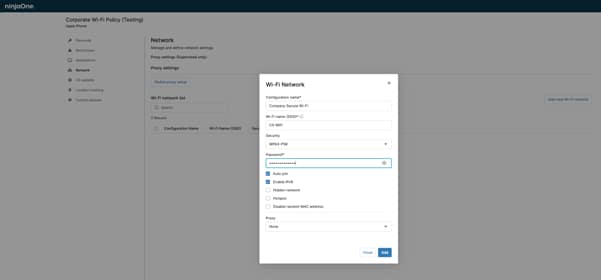
Automate Wi-Fi configuration policies to ensure every device connects securely from day one, without manual setup, shared passwords, or constant connectivity support tickets.






New devices automatically receive approved Wi-Fi settings during enrollment, allowing users to connect securely from day one without manual configuration or password requests.
IT can require secure sign-in methods like passwords or digital certificates, ensuring devices connect only to approved company networks and follow established security rules.
By eliminating manual setup and reducing connectivity errors, teams spend less time troubleshooting Wi-Fi issues and handling password-related support tickets.

Create Wi-Fi configurations within a device policy by defining the network name (SSID), security type, and authentication method directly from the NinjaOne MDM console.

Configure secure wireless authentication using WPA2 or WPA3 password-based access, or certificate-based authentication for enterprise network environments.

Apply Wi-Fi policies to specific devices or device groups to ensure the correct network settings are delivered where needed.

Modify Wi-Fi settings within the policy and apply the updated configuration to assigned devices without manually reconfiguring each one.
When a new device is enrolled, it automatically receives the approved Wi-Fi settings, allowing users to connect securely without manual configuration.
If Wi-Fi passwords or security settings change, IT can update the policy and apply the new configuration without reconfiguring each device individually.
Organizations with multiple locations can assign different Wi-Fi settings to specific device groups, ensuring devices connect to the correct network in each environment.
In this guide, we will provide a playbook for managing and securing Wi-Fi across managed endpoints.

This guide will teach you how to change wireless network connection priority settings in Windows, helping you optimize your wireless connections.
This guide will walk you through hiding Wi-Fi networks in Windows 11 using the Command Prompt.
100,000
Endpoints managed
“NinjaOne is a scalable solution. It’s built on a modern SaaS architecture and it’s future-proof.”

40%
More Cost Effective
“NinjaOne’s price point is 40% less than any other endpoint management tool on the market, while being more powerful and easy to use.”

10-15
Tools Replaced
“Before, I needed 10-15 different tools to execute what NinjaOne does in its centralized, single pane of glass.”

30%
Less time for patching
“We observed a 30% reduction in the time taken for patch deployments compared to our previous solution.”

2,000
Endpoints managed
“NinjaOne gives me much more flexibility and security in my work”

30%
Annual ROI
“[NinjaOne] has already shown its value in ROI…it’s at least a hundred thousand dollars annually.”

24x
Faster Endpoint Management
“Our processes have become 24x faster with NinjaOne.”

20-40
Hours Saved Each Week
“Leveraging the automations feature within NinjaOne has enabled me to save upwards of what would likely be 20 to 30 to even 40 hours per week.”

They allow IT teams to automatically configure wireless networks on managed devices from a central console. Instead of manually setting up Wi-Fi on each device, administrators define the network settings once and deploy them securely, ensuring devices connect to the correct network while reducing errors, protecting credentials, and improving overall security and efficiency.
They automatically configure secure Wi-Fi access as soon as a device is enrolled, allowing it to connect immediately without users entering passwords or contacting IT.
Yes, NinjaOne lets IT define Wi-Fi settings (network name, security type, and credentials) once in a policy and automatically push them to managed devices so they can connect securely without manual input.
Wi-Fi policies support both password-based access and certificate-based authentication. This means organizations can use a shared Wi-Fi password (like WPA2 or WPA3 Personal) or assign each device a unique digital certificate for more advanced security.
Yes. Wi-Fi policies can be assigned at the organization or location level, allowing IT to apply the appropriate network settings based on where devices are deployed. This ensures devices connect to the correct wireless network for each physical site.
They strengthen security by ensuring devices connect only to approved networks using enforced authentication methods like WPA2, WPA3, or certificates. Because all Wi-Fi settings are managed centrally, IT can maintain consistent security standards across every device, reduce the risk of unauthorized access, and support compliance requirements more effectively.
Yes. Wi-Fi credentials are securely embedded in the policy and transmitted over an encrypted management channel. The policy is applied automatically on managed devices, eliminating the need for users to manually enter the password. This reduces the risk of credential exposure while maintaining controlled and secure network access.
If Wi-Fi network settings change (for example, the password is updated), the Wi-Fi policy must be modified accordingly. Once the policy is updated, the revised configuration is automatically applied to all assigned devices through the management channel, without requiring manual changes on each device.
Yes. Wi-Fi policies can be combined with other MDM configurations and enrollment workflows, allowing devices to receive network settings alongside security, compliance, and management policies during setup.
They save time by removing the need to manually configure Wi-Fi on each device and reducing common setup mistakes. Because devices connect correctly from day one, IT teams spend less time troubleshooting connectivity issues and answering password-related support requests.