Key Points
- Essential File Commands:
- copy, del, rename, move, xcopy: Copy, move, rename, or remove files and directories.
- robocopy: Robust copying and syncing of folders.
- attrib, cipher, fc, type, copy con, replace: Manage file attributes, encryption, comparisons, and file creation.
- Directory Navigation:
- cd, dir, mkdir, rmdir, tree, pushd, popd, path, title: Move between folders, list contents, create/remove directories, and manage navigation shortcuts.
- Network Tasks:
- ipconfig, ping, tracert, netstat, nslookup, netsh, arp -a, hostname, pathping, getmac, nbtstat, shutdown /i: Diagnose and configure network settings and connections.
- net use, net user, telnet: Manage network resources, user accounts, and remote connections.
- System Info & Processes:
- systeminfo, winver, tasklist, taskkill, wmic, set, ver, whoami: Display OS details, view/terminate running processes, manage environment variables, and check logged-in users.
- Disk Management:
- diskpart, list disk, select disk, clean, format, chkdsk, label, vol: Partition, check, label, and format disks.
- Security & Ownership
- takeown, icacls, cacls, runas, net user, cipher: Manage file ownership, permissions, encryption, and user accounts.
- Accessing CMD:
- Search “cmd” and Run as administrator for elevated privileges in Windows 7, 8, 10, or 11.
The Windows Command Prompt (CMD) is one of the most used tools in the Windows operating system, yet many users only scratch the surface of what it can do. While Command Prompt remains an important utility for troubleshooting, legacy scripts, and compatibility tasks, Microsoft now primarily recommends PowerShell and Windows Terminal for modern automation and system administration. However, fully understanding CMD commands can still significantly improve your workflow.
In this guide, we’ve compiled 70+ Windows CMD commands, complete with syntax, real-world examples, and usage tips. We’ll cover everything from file management and network troubleshooting to disk operations and automation.
NinjaOne’s IT Automation System
Save time by automating repetitive tasks. Automate Windows CMD commands execution across multiple endpoints with NinjaOne!
Read more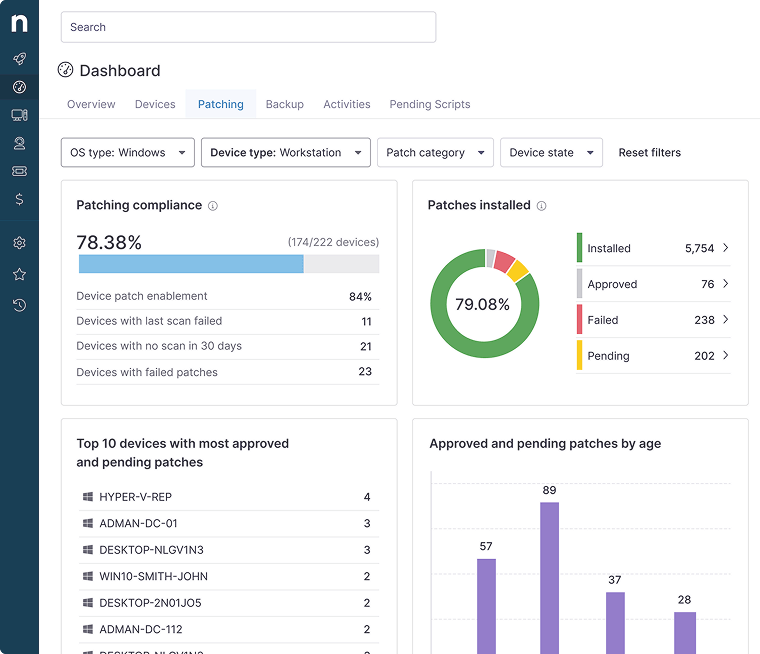
70+ Useful Windows CMD Commands
15 File management Windows CMD commands
This first group of Windows admin CMD commands simplifies copying, deleting, and managing files and directories, streamlining your daily operations and enhancing your workflow.
| Command: | Description: |
| copy | Copies one or more files to another location |
| del | Deletes one or more files |
| rename (ren) | Renames a file |
| move | Moves or renames a file |
| xcopy | Copies files and directories, including trees and hidden/system files |
| find | Searches for a text string in a file or files |
| robocopy | Robust tool for syncing directories, ideal for backups |
| subst | Maps a local folder as a drive letter |
| attrib | Changes the attributes of a file or directory |
| cipher | Encrypts or decrypts files and folders |
| fc | Compares two files line by line |
| type | Displays the content of a text file |
| copy con | Creates a new file directly from the command line |
| replace | Replaces files in one directory with files from another directory. |
- copy
Copies one or more files to another location.
Syntax:
copy [source] [destination]
Example:
copy report.docx D:\Backup\
- del
Deletes one or more files.
Syntax:
del [filename]
Example:
del oldfile.txt
- rename (or ren)
Renames a file.
Syntax:
rename [oldname] [newname]
Example:
rename file.txt newfile.txt
- move
Moves a file to a new location or renames it
Syntax:
move [source] [destination]
Example:
move budget.xlsx D:\Reports\
- xcopy
Copies files and directories, including directory trees and system/hidden files, optionally using various parameters for more control.
Syntax:
xcopy [source] [destination] /E /H /C /I
Example:
xcopy C:\Projects D:\Backup /E /H /C /I
- find
Searches for a text string in a file or files, enabling simple text filtering tasks.
Syntax:
find “text” [filename]
Example:
find “error” log.txt
- robocopy
Robust tool for syncing directories, ideal for backups.
Syntax:
robocopy [source] [destination] [options]
Example:
robocopy C:\Data D:\Backup /MIR
CAUTION: Use /MIR carefully, as it mirrors deletions from the source directory.
- subst
Maps a local folder as a drive letter.
Syntax:
subst [drive:] [path]
Example:
subst X: C:\Projects
- attrib
Changes the attributes of a file or directory. You can also use this CMD command in Windows 11: attrib -h -s -r C:\path\to\folder to show hidden files.
Syntax:
attrib [+attribute | -attribute] [filename]
Example:
attrib -h -s -r C:\path\to\file.txt
Pricing for the #1 Endpoint Management software
Pay monthly or annually with flexible contracts.
- cipher
Encrypts or decrypts files and folders.
Syntax:
cipher /E [path]
Example:
cipher /E C:\Sensitive
- fc
Compares two files line by line
Syntax:
fc [file1] [file2]
Example:
fc config_old.txt config_new.txt
- type
Displays the content of a text file.
Syntax:
type [filename]
Example:
type readme.txt
- copy con
Creates a new file directly from the command line.
Syntax:
copy con [filename]
Type the content, then press Ctrl + Z and Enter to save.
Example:
copy con notes.txt
- replace
Replaces one or more files with files from another location.
Syntax:
replace [source] [destination] [/A] [/P] [/R]
Example:
replace draft.docx D:\Projects\
NOTE: replace is a legacy command used to replace files in one directory with files from another. Modern Windows administration typically uses robocopy, xcopy, or PowerShell instead. As a modern alternative, you can use:
Syntax:
robocopy [source] [destination] /MIR
Example:
robocopy C:\Projects D:\Backup /MIR
CAUTION: Use /MIR carefully, as it mirrors deletions from the source directory.
10 Directory navigation and management Windows CMD commands
Use these Windows CMD commands to efficiently navigate directories and manage files and folders directly from Command Prompt. These commands allow IT professionals to move through directories, organize files, and view folder structures.
| Command: | Description: |
| cd | Changes the current directory |
| cd \ | Navigates to the root directory |
| dir | Displays a list of files and subdirectories |
| mkdir (md) | Creates a new directory |
| rmdir (rd) | Removes a directory |
| tree | Displays the folder structure in a text-based tree format |
| pushd | Saves the current directory and changes to another |
| popd | Returns to the directory stored by pushd |
| path | Displays or sets the search path for executable files |
| title | Sets the title for the Command Prompt window |
- cd
Changes your current directory.
Syntax:
cd [path]
Example:
cd C:\Users\John\Documents
- cd \
Navigates to the root directory of the current drive.
Syntax:
cd \
Example:
cd \
- dir
Displays a list of files and subdirectories in a directory.
Syntax:
dir
Example:
dir /p
- mkdir (or md)
Creates a new directory.
Syntax:
mkdir [directoryname]
Example:
mkdir Reports
- rmdir (or rd)
Removes a directory. By default, the directory must be empty.
Syntax:
rmdir [directoryname]
Example:
rmdir OldFiles
To delete a directory and all of its contents without confirmation prompts:
Syntax:
rmdir /s /q [foldername]
Example:
rmdir /s /q TestFolder
Smarter IT starts here
Sign up for the NinjaOne Weekly Newsletter and join a thriving community of IT enthusiasts automating the hardest parts of IT together.
- tree
Displays the folder structure of a drive or path in a text-based tree format.
Syntax:
tree [drive:][path] [/F]
Example:
tree C:\Projects /F
- pushd
Saves the current directory and changes to another.
Syntax:
pushd [path]
Example:
pushd D:\Work
- popd
Returns to the directory stored by the last pushd command.
Syntax:
popd
Example:
popd
- path
Displays or sets the search path for executable files.
Syntax:
path [pathname]
Example:
path C:\Windows\System32
- title
Sets the title for the Command Prompt window.
Syntax:
title [string]
Example:
title Admin Console
15 Network configuration and diagnostics Windows CMD commands
Network configuration commands are useful when troubleshooting or setting up new network connections.
| Command: | Description: |
| ipconfig | Displays current TCP/IP network configuration |
| ping | Tests network connectivity to a host |
| tracert | Traces the path packets take to a network host |
| netstat | Displays active connections and listening ports |
| nslookup | Queries DNS to resolve domain names and IPs |
| netsh | Configures network settings |
| arp -a | Displays the ARP table |
| hostname | Shows the computer’s network name |
| pathping | Combines ping and tracert for detailed network info |
| getmac | Displays the MAC address |
| nbtstat | Diagnoses NetBIOS over TCP/IP |
| shutdown /i | Remote shutdown tool |
| net use | Maps network drives |
| net user | Manages local user accounts |
| telnet | Connects to remote servers (if installed) |
- ipconfig
Displays all current TCP/IP network configuration values and refreshes Dynamic Host Configuration Protocol (DHCP) and Domain Name System (DNS) settings. Additional ipconfig commands are available here.
Syntax:
ipconfig
Example:
ipconfig /all
Discover what IPConfig is and why does it matter – watch our video.
- ping
Tests the ability to reach a specific network device.
Syntax:
ping [hostname or IP]
Example:
ping google.com
- tracert
Traces the path that a packet takes to reach a network host, helping identify where problems are occurring in the network.
Syntax:
tracert [hostname or IP]
Example:
tracert 8.8.8.8
- netstat
Displays active connections, ports, Ethernet statistics, and the IP routing table.
Syntax:
netstat
Example:
netstat -ano
- nslookup
Queries the DNS to obtain domain name or IP address mapping.
Syntax:
nslookup [hostname]
Example:
nslookup openai.com
- netsh
Allows configuration of almost any aspect of network settings.
Syntax:
netsh [context] [command]
Example:
netsh interface ip show config
- arp -a
Displays current ARP entries by interrogating the current protocol data. It shows the IP address and matching MAC address.
Syntax:
arp -a
Example:
arp -a
- hostname
Shows the computer’s network name, aiding in network identification and troubleshooting.
Syntax:
hostname
Example:
hostname
- pathping
Combines the features of ping and tracert, providing more detailed information about network routes and latency.
Syntax:
pathping [hostname or IP]
Example:
pathping google.com

How to View Google Chrome Download History in Windows
Read more- getmac
Displays the MAC address of the network card.
Syntax:
getmac
Example:
getmac /v
- nbtstat
Helps diagnose NetBIOS over TCP/IP connections and display protocol statistics.
Syntax:
nbtstat [options]
Example:
nbtstat -n
- shutdown /i
Remote shutdown tool for network management.
Syntax:
shutdown /i
Example:
shutdown /i
- net use
Connects to, removes, or displays shared resources.
Syntax:
net use [drive:] \\computer\share
Example:
net use Z: \\Server\Share
- net user
Manages local user accounts.
Syntax:
net user [username] [password] /add
Example:
net user testuser Pass123 /add
- telnet
Connects to a remote host using the Telnet protocol (if installed).
Syntax:
telnet [hostname or IP] [port]
Example:
telnet mail.example.com 25
NOTE: Telnet is disabled by default on all modern Windows versions and is not recommended due to its lack of encryption. Use SSH instead: ssh user@hostname
8 System information Windows CMD commands
Gathering comprehensive system information is crucial for troubleshooting in safe mode, system monitoring, and ensuring your Windows setup is running optimally.
| Command: | Description: |
| systeminfo | Displays detailed system configuration and specs |
| winver | Shows the Windows version and build number |
| tasklist | Lists all running processes |
| taskkill | Ends processes by PID or image name |
| wmic | Accesses advanced system management info |
| set | Displays or sets environment variables |
| ver | Displays the current Windows version |
| whoami | Shows the current logged-in user |
- systeminfo
Provides a detailed overview of your system, including OS configuration, hardware details, and network information.
Syntax:
systeminfo
Example:
systeminfo
- winver
Quickly checks the version of Windows you are running.
Syntax:
winver
Example:
winver
- tasklist
Lists all currently running processes along with their Process ID (PID).
Syntax:
tasklist
Example:
tasklist /v
💡 Shows verbose process details.
- taskkill /PID [pid_number] /F
Forcefully terminates processes that are unresponsive or consume too many resources. Replace [pid_number] with the actual PID from your tasklist.
Syntax:
taskkill /PID [pid_number] /F
Example:
taskkill /PID 1234 /F
- wmic
Displays Windows Management Instrumentation (WMI) information, allowing more advanced system management through various subclasses (e.g., wmic product get name, wmic cpu get name).
Syntax:
wmic [alias] get [property]
Example:
wmic cpu get name
NOTE: wmic is deprecated in Windows 10 (since 21H1) and removed by default from newer Windows 11 builds. Use PowerShell’s Get-CimInstance or Get-WmiObject cmdlets instead.
- set
Displays or sets environment variables.
Syntax:
set [variable=[value]]
Example:
set PATH
- ver
Displays the Windows version in text form.
Syntax:
ver
Example:
ver
- whoami
Displays the current logged-in username.
Syntax:
whoami
Example:
whoami
Start a Free Trial of the #1 Endpoint Management Software on G2
No credit card required, full access to all features.
8 Disk management Windows CMD commands
Disk management commands give you the flexibility to manage your storage resources directly from the command line, offering a powerful alternative to graphical user interface tools.
| Command: | Description: |
| diskpart | Opens the Disk Partition utility |
| list disk | Lists all disks connected to the computer |
| select disk | Selects a disk to manage |
| clean | Removes all partitions from the selected disk |
| format | Formats a disk with a specified file system |
| chkdsk | Checks a disk for errors and repairs them |
| label | Changes or creates a volume label |
| vol | Displays the volume label and serial number |
- diskpart
A tool for managing disk partitions.
Syntax:
diskpart
Example:
diskpart
- list disk
Displays all disks connected to the computer.
Syntax:
list disk
Example:
list disk
- select disk
Selects the disk you want to perform operations on.
Syntax:
select disk [number]
Example:
select disk 1
- clean
Removes all partitions and data from the selected disk.
Syntax:
clean
Example:
clean
- format
Formats a disk with a specified file system.
Syntax:
format [drive:] /FS:[filesystem]
Example:
format D: /FS:NTFS
- chkdsk
Checks the disk for errors and repairs the file system.
Syntax:
chkdsk [drive:] [parameters]
Example:
chkdsk C: /f
- label
Changes or creates the volume label of a disk.
Syntax:
label [drive:] [label]
Example:
label E: BackupDrive
- vol
Displays the volume label and serial number of a disk.
Syntax:
vol [drive:]
Example:
vol C:
Keep your systems and endpoints secure through automated patching and custom CMD scripts with NinjaOne.
6 Security & ownership Windows CMD commands
These Windows CMD commands help you manage file/folder ownership, permissions, encryption, and access control directly from the Command Prompt, making them valuable for system administrators and IT pros who need to troubleshoot file access issues, enforce security policies, or manage user privileges efficiently across Windows environments.
| Command: | Description: |
| takeown | Takes ownership of a file or folder |
| icacls | Displays or modifies file/folder permissions |
| cacls | Legacy command to display or change permissions |
| runas | Runs a program as another user |
| net user | Manages user accounts and passwords |
| cipher | Encrypts or decrypts files and folders |
- takeown
Takes ownership of a file or folder.
Syntax:
takeown /F [path] [/R] [/D Y]
Example:
takeown /F C:\SecureFolder /R /D Y
This takes ownership of SecureFolder and all subfolders/files.
- icalcs
Displays or modifies access control lists (ACLs) for files and directories.
Syntax:
icacls [filename] [/grant User:Permission]
Example:
icacls C:\SecureFolder /grant John:F
This grants the user “John” full access (F) to SecureFolder.
- calcs
Displays or changes file permissions (older command, still available).
Syntax:
cacls [filename] [/G User:Permission]
Example:
cacls report.doc /G John:F
This grants the user “John” full access to report.doc
NOTE: cacls is officially deprecated since Windows Vista. Use icacls for all permission management instead.
- runas
Runs a program as another user.
Syntax:
runas /user:[domain\]username program
Example:
runas /user:Admin cmd
This opens a Command Prompt as the Admin user.
- net user
Manages user accounts, including password changes.
Syntax:
net user [username] [newpassword]
Example:
net user John SecurePass123
This changes the password for the user “John”.
- cipher
Encrypts or decrypts files and folders using the Encrypting File System (EFS).
Syntax:
cipher /E [path]
Example:
cipher /E C:\Sensitive
This encrypts all files in the “Sensitive” folder.
4 Advanced Command Prompt Tricks
In addition to your Windows CMD commands list, advanced Command Prompt tricks can significantly enhance your productivity, automate tasks, and manage system operations more efficiently. These tricks often involve a combination of commands, scripting, and deeper system functionalities that go beyond basic command-line input.
Here are some advanced tricks and the reasons why they are beneficial:
1. Batch Scripting for CMD
Batch files allow you to automate repetitive tasks. By writing a script that contains a series of commands, you can run these commands sequentially without manual input each time, saving time and reducing errors.
For example, an IT technician frequently receives tickets about slow performance for multiple Windows workstations. After investigating, they discover that many performance issues are caused by a large volume of temporary files, outdated DNS cache entries, and stalled background processes. The technician can simply execute a single batch script for CMD instead of manually running multiple commands to automate the cleanup process.
Why it’s useful:
- Batch scripting for CMD is ideal for routine maintenance tasks.
- Can be scheduled to run automatically with Windows Task Scheduler.
- Reduces the chance of typos or human error in repetitive work.
Syntax:
@echo off
command1
command2
pause
Example: Create a backup.bat file to copy important documents.
@echo off
xcopy C:\Work D:\Backups /E /H /C /I
echo Backup completed successfully!
pause
💡 Note: What does @echo off mean?
You may be wondering what @echo means and why you need to start your commands with it.
- echo off tells the Command Prompt not to display each command before running it, which keeps the output clean.
- @ hides the echo off line itself, so you don’t see it in the console.
- Always use @echo off at the start of your batch scripts for CMD to achieve a cleaner look.
2. Piping and Redirection
Using the pipe (|) and redirection (>, >>) operators, you can chain commands together or direct their output to files or other programs. For example, you can pipe the output of a dir command into findstr to search for specific files or redirect the output of a command to create a text file.
Why it’s useful:
- Piping allows you to filter, transform, or pass the output of one command directly into another.
- Redirection lets you save command results for later review, logging, or automation.
Syntax:
-
- Piping
command1 | command2
- Piping
-
- Redirect to a file (overwrite)
command > filename.txt
- Redirect to a file (overwrite)
-
- Redirect to a file (append)
command >> filename.txt
- Redirect to a file (append)
Example:
-
- Search for “report” in a directory listing
dir | find “report”
- Search for “report” in a directory listing
-
- Save a process list to a file
tasklist > processes.txt
- Save a process list to a file
-
- Append error messages to an existing log
ping 8.8.8.8 >> networklog.txt
- Append error messages to an existing log
💡 Tip: Difference between > and >>
- > will overwrite the file if it exists.
- >> will append to the file, preserving its contents.
3. Environment Variables
Understanding and using environment variables can help you quickly access system paths and user settings and modify command behaviors. For instance, using %USERPROFILE% to access the current user’s home directory simplifies navigation and file management tasks.
Why it’s useful:
- Allows scripts to adapt to different systems and users without hardcoding paths.
- Speeds up navigation to commonly used locations.
Syntax:
%VARIABLE_NAME%
Common environment variables:
-
- %USERPROFILE% : Current user’s home directory.
- %TEMP% : Temporary files folder.
- %PATH% : Directories where executables are searched.
- %HOMEDRIVE% : The drive letter associated with your home directory.
Example:
-
- Go to the user’s Documents folder
cd %USERPROFILE%\Documents
- Go to the user’s Documents folder
-
- Open the temporary files directory
cd %TEMP%
- Open the temporary files directory
💡 Tip: Viewing all environment variables:
Run the command set. This displays all currently defined environment variables in your system.
4. Using Wildcards
Wildcards (* and ?) can make file management commands like copy, move, and del more powerful by allowing you to specify patterns that match multiple files, which is useful for batch operations on files.
Why it’s useful:
- Quickly target multiple files without typing each name.
- Ideal for bulk cleanup, renaming, or file organization.
Syntax:
-
- Asterisk (*) : Matches zero or more characters.
- Question mark (?) : Matches exactly one character.
Example:
-
- Delete all .tmp files in the current folder
del *.tmp
- Delete all .tmp files in the current folder
-
- Copy all files starting with “report” to another folder
copy report* D:\Reports\
- Copy all files starting with “report” to another folder
-
- Rename all .txt files to .bak
ren *.txt *.bak
- Rename all .txt files to .bak
💡 Tip: Use these wildcard commands with caution. Wildcards don’t ask for confirmation by default, so a command like del *.docx will delete all Word documents in the directory instantly. Use /p with del to prompt before each delete, so the command will look like this: del *.docx /p
6 Other handy utilities: Windows CMD commands
These extra CMD commands don’t fit neatly into the other categories but are incredibly useful for everyday administration, scripting, and troubleshooting.
| Command: | Description: |
| call | Runs one batch file from another and returns control when finished |
| start | Opens a new CMD window or launches a program |
| pause | Pauses batch execution until a key is pressed |
| echo | Displays messages or toggles command display |
| cls | Clears the Command Prompt screen |
| exit | Closes the Command Prompt window |
- call
Runs another batch file or program from within the current batch file, returning control to the original after completion.
Syntax:
call [filename]
Example:
call backup.bat
This executes backup.bat and then returns to the calling script.
- start
Starts a program, opens a document, or launches a new Command Prompt window.
Syntax:
start [program or filename]
Example:
start notepad.exe
This opens Notepad.
- pause
Pauses batch file execution and waits for the user to press a key. Useful for reading output before the window closes.
Syntax:
pause
Example:
pause
This will display “Press any key to continue…”
- echo
Displays messages in the Command Prompt or toggles command echoing on/off.
Syntax:
echo Hello World
Example:
echo
This will display “Hello World” in the Command Prompt.
- cls
Clears the Command Prompt screen, removing all previous text from view.
Syntax:
cls
Example:
cls
- exit
Closes the current Command Prompt session.
Syntax:
exit
Example:
exit
How to access Windows Command Prompt
To use the Windows CMD commands in Windows 10 or any other version, you must first know how to access Windows Command Prompt. The steps can vary slightly depending on your version of Windows.
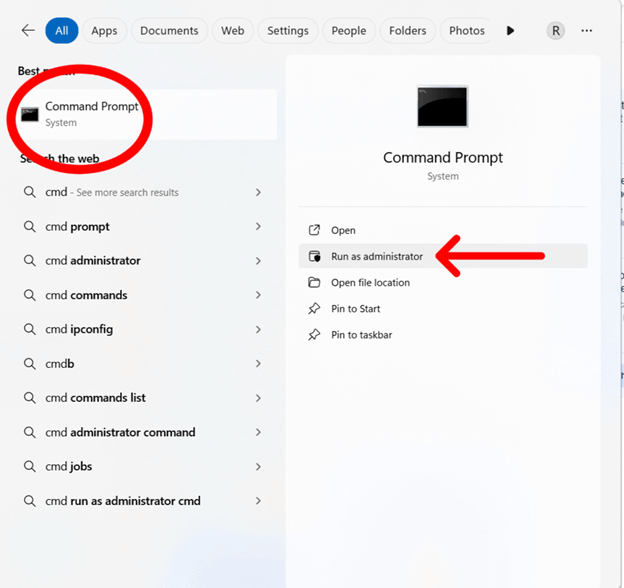
For Windows 8, 8.1, 10, and 11
Follow these steps for standard access:
- Click on the taskbar.
- Type “cmd” in the search field.
- Select “Command Prompt.”
To gain elevated privileges, follow these steps to access the Command Prompt as an administrator:
- Right-click on “Command Prompt” from the search results.
- Select “Run as administrator.”
For Windows 7
- Navigate by clicking “Start” → “All Programs” → “Accessories”.
- For standard user rights, click on “Command Prompt.”
- For administrative rights, right-click on “Command Prompt” and choose “Run as administrator.”
With Command Prompt, you can use Windows CMD commands in Windows 10, 11, or earlier versions to manage files, directories, network settings, and more.
💡 Tip: Before running advanced or system-level commands, confirm whether you’re running Command Prompt as a standard user or administrator. Commands that modify system files, network settings, or user accounts may fail without elevated permissions.
Mastering Windows CMD commands
By mastering these Windows CMD commands, you can move beyond basic computer use and start managing your system like a true IT pro. We recommend keeping this guide as a handy reference so you are always prepared for any situation. It may be a good idea to experiment with different commands as well (in a safe test environment, of course!). The more you practice, the more second-nature these commands will become.
Tired of manual command-line troubleshooting? See how NinjaOne can help you automate and manage IT systems effortlessly—watch a demo.