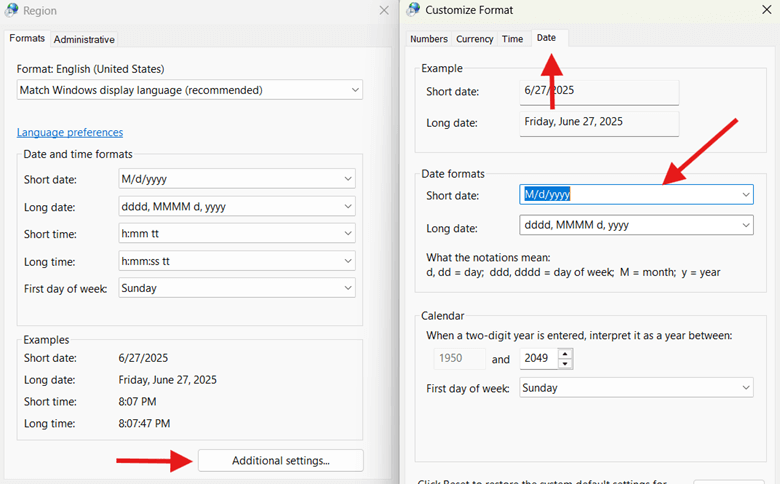
Windows 11 gives you the option to abbreviate the date and time on your taskbar for a more straightforward UI. This can be useful for multiple monitors and smaller displays, but not in the medical and aviation settings, where the year and meridiem indicators (e.g., AM, PM) are vital but omitted in the shortened format.
This guide explains how to configure the date and time on your taskbar and provides proven deployment strategies.
How to abbreviate the date and time on your taskbar
There are several ways to get a short date for your taskbar in Windows 11.
📌 Prerequisites:
- Windows 11 Pro, Education, Enterprise (Version 23H2 or higher)
- Administrator privileges (for Registry Editor and PowerShell methods)
📌 Recommended deployment strategies:
| Click to Choose a Method | 💻 Best for Individual Users | 💻💻💻 Best for Enterprises |
| Method 1: Settings | ✓ | |
| Method 2: Registry | ✓ | |
| Method 3: PowerShell | ✓ | ✓ |
| Method 4: .reg file | ✓ | ✓ |
Method 1: Enable or disable via the Settings app
⚠️ Important: The GUI toggle is only available on newer builds (Windows 11 23H2 and later). If you don’t see these options, proceed to Method 2.
The quickest and most user-friendly way to configure your date and time display is through your Windows settings.
📌 Use case: Support-led assistance
- Press Win + I to open Settings.
- Go to Personalization > Taskbar.
- Expand Taskbar behaviors.
- Locate Show shortened time and date.
- To abbreviate the date and time, select the box.
- To show the full date and time, clear the box.
- If you don’t see these options, it’s likely that you may be using an older version of Windows 11 (23H2), or a policy may be preventing non-admin accounts from seeing it.
Method 2: Enable or disable via Registry Editor
⚠️ Warning: Editing the registry can cause system issues. Create a backup before proceeding.
Modify important registry keys to apply permanent system-wide changes.
📌 Use case: Apply lasting changes that impact all users on a workstation.
- Press Win + R, type regedit, and press Enter.
- Navigate to:
HKEY_CURRENT_USER\Software\Microsoft\Windows\CurrentVersion\Explorer\Advanced
- In the right-hand pane, double-click ShowShortenedDateTimeFormat.
- If you don’t see it, do the following:
- Right-click on an empty space in the right-hand pane.
- Select New > DWORD value (32-bit).
- Name the new value “ShowShortenedDateTimeFormat”.
- If you don’t see it, do the following:
- Modify its value:
- To abbreviate the date and time, type 1.
- To show the full date and time, type 0.
- Close Registry Editor.
- Restart Explorer.exe or log back in to apply changes.
Method 3: PowerShell script for automation
⚠️ Important: Ensure that you’re running PowerShell as an administrator. Otherwise, the command will fail silently.
Deploy powerful scripts that impact user access control and system configuration.
📌 Use case: Automate registry changes at scale.
- Press Win + R, type Powershell, and press Enter.
- To abbreviate the date and time on the taskbar, run this script:
Set-ItemProperty -Path "HKCU:\Software\Microsoft\Windows\CurrentVersion\Explorer\Advanced" `
-Name "ShowShortenedDateTimeFormat" -Value 1
Stop-Process -Name explorer -Force
- To show the full date and time on the taskbar, run this script:
Set-ItemProperty -Path "HKCU:\Software\Microsoft\Windows\CurrentVersion\Explorer\Advanced" `
-Name "ShowShortenedDateTimeFormat" -Value 0
Stop-Process -Name explorer -Force
Method 4: .REG file
Easily apply registry changes by executing a single file on a workstation.
📌 Use case: Workaround for lack of GPO/efficient mass configuration
📌 Prerequisites: Administrator privileges
- Press Win + S, type Notepad, and press Enter.
- To abbreviate the date and time, paste the following script:
Windows Registry Editor Version 5.00
[HKEY_CURRENT_USER\Software\Microsoft\Windows\CurrentVersion\Explorer\Advanced]
"ShowShortenedDateTimeFormat"=dword:00000001
- To show the full date and time, paste the following script:
Windows Registry Editor Version 5.00
[HKEY_CURRENT_USER\Software\Microsoft\Windows\CurrentVersion\Explorer\Advanced]
"ShowShortenedDateTimeFormat"=dword:00000000
- Save the file with a .reg extension.
- Run it as the current user.
- Restart Explorer.exe to apply changes.
⚠️ Things to look out for
| Risks | Potential Consequences | Reversals |
| Wrong keys were modified | System-wide display issues |
|
| PowerShell script typos | Silent failures that can affect all user profiles |
|
| Incorrect syntax in the .reg file | May break UI formatting |
|
Additional considerations when changing formats for date and time on your taskbar
Configuring your taskbar display comes with its risks. Find out how these changes impact your system when you abbreviate date and time, and how you can optimize your workflow.
Multi-monitor behavior
Taskbar behavior can vary in workstations with multiple displays. To avoid inconsistencies, ensure that display scaling and taskbar behavior are synced for all monitors.
No GPO support
No native Group Policy Object exists for abbreviating date and time. As a workaround, you can deploy .reg files that contain the configuration you need to roll out.
High-DPI screens
Custom date and time formats can appear truncated on 4K+ displays. Prepare for this by testing your changes on different DPI settings, adjusting taskbar height, or changing font scaling.
User profiles
Your date and time format changes are per user. In other words, what gets applied to one employee might not appear on others. Use scripts or .reg files in user login scripts for consistency across profiles.
Quick-Start Guide
NinjaOne has several options for managing Windows 11 taskbar time and date display:
1. For managing the abbreviated time and date on the taskbar, NinjaOne offers scripts and methods to modify this setting through:
- Windows Settings
- Registry Editor
- PowerShell
- .reg file modifications
2. In the NinjaOne script library, there are several scripts related to Windows time and date settings, including:
- Scripts to modify regional settings
- Scripts to change time format
- Scripts to customize taskbar and system UI displays
Abbreviate the date and time to adjust to your needs
Configuring your taskbar according to your enterprise needs improves readability, enhances productivity, and eliminates ambiguity with international formats. That said, practice caution to ensure that your changes don’t disrupt perfectly working workflows.
Related topics: