
Key Points
Scareware Blocker in Microsoft Edge protects against fake alerts and deceptive pop-ups, and can be enabled or disabled through multiple methods in Windows 11.
- Enable or disable Scareware Blocker via Edge Settings (GUI) for per-user control without admin privileges.
- Configure Scareware Blocker using the Registry Editor to apply changes system-wide, requiring administrator access.
- Use PowerShell commands to automate enabling or disabling the feature across multiple devices.
- Deploy Group Policy Editor for enterprise-wide management on Windows 11 Pro, Enterprise, or Education editions.
Scareware Blocker in Microsoft Edge protects devices from scareware attacks. It uses AI and machine learning to block fake virus alerts and deceptive pop-ups. Enabling the feature increases browsing security.
The feature is disabled by default. Users and IT administrators can enable or disable it through several methods. This guide explains how to configure the feature in Windows 11.
How to manage Scareware Blocker in Microsoft Edge
This section lists four methods for enabling or disabling the Scareware Blocker feature and provides instructions for verifying whether your changes have taken effect.
📌 Prerequisite: For the methods to work, users must have Microsoft Edge version 134 or later installed on their device.
📌 Recommended deployment strategies:
Click to Choose a Method | 💻 Best for Individual Users | 💻💻💻 Best for Enterprises |
| Method 1: Microsoft Edge settings (GUI) | ✓ | |
| Method 2: Registry Editor | ✓ | |
| Method 3: PowerShell | ✓ | |
| Method 4: Group Policy Editor | ✓ |
🎥 Pull up the video and take in all four methods on screen: How to Enable or Disable Scareware Blocker in Microsoft Edge in Windows 11.
Combine NinjaOne and Edge’s Scareware Blocker for better browsing experience.
Method 1: Configuring the setting via Microsoft Edge (GUI)
Using the Edge interface is the fastest and simplest way to change the Scareware Blocker settings. Since it doesn’t require additional prerequisites, it’s a viable method for both end-users and IT administrators alike.
📌 Use Cases: This method is ideal for:
- Personal devices
- Environments where individual users manage their own settings
- Quick setting configurations
To enable or disable the feature using Edge, follow these steps:
- Open Microsoft Edge.
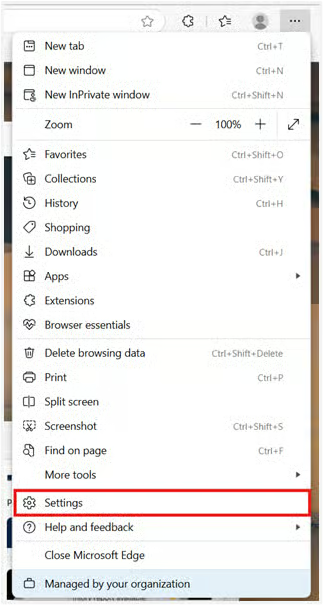
- Click the three-dot menu and select Settings.
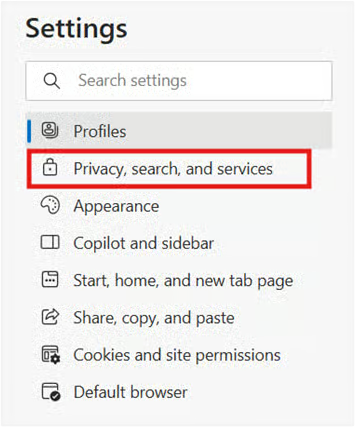
- Go to Privacy, search, and services.
- Select Security.
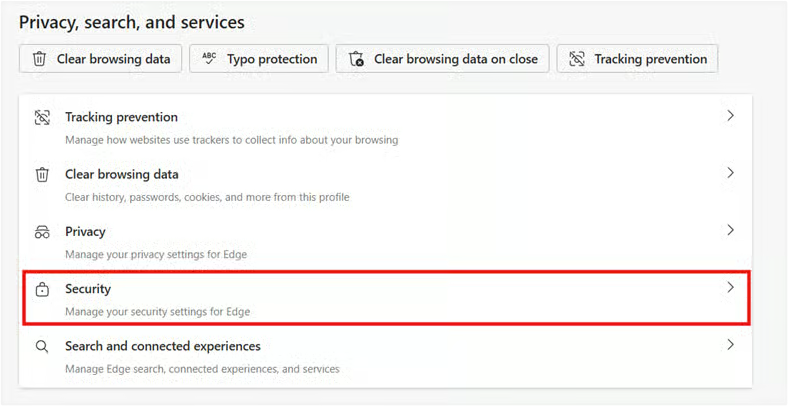
- Switch the Scareware Blocker to on or off based on your preference.
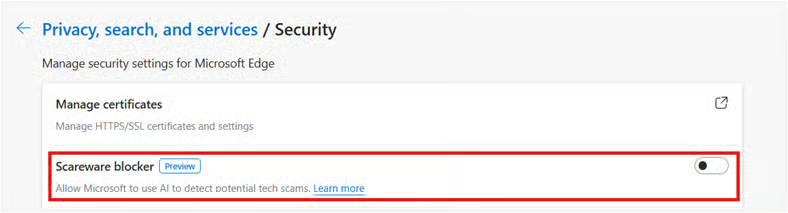
💡 NOTE: The GUI method applies the setting per-user and doesn’t require any administrative privileges.
Method 2: Modifying Registry settings
Using the Registry Editor is an advanced method that affects the settings for all users on the device.
📌 Use Cases: Modifying the registry is useful for:
- IT admins who prefer direct registry manipulation
- Individuals with administrator privileges, but no access to the Group Policy Editor
- Advanced users
📌 Prerequisites: This method requires:
- Administrator privileges
- Familiarity with how Registry Editor works
⚠️ Warning: Modifying the registry may cause system issues. Create a backup before proceeding. Read more about the potential risks of this step in the Things to look out for section.
Follow these steps:
- Press Win + R, type regedit, and press Enter to open Registry Editor.
- Navigate to HKEY_LOCAL_MACHINE\SOFTWARE\Policies\Microsoft\Edge
- If the Edge key does not exist, create it.
- Right-click in the right pane, select New > DWORD (32-bit) Value, and name it ScarewareBlockerProtectionEnabled.
- Set the value to:
- 1 to enable the feature
- 0 to disable the feature
- Close the Registry Editor.
- Restart Microsoft Edge to apply the changes.
Method 3: Using PowerShell to manage Scareware Blocker
PowerShell is a common alternative to registry modification, especially for users who are prioritizing automation.
📌 Use Cases: This method is ideal for:
- Applying settings across multiple devices or during device provisioning
- Remote bulk configuration
📌 Prerequisites: To use PowerShell, you’ll need:
- Administrator privileges
- Scripting knowledge
To use this method, follow these steps:
- Open PowerShell as Administrator.
- Ensure that you’re running PowerShell as an administrator. Otherwise, the command will fail silently.
- Use the appropriate command to enable or disable the feature:
- To enable the feature:
Set-ItemProperty -Path “HKLM:\SOFTWARE\Policies\Microsoft\Edge” -Name “ScarewareBlockerProtectionEnabled” -Value 1 -Type DWord - To disable the feature:
Set-ItemProperty -Path “HKLM:\SOFTWARE\Policies\Microsoft\Edge” -Name “ScarewareBlockerProtectionEnabled” -Value 0 -Type DWord
- To enable the feature:
- Restart Microsoft Edge to apply the changes.
Method 4: Managing the Scareware Blocker via Group Policy Editor
Using the Group Policy Editor is the most efficient option for enterprise-wide deployment. However, this method is not viable for all Windows 11 editions.
📌 Use Cases: Use this method for:
- Enterprise-wide deployment, especially if you’re prioritizing policy compliance
- Organizations that want centralized control over device settings across their network
📌 Prerequisites: To deploy this method correctly, you’ll need:
- Windows 11 Pro, Enterprise, or Education
- Latest Administrative Templates for Microsoft Edge
- Administrator privileges
Follow these steps:
- Press Win + R, type gpedit.msc, and press Enter to open Group Policy Editor.
- Navigate to Computer Configuration > Administrative Templates > Microsoft Edge > Scareware Blocker settings
- Search for the policy named Configure Edge Scareware Blocker Protection.
- Double-click the policy and set it to:
- Enabled to allow the feature
- Disabled to prevent the feature
⚠️ Important: Verify if you are using the correct configuration. Learn more about potential risks in the Things to look out for section.
- Click OK to apply the changes.
- Restart Microsoft Edge to apply the changes.
Verifying changes to the Scareware Blocker feature
To verify if you’ve successfully implemented the changes:
- Open Microsoft Edge.
- Go to edge://policy to view applied policies.
- Confirm that the ScarewareBlockerProtectionEnabled policy is in your preferred setting
⚠️ Things to look out for
Risks | Potential Consequences | Reversals |
| Registry misconfiguration: creating a new key under the wrong location | Changes won’t apply, or system issues may occur. | Delete the incorrect key and recreate it under the correct location.
Prevent this by verifying the location before making any changes or backing up your registry. |
| Registry misconfiguration: mistyping the DWORD (32-bit)value name | The feature may not work, and the Clock app may ignore the setting. | Delete the incorrect value and create another. |
| Misconfiguring the policy | Unintended or incorrect enforcement of settings | Reconfigure the policy and set it to your preferred configuration. |
Protect users from evolving threats with NinjaOne’s unified IT solutions.
Additional considerations before configuring Edge’s Scareware Blocker feature
The most important considerations related to Edge’s Scareware Blocker are security concerns. Before making any changes, keep the following points in mind:
Reduced protection against scareware (if disabled)
Disabling this feature may reduce protection against deceptive websites employing scare tactics. When turned off, Edge won’t automatically detect or neutralize scareware attacks. This leaves your device (or organization) more vulnerable to social engineering attacks.
Enhanced security and policy compliance (if enabled)
With PowerShell and Group Policies, IT administrators can efficiently enforce the policy across multiple devices. This gives users an added layer of security and can help with compliance. However, this may not be an option for organizations with a BYOD policy.
Troubleshooting: What to do if changes are not applied
If the feature doesn’t seem to be enabled or disabled after using any of the methods above, here are some ways to troubleshoot the issue:
Verify current policies
You might have a conflicting policy preventing the changes from being applied. Verify if you have no policies overriding your current setting.
Check the Registry or Group Policy configuration
Ensure that you correctly modified your registry or Group Policy. As stated in the Things to look out for section, a misconfiguration may have occurre
Force a Group Policy update
If you enabled or disabled Scareware Blocker in Edge through the Group Policy Editor, run gpupdate /force in Command Prompt to apply the change
Restart your system
Sometimes, changes don’t take effect until your system reboots. One of the easiest fixes is to restart your system, then check if the changes have been applied.
Ensure you have proper prerequisites
You may not have the right prerequisites to properly execute your chosen method. First, confirm that Microsoft Edge is updated to version 134 or later. If you used methods 2-4, you’ll also need to check if you have administrator privileges.
Boost your browsing security on Microsoft Edge with Scareware Blocker
Scareware Blocker improves security by protecting users against malicious software disguised as alerts or warnings. IT administrators and individual users can configure this feature to meet security requirements and align with organizational policies
Related topics:






