Key Points
- Use Remote Assistance for User-Present Support: Use Remote Assistance when the user has to kick off the session, approve the connection, or when you’re helping them on a personal or unmanaged device.
- Resort to Remote Desktop for Unattended Administrative Access: Pick Remote Desktop when you need full control, and the user doesn’t need to be present.
- Map Scenarios to the Right Tool: Assign common tasks like workstation support, server management, or remote work based on whether the session needs to be started by the user or by the technician.
- Enforce Strong Security Controls: Use MFA, encryption, least-privilege accounts, and a gateway or VPN to secure remote access. This keeps Remote Desktop from being exposed to the public internet.
- Standardize Consent and User Notifications: Make your alerts, prompts, and messages obvious so users always know when a remote session is active. It cuts down on confusion and helps prevent scams.
- Capture and Review Remote Session Evidence: Record the session info, who handled it, and what they did, and keep it all in one central spot. It makes audits, troubleshooting, and accountability a lot easier.
Choosing between Remote Assistance vs. Remote Desktop can confuse users who are unfamiliar with the two Windows PC remote control solutions. IT support technicians for internal teams and managed service providers (MSPs) need to be able to explain the difference, as well as justify their choice of tool for a given scenario.
This guide explains the difference between Remote Assistance vs. Remote Desktop in the Windows operating system (OS), clarifies their different purposes, and discusses cross-platform alternatives that can provide improved performance and integration with your other IT support tools.
Standardize on a single remote access platform to simplify support and ensure consistency.
What is the difference between Remote Desktop and Remote Assistance?
Remote Assistance and Remote Desktop are two distinct support tools that are built into the Windows operating system. While both solutions offer secure remote access for controlling PCs over a network or the internet, their use cases differ, with separate purposes and unique features.
Both Remote Access and Remote Desktop let you view the other device’s screen (whether it’s a desktop PC, tablet, or laptop), and all processing takes place on the remote device. They are secured using Windows’ built-in user accounts and security. Third-party tools that offer the same functionality also exist. For example, there are multiple free and paid VNC products, while RustDesk and TeamViewer offer software focused on remote support. Advanced tools like NinjaOne integrate remote access with a suite of IT support tools, including being able to connect to a remote user’s device directly from support tickets with a single click.
What is Windows Remote Assistance?
Windows Remote Assistance allows you to help another user while they are present at their device. Creating a connection is user-initiated – the end user has to invite you to connect, and you then take control from them or guide them through troubleshooting. The end user has the ability to either grant you full control or to only view the remote screen.
Windows Remote Assistance is best for:
- Users requesting support from their unmanaged devices
- Ad-hoc support tasks and quick fixes
- Helping guide users rather than taking direct control
What is Remote Desktop used for?
Remote Desktop, on the other hand, gives you full, unattended access to and control over the remote device. Rather than an end-user inviting you to access their device, you connect using your own credentials to an endpoint that is always ready to accept connections.
Remote Desktop is best for:
- IT support tasks where full, immediate control is required without end-user consent
- Administering servers (on-site and in the cloud)
- Long-lived sessions where access needs to be retained even when the user isn’t present
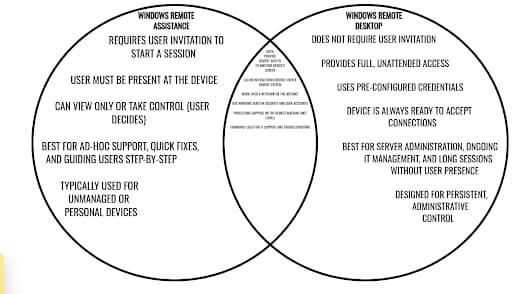
| Remote Assistance vs. Remote Desktop | |
| Windows Remote Assistance | Windows Remote Desktop |
|
|
What you need to know when choosing a remote desktop solution
In the enterprise, the majority of devices will be managed, and IT support agents will generally have access via Remote Desktop using their network administrative credentials. However, there will be occasions when they will need to use Remote Assistance for users on unmanaged devices, or where some other situation arises that they cannot connect via their usual methods.
For smaller use cases, you may rely solely on user-initiated support requests using Remote Assistance; however, this makes it difficult to gain emergency access or perform unattended administrative tasks.
Knowing what kind of devices and users you’ll be supporting is key to selecting the right remote access solution. It is also essential not to limit yourself to the tools built into the Windows OS, and assess third-party solutions that will cover the other types of devices you’ll find in modern IT deployments (for example, multi-monitor support, or connections to mobile devices).
Regardless of the solution you choose, you should ensure it is configured to use encryption for all connections. You should also make sure that the accounts used to authenticate remote sessions are protected (e.g., using MFA) and that remote access is granted only to the technicians who need it using role-based access control.
Session logging should also be configured, including connection data such as times, durations, operator identity, file transfers, and other activities. This data can be used for auditing or to chase down irresponsible use of remote access tools, or fed into SOAR/SIEM tools to monitor for suspicious behavior.
With these basic requirements in mind, you can weigh the major security, functionality, and use case factors to assess which tool should be used and when.
Map use case scenarios to capabilities
Assign common scenarios to the best tool for them: for example, users of unmanaged or personal devices may need to rely on Remote Assistance, while unattended maintenance should leverage Remote Desktop (or an equivalent), which should already be configured on the required endpoint devices like servers and workstations. Remote work should always be performed via a persistent Remote Desktop connection – you don’t want to be locked out of a productive session because there’s nobody physically near the remote device to re-invite you if the connection drops.
Integrated IT support platforms like NinjaOne allow users to submit support requests to seek remote assistance, allowing agents to quickly connect from within the helpdesk interface, as well as providing persistent access to remote devices for administrative purposes.
Enforce security controls
Windows Remote Desktop is a common attack vector when left open to the public Internet. When using this tool, limit access to your intranet and VPN, or protect Remote Desktop-enabled endpoints using a gateway. Use policies to limit high-risk features like file transfer, drive redirection, and clipboard sharing unless it is absolutely required for a specific task.
Consider third-party tools with stronger protections and more flexible options for connecting from outside your network (and to/from mobile devices) that do not require exposing risky services, or that you implement additional infrastructure like gateways or VPNs.
Standardize consent and notifications
Choose tools that allow you to keep users informed about activity on their devices. They should know when it’s an approved technician remotely assisting them, or whether to report unusual activity if an unexpected remote access attempt is made. Given the prevalence of remote support scams, user education is critical – it is better that they report approved remote access requests or activity mistakenly than approve or ignore malicious access.
User consent and notification can be achieved either at a software level by triggering prompts, or as part of the communication process through your helpdesk.
Using remote desktop for every scenario creates security and usability issues.
Capture Remote Desktop and Remote Assistance evidence for review
Collect Remote Assistance and Remote Desktop logs in a central location so that they can be audited and reviewed. Automate regular reports that summarize remote sessions to identify potential misuse. This information can be stored in your IT documentation platform for ready, secure access.
NinjaOne integrates remote support tools with one-click access from your ticket desk
Choosing the wrong remote access tool, or end-user confusion between Remote Assistance vs. Remote Desktop can quickly lead to operational inefficiency and frustrated customers.
While the included Windows remote access tools are robust, they lack flexibility and can be clunky for users to initiate support requests. With NinjaOne, remote access is tightly integrated with a full suite of MSP tools. When a user submits a support ticket, you can connect directly to their device from the ticket with a click, and communicate with them to ensure they understand what is happening. All connections are encrypted, activity is logged, and access is protected with access controls. Multiple monitors are supported, and NinjaOne can remotely connect to almost any device and operating system.