


This guide walks you through different methods for enabling or disabling the Phone Link feature in Windows devices. As its name suggests, this feature allows users to access calls, messages, notifications, and apps directly from their desktops.
While this integration enhances user experience, Windows may display prompts encouraging users to set up Phone Link. This can be incredibly distracting in managed IT environments and may not align with organizational policies. In these cases, it may be more prudent to disable Phone Link suggestions.
📌 Recommended deployment strategies:
| Click to Choose a Method | 💻 Best for Individual Users | 💻💻💻 Best for Enterprises |
| Method 1: Using the Settings app | ✓ | |
| Method 2: Using Registry Editor | ✓ | |
| Method 3: .reg file deployment | ✓ | ✓ |
🎥 How to Enable or Disable Phone Link Suggestions in Windows 11 — a useful visual reference before navigating the Registry path.
Configuring the mobile link to Windows
Method 1: Using the Settings app
📌 Use Cases: Ideal for individual users, local support techs, or IT teams configuring a small number of machines manually
📌 Prerequisites:
- Applies to all editions of Windows 11
- Doesn’t require admin privileges
- Limited to per-user configuration
Steps:
- Press Win + I.
- In the left-hand sidebar, click Bluetooth & devices, then choose Mobile devices on the right.
- Locate the setting labeled Show me suggestions for using my mobile devices with Windows.
- Use the toggle to turn it On or Off, depending on your desired configuration.
- Once the changes have been made, close the Settings app.
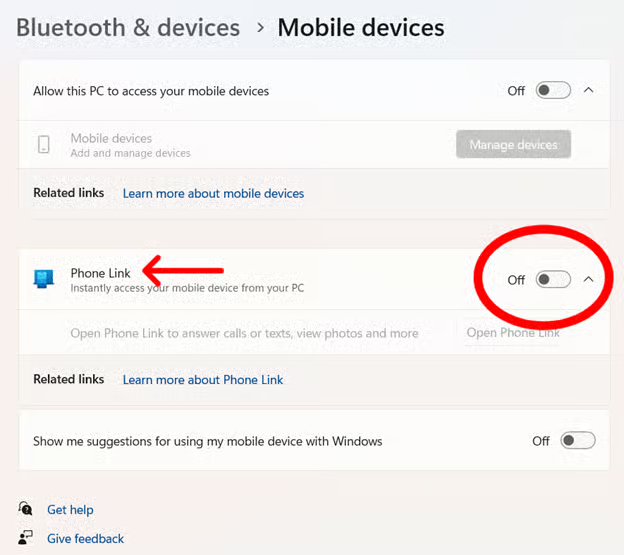
💡 Note: The changes are applied immediately and do not need a restart. That said, it’s good practice to verify if the setting has taken effect.
Method 2: Using Registry Editor
📌 Use Cases: Best for IT administrators who need scripted or remote control over user settings.
📌 Prerequisites:
- You must have administrator privileges.
- This method only applies to the currently logged-in user (HKCU).
- It is highly recommended that you back up your Registry before proceeding. Incorrect configuration can lead to system instability.
Steps:
- Press Win + R, type regedit, and click Enter. Select Approve any UAC prompt.
- Go to: HKEY_CURRENT_USER\Software\Microsoft\Windows\CurrentVersion\Mobility
- In the right-hand pane, create or edit the OptedIn value:
- If a DWORD named OptedIn already exists, double-click it.
- If not, right-click, choose New > DWORD (32-bit) Value, and name it OptedIn.
- Set its value to:
- 1: Enable suggestions
- 0: Disable suggestions
- Close the Registry Editor after confirming the changes.
- Restart the system or sign out and back in to apply the updated changes.
Method 3: .reg file deployment
📌 Use Cases: Recommended for enterprise deployments where changes need to be applied across many devices or profiles
📌 Prerequisites:
- You need administrative rights to run and merge .reg files.
- This method only applies to the user profile where the .reg file is executed.
- Registry editing must not be blocked by group policy or MDM.
Steps:
- Open Notepad.
- Copy the following code, as needed:
Enable Phone Link Suggestions:
Windows Registry Editor Version 5.00
[HKEY_CURRENT_USER\Software\Microsoft\Windows\CurrentVersion\Mobility]
"OptedIn"=dword:00000001
Disable Phone Link Suggestions:
Windows Registry Editor Version 5.00
[HKEY_CURRENT_USER\Software\Microsoft\Windows\CurrentVersion\Mobility]
"OptedIn"=dword:00000000
- Save it as a .reg file.
- Double-click the .reg file.
- After a successful merge, verify the setting via Registry Editor or observe whether Phone Link suggestions are absent or present.
- Restart your device to apply the changes.
⚠️ Things to look out for
| Risks | Potential Consequences | Reversals |
| Incorrect registry edits | Disabling suggestions does not remove the Phone Link app—users can still access it manually. | Re-enable via Settings or change the OptedIn value back to 1 in the registry. |
| Deploying .reg files without proper testing | If shared or roaming profiles are used, registry changes may not persist without proper scripting. | Provide rollback .reg files to restore the original configuration. |
| Editing the registry without administrator privileges | It can introduce security or compliance issues; enterprise policies may require more comprehensive controls if the phone link is completely disabled. | Use endpoint management tools or group scripting to ensure consistent rollback across devices. |
Additional considerations when modifying settings when linking a mobile device to Windows
- Disabling suggestions only affects the prompts and notifications. This means users can still manually access and use the Phone Link app.
- In settings where mobile integrations are not required, disabling suggestions can help maintain focus and adhere to organizational policies.
- At the time of writing, there is no native Group Policy setting specifically for this prompt. However, registry-based deployment can be used to manage this setting across multiple user profiles.
Manage Phone Link as Microsoft suggests
Turning Phone Link suggestions on or off in Windows 11 is essential for IT professionals aiming to streamline user environments and reduce unnecessary notifications. There are three methods to enable or disable Phone Link Windows suggestions.
Related topics:






