
Key Points
- You can use Windows’ event logging and PowerShell to identify hidden or suspicious Remote Desktop Protocol (RDP) activity.
- Configure Event IDs 4624 (logon), 4634 (logoff), and TerminalServices logs (21, 23, 25) to track all RDP session activity and detect unauthorized access.
- Use PowerShell event triggers to send alerts for unusual RDP activity, failed logins, or off-hours access attempts.
- Strengthen endpoint security and automate RDP monitoring and response with NinjaOne’s monitoring and management platform.
Unauthorized remote desktop sessions can create serious security gaps that standard monitoring tools often miss. You need reliable methods to help you monitor for unexpected RDP sessions using Windows’ built-in logging features. PowerShell and event log analysis provide comprehensive session monitoring without requiring additional software, enabling you to detect potential threats before they cause damage.
What is Remote Desktop Protocol?
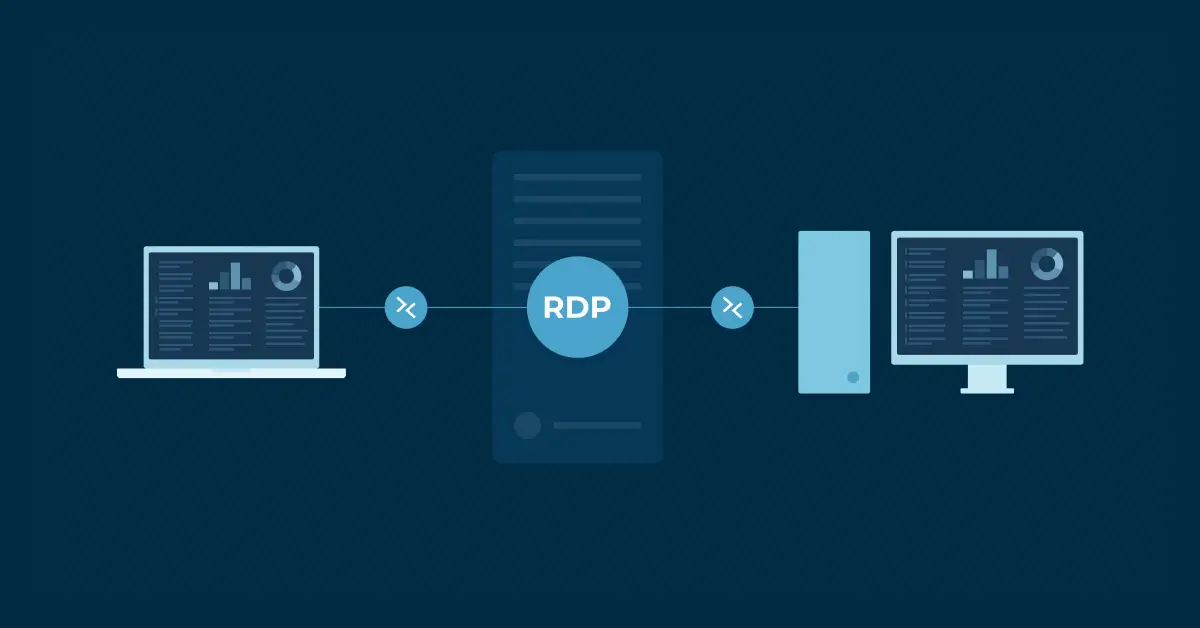
Remote Desktop Protocol is Microsoft’s network communication standard that connects you to remote Windows systems through a graphical interface. The protocol runs encrypted channels on TCP port 3389 by default, sending display data, keyboard inputs, mouse movements, and audio between your local machine and the remote server.
RDP session monitoring fundamentals
Effective RDP session monitoring starts with proper Windows audit policies, event log collection, and baseline establishment that captures complete connection data. Your organization needs standardized logging frameworks that record authentication events, session activities, and connection terminations across all RDP-enabled systems.
Configure audit log for security events
Windows Security Event Log captures RDP authentication and session events through specific Event IDs that show detailed connection information, including source IP addresses, user accounts, and timestamps. Event ID 4624 records successful logons with logon type 10 for RDP connections, while Event ID 4634 documents logoffs that match session terminations.
Setting up comprehensive logon auditing ensures all RDP connection attempts create security log entries for analysis.
Follow these commands to enable proper audit logging:
- Open Command Prompt as Administrator
- Run: auditpol /set /subcategory:”Logon” /success:enable /failure:enable
- Verify settings with: auditpol /get /subcategory:”Logon”
- Test by making an RDP connection and checking the Event Viewer
- Confirm Event ID 4624 appears in Security logs with logon type 10
Enable event log RDP sessions tracking
TerminalServices-LocalSessionManager operational logs provide detailed session management data that complements the Security Event Log RDP session entries by adding connection details and session state information. Event ID 21 shows successful RDP session establishment, Event ID 23 records disconnections, and Event ID 25 captures reconnection events when users resume previously disconnected sessions.
Consider these configuration steps:
- Open PowerShell as Administrator.
- Run: wevtutil sl Microsoft-Windows-TerminalServices-LocalSessionManager/Operational /e:true
- Verify with: wevtutil gl Microsoft-Windows-TerminalServices-LocalSessionManager/Operational.
- Check Event Viewer for the new log source.
- Test the RDP connection to confirm events appear.
Establish baseline connection patterns
Baseline establishment requires systematic analysis of legitimate RDP usage, including typical connection times, authorized user accounts, approved source IP addresses and standard session duration metrics. Historical data analysis reveals normal admin access schedules, routine maintenance windows and expected user behavior patterns that serve as comparison benchmarks for anomaly detection.
Understanding your normal RDP patterns helps you spot unusual activity that might indicate security threats. The Get-WinEvent -FilterHashtable @{LogName=’Security’; ID=4624; Data=’10’} command extracts RDP logon events for statistical analysis and baseline calculation procedures.
Set up alerts for suspicious activities
Automated alerting systems monitor real-time event streams for unauthorized access attempts, unusual connection patterns, or suspicious session behaviors that need immediate investigation. PowerShell-based monitoring scripts evaluate connection frequency, source IP reputation, off-hours access attempts, and failed authentication sequences to identify potential security incidents.
Event-driven monitoring triggers immediate notifications when suspicious RDP session activities occur on monitored systems. The Register-WmiEvent cmdlet enables real-time alerting capability to keep your security team informed of potential threats.
Get RDP sessions PowerShell techniques
PowerShell provides native capabilities for extracting, filtering and analyzing RDP connection data from Windows Event Logs through cmdlets that access both Security and TerminalServices log sources.
Use Get-WinEvent to capture RDP connection events
The Get-WinEvent cmdlet provides comprehensive access to Windows Event Logs with filtering capabilities that isolate RDP-related events from massive log datasets containing thousands of entries. Specific filter hashtables target relevant Event IDs such as 4624 for successful logons, 4625 for failed attempts and TerminalServices events that provide session management details.
Advanced filtering options include time range specifications to retrieve recent RDP connections within defined timeframes. The command Get-WinEvent -FilterHashtable @{LogName=’Security’; ID=4624; StartTime=(Get-Date).AddHours(-24)} retrieves RDP connections from the last 24 hours for analysis.
Filter and analyze login patterns with PowerShell
PowerShell’s object-oriented architecture enables sophisticated analysis of RDP event data through pipeline operations that sort, group, and filter connection records based on multiple criteria simultaneously. The Where-Object cmdlet filters events by specific properties such as source IP addresses, user accounts, or authentication types that correspond to RDP connections.
Statistical analysis functions like Group-Object and Measure-Object calculate connection frequencies, identify unusual access patterns, and generate summary reports that highlight potential security concerns. These built-in cmdlets transform raw event data into actionable security intelligence.
Create custom RDP session monitoring scripts
Monitoring scripts combine event log analysis, real-time alerting, and automated reporting capabilities into unified PowerShell solutions that operate continuously without manual intervention. Custom functions encapsulate complex filtering logic, data processing routines, and output formatting procedures that generate standardized reports for security teams and management.
Follow this development approach:
- Define your monitoring requirements and alert thresholds.
- Create PowerShell functions for event filtering and analysis.
- Implement alerting mechanisms using email or logging systems.
- Add error handling and logging for script reliability.
- Test the script thoroughly in your environment.
- Deploy as a scheduled task or Windows service.
Advanced monitoring with Windows commands
Beyond basic PowerShell techniques, advanced monitoring implementations leverage specialized Windows commands, WMI queries, and system APIs that provide deeper visibility into RDP session monitoring states and connection details.
WMI classes such as Win32_LogonSession and Win32_NetworkLoginProfile offer programmatic access to detailed authentication information, enabling comprehensive security analysis.
Query session for active RDP connections
The qwinsta command provides immediate visibility into current RDP session states, including active connections, disconnected sessions, and console logons that indicate system usage patterns. This command-line utility displays session IDs, usernames, session names, session types, and current states that help you identify unauthorized active connections requiring immediate investigation.
PowerShell integration through Invoke-Command enables remote execution of qwinsta across multiple systems, creating centralized visibility into RDP session status throughout your infrastructure.
Implement automated response workflows
Automated response systems execute predefined actions when suspicious RDP activities trigger security alerts, reducing response times and minimizing potential damage from unauthorized access attempts. PowerShell scripts integrate with security tools, ticketing systems, and communication platforms to orchestrate coordinated responses to detected threats.
Guidelines to follow:
- Define response procedures for different threat types.
- Create PowerShell functions for each response action.
- Integrate with existing security tools and communication systems.
- Implement approval workflows for high-impact responses.
- Add logging and audit trails for all automated actions.
Documentation and reporting procedures
Comprehensive documentation captures monitoring configurations, baseline metrics, alert thresholds, and response procedures that ensure consistent implementation across your environment. Regular reporting provides visibility into RDP usage patterns, security incidents, and the monitoring system’s effectiveness, which supports continuous improvement efforts.
Build a comprehensive RDP session monitoring strategy
Your RDP monitoring strategy needs regular updates to stay effective against evolving threats and changing infrastructure requirements. Monthly reviews of alert thresholds, baseline patterns, and detection rules help you adapt to new attack techniques and organizational changes. Continuous improvement includes integrating threat intelligence feeds, updating PowerShell scripts, and refining automated response workflows based on incident analysis and security team feedback.
Take the next step in securing RDP access
Unmonitored RDP sessions are an open invitation for attackers. NinjaOne Remote combines secure and reliable remote access tools built into a comprehensive endpoint monitoring and management platform that allows you to detect unauthorized access to remote sessions and respond faster. Start your free trial today and take back control before threats slip through.
Quick-Start Guide
While there isn’t a specific built-in script for exactly this purpose, NinjaOne provides several scripts and capabilities that can assist in monitoring RDP sessions:
1. RDP-Related Scripts:
– There’s a “Remote Desktop – Check Status and Port” script that reports the status of Remote Desktop and the port it is listening on.
– A “Search Event Log” script allows you to search for specific events in Event Viewer based on event log, source, or event IDs.
2. Event Log Monitoring Approach:
You can create a custom script to monitor RDP sessions by checking specific Windows Event Log entries. Key event IDs to watch include:
– Event ID 4624 (Successful Login)
– Event ID 4625 (Failed Login Attempt)
– Event ID 4634 (Logoff)
– Event ID 4647 (User Initiated Logoff)
– Event ID 4778 (Session Reconnected)
– Event ID 4779 (Session Disconnected)
3. Recommended Monitoring Method:
– Use the “Search Event Log” script to create alerts for unexpected RDP session events
– Filter for specific conditions like:
– Logins from unexpected IP addresses
– Logins outside of business hours
– Multiple failed login attempts
We recommend consulting with your IT security team to define the specific criteria for “unexpected” RDP sessions based on your organization’s security policies.






