Key points
- Command Prompt: Press Win + R and open Command Prompt (cmd.exe), then enter the command (shutdown -s -t [seconds]) to schedule a one-time shutdown countdown. Use the command (shutdown -a) to cancel.
- PowerShell: Open PowerShell as Administrator (powershell.exe), then run the command (Start-Sleep -Seconds [seconds]; Stop-Computer) to delay shutdown. Add the parameter (-Force) by running the command (Stop-Computer -Force) to close open applications.
- Task Scheduler: Open Task Scheduler (taskschd.msc), select Action > Create Basic Task, choose a trigger, then set the Program/script field to (shutdown.exe) or (C:\Windows\System32\shutdown.exe), and enter the arguments (-s -f -t 0) to run the shutdown command automatically on a schedule.
- Desktop Shortcut: Right-click the desktop and select New > Shortcut, then enter the command (shutdown.exe -s -t [seconds]) to create a quick-access shutdown timer.
- Force Shutdown Option: Use the command (shutdown.exe -s -f -t [seconds]) if applications may block shutdown.
- Restart or Log Off: Use the command (shutdown.exe -r -t [seconds]) to schedule a restart, or use the command (shutdown.exe -l) to log off immediately.
In this guide, you’ll learn how to set a shutdown timer in Windows. This feature, while generally encouraged for personal use, sees its full potential for IT administrators and managed service providers (MSPs) that need to conserve energy in unmanaged or idle systems, automate nightly shutdowns on lab or shared devices, or prevent prolonged inactivity in kiosk setups. In these scenarios, configuring the Windows shutdown command timer is not only useful; it is highly recommended.
For a visual guide, watch our video on “How to Set a Shutdown Timer in Windows 11“.
How to set a timed shutdown in Windows 11
Before proceeding, make sure you note the following technical prerequisites:
- Administrator privileges: Some methods require administrative rights, such as when using Task Scheduler. If you are in a managed environment, it may be prudent to ask your IT admin for help.
- Group Policy settings: Make sure that Group Policy Objects (GPOs) or third-party software do not prevent shutdown operations. Some GPOs to watch out for include:
- Shutdown: Allow system to be shut down without having to log on: If this is disabled, certain shutdown scripts may not work.
- Turn off automatic termination of applications that block or cancel shutdown: If enabled, Windows will not close open apps.
- User activity monitoring: Ensure that existing shutdown policies do not conflict with user activity monitoring or wake timers. Take note that some EDR tools may detect the shutdown as unauthorized and may attempt to block it.
Method 1: Using Command Prompt
💡 We recommend reading our guide on How to Use Windows Command Prompt, before following these instructions.
- Press Win + R, type cmd, and click Enter. Alternatively, you can search for Command Prompt in the Windows search bar.
- Type the following command and press Enter: shutdown -s -t 3600
- -s initiates the shutdown.
- -t 3600 sets the timer for 3600 seconds (1 hour). Feel free to adjust this as needed.
- To abort the scheduled shutdown, use this command: shutdown -a
- You can also use the shutdown -f command to close any running applications when the system shuts down. Prompts from apps about unsaved work and background processes can delay or even prevent your system from shutting down.
Method 2: Using PowerShell
💡 For a refresher course, sign up for the free crash course PowerShell for IT Ninjas.
- Open PowerShell as an administrator.
- Type the following command and press Enter:
Start-Sleep -Seconds 1800; Stop-Computer
- Start-Sleep -Seconds 1800: This pauses execution for 1800 seconds (30 minutes). Feel free to adjust this as needed.
- Stop-Computer: This initiates a shutdown. For a more in-depth discussion about this command, you can visit the official Microsoft website.
- Add -Force to Stop-Computer if you need to force-close applications (i.e., Stop-Computer -Force). This will close any programs before initiating the shutdown.
Method 3: Using Task Scheduler
💡 We recommend checking our guide on Mastering Scheduled Tasks in Windows with PowerShell.
- Search for Task Scheduler in the Windows search bar and open it.
- In the right pane, click Create Basic Task.

- Name the task Shutdown Timer and click Next.
- Choose a trigger (e.g., One Time, Daily, When I log on, etc.) and click Next.
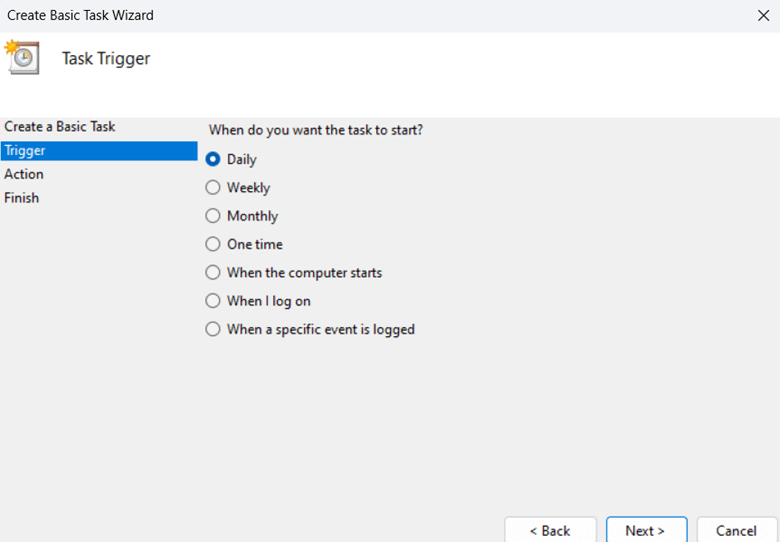
- Select Start a Program and click Next.

- Click on Browse and search for “shutdown.exe”.
- Otherwise, if you want to set a shutdown timer in Windows with more specific parameters, you can enter a command in the dialogue box under Program/script.
- Enter shutdown
- Add arguments: Enter -s -f -t 0

- Click Next, then Finish.
Method 4: Create a desktop shortcut for the shutdown timer
- Right-click on the desktop, select New, then Shortcut.
- In the Type the location of the item field, enter the following command:
shutdown -s -t 600
This sets a shutdown timer for 600 seconds (10 minutes). Feel free to adjust this as needed.
- Click Next, name the shortcut (for example, Shutdown in 10 minutes), and select Finish.
- (Optional) Right-click on the shortcut, select Properties, and select Change Icon to customize the icon.
Additional considerations with the Windows 11 shutdown timer
You can force a shutdown (even if apps are open)
Sometimes, a scheduled shutdown won’t work because there are open apps that ask for user input, like saving a document. If you want to force a shutdown using Method 1:
- Open Command Prompt.
- Run this command: shutdown -s -f -t 900
- -s stands for shutdown.
- -f stands for force, so Windows will close all open apps.
- -t 900 sets the timer for 900 seconds (15 minutes). Feel free to adjust this as needed.
👉 When to use this: This is useful if you’re managing kiosk machines or lab PCs that should always be shut down at a set time, no matter what’s open.
You can restart or log off instead of shutting down
You can also schedule a restart or log off using similar commands. Let’s use Method 1 for this:
- Open Command Prompt:
- Execute the following commands and press Enter:
- To restart the computer: shutdown -r -t 600
-r stands for restart. This command will reboot the system after 600 seconds (10 minutes). Feel free to adjust this as needed. - To log off the current user: shutdown -l
-l stands for log off. Take note that there is no timer here. Once executed, it will log off instantly.
- To restart the computer: shutdown -r -t 600
👉 When to use this: This is recommended if you’re rolling out updates that require a reboot.
You can adjust Task Scheduler conditions
Setting conditions allows you to control when computers will shut down. This helps prevent accidental shutdowns when a user is working.
Some helpful options include:
- Only if the computer is idle: This ensures that the task only runs if the user isn’t actively using the machine.
- Only if the computer is on AC power: This prevents the shutdown from running while the device is on battery power. This is particularly useful for laptops.
👉 How to do this: When creating your task in Task Scheduler (refer to Method 3), go to the Conditions tab before you click Finish. You’ll see several checkboxes. Click on those that you want and press Finish.
You can use third-party GUI tools for shutdown scheduling
While Windows gives you great built-in options to schedule a shutdown, you may want to use other tools to make this process easier.
Two free GUI tools for setting shutdown timers:
- Shutter by Den4b: This lets you schedule shutdowns, restarts, and other actions.
- Wise Auto Shutdown: This helps you schedule shutdowns, restarts, and logoffs using a visual calendar-style scheduler.
👉 Disclaimer: Always do your research before downloading or using any third-party tools for your Windows device. It is always better to use Windows tools first, as there is a negligible risk of malware. Use these tools with extreme caution.
Efficient system management via the shutdown timer on Windows 11
You can set the Windows shutdown timer using four easy methods. These methods are useful for managed environments that require consistency in their workloads, especially after patching. Setting a shutdown timer in Windows 11 is an effective way to manage system uptime, enforce shutdown policies, and automate post-task or post-update restarts.
Quick-Start Guide
The “Shutdown Computer” script can shut down the computer with an optional time delay in seconds. This means NinjaOne does provide a way to set a shutdown timer in Windows 11.If you want to set a specific shutdown time, you would:
- Use the “Shutdown Computer” script from the NinjaOne Automation Library
- Specify the time delay in seconds when running the script