This comprehensive guide demonstrates how to generate a Sleep Study Report in Windows, including how to use the powercfg command to save the report as an HTML web page, and how to interpret the contents of the Sleep Study Report.
Generating and understanding Sleep Study Reports will help you better comprehend your Windows device’s power usage, as well as help identify the causes of unexpected battery use and performance issues.
Free up your IT team from chasing alerts and labored reporting.
Understanding the Sleep Study Report
Power management in Windows provides a number of features for monitoring and managing the resource and power usage of your PC. This ranges from power modes that give you broad options for power usage (best performance, balanced, or best power efficiency) as well as further customization options for optimizing for performance or battery life.
In addition to the power management tools available in the Windows Settings App, the powercfg command line tool can be used for fine-grained power management and to automate power management. It is also the tool you will use to generate Sleep Study Reports.
Sleep Study Reports can be generated in Windows 11 and Windows 10 that support Modern Standby — a feature that enables modern Windows devices to better manage power usage, allowing mobile devices to instantly sleep and resume, improving battery life. Sleep studies contain information about system activity the last time it was in a low power mode (e.g. sleep or standby), so that you can see how power was used, and troubleshoot battery life issues. For example, if you’re charging your laptop before driving to work, and arriving to a low battery, a Sleep Study Report will help you determine the cause.
The information included in Sleep Study Report includes:
- Information about your system, including BIOS and operating system versions, and whether modern standby is supported.
- How long your device last slept for, and how much battery was used during this time.
- Whether your device was connected to a network during this time.
- Detailed information about recent sleep sessions (including duration and battery drain rate), and what ended the session (scheduled tasks, hardware events, or network activity).
- What hardware is using the most power during sleep, for example, Wi-Fi or hard drives.
- Information about power transitions that can help uncover why your device may not be sleeping properly.
- The list of active background tasks that continued to run while your device was in a low power state.
The most useful feature of the Sleep Study Report is the top offenders. This is a list of apps, drivers, and background tasks that used the most battery while your system was asleep.
powercfg can also be used to generate other useful reports about your device’s power usage, including battery reports and power efficiency reports.
Preparing to generate a Sleep Study Report
Sleep Study Reports can only be generated on mobile Windows 11 and Windows 10 devices with hardware that supports Modern Standby.
To generate a Sleep Study in Windows, you must be logged in as an Administrator or be able to open an elevated PowerShell session.
How to generate a Sleep Study Report in Windows using powercfg
To generate a Sleep Study Report in Windows 11, follow these steps:
- Open PowerShell as an Administrator by right-clicking on the Start button and clicking Terminal (Admin). If you’re still running Windows 10, click Command Prompt (Admin) instead.
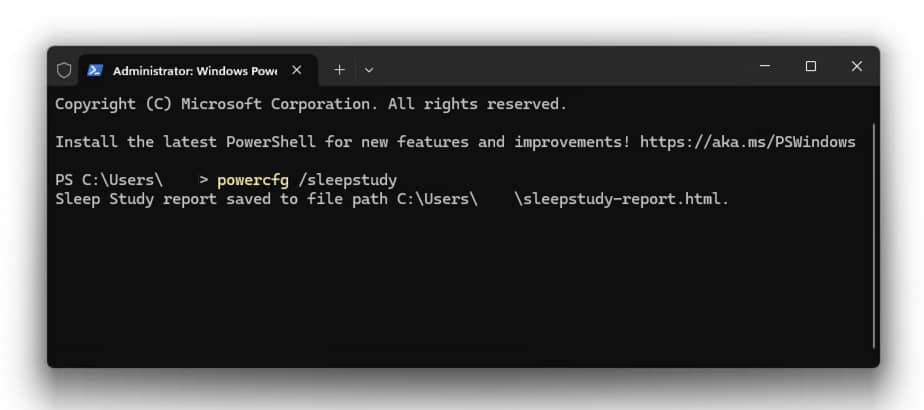
- Enter powercfg /sleepstudy and press the enter key to run the command.
- The Sleep Study Report will be saved as an HTML file and the path to the file will be displayed. Usually, this will be in your User directory.
- Locate and open the report file in your default web browser by double-clicking on it.
Once your report is generated, you can move it to a different location. If you want to customize the generation of your report, run powercfg /sleepstudy to see a list of available options, including specifying the output path or generating raw XML data instead of a formatted HTML document.
Interpreting the Sleep Study Report to troubleshoot power management issues
There’s a lot of information included in a Sleep Study report, and it can seem overwhelming when trying to troubleshoot sleep issues.
The top offenders section does most of the leg work for you: it identifies the software and hardware that are consuming the most power during sleep or that are stopping your device from sleeping at all, saving you the work of interpreting the data yourself. Look for components that have a high battery drain rate or that remain active while your device is asleep for potential causes of short battery life.
Once you’ve identified the problematic app, you can try the following troubleshooting steps:
- Re-install the application (and update to the latest version if there’s one available).
- Reset the application configuration.
- Configure the application to not continue running in the background if the option is available.
If a device is using significant power while sleeping:
- Try re-installing or updating the device driver (try looking on the manufacturer’s website for newer versions that may not yet be in Windows Update).
- Disconnect the device while your computer is asleep.
- Check the device for physical faults.
If you notice more sleep sessions than expected, check the wake sources to see what may be causing your device to wake up and go back to sleep while it’s not in use. Generally, you should expect a battery drain rate of under 1% per hour for a healthy battery in a device with normal sleep power usage.
Troubleshooting Common Issues based on the Sleep Study Report
The most common issue when generating power reports in Windows is not being logged in as an Administrator. You may also be prevented by running Sleep Study Report if you are part of a Windows Domain and do not have the necessary privileges.
If your Windows device does not support the Modern Standby requirement for generating Sleep Studies, a System Power Report will instead be generated (though the output HTML file name will still be named sleep study). This is the equivalent of running powercfg /systempowerreport.
Thinking about using scripts for Power Management optimization?
💡 Check out this advanced PowerShell guide for IT pros and MSPs
Additional Tips for optimizing Power Management in Windows
Generally, you should enable battery-optimized power settings from within the Windows Settings app on mobile devices where portability is a priority.
If you find your device battery is not performing as expected, you should generate a battery report by running powercfg /batteryreport from the Command Prompt or Powershell. You can also run a power efficiency report by running powercfg /energy that will display errors and warnings about potential power issues and their cause.
There are also third-party tools that you can use for Windows power management:
- Batterymon can help you diagnose battery issues with detailed statistics about battery performance and comparisons with expected behavior.
- HWMonitor monitors system performance and can help uncover the cause of unexpected resource usage or battery drain from software or hardware.
However, in most cases, the built-in Windows functionality is sufficient for normal users. Third-party tools may lack guardrails to protect you from setting power options that may lead to instability or damage to your system.
Windows power management at scale with remote monitoring and management (RMM)
Identifying and troubleshooting Windows power management and battery life issues by generating Sleep Study Reports, interpreting their contents, and then fixing each issue on a per-device basis is impractical even for a few devices. If you are in charge of tens or thousands of devices, you need full visibility into the health of each device so that problems can be preemptively solved at the most convenient time — not when the user is about to head off to a conference with a laptop that doesn’t work.
The NinjaOne remote monitoring and management (RMM) platform lets you manage Windows, Apple, and Android devices from a centralized web interface. It directly integrates with Windows power management functionality, allowing you to remotely monitor device hardware, record the history of each device’s battery health, and even automatically generate support tickets when a battery’s performance has been degraded to the point that replacement is required.
You can also watch the video version of this guide on how to generate a Sleep Study Report in Windows if you prefer a visual explanation.