Key Points
- Understand Role-Based Provisioning: Define app stacks by user role or department. This will ensure every user has the right tools from the start.
- Identify Prerequisites for Deployment: Know your user groups, licensing requirements, and MDM or RMM capabilities before implementation.
- Map Roles to Applications: Make a clear and easy-to-interpret table showing which essential and optional apps belong to each role. This will help standardize deployments.
- Automate App Stack Delivery: Use MDM or RMM tools to deploy and maintain software automatically, saving time and reducing manual effort.
- Document App Stacks and Responsibilities: Record which apps, deployment methods, and scripts apply to each role to maintain visibility and accountability.
- Review and Update App Stacks Regularly: Periodically check the app inventory to add, remove, or reassign software as team needs, licenses, and technologies evolve.
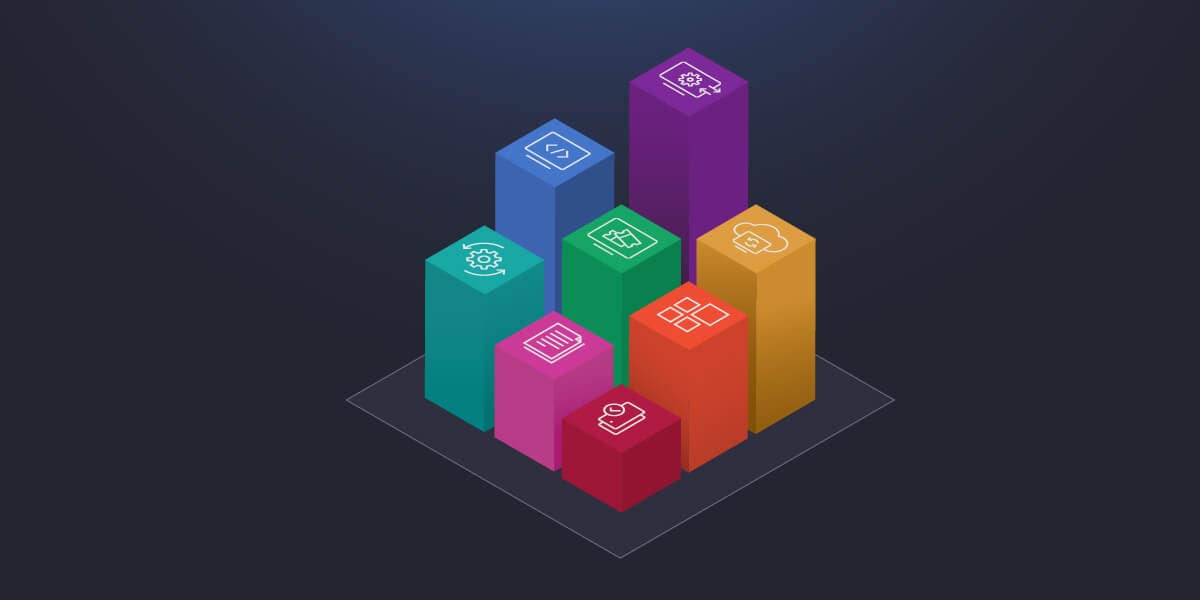
Creating role-based app stacks can greatly streamline the onboarding and ongoing support of new users and devices for internal IT teams and managed service providers (MSPs). A role-based app stack, or role-based provisioning strategy, allows you to specify which applications are automatically installed for different groups of users, ensuring that users have a consistent set of tools, reducing license wastage, support overheads, and improving efficiency.
This guide provides practical advice for creating, implementing, and documenting role-based app stacks, along with process and tool recommendations.
Prefer a visual walkthrough on the topic? Watch our video “How MSPs Can Define and Enforce Role-Based App Stacks for Client Devices” for more details.
Streamline onboarding workflows with role-based app deployment.
What is role-based provisioning?
The role-based provisioning of app stacks (predetermined collections of applications) involves defining which applications different categories of staff or departments need to perform their day-to-day work, and deploying only that software to them. For example, the finance department may have an app stack with spreadsheet and presentation software, while the creative department will need access to photo editing and desktop publishing software.
This has several advantages. Software licenses are expensive, and deploying software only to users who will actually use it reduces the overall number required. It also means that every user will have the tools they require from the start, rather than being delayed in their work while they wait for software to be installed for them later. Support agents benefit too, as they can expect a consistent environment when helping users, allowing them to resolve issues faster.
With automated deployment tools, you can also revise your app stacks to include new software (or deprovision software that is no longer required for a subset of users), ensuring these benefits are maintained even after initial deployment. In addition to automated deployment, effective patch management should be implemented to ensure that deployed software is secure.
Prerequisites for implementing role-based app stacks
Before you can define your app stacks, you need a clear understanding of:
- User groups, either by department or requirements (bearing in mind that users can have multiple roles, and be members of multiple groups, you can be granular)
- The software that each needs to have installed
- The licensing requirements for that software
- Agreement with stakeholders or your MSP’s client on the above
You should also have a mobile device management (MDM) or remote monitoring and management (RMM) solution in place to handle the actual deployment once policies are created. Ideally, your team will also have a documentation platform with internal and client-facing pages that describe the roles and software stacks, so that users can request membership, and technicians know which applications users should have access to.
Step 1. Define role-based app stacks
Next, you can map the roles to applications. Tables are ideal for this, both for organization, presentation, and collaborative purposes. For example, role and app stack information can be clearly presented as such:
| Role | Essential applications | Optional/conditional tools | Notes |
| Sales | CRM client, Office Suite, browser | Video conferencing (Zoom/Teams), VPN | Ensure MFA on CRM access |
| Finance | Accounting software, BI dashboards, PDF tools | Tax prep, secure vault connectors | Verify compliance features |
| Tech | IDE (Visual Studio/VS Code), RMM agent, terminal tools | Network analyzers, Dev containers | Confirm license pool is available |
You should also include any additional information, such as access permissions to network or file resources, licensing, and compliance requirements.
Step 2. Automate app stack deployment by role
The process of deploying your app stakcs will depend largely on the software itself and its installation mechanism, and on your MDM or RMM platform. Most reputable solutions will allow for the automated configuration of new devices out of the box and the ongoing management of deployed devices. They will also integrate with your identity provider so that they can target specific users and groups to deploy software to.
Organizations committed to the Microsoft 365 ecosystem can use Intune for this, or SCCM for on-premises Windows environments, while teams who primarily manage Apple devices can use native MDM tools. Installation successes and failures should be logged, so that any problems can be manually addressed, and deployment scripts updated if necessary.
Tech teams that need to support a variety of devices will usually choose to use an MDM/RMM platform like NinjaOne that supports all major operating systems, allowing them to cover all users and devices with policies that automatically deploy software and deliver ongoing patch management to reduce downtime and enhance security.
Step 3. Document role-based provisioning and responsibilities
Documentation is critical to the ongoing success of any IT project. Ensure that all roles and app stacks are documented, as well as the mechanism used to deploy each, and any special considerations (for example, scripts that have been created to enable deployment of specific packages). This can be done by tidying and publishing the definitions created in step 1 to your IT documentation platform.
Step 4. Review and adapt stacks regularly
End-user requirements will evolve over time, so perform regular reviews to add or remove programs from app stacks to keep them focused and ensure licenses are fully utilized. New requirements may not match your audit schedule, so ensure that users are aware that they can request access to new applications through your helpdesk portal.
Automate app stack delivery for efficient onboarding and support workflows.
NinjaOne provides tools for creating, enforcing, and documenting app stacks across your organization
NinjaOne goes beyond simple MDM and RMM for role-based provisioning, providing a comprehensive platform for tech teams and MSPs that includes remote management, remote desktop access, helpdesk, documentation, and ongoing monitoring and reporting.
With NinjaOne, you can set custom role-based policies that deploy different app stacks to users, record information in its documentation platform, and deploy custom remediation scripts. Everything is centrally monitored and reported, so there are no visibility gaps across your Windows, macOS, Linux, and mobile infrastructure.
Quick-Start Guide
NinjaOne provides robust capabilities for MSPs to define and enforce role-based app stacks for client devices. Here are the key features:
1. Device Roles
– MSPs can create custom device roles that work hand-in-hand with policy assignments
– Device roles allow you to define specific configurations and app permissions for different types of devices
2. Application Management for Android and Apple Devices
– Supports multiple application assignment types:
– Preinstalled
– Force Installed
– Blocked
– Available
– Required for Setup
3. Granular App Control
– For Android devices, you can:
– Set global permission policies
– Control Play Store access (allowlist or blocklist)
– Manage private and custom apps
– Configure kiosk settings
4. Policy-Based App Deployment
– Create policies that define which apps are:
– Automatically installed
– Blocked
– Optional for users
– Policies can be assigned by device role, location, and organization
5. Enterprise Connections
– Support for Android Enterprise and Apple Business Manager
– Ability to manage app configurations across different enterprise connections
This comprehensive MDM approach allows MSPs to precisely control application stacks, ensuring security, compliance, and consistent user experiences across client devices.