Key Points
- Cloning vs. imaging a disk: Cloning creates an instant, bootable copy; imaging captures a compressed, restorable file for versioning, recovery, and portability.
- Golden images: Ideal for MSPs and IT teams deploying at scale, provide standardized, compliant baselines across multiple endpoints.
- Plan for rollback: Keep recovery media and backups, define go/no-go checkpoints, and be ready with common fix actions.
Knowing when to use cloning vs. imaging a disk can speed up workflows and prevent unnecessary downtime. These methods may overlap in purpose but don’t necessarily share the same outcomes. This guide helps you choose the appropriate path in most scenarios and introduces golden images for at-scale deployments.
Six-step guide for evaluating your disk deployment strategy
Before deciding between cloning, imaging, or a golden image, make sure the groundwork is in place to support each method. Below are some key prerequisites.
Prerequisites
- Allocate sufficient space for storing disk images, logs, and verification files.
- Confirm controller mode, firmware type, and disk sizes between source and destination devices.
- Prepare OS and application reactivation plans for post-migration environments.
- Schedule downtime or maintenance windows for both source and target systems.
👉 Reminder: Requirements may vary based on systems, policies, and business needs.
Use cases for each disk deployment method
While all three can move or replicate data, their objectives, recovery options, and management needs vary.
| Method | What it does | Best for |
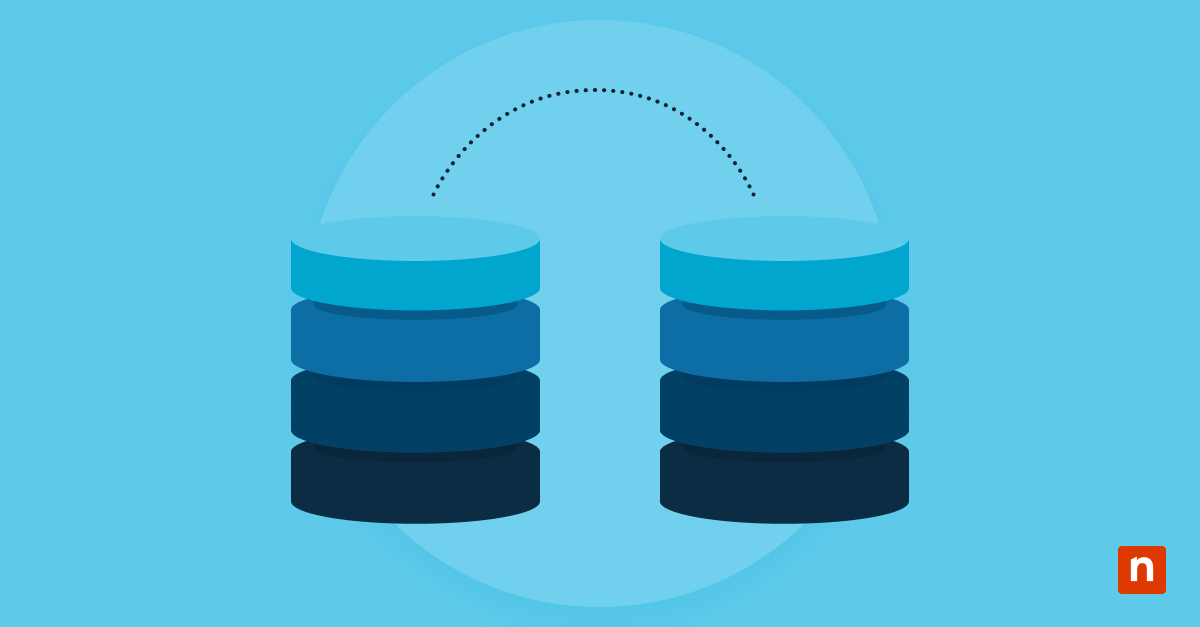
| Cloning | Creates an exact, bootable copy of a disk to another drive. | One-to-one migrations, hardware swaps, or quick replacements. |
| Imaging | Captures the entire disk into a compressed file that can be stored, versioned, and restored later. | Backups, recovery, or migration to dissimilar hardware/VMs. |
| Golden image | A fully configured, generalized master system image for mass deployment. | Standardized rollouts across multiple devices. |
Disk cloning is a speedy solution in isolated cases, but it overwrites the target and doesn’t support versioning. Disk imaging offers more flexibility and recovery options, but generally requires additional tools for execution.
For MSPs, a golden image is the ideal choice for mass deployment and standardization. It takes more effort to maintain and actualize, but it is significantly more resilient for large or hybrid IT stacks.
Step 1: Decide by outcome (pick your path)
The right choice depends on your end goal, whether that’s a quick migration, flexible recovery, or standardized rollout.
- If you need a fast, one-to-one migration → Clone.
- If you need a flexible recovery or backup → Image.
- If you need consistency during mass deployments → Golden image.
Cloning delivers immediacy, imaging gives flexibility, and golden images provide scalability.
Step 2: Pre-flight checks
Most migration failures can be traced back to overlooked firmware modes, mismatched partitions, or active encryption. A few quick checks up front can save hours of recovery time later.
- Is disk encryption active?
- Is the system using UEFI or Legacy BIOS?
- Is the drive partitioned as GPT or MBR?
- Does the target disk have enough space and proper alignment?
By validating boot configuration, encryption, and storage compatibility early, you eliminate the most common causes of unbootable clones and failed restores.
Step 3: Configure tool settings by method
Next up: Fine-tune your tool settings. Each disk deployment method benefits from specific options that strike a balance between speed, reliability, and portability.
If you’re cloning, use intelligent copy instead of sector-by-sector when possible. Double-check partition sizes if expanding or shrinking volumes, and always verify the clone before swapping drives.
If you’re imaging, enable Volume Shadow Copy Service (VSS) for live systems, turn on compression and encryption for secure storage, and activate hash or CRC verification to confirm integrity after capture.
If you’re building a golden image, run Sysprep (or an equivalent tool) to generalize the system, remove hardware-specific drivers, and create first-boot scripts to automate device setup and post-deployment tasks.
Step 4: Optimize for portability and speed
After capturing your clone or image, focus on making it adaptable and efficient.
- Include critical drivers
- Plan periodic synthetic full backups
- Store images on fast, reliable storage
- Use incremental imaging where possible
These optimizations help ensure the system restores quickly and boots reliably, even on dissimilar hardware or virtual machines.
Step 5: Validate and document
To validate the image or clone, run integrity checks using built-in hash or CRC verification. Then, boot the restored image on a testing environment or a virtual machine to confirm it starts properly under both Secure Boot and UEFI configurations.
Additionally, record the process, including the tool used, disk layout, firmware mode, and validation logs, and capture screenshots or export reports for auditing and troubleshooting.
Step 6: Rollback and troubleshooting plan
A rollback strategy sets you up for smooth recovery and remediation workflows, minimizing downtime and optimizing resource allocation.
Keep a safety net
Retain an original backup or validated image before making changes, and have a bootable recovery media (WinRE or WinPE) ready in case the new system fails to start.
Prepare common fixes
Be ready to rebuild the BCD, inject missing drivers, re-enable BitLocker, or adjust partition sizes and alignment. These quick actions can turn a failed restore into a successful recovery.
Define go or no-go checkpoints
Establish clear decision points during the maintenance window, such as when to proceed, pause, or roll back, to prevent last-minute guesswork.
Migrations don’t always go as planned, but a defined rollback plan allows you to manage setbacks like a controlled event.
Disk deployment strategies with NinjaOne
NinjaOne offers robust disk management capabilities that support cloning, imaging, and golden image workflows at scale.
- Automation: Scripts for pre-flight checks and disk-related operations.
- Alerts: SSD Wear Health Alert to detect potential drive failures.
- Evidence Tracking: Supports logging, tracking, and reporting of disk-related events.
- Monitoring: Set up monitoring conditions for disk- and performance-related issues.
💡 Note: Check out NinjaOne Backup® to see more proactive disk management integrations.
These features provide comprehensive disk management capabilities, allowing IT professionals to monitor, back up, and maintain disk health with granular control, resilience, and flexibility.
Related topics: