
Having “Personalize” in the context menu offers quick access to customization options such as themes, backgrounds, fonts, and dynamic lighting. These settings help tailor the user experience, but controlling their availability also helps maintain brand consistency and standardize desktop environments.
This article explains how to manage the “Personalize” option in your desktop context menu using advanced methods and the deployment strategies you should know.
Manage the “Personalize” in the context menu
The “Personalize” shortcut in your context menu is integrated into your desktop’s right-click menu by default, so you’ll need advanced tools such as your company’s Group Policy Editor (GPE) and the workstation’s Registry Editor to add or remove it.
📌 Prerequisites:
- Administrator privileges
- Windows 11 Pro, Enterprise, and Education for Group Policy method
- Windows 11 Home users must use the Registry Editor methods
📌 Recommended deployment strategies:
| Click to Choose a Method | 💻 Best for Individual Users | 💻💻💻 Best for Enterprises |
| Method 1: Group Policy | ✓ | |
| Method 2: Add via Registry File | ✓ | |
| Method 3: Remove via Registry Editor | ✓ | ✓ |
Method 1: Configure “Personalize” via Group Policy
You can’t directly add or remove Personalization with Group Policy. Configure access to major personalization settings with this simple workaround.
📌 Use Cases: Limit Personalize functionality across your organization to uphold stability policies.
📌 Prerequisites: Administrative privileges. Windows 11 Pro, Enterprise, and Education.
- Press Win + R, type Gpedit.msc, and press Enter.
- Navigate to:
User Configuration > Administrative Templates > Control Panel > Personalization
- Double-click a policy you want to modify (e.g., Prevent changing desktop background, Prevent changing themes, Prevent changing color and appearance, etc.).
- To allow the feature, set it to Disabled and click OK.
- To restrict the feature, set it to Enabled and click OK.
- Restart File Explorer or reboot your PC to apply changes.
Method 2: Add “Personalize” via .reg file
⚠️ Warning: This method will overwrite your current Personalize key (if present) and remove any possible customizations/additional values. Backup your original Personalize key before proceeding.
📌 Use Cases: Improve in-context menus.
📌 Prerequisites: Administrative privileges.
- Open Notepad.
- Paste the following:
Windows Registry Editor Version 5.00
[-HKEY_CLASSES_ROOT\DesktopBackground\Shell\Personalize]
[HKEY_CLASSES_ROOT\DesktopBackground\Shell\Personalize]
@=hex(2):40,00,25,00,73,00,79,00,73,00,74,00,65,00,6d,00,72,00,6f,00,6f,00,74,\
00,25,00,5c,00,73,00,79,00,73,00,74,00,65,00,6d,00,33,00,32,00,5c,00,74,00,\
68,00,65,00,6d,00,65,00,63,00,70,00,6c,00,2e,00,64,00,6c,00,6c,00,2c,00,2d,\
00,31,00,30,00,00,00
"HideInSafeMode"=""
"Icon"=hex(2):25,00,73,00,79,00,73,00,74,00,65,00,6d,00,72,00,6f,00,6f,00,74,\
00,25,00,5c,00,73,00,79,00,73,00,74,00,65,00,6d,00,33,00,32,00,5c,00,74,00,\
68,00,65,00,6d,00,65,00,63,00,70,00,6c,00,2e,00,64,00,6c,00,6c,00,2c,00,2d,\
00,31,00,00,00
"Position"="Bottom"
"SettingsURI"="ms-settings:personalization"
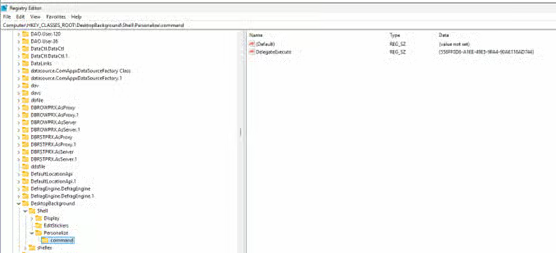
[HKEY_CLASSES_ROOT\DesktopBackground\Shell\Personalize\command]
"DelegateExecute"="{556FF0D6-A1EE-49E5-9FA4-90AE116AD744}"
- Save the file with the .reg extension (e.g., AddPersonalize.reg).
- Execute the file to add the “Personalize” key.
Method 3: Remove “Personalize” via Registry Editor
⚠️ Warning: Editing the registry can cause system issues. Create a backup before proceeding.
Restricting access to “Personalize” by deleting its registry may seem like a viable solution at first glance. However, this method is not feasible due to the system-level protections Windows enforces on essential UX features.
Even with administrator rights, attempts to alter registry values associated with the “Personalize” in-context menu item will fail due to missing entries or “access denied” errors, highlighting the need for centralized control.
For IT personnel and MSPs looking to remove the Personalize option, consider using safer alternatives, like Group Policy settings or third-party tools that offer more granular customization.
⚠️ Things to look out for
| Risks | Potential Consequences | Reversals |
| No backup before applying .reg changes | Desktop in-context menu items become unstable | Use System Restore |
| Clashing local and domain-level policies | System behaves erratically | Run diagnostic tools (rsop.msc or gpresult) to resolve conflicts |
| Editing registry values without considering dependencies | “Domino effect” of failures across all personalization features/UI | Restore from backup and test in virtual environments before deploying any changes |
Additional considerations before you add items to your context menu
Before deploying changes at scale, keep these things in mind.
Settings App Access
If you’re adding shortcuts to your context menu, make sure your Settings app (ms-settings:) isn’t restricted by your company’s policy or any other system configuration.
User Profiles
These methods are typically user-specific. For system-wide changes, apply your changes under HKEY_LOCAL_MACHINE.
Roaming Profiles
If your infrastructure utilizes roaming profiles, context menu changes may not be consistent across multiple devices. Fix this by synchronizing your Registry changes or applying logon scripts.
Kiosk Mode
Many UI features are restricted in kiosk environments. As such, custom entries like “Personalize” may not appear in locked-down systems.
Optimize your workflows when you add Personalize in your context menu
Managing context shortcuts gives you more control over user options. Strike the perfect balance between streamlined workflow and customizability with the methods listed above. Export registry values for safe backups, and leverage remote solutions to make system vulnerabilities a thing of the past.
Related topics:






