

In Windows 11, users can use OneDrive to back up their local files in the cloud. It helps protect them from data loss and makes files accessible to the user on multiple devices. By default, most of your Windows 11 files in selected folders will be backed up.
However, when using OneDrive, excluding some file types may be a requirement in some scenarios. Your organization may have limited bandwidth or storage space. Or you may simply not want or need to back up certain files.
How to exclude files from OneDrive backup
Users can exclude certain file extensions from their OneDrive backup using OneDrive settings or the Registry Editor.
📌 Prerequisites:
- This guide applies to all versions of Windows 11.
- OneDrive must be installed and actively running.
📌 Recommended deployment strategies:
| Click to Choose a Method | 💻 Best for Individual Users | 💻💻💻 Best for Enterprises |
| Method 1: Exclude File extensions via OneDrive settings | ✓ | |
| Method 2: Exclude File Extensions via Registry Editor | ✓ | ✓ |
🎥 View both methods in this video format: How to Exclude Specific File Extensions From Backing Up to OneDrive in Windows 11.
Method 1: Exclude File extensions via OneDrive settings
📌 Use Case: This method is ideal for individual users.
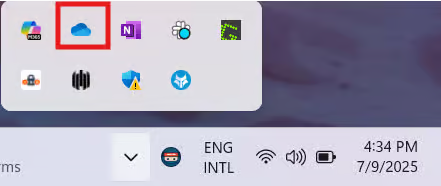
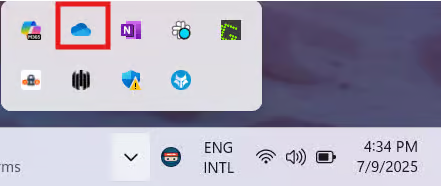
- Click the chevron icon on the right side of the taskbar, and select the OneDrive icon.
- Click the Settings icon at the upper-right-hand of the OneDrive window.
- Go to Sync and backup > Advanced settings.
- Select Exclude under Exclude file extensions.
- Type the extension you don’t want to back up, and click Exclude.
- Repeat steps 4-5 for every extension you wish to exclude.
- The changes will apply immediately. You can now close OneDrive settings.
Method 2: Exclude file extensions via Registry Editor
📌 Use Case: This method is ideal for power users and administrators in managed setups.
📌 Prerequisite: You will need administrator access to edit the Windows Registry. To see if you have the necessary permissions, open the Start Menu > Settings > Accounts. The word “Administrator” should be printed under the username.
- Open the Start Menu and search for Registry Editor to open the program.
- Navigate to this address: HKEY_LOCAL_MACHINE\SOFTWARE\Policies\Microsoft\OneDrive
- Select the EnableODIgnoreListFromGPO key. If you can’t find it, create it by following these steps:
- Right-click OneDrive > New > Key.
- Name it EnableODIgnoreListFromGPO.
- To exclude a file extension from being automatically imported into your OneDrive, you must create a string value for every extension you wish to exclude. To do that, follow these steps:
- Right-click EnableODIgnoreListFromGPO > New > String Value.
- Change the name to the extension you wish to exclude.
- Double-click the string value.
- Type the extension you want to exclude in the Value data box and click OK.
- Repeat steps 4-6 for every extension you wish to exclude.
- You can now close the Registry Editor. Restart the computer to apply the changes.
⚠️ Things to look out for
| Risks | Potential Consequences | Reversals |
| A file type may be excluded accidentally or without the end user’s knowledge. | Users may try to back up a file with the excluded extension, which can lead to confusion and/or data loss. | Ensure users know which file types won’t automatically be backed up in OneDrive. If the setting needs to be changed, open OneDrive Settings > Sync and backup > Advanced settings. Under Exclude file extensions, remove the file extensions you wish to back up. |
| A user may make an incorrect edit to the Windows Registry. | Incorrect edits to the Windows Registry may lead to incorrect settings or system instability. | Create a backup of the Windows Registry before proceeding. You can do that to restore the Registry if unintended changes are made. |
Additional considerations before excluding specific file extensions when backing up to OneDrive
- The exclusion will only apply to new files about to be added to OneDrive; previously added files will not be affected.
- This setting is particularly useful in environments with limited storage or organizations that have policies prohibiting the backup of non-critical file types.
- Make sure to inform users who may be impacted by these exclusions to prevent confusion and data loss.
What is OneDrive and why use it for file backups
OneDrive is the cloud storage solution that Microsoft offers, and it’s natively available in all Windows 11 computers. It can automatically save and back up your local files in an online drive, protecting your business from data corruption and loss.
Aside from that, OneDrive also makes data accessible on multiple devices. Users can view, manage, and edit their files through any device, as long as they have an Internet connection. However, OneDrive may be unable to keep up with your needs in a more fast-paced business setting. In that case, you may prefer a dedicated enterprise-grade backup solution.
Why exclude specific file extensions when backing up to OneDrive
OneDrive, by default, will back up all your local files. However, this may not be ideal, depending on your needs. You may have limited bandwidth or storage options. In those cases, conserving resources could be more important while ensuring protection for your most important files.
There are also organizations that limit the kinds of files that can be backed up. That can help save resources or add some security. Whatever the case, it’s essential for administrators to know how to manage this setting to fulfill their business needs and requirements.
Conserve resources by excluding file extensions from your OneDrive backup
Most individual users can limit the kinds of file extensions that OneDrive backs up using OneDrive settings. They can manage this in Sync & backup, under the Advanced Settings section. Power users and administrators working in enterprise environments can use the Registry Editor, ideal for policy or bulk-driven exclusions.
Controlling which files are backed up on the OneDrive Cloud is essential, especially in business environments. Doing this helps conserve resources, such as bandwidth and storage space. It also helps keep things organized by ensuring only the important files are saved to the cloud storage.
Related Links: