

When running an app in Efficiency Mode (previously “Eco mode”), Windows displays a confirmation prompt to prevent accidental activation. This helps protect your system from possible misconfiguration, but certain organizations can benefit more from removing the warning to streamline workflows.
Our Windows 11 Efficiency Mode article below explains how to safely achieve “Eco” mode on modern workstations.
How to manage the Efficiency Mode confirmation dialog for streamlined tasks
Managing Windows 11 Efficiency Mode pop-ups can be as simple as clicking a few buttons. Additionally, IT admins may utilize scalable methods focused on user-specific changes (via HKEY_CURRENT_USER).
📌 Prerequisites:
- Any edition of Windows 11 (Build 22621.1344 and later)
- Task Manager must be updated to support Efficiency Mode controls
📌 Recommended deployment strategies:
| Click to Choose a Method | 💻 Best for Individual Users | 💻💻💻 Best for Enterprises |
| Method 1: Task Manager | ✓ | |
| Method 2: On-the-fly prompt | ✓ | |
| Method 3: Registry Editor | ✓ | |
| Method 4: .reg file | ✓ | ✓ |
Method 1: Disable the confirmation dialog via Task Manager
You can easily enable or disable the Windows 11 Efficiency Mode confirmation dialog through Task Manager, which lists all of your running apps.
📌 Use Case: Support-led assistance
- Press Ctrl + Shift + Esc to open the Task Manager.
- Click Settings in the bottom-left corner.
- Under Other options, clear the box next to Ask me before applying Efficiency Mode.
- Close Task Manager.
Method 2: Disable the confirmation dialog via on-the-fly prompt
📌 Use Cases: Quickly disable confirmation prompts when the first one appears.
- Open an app that is in Efficiency Mode.
- In the confirmation dialog, select the box near Don’t ask me again.
- Click OK to stop all future confirmation prompts.
Method 3: Enable or disable via Registry Editor
⚠️ Warning: Editing the registry can cause system issues. Create a backup before proceeding.
📌 Use Case: System-wide changes
📌 Prerequisites: Administrator privileges
- Press Win + R, type regedit, and press Enter.
- Navigate to:
HKEY_CURRENT_USER\Software\Microsoft\Windows\CurrentVersion\TaskManager
- If you don’t see the Task Manager key, do the following:
- Double-click on CurrentVersion.
- Right-click on the right-hand pane.
- Select New > Key.
- Name the new key “TaskManager”.
- If you don’t see the Task Manager key, do the following:
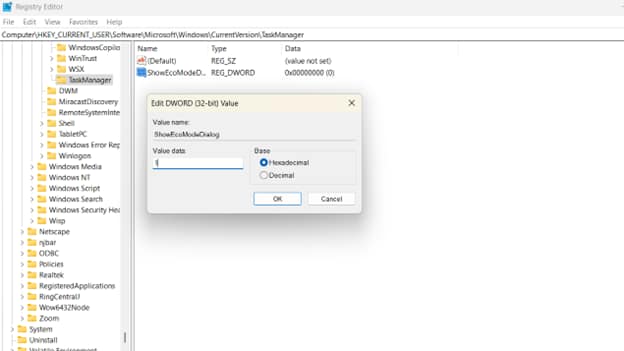
- Double-click the ShowEcoModeDialog value.
- If this key doesn’t exist, do the following:
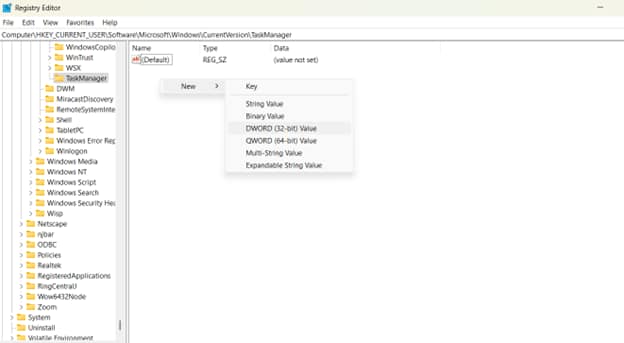
- Right-click on the right-hand pane.
- Select New > DWORD (32-bit) value.
- Name the new value “ShowEcoModeDialog”.
- If this key doesn’t exist, do the following:
- Modify the value.
- To turn the confirmation dialog on, type 1.
- To turn the confirmation dialog off, type 0.
- Close Registry Editor.
- Restart the computer or re-launch Task Manager (taskmgr.exe) to apply your changes.
Method 4: .reg file
Simplify Registry changes by creating lightweight .reg files that store commands needed to turn Windows 11 Efficiency Mode confirmation on or off.
📌 Use Cases: Configuration baselines and deploying automated Registry changes across your IT environment.
📌 Prerequisites: Administrator privileges.
- Press Windows + S, type notepad, and press Enter.
- Create your .reg file.
- To enable the confirmation dialog, paste the following:
Windows Registry Editor Version 5.00
[HKEY_CURRENT_USER\Software\Microsoft\Windows\CurrentVersion\TaskManager]
"ShowEcoModeDialog"=dword:00000001
- To deactivate the confirmation dialog, paste the following:
Windows Registry Editor Version 5.00
[HKEY_CURRENT_USER\Software\Microsoft\Windows\CurrentVersion\TaskManager]
"ShowEcoModeDialog"=dword:00000000
- Save the file with a .reg extension (e.g., EMConfirmationOn.reg).
- Open the file and confirm the merge.
- Restart the PC or log back in again to apply your changes.
⚠️ Things to look out for
| Risks | Potential Consequences | Reversals |
| Accidentally setting critical system processes to Efficiency Mode | System unresponsiveness and instability | Open Task Manager > Right-click on vital processes > Clear the box next to “Efficiency Mode” |
| Deleting Registry keys related to power throttling | Efficiency Mode stops working for all apps | Recreate the key manually or restore the Registry from backup |
| Activating Efficiency Mode globally instead of per-process via a .reg file | Performance issues (e.g., throttling) across all apps | Replace the .reg file entry with the correct script and restart your system |
Additional considerations for toggling Windows 11 Efficiency Mode
Knowing the details of Efficiency Mode confirmation can give you insight into handling possible troubleshooting scenarios later on. Here are the key points:
Confirmation prompt
While removing the confirmation prompt can speed up your tasks, note that the warning helps maintain stability by preserving system-critical processes. Putting these at risk can possibly misconfigure workstations and degrade performance.
Windows 11 Efficiency Mode is done per-user
Keep in mind that the Efficiency Mode feature is per-user and per-session. This means two things: an app will stop running on Efficiency Mode after a reboot, and other logged-in users can enjoy a separate instance of Efficiency Mode apps.
No Group Policy Object
At the time of writing, no Efficiency Mode GPO setting exists for Windows 11. This can limit your ability to centrally manage apps within your enterprise. Instead, you can deploy .reg files via PowerShell as a workaround for wider, at-scale changes.
Control Efficiency Mode confirmation prompts for smoother workflow
Managing the Efficiency Mode dialog simplifies your company workflow, prevents potential misconfigurations, and enhances system responsiveness.
With that in mind, adapt the way you run important apps according to your policies. For instance, production environments that require constant uptime may value data integrity over speed, while trusted work processes may be improved by removing unnecessary warnings.
Related topics: