
Key Points
- Configure Windows 11 Password Expiration Using GUI: Use Local Users and Groups (lusrmgr.msc) on Pro/Enterprise editions.
- Manage Password Expiration in Windows 11 Using Set-LocalUser: Run
“Set-LocalUser -Name “USERNAME” -PasswordNeverExpires $false.” - Check Windows 11 Password Expiration Status: Use “net user [USERNAME].” The output shows “Password expires” and displays “Never” if expiration is disabled.
- Configure Password Age Policies: Set minimum and maximum password age using “secpol.msc” or “net accounts /maxpwage” and “net accounts /minpwage.”
- Understand Windows 11 Default Password Policy Behavior: NIST 800-63B no longer recommends routine password rotation unless required for compliance.
- Use Group Policy or MDM: In domain environments, configure Windows 11 password expiration using Group Policy; for distributed environments, use an MDM.
This step-by-step tutorial demonstrates how to configure password expiration for local accounts in Windows 11, including steps to check its current status. It also explains what happens when password expiration is disabled for these accounts.
Overview of Windows 11 password expiration configuration methods
| Method | Windows 11 edition | Recommended? |
| Local Users and Groups (GUI) | Pro/Enterprise/Education | Yes |
| PowerShell (Set-LocalUser) | All (admin permission required) | Recommended |
| net user | All | Limited control |
| Group Policy | Domain-joined devices | Enterprise use |
Preparation before changing local user password expiration settings
Whether you’re enabling or disabling password expiration for an account, you must be signed in as an administrator. Before you make any changes to your Windows 11 system configuration, take a full system backup.
Note that to configure password expiry for Windows domain accounts you’ll need to use Group Policy.
NinjaOne Remote Access can help configure password expiration for managed devices.
Step-by-step instructions: How to configure password expiration in Windows 10 and Windows 11
This guide includes tutorials for turning password expiration on or off for Windows 10 and Windows 11 devices.
Note that using the Local Users and Groups snap-in (GUI) method is only available on the Pro, Enterprise, and Education editions of Windows — Home users will have to use the command line method.
How to enable or disable password expiration using Local Users and Groups (GUI)
- Right-click the Start button
- Select Run
- Enter lusrmgr.msc into the Run dialog and click OK
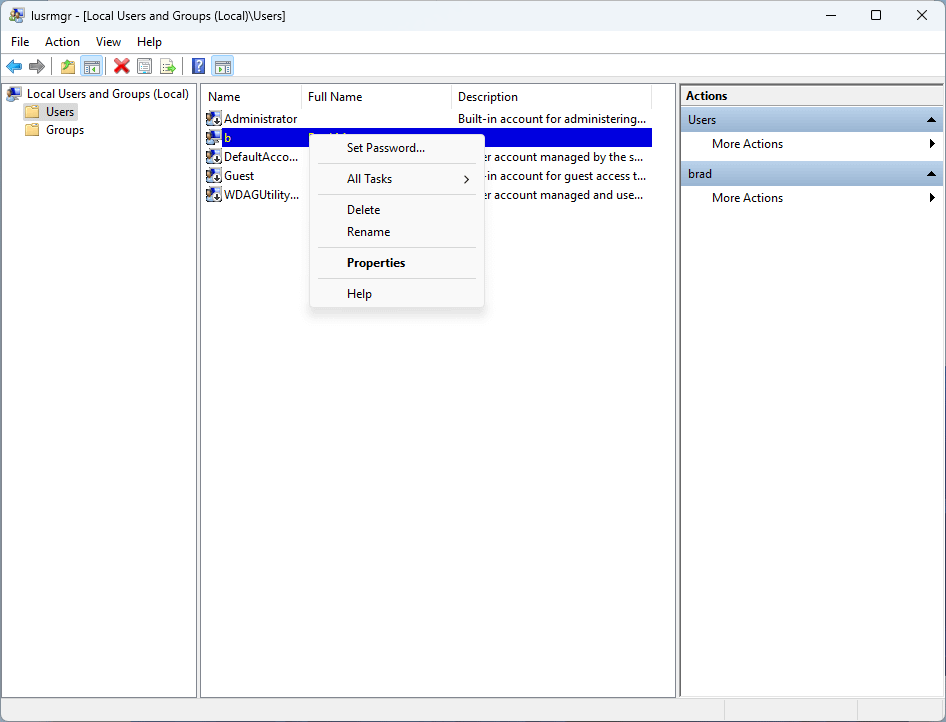
- Select Users from the navigation tree in the left pane of Local Users and Groups
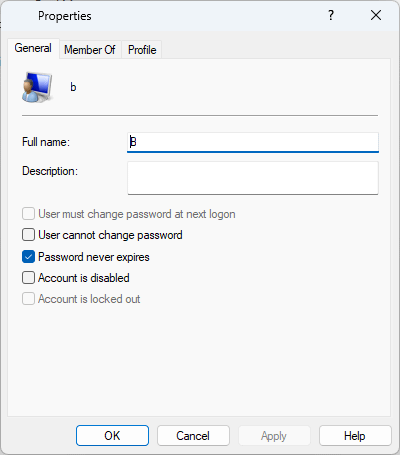
- Right-click the user you want to enable or disable password expiration for and select Properties
- Click OK to confirm the change
How to turn password expiration on or off using command-line tools
- Enter this command to enable password expiry for the specified local user account: Set-LocalUser -Name “USERNAME” -PasswordNeverExpires $false
- Enter this command to disable password expiry for the specified local user account: Set-LocalUser -Name “USERNAME” -PasswordNeverExpires $true
Note that you’ll need to replace the USERNAME text in the above commands with the username of the account you wish to turn password expiry on or off for. In addition, keep in mind that the Set-LocalUser cmdlet works only for local accounts.
How to check password expiration status in Windows 10 and Windows 11
You can check the password expiration status for a user simply by running the command net user USERNAME (replacing USERNAME with the local account username).
This command will output information about the user account, including when the Password expires, which will be set to Never if password expiry is disabled.
Background: Understanding password expiration
Password expiration means that a user needs to regularly change their Windows account password after a predefined interval. In Windows 11, once the maximum password age is reached the user will need to change their password on the next log in.
By default, local accounts in Windows 11 are set to not have their passwords expire. Enabling password expiry for an account will force that specific user to update their password once it reaches a certain age. Alternatively, it will update when an administrator has specified that they must change their password the next time they log in.
In the modern context, Microsoft security guidance no longer recommends routine password expiration unless required by compliance standards (NIST 800-63B guidance). Microsoft accounts (online accounts) follow Microsoft cloud password policies, while local accounts are still non-expiring by default.
That said, enforcing password expiration can enhance security by preventing the continued use of old passwords, especially if they may have appeared in a data breach or have been shared or accidentally disclosed. However, there are potential drawbacks. For one, this forces users to change their passwords too regularly, which can frustrate and lead them to re-use old passwords, use easy-to-guess passwords, or write their passwords down.
How to change minimum and maximum password expiration age/limits
To configure the period before changing the password again, you can set minimum and maximum password age expiry limits. Once password expiry has been enabled, you can also force that user to change their password the next time they log in.
Method 1: Local Security Policy (Windows 11 Pro+ only)
- Run secpol.msc.
- Go to Account Policies → Password Policy.
- From here, set either or both the maximum and minimum password age.
Method 2: Command Line
- Use the following commands for these respective actions:
- Set the maximum password age: net accounts /maxpwage:90
- Set the minimum password age: net accounts /minpwage:1
- Use the following commands for these respective actions:
- Check the current policy: net accounts
For the first two commands, you can adjust the numerical values as you see fit.
Windows password expiration use-cases and best practices
There are several scenarios where you may be required to enable password expiration for local user accounts, such as
- on shared computers to discourage users from sharing accounts and passwords and
- for accounts that are used by personnel that are regularly rotated.
Alternatively, there are situations where it isn’t necessary to force users to regularly change their passwords (e.g., personal devices that only have a single user.
When deciding on minimum and maximum password ages, you should consider the use case and what will encourage the best security practices from users. Forcing users to change their passwords too regularly (without reason) may discourage them from using strong passwords. It could also encourage them to seek workarounds like writing their passwords down or not locking their machines when it’s not in use.
Get insights on endpoints and ensure that you’re enforcing robust security policies.
Explore our Endpoint Management FAQ to learn how NinjaOne helps IT teams secure, monitor, and automate Windows and other devices efficiently.
Ensure your local user accounts rotate passwords regularly. Watch How to Configure Password Expiration for Local Accounts to set it up.
Password security and enabling and disabling password expiration in enterprise environments
Most large enterprises will configure password expiration in Windows 11 using Group Policy in a Windows Domain environment. Some businesses, however, don’t use a Windows Domain, or rely on employees to bring their own devices (BYOD).
Securing a vast array of user devices and protecting your vital customer data requires a comprehensive mobile device management (MDM) solution. NinjaOne MDM allows you to configure user account and security policies for Windows, Apple, Android, and Linux devices, whatever their form factor and wherever they are located.
Learn more in our NinjaOne MDM FAQ to see how NinjaOne MDM simplifies password and device policy management across your endpoints.