The Sidebar in Microsoft Edge offers quick access to tools like Search, Outlook, Office, Shopping, and web apps. While useful for multitasking, some users prefer a cleaner interface or want to hide the Sidebar entirely. Administrators may disable it in managed environments to simplify the UI or prevent distractions.
Managing the Sidebar in Edge helps reduce visual clutter, enforce a consistent UI across shared or kiosk systems, and restrict access to features like Games, Shopping, or Tools. It can also improve overall browser performance and user focus. This guide will show you several ways to add, remove, or centrally manage the Microsoft Edge Sidebar in Windows.
📌 Recommended deployment strategies:
| Click to Choose a Method | 💻 Best for Individual Users | 💻💻💻 Best for Enterprises |
| Method 1: Toggle Sidebar via Edge Settings (Per User) | ✓ | |
| Method 2: Remove Sidebar via Registry Editor | ✓ | |
| Method 3: Configure Sidebar via Group Policy | ✓ | |
| Method 4: Automate Sidebar configuration via PowerShell | ✓ |
How to enable or disable the Edge Sidebar
📌 Prerequisites: Make sure these requirements are in place before attempting to configure the Microsoft Edge Sidebar:
- Microsoft Edge (Chromium-based) must be installed.
- Administrator privileges are required to make changes via the Registry Editor or Group Policy.
Method 1: Toggle Sidebar via Edge Settings (per user)
📌 Use Cases: Use this when…
- You want a quick, user-friendly way to show or hide the Sidebar.
- You’re configuring settings for your personal Edge profile.
- Open Microsoft Edge.
- Click the three-dot menu (⋯) in the top-right corner.
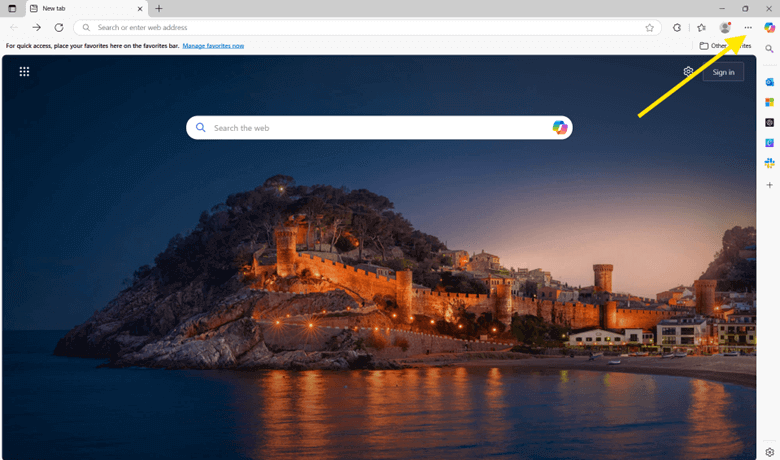
- Select Settings.
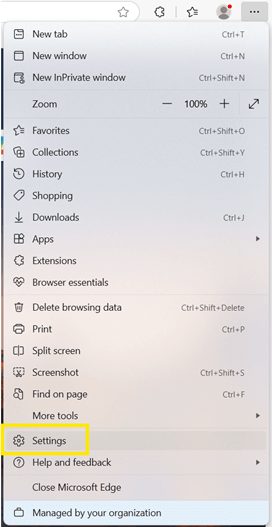
- In the left panel, click Copilot and Sidebar (or Sidebar, depending on your Edge version).
- Under Sidebar visibility, choose the radio button that reflects your preference:
- Always on – The Sidebar will always remain visible.
- Auto hidden – The Sidebar appears only when using the side pane or Copilot.
- Off – The Sidebar will never be shown.
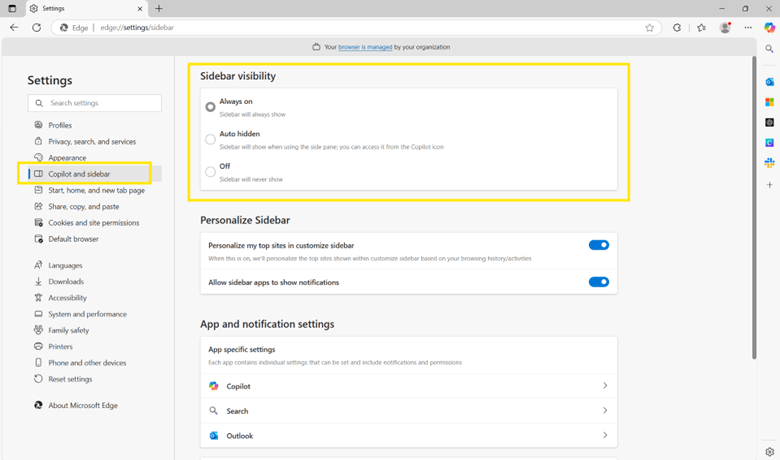
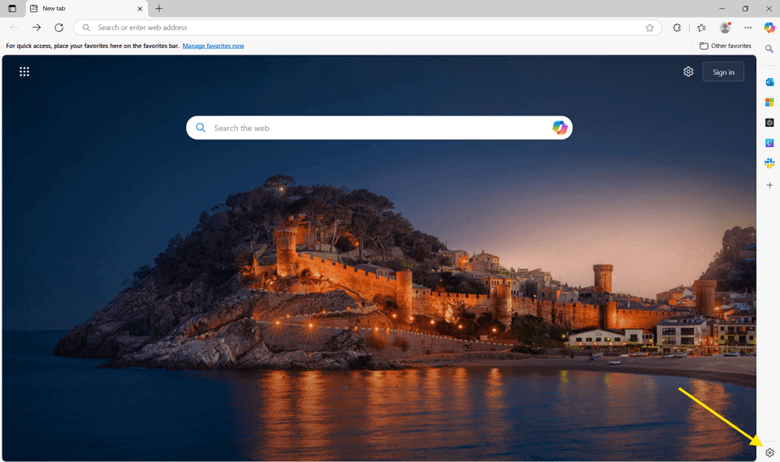
💡 Note: These changes apply only to the current user profile. You can also adjust Sidebar visibility anytime by clicking the Sidebar toolbar icon in the bottom-right corner of the browser.
Method 2: Remove Sidebar via Registry Editor
📌 Use Cases: Use this when…
- You’re using Windows Home or another edition without Group Policy.
- You want to enforce Sidebar settings at the system level.
- You need to disable the Sidebar for all users on the machine.
This method best suits advanced users or administrators who want to disable Edge Sidebar through the Windows Registry.
⚠️ Warning: Editing the registry can cause serious system issues if done incorrectly. Always back up the registry or create a restore point before making changes.
- Press Win + R to open the Run dialog box.
- Type regedit and click Enter to launch the Registry Editor.
- Navigate to:
HKEY_LOCAL_MACHINE\SOFTWARE\Policies\Microsoft\Edge
(If the Edge key doesn’t exist, right-click Microsoft, select New > Key, and name it Edge.)
- With the Edge key selected, right-click on the right pane and choose:
- New > DWORD (32-bit) Value
- Name it: HubsSidebarEnabled [SEE: ⚠️ Things to look out for #1]
(If the HubsSidebarEnabled value already exists, double-click it to edit.)
- Set the Value data to:
- 1 = Enable Sidebar on Edge
- 0 = Disable Sidebar on Edge
- Click OK, then close the Registry Editor.
- Restart Microsoft Edge to apply the changes.
- Close all open Microsoft Edge windows.
- Click the Edge icon from your desktop, taskbar, or Start menu to reopen it.
Method 3: Configure Sidebar via Group Policy
📌 Use Cases: Use this when…
- You’re an IT admin managing multiple machines in a domain.
- You need to enforce a consistent Sidebar setting across all users.
- You want to block end users from changing Sidebar visibility.
📌 Prerequisites:
- This method is only available on Windows Pro, Enterprise, or Education.
- It requires installing the latest Microsoft Edge ADMX templates, which can be downloaded from Microsoft’s official site.
- Press Win + R to open the Run dialog box.
- Type gpedit.msc and click Enter to launch the Local Group Policy Editor.
- Navigate to:
Computer Configuration > Administrative Templates > Microsoft Edge [SEE: ⚠️ Things to look out for #2]
- Locate and double-click the policy name Show Hubs Sidebar.
- Configure the policy based on your preference.
- Enabled = Always show sidebar.
- Disabled = Hide the sidebar from all users.
- Not configured = Allow user control.
- Click Apply, then OK to save the changes.
To apply the policy immediately:
- Press Win + R, type cmd, and click Enter to open the Command Prompt.
- Run gpupdate /force.
This forces the Group Policy update without requiring a restart.
Method 4: Automate Sidebar configuration via PowerShell
📌 Use Cases: Use this when…
- You need to automate Sidebar settings across multiple endpoints.
- You’re deploying configurations using RMM, Intune, or scripting tools.
- You want to quickly apply settings without opening Group Policy or Registry Editor.
- Press Win + S to open Search.
- Type powershell, then right-click Windows PowerShell from the results.
- Select Run as administrator. [SEE: ⚠️ Things to look out for #3]
- Run one of the following scripts based on your preference:
To disable the Sidebar:
New-Item -Path "HKLM:\SOFTWARE\Policies\Microsoft\Edge" -ForceSet-ItemProperty -Path "HKLM:\SOFTWARE\Policies\Microsoft\Edge" `-Name "HubsSidebarEnabled" -Value 0
To enable the Sidebar again:
Set-ItemProperty -Path "HKLM:\SOFTWARE\Policies\Microsoft\Edge" `-Name "HubsSidebarEnabled" -Value 1
These scripts modify the Windows Registry to enforce Sidebar visibility settings. For changes to take effect, Microsoft Edge may need to be restarted. [SEE: ⚠️ Things to look out for #4]
⚠️ Things to look out for:
| Risks | Possible consequences | Reversals |
| 1. Creating the wrong registry key or value | Placing HubsSidebarEnabled in the wrong path or misspelling it prevents the setting from working. | Confirm it’s placed under the correct path and exact spelling. |
| 2. Missing Edge Sidebar policy in Group Policy Editor | If ADMX templates aren’t installed, Sidebar settings won’t appear in GPEdit. | Download the latest Microsoft Edge ADMX templates. |
| 3. Running PowerShell without administrator rights | Scripts silently fail if PowerShell isn’t run as an administrator. | Right-click PowerShell and choose Run as Administrator before executing scripts. |
| 4. No confirmation from PowerShell scripts | There’s no visual feedback when the registry is modified via script. | Open Registry Editor to manually verify that the HubsSidebarEnabled value exists and is correct. |
Additional considerations when configuring the Edge Sidebar
Here are additional considerations to understand how settings behave across different scenarios. This will help you choose the right configuration method for your environment and ensure consistent Sidebar behavior across users and systems.
Per-user vs. system-wide
GUI settings accessed through the Edge Settings menu apply only to the current user profile and can be freely changed by the user. In contrast, configurations made through Group Policy (GPO) or the Registry Editor are system-wide, meaning they affect all users on the device and cannot be adjusted by end users.
Sidebar tools
You can customize or restrict individual tools or modules within the Sidebar using Group Policy or Intune. This is useful for tailoring the Sidebar to organizational needs and limiting non-essential features.
User override
When Sidebar settings are enforced via GPO or Registry, users cannot manually modify or re-enable the Sidebar from within Edge. An administrator must remove or change the applied policy at the system or domain level to restore user control.
Roaming profiles
GPO and system-level registry settings persist across user sessions and device logins in environments with roaming profiles or domain-based user management. This ensures a consistent Sidebar experience, even when users sign in on different devices within the same network.
Streamline the user experience with the right Microsoft Edge Sidebar configuration
Managing the Sidebar in Microsoft Edge allows you to tailor the browser experience for improved usability, performance, or organizational compliance. Windows 11 offers multiple methods to control Sidebar visibility and behavior, whether you’re cleaning up the UI or enforcing a consistent setup across all devices.
Use the Edge Settings for per-user customization. To apply settings at the system level, opt for Group Policy or Registry Editor. Remember that policy-based configurations prevent user override, so choosing the method that best aligns with your goals and environment is important.
Quick-Start Guide
Here are ways to add or remove the sidebar in Microsoft Edge:
1. Using Edge Settings:
– Open Edge
– Go to Settings
– Search for “sidebar”
– Toggle sidebar options off
2. Using Registry (Windows):
– Open Registry Editor
– Navigate to: HKLM\Software\Policies\Microsoft\Edge
– Create a DWORD value named HubsSidebarEnabled
– Set its value to 0 to disable the sidebar
3. Keyboard Shortcut:
– Use Ctrl + Shift + / to toggle the sidebar on and off
4. Three-dot Menu:
– Click the three-dot menu icon in the top toolbar
– Select “Hide Sidebar”
Important Notes:
– Recent updates have made the sidebar more persistent
– Some methods may require a browser restart
– For enterprise environments, Group Policy can be used to manage sidebar settings
If you’re having trouble removing the sidebar, the registry method (option 2) appears to be the most reliable current solution.