While NinjaOne tracks historical actions taken within the platform, many organizations need to aggregate these logs in a Security Information and Event Management tool – commonly known as a SIEM. This blog discusses how to set up the process of relaying data from NinjaOne into a SIEM using webhooks that are delivered as the activities occur. You can also retrieve this information via the API.
Before getting started
- Webhooks enable real-time event transmission from NinjaOne to your SIEM.
- You can configure webhooks for specific events like device alerts, policy conditions, or integration-specific notifications.
- In our example, we’re using Splunk, but any SIEM tool that ingests webhooks should work with this methodology.
- Different integrations (ServiceNow, Zendesk, etc.) have unique webhook configuration methods.
Synchronize activity messages
NinjaOne is configured to stream webhooks into a Splunk HTTP Event Collector (HEC).
- Create an HTTP Event Collector (HEC) in Splunk as detailed here. This is the mechanism that will receive the webhooks being sent from NinjaOne. As part of the process of creating the HEC, a token will be generated. Take note of this token because NinjaOne will need it to authenticate when sending webhooks to Splunk.
- Log in to NinjaOne (user must have the “system administrator” role to perform this action) and navigate to Administration -> Apps -> API.
- Hover the question mark next to the API title bar, and click on “API Documentation.”
- In the same browser, navigate to this API endpoint.
- By completing step 2, you should be authenticated into the API docs webpage and be able to make API calls.
- Read the documentation for the endpoint here, and decide which
activityTypesshould convey over to Splunk.- Activities in NinjaOne are categorized based on the type of action they relate to – for example, “CONDITION” would retrieve only logs related to triggered alerts and resets, “ACTIONSET” would be any automation being executed or action taken by a technician.
- Not every
activityTypemay be relevant to your data collection needs, so only select the ones that need to be logged in Splunk. Additionally, you may append additional information by utilizing the “EXPAND” parameters.

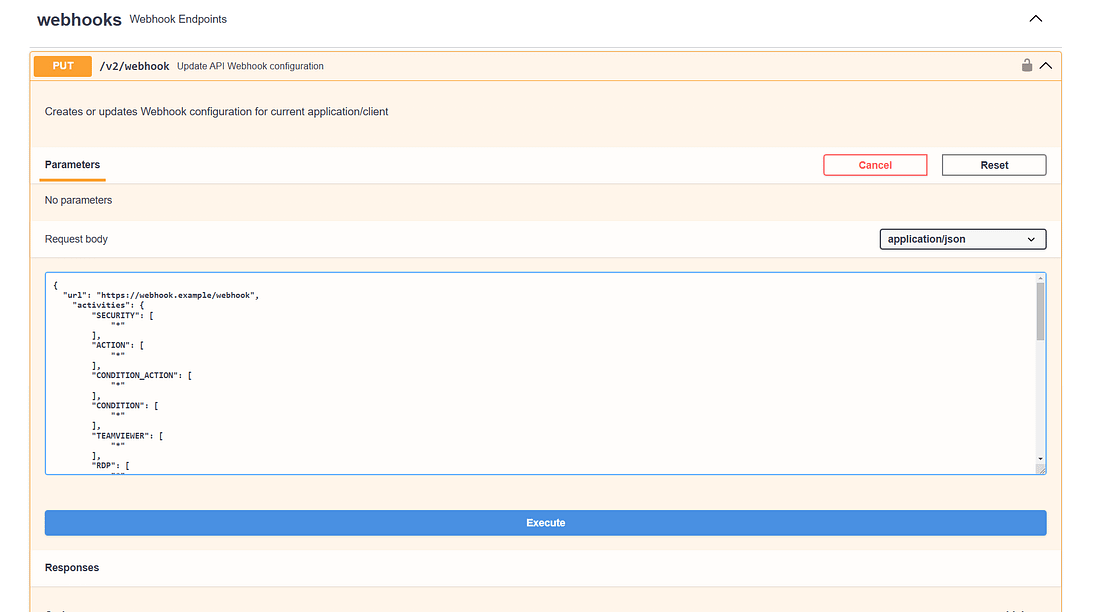
- Customize this example payload
- Insert the URL of the Splunk HEC that was created in step 1 – ensure that your URL ends in
/services/collector/rawin order for the webhooks from NinjaOne to be successfully parsed. - Customize the
activityTypesyou want to relay to Splunk. Note that eachactivityTypekey uses a “*” as the value in the JSON payload. - Customize desired
expandparameters - Insert token that was created for Splunk HEC in step 1 into the “value” under “headers” in the JSON payload – “Splunk” must precede the token, i.e.
Splunk 123456
- Insert the URL of the Splunk HEC that was created in step 1 – ensure that your URL ends in
- Back in the tab you open in step 3, click “Try it out” and paste the example payload that was customized into the “request body” box. Click the execute button and a 204 response should be visible upon completion.
- Customize this example payload
In conclusion
Once this process is complete, NinjaOne activities will be sent as webhooks to the SIEM where they can be ingested. Under the Notification Channels menu in NinjaOne, you’ll notice a webhook entry with no name. It’s important that this entry not be modified in any way to ensure webhooks are continually streamed to your SIEM. Under General -> Activities, there is an activity that can notify you if there have been issues with webhooks failing, or if the webhook becomes disabled. It’s recommended to enable those activities so that any interruptions in webhook activity can be identified and remediated quickly.