Key Points
- Lost Mode for NinjaOne MDM instantly locks managed Android, iOS, and iPadOS devices the moment they are reported missing.
- Continuous location updates give IT teams real-time visibility into a device’s location, improving recovery outcomes.
- Mobile device management solutions eliminate the need for physical access, allowing technicians to respond immediately from anywhere.
- iOS and iPadOS devices in Lost Mode support a remote sound trigger to help locate nearby devices in any environment.
- Enterprise mobile management enables a consistent lock, locate, and monitor response across all device types from a single platform.
Secure and recover lost mobile devices instantly
Mobile devices go missing all the time.
A technician leaves a tablet at a job site. A healthcare worker misplaces an iPad between shifts. An employee forgets a corporate phone in a taxi. A departing employee never returns company-issued equipment.
In these moments, speed matters. The gap between “device lost” and “device secured” is where security risk lives. Corporate data may still be accessible, and IT teams often have limited visibility into where the device is or what’s happening to it.
Technicians need the ability to act immediately, without waiting for physical access.
Lock and secure devices the moment they go missing
With Lost Mode now available for NinjaOne MDM, technicians can remotely place managed Android, iOS, and iPadOS devices into Lost Mode instantly. The moment Lost Mode is activated:
- The device is locked
- Unauthorized access is prevented
- The device begins reporting its location continuously
Instead of relying on the end user to respond or recover the device themselves, IT can immediately take control. Lost Mode keeps devices secured and visible until they are recovered or decommissioned.
How this helps in mobile management
Protect devices without physical access
When a device is lost or stolen, every minute counts. Lost Mode allows technicians to remotely lock devices the moment they’re reported missing, reducing the risk of unauthorized access to corporate data. Even if the device is offsite or in the hands of an employee, IT can take immediate action.
This is especially important for organizations managing distributed teams, where devices rarely stay within the boundaries of a traditional office. By removing the need for physical access, technicians can respond faster and maintain control no matter where the device is located.
Track and recover mobile assets in with continuous location updates
Securing a device is only part of the equation; recovering it is just as important.
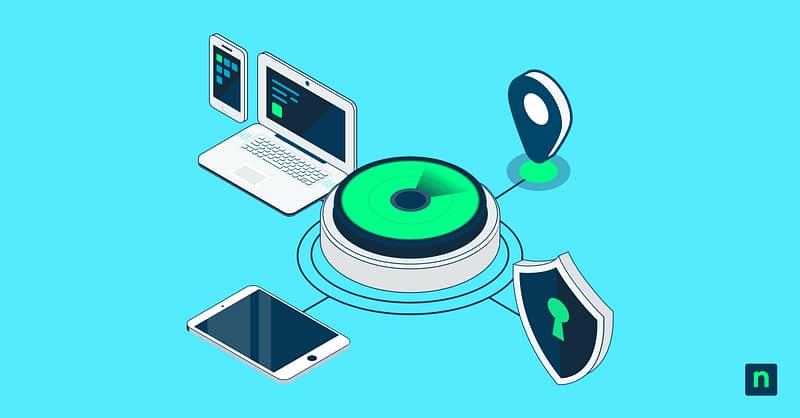
Lost Mode provides continuous location updates, giving technicians ongoing visibility into where a device has been and its current reporting location. This delivers consistent, updated location data that helps teams narrow down where a device is and improve recovery outcomes.
For misplaced devices, this can significantly reduce the time spent searching. For stolen devices, it provides critical insight that can support recovery efforts. On iOS and iPadOS devices, technicians can also trigger a sound to help locate devices nearby, whether in an office, warehouse, or field environment.
Real-world use cases
Use Case 1: Recover misplaced corporate devices
Devices are often lost internally before they’re truly “lost.” A tablet may be left in a warehouse, a conference room, or a shared workspace. With Lost Mode, technicians can lock the device, trigger a sound on supported devices, and use location updates to quickly recover it.
Use Case 2: Secure stolen or unreturned equipment
When a device is stolen or not returned after an employee leaves, Lost Mode allows IT to lock the device immediately and monitor its location. This helps protect corporate data while the organization determines next steps such as recovery or decommissioning the device.
Use Case 3: Support distributed and field teams
For organizations with remote workers, healthcare staff, retail associates, or field technicians, devices are constantly in motion. Lost Mode ensures IT teams can maintain control over these endpoints, even when they’re far outside the office.
Consistent control across mobile platforms
Lost Mode is supported across Android, iOS, and iPadOS, enabling a consistent approach to securing and tracking mobile devices across your environment.
Instead of managing different workflows for different device types, technicians can apply the same response – lock, locate, and monitor – from a single platform. This simplifies mobile device management while strengthening overall security posture.
What this means for technicians
For technicians, the impact is immediate:
- Faster response to lost or stolen devices
- Reduced risk of data exposure
- Greater visibility into device location
- Improved chances of recovery
- Consistent control across distributed environments
You don’t have to wait for a device to come back online in your environment; you can act the moment it goes missing.
Stay in control when devices go missing
Device loss is inevitable. Loss of control doesn’t have to be. With Lost Mode for NinjaOne MDM, technicians can secure devices instantly, maintain continuous visibility through location updates, and protect corporate data, even when devices are offsite or out of reach.
Contact your Account Manager to learn more about Lost Mode and NinjaOne MDM.
FAQs
What happens to corporate data when a mobile device is lost or stolen?
Corporate data remains accessible on the device until it is remotely locked or wiped by an IT administrator. This is why activating Lost Mode immediately is critical because the longer a device stays unsecured, the greater the risk of unauthorized access to sensitive company information.
Can Lost Mode be activated on a device that is offline?
Lost Mode commands are queued and executed the moment the device reconnects to the internet. This means even if a device is temporarily offline, the lock will still be applied as soon as it comes back online.
Does mobile device management work for personally owned devices used for work (BYOD)?
Mobile device management can be applied to BYOD devices, but only to the enrolled work profile rather than the entire device. This allows IT to secure corporate data without affecting personal apps or content on the employee’s device.
What is the difference between Lost Mode and a remote wipe?
Lost Mode locks the device and tracks its location while keeping data intact, making it ideal for recovery situations. A remote wipe permanently erases all data and is typically used as a last resort when recovery is unlikely or the security risk is too high.
What should an organization do if a lost device cannot be recovered?
If recovery efforts fail, the device should be remotely wiped to prevent data exposure, and the incident should be documented for compliance and insurance purposes. IT teams should also revoke any credentials or access tokens associated with the device to prevent unauthorized account access.