

Key Points
- Chrome browser management gives IT one place to manage browser settings, policies, extensions, and reporting across the organization.
- Organizations can manage Chrome through Chrome Enterprise Core, Group Policy, MDM or UEM platforms, or a combination of these tools.
- Chrome browser policies help keep browser settings consistent, reduce security risks, and make Chrome easier to manage across users and devices.
- Managing Chrome extensions starts with knowing what’s installed, approving only what’s needed, and reviewing extensions as they change over time.
- Chrome browser reporting helps IT verify that policies are applied, identify configuration issues, and spot potential risks before they become larger problems.
For many employees, Chrome is where most of the work gets done. It’s where they access SaaS apps, cloud storage, internal portals, AI tools, collaboration platforms, and other business systems they use almost every day. As more work moves into the browser, Chrome becomes another part of the enterprise environment that IT needs to manage.
That’s where centralized Chrome management becomes necessary. It keeps browser settings consistent across the organization and gives IT one place to manage Chrome. Without it, browsers can quickly drift from the company standard, making security, compliance, and support more difficult.
This guide explains what Chrome browser management is and how it helps IT teams manage browser policies, extensions, settings, and reporting across the organization.
What is Chrome browser management?
Chrome browser management is the practice of centrally controlling how Chrome is configured, secured, updated, monitored, and used across every device in an organization.
Many organizations use Chrome Enterprise Core for this. It is Google’s cloud-based browser management platform that allows IT teams to manage Chrome across Windows, macOS, Linux, and ChromeOS.
| Management area | What IT can manage |
| Configuration and policy management | Configure homepage and startup settings, browser updates, password management, sync, bookmarks, downloads, and site permissions. |
| Extension management | Allow, block, force-install, remove, and audit browser extensions. Control extension permissions and installation sources. |
| Security and compliance | Apply security settings, control downloads, reduce data exposure, and enforce company browser policies. |
| Reporting and visibility | Track browser versions, installed extensions, applied policies, and overall compliance across the environment. |
Ways to manage Chrome browsers
Most organizations don’t rely on a single tool to manage Chrome. The approach usually depends on the devices they have and how those devices are managed. Here are the main options.
Cloud-based management (Chrome Enterprise Core)
This is the centralized platform covered earlier. Chrome Enterprise Core is Google’s cloud-based management platform that provides one place to set policies, manage extensions, and pull reporting across Windows, macOS, Linux, and ChromeOS devices.
On-premises Group Policy (Windows only)
Windows can manage Chrome through Group Policy by importing Google’s Chrome ADMX templates. This adds Chrome policies to the same Group Policy console administrators already use for Windows.
MDM/UEM and endpoint management tools
Many organizations already manage devices through an MDM or UEM platform. If that’s the case, Chrome can usually be managed there too, along with other applications and device settings.
Script-based and security-tool reporting
Some organizations also rely on scripts or third-party security tools for browser inventory, extension monitoring, and reporting that goes beyond what built-in management tools provide.
What can IT manage in Chrome?
Once the management is in place, the next step is deciding what to configure. Chrome includes policies for identity, security, browser behavior, and ongoing maintenance. Most of these policies can be applied as either mandatory or recommended, depending on how much control the organization wants.
| Management area | What IT can manage | Example |
| Identity and authentication | Browser sign-in, sync, personal vs. work profiles, account restrictions, and session controls | Require employees to sign in with a corporate account and allow sync only for managed profiles. |
| Security | Safe Browsing, download restrictions, site permissions, extension controls, password manager, autofill, Incognito mode, site isolation, and cookie settings | Block unapproved extensions, restrict downloads from untrusted sources, or disable password storage on shared devices |
| User experience | Homepage and startup pages, managed bookmarks, default browser settings, pop-ups, and access to specific websites | Set the company intranet as the homepage and preconfigure bookmarks for internal tools. |
| Updates and maintenance | Automatic updates, version control, update schedules, and legacy browser support | Enforce a minimum Chrome version or delay updates until internal applications are validated. |
Managing Chrome extensions
Chrome extensions add useful features, but they also introduce risk. Unlike built-in browser features, users can install extensions on their own, and some request broad access to websites, browsing data, or other browser activity. That’s why extension management is a key part of Chrome browser management.
Extension best practices
To manage extensions effectively, keep these best practices in mind:
Know what users already have
Before creating policies, build an inventory of the extensions already installed across managed browsers. Remember: you can’t manage what you can’t see.
Approve extensions deliberately
Use an allowlist instead of a blocklist. Review an extension’s permissions before approving it, then grant access only to the teams that actually need it.
Keep approved extensions under review
Approval shouldn’t be permanent. Check for version updates and permission changes regularly, since an extension can introduce new risks over time.
Deploy and restrict where needed
Force-install business-critical extensions instead of relying on users to do it themselves. If your organization has strict security requirements, consider blocking extensions that aren’t installed from the Chrome Web Store.
Extension approval workflow
Instead of approving extensions case by case, follow a consistent review process. A typical workflow looks like this:
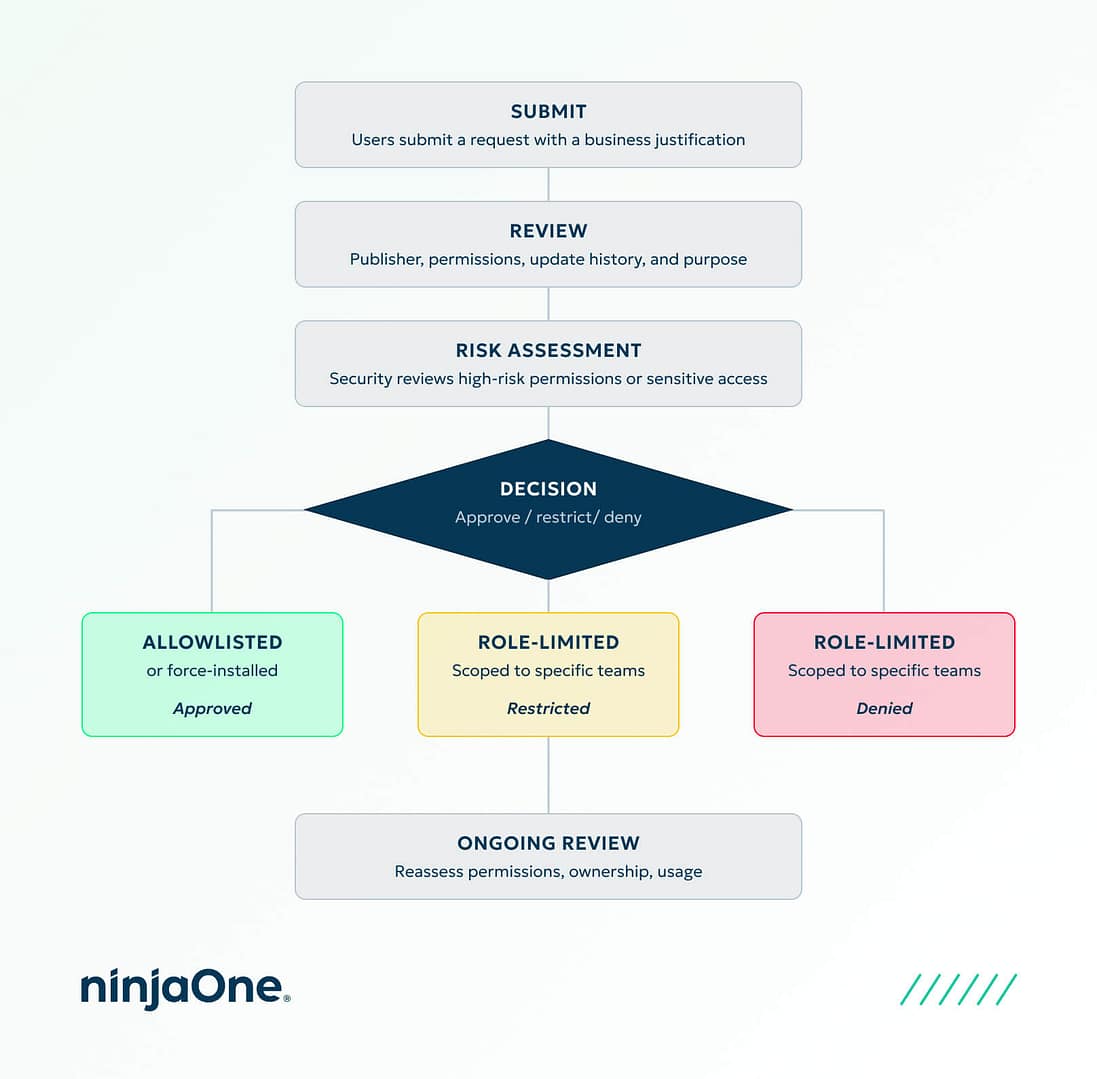
Chrome browser reporting and visibility
Chrome browser reporting gives insight into three key areas: environment state, extensions, and policy compliance.
| Reporting area | What IT can see | Why it matters |
| Environment | Browser versions, operating systems, device details, enrollment status, and sync status | Find outdated browsers, unmanaged devices, and gaps in browser coverage. |
| Extensions | Installed extensions, extension IDs, versions, and newly added or updated extensions | Detect unapproved extensions, monitor extension changes, and identify potentially risky add-ons. |
| Policies and compliance | Applied browser policies, policy conflicts, compliance status, and security-related events | Verify that policies are applied correctly, identify configuration issues, and support security and compliance efforts. |
Browser policies define how Chrome should behave, but reporting shows whether those policies are actually applied across the organization.
Best practices for Chrome browser management
Here are some best practices and common mistakes to avoid when managing Chrome in an organization.
Best practices
A few simple habits can make Chrome easier to manage over time.
Use centralized policies to keep browser settings consistent across users and devices. Keep browsers up to date, review approved extensions regularly, and use reporting to confirm policies are applied as intended. If some teams need different settings, document those exceptions instead of managing them on an ad hoc basis.
Common mistakes to avoid
Common mistakes usually come down to inconsistent management. That includes letting users manage Chrome themselves, skipping extension reviews, ignoring Chrome browser reporting, or delaying browser updates.
How to evaluate Chrome browser management solutions
The right Chrome browser management solution should give enough control to manage Chrome consistently and reduce security risks. Use the following checklist when comparing solutions.
| Area | Questions to ask |
| Policy and control |
|
| Extension management |
|
| Reporting and visibility |
|
| Integration and scalability |
|
Chrome browser management for consistent and secure browser governance
Chrome is where users access many of the tools they need for day-to-day operations. Chrome browser management helps enterprise IT teams govern the browser and keep it secure and consistent across the organization. A strong Chrome browser management strategy combines centralized policies, extension management, and reporting to reduce risk and simplify administration.
Related topics: