Key Points
- Backing up Windows drivers is essential for recovering systems when manufacturers remove drivers, Windows Update fails, or hardware becomes outdated and unsupported.
- Always run backup/restore commands as Administrator, and perform a full system backup before restoring drivers.
- Driver backup options include: dism /online /export-driver /destination:”DESTINATION_PATH”, pnputil driver export, and PowerShell Export-WindowsDriver -Online -Destination “DESTINATION_PATH”.
- Restore drivers using Device Manager for single or multiple devices (using Browse my computer → Include subfolders) or bulk-restore using pnputil /add-driver “PATH\*.inf” /subdirs /install /reboot.
- Verify successful driver restoration by running pnputil /enum-drivers to list and confirm installed drivers.
- This detailed step-by-step tutorial demonstrates how to back up and restore device drivers on Windows 11
This detailed step-by-step tutorial demonstrates how to back up and restore device drivers on Windows 11
Backing up your device drivers can save you a great deal of time whenever you need to reinstall Windows, especially for custom-built devices where you must install drivers for each device. Exporting third‑party Windows drivers speeds up the installation. In addition, if you no longer have access to the original drivers from the manufacturer, you’ll still have the installation packages ready to go. Restoring drivers from a backup can also make troubleshooting and recovering from major system problems less stressful.
If you prefer watching over reading, watchHow to Backup and Restore Device Drivers in Windows 11.
What are device drivers, and why are they important?
Device drivers are the software that interact with the hardware in your computer. The driver provides the means for your operating system to ‘talk’ to the underlying hardware. For example, the driver for a USB Wi-Fi adapter provides Windows with the necessary information to interact with the physical USB device, enabling it to control the wireless hardware and connect to networks.
Device drivers are not unique to Windows, and every operating system (including macOS and Linux) uses drivers to communicate with the hardware they run on. Each operating system is written on separate drivers.
Windows ships with a large collection of drivers for common hardware to get you up and running, and more up-to-date drivers for new devices are available online through Windows Update. Backing up third-party drivers in Windows 11 ensures that you always have access to these drivers if they’re no longer available. Windows can also lag behind when it comes to updates third-party drivers so exporting third‑party Windows drivers allows you to install the latest versions.
Installing up-to-date drivers is necessary to troubleshoot system issues (including instability), improve performance (especially in the case of graphics drivers, which are regularly optimized for the latest games), and resolve known security issues (for example, a bug in a driver tool that allows remote access).
Hardware changes and OS updates can silently break device functionality.
→ Keep endpoints reliable with NinjaOne automated backup
Why backup and restore Windows drivers?
Backing up and restoring Windows drivers is an essential process in maintaining an optimal and efficient IT environment that benefits both individual users and enterprises. Here are a few reasons to back up and restore device drivers:
Reduces downtime from unexpected issues
Backing up the drivers on a stable, working system is often overlooked, but consistently backing up drivers can reduce downtime when something goes wrong.
Even if you don’t plan on re-installing Windows, having back up copies of your drive minimizes downtime caused by outages, system issues, or malware attacks.
Hardware compatibility with older devices
Hardware manufacturers aren’t always great at keeping older versions of their drivers or drivers for older devices available online. This becomes a problem when you want to reinstall Windows on an older device or need a specific version of a driver for compatibility reasons.
Safety and security from potential malware
While there are websites that offer catalogs of legacy drivers from different manufacturers, these are often infected with malware, which can compromise your files and systems. By backing up your working drivers yourself, you can ensure that you can always restore your system and continue using the hardware you need, even if you lose the driver disk or the manufacturer becomes defunct.
Preparing for driver backup and restore in Windows
Before you run any of the commands to backup and restore device drivers, make sure you’re logged in as an Administrator. All commands should be run in an administrative Command Prompt or PowerShell session.
On Windows 11, you can open PowerShell as an administrator by right-clicking on the Start button and selecting Terminal (Admin).
If you’re restoring drivers, you should take a full backup of your Windows device before you restoring any drivers, just in case something goes wrong and you need to restore your entire system to its previous state.
Step-by-step guide to backup device drivers in Windows
Method 1: Using the DISM tool (Command Prompt/PowerShell)
The first way to backup all of your device drivers in Windows 11 is to use the DISM (Deployment Image Servicing and Management) command-line tool. The DISM can only be used to export drivers for third-party applications.
The following command will back up all installed device drivers to a specific destination
dism /online /export-driver /destination: “DESTINATION_PATH”
Note that the destination path must be created before running this command. In this example, we chose D:\DRIVER_BACKUPS:
dism /online /export-driver /destination: “”D:\DRIVER_BACKUPS”
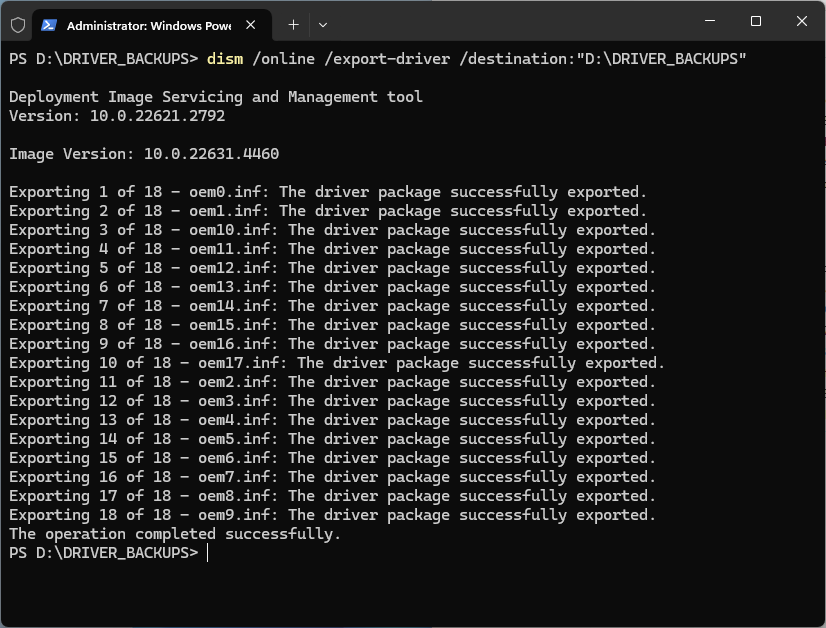
Within the destination folder, a folder will be created for each exported driver:

Within each folder will be the driver files themselves:

The DISM tool is included with all versions of Windows 11.
Method 2: Using PnPUtil (Command Prompt/PowerShell)
The PnPUtil program, also known as pnputil.exe, is included with Windows 11, and can be used to backup device drivers.
However, PnPUtil only works when Windows is running and cannot add or install drivers into a system image that’s offline or not currently booted.
Additionally, pnputil does not back up the .pnf files for drivers unlike DISM. This can lead to issues such as Device Manager failing to load drivers.
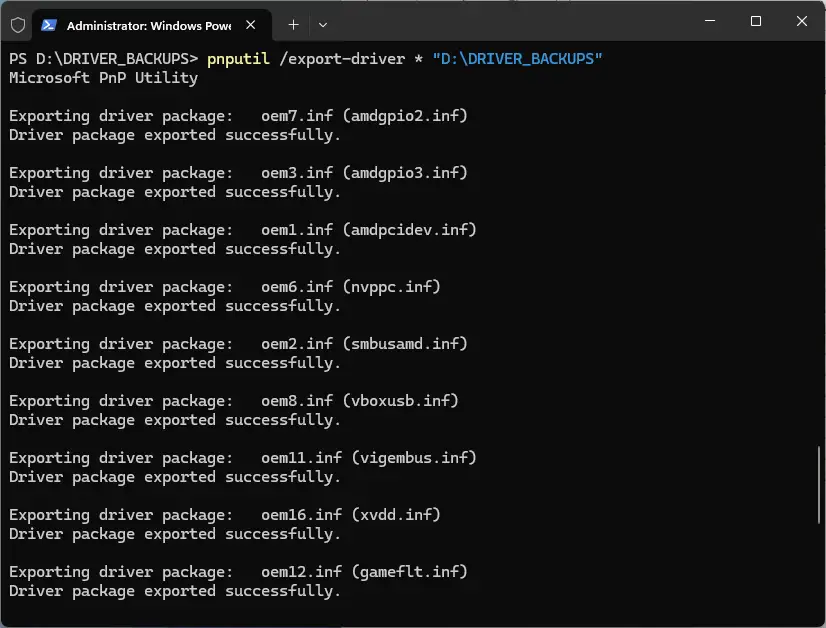
Follow these steps to backup drivers using PnPUtil:
pnputil /export-driver * “DESTINATION_PATH”
Note that the destination path must be created before running this command.
For this example, we use the same “D: \DRIVER_BACKUPS” destination.
pnputil /export-driver * “D: \DRIVER_BACKUPS”
Method 3: Using Export-WindowsDriver (PowerShell)
The Export-WindowsDriver PowerShell cmdlet is part of the DISM tool. Similar to the DISM tool, this method only works for third-party drivers and not Microsoft-provided drivers. Using this commandlet allows you to an be used to export/backup your device drivers using the following command:
Export-WindowsDriver -Online -Destination “DESTINATION_PATH”
How to restore device drivers in Windows
Restoring device drivers using the Device Manager
To restore the driver for only a specific device using the Device Manager, follow these steps:
- Right-click on the Start button
- Click on Device Manager
- Locate the device you want to restore the driver for in the list
- Right-click on the device and select Update driver
- Click Browse my computer for drivers when asked How do you want to search for drivers?
- When asked to Browse for drivers on your computer, click the Browse button and navigate to your driver backup directory
- Check the box Include subfolders and then click Next
- Device Manager will now install any drivers from the backup directory that are more recent than those already installed
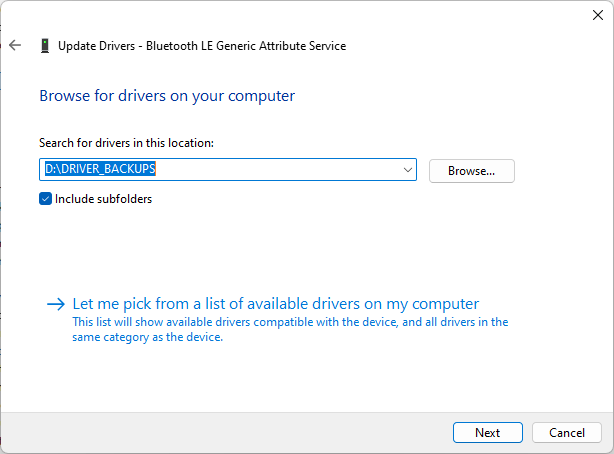
To restore drivers for all devices from a directory using the Device Manager:
- Repeat the steps above to open the Device Manager
- Click on Actions in the Device Manager menu bar and select Add drivers
- When prompted to Choose a location to search for drivers, click the Browse button and select the path to the folder containing your driver backups
- Check Include subfolders and click Next
- The Device Manager will then search for and install all drivers it finds in the specified directory
Restoring all device drivers using pnputil
PnPUtil can be used to restore all drivers from a specified directory by running:
pnputil /add-driver “DRIVER_BACKUP_PATH\*.inf” /subdirs /install /reboot
This will search the specified DRIVER_BACKUP_PATH for drivers, install any it finds in that folder or its subdirectories, and then reboot your system.
How to verify restored drivers
The PnPUtil command can also be used to confirm that your drivers have been successfully installed/restored by listing all the drivers that are installed in the Windows driver store:
pnputil /enum-drivers
Missing or outdated drivers can turn a simple task into unexpected downtime.
Best practices and troubleshooting Windows driver backup and restore
There are a few best practices you can follow to ensure backing up and restoring drivers goes smoothly, and to troubleshoot any issues you encounter:
- Back up your drivers regularly: When your drivers and operating system are updated, create backup copies so you have a known working set of drivers that is compatible with the latest version of Windows. For IT teams, utilizing backup software allows you to automate scheduled backups, ensuring that third-party.
- Keep a backup audit log: Record the date backups were taken and, ideally the version of Windows at the time they were taken for.
- Always try to use the latest drivers: Unless there is a specific compatibility issue, stick to the latest versions of drivers provide by your device manufacturer for optimal compatibility and performance.
- Do not try to restore multiple versions of the same driver: Organize your backups to prevent having multiple versions of the same driver in a directory.
If a device stops working at any point, check the vendor for a new release of the driver. It’s possible an update is required for compatibility with a recent Windows update or to resolve a conflict with another system component. If the problem appears after installing a new driver, you can use the steps shown in the video guide How to Roll Back Device Drivers in Windows 10 to return to a stable release.
This step-by-step guide makes maintenance easy – watch how to backup & restore windows device drivers.
Backing up, restoring, and managing device drivers for fleets of Windows PCs
If you’re backing up and restoring device drivers on a single PC, it makes sense to use Windows’ built-in tools. While there are third-party tools available for home users, they may not be reputable and merely replicate functionality already exists in Windows 11.
Maintaining your own library of drivers for your fleet is vital in IT operations, especially for devices that are no longer supported. An infected driver from a third-party source is a nightmare for an individual, and could seriously threaten business continuity if deployed to multiple devices in an enterprise environment.
Endpoint management by NinjaOne lets you leverage Windows’ built-in tools to backup and restore device drivers for fleets of PCs by creating and deploying PowerShell scripts. You can also monitor for driver issues and restore from known working drivers that were previously archived, all from a unified web interface for devices located anywhere in the world.