

Key points
- Restrict non-administrator user actions via Local Group Policy without impacting admin accounts.
- Deploy custom MMC consoles to target non-administrator users or groups for precise policy enforcement.
- For granular control, block specific users from modifying system settings or installing unauthorized applications.
This guide provides step-by-step instructions on how to apply Local Group Policy to non-administrators in Windows 11 and Windows 10, and how this can be useful for Windows system administration. It also includes information about Local Group Policy in Windows, troubleshooting tips, and best practices for managing Windows Group Policy at scale.
If you’re looking to apply Local Group Policy to a different user group or specific user, check out:
Otherwise, you may proceed to the step-by-step tutorial below.
Understanding Local Group Policy in Windows
Group Policy is a feature of the Windows Operating system that allows for the central administration of Windows devices, including system and user settings as well as application configuration. This includes managing security policies, user permissions, network configuration, and how user profiles are managed.
Group Policies consist of Group Policy objects (GPOs). Each GPO contains a set of configuration options that modify how the associated Windows feature or application behaves. GPOs can either be applied as a Computer Configuration (applying to a specific Windows device and any user who is logged in to it) or User Configuration (applying only to a single user account while they are logged in, regardless of which device they are logged in to).
Common configuration tasks performed using Windows Group Policies and Group Policy Objects include:
- Automatically configuring network drives or shared printers.
- Setting login scripts.
- Automatically configuring web browser settings like search engines and home pages.
- Enabling firewall and antivirus.
- Blocking access to applications or Windows features (for example, disabling access to the Registry Editor for non-administrative users).
Windows Group Policy falls into two categories:
- Local Group Policy: Local policies apply only to the individual machine they are configured on. Note that local Group Policy Objects are overruled by domain Group Policy Objects from Group Policy in Active Directory.
- Group Policy in Active Directory: Group Policy Objects can be defined in an Active Directory domain, for control of users or computers in an enterprise environment. These policies are scoped based on the user or device’s Organizational Unit within Active Directory.
Why apply Group Policy to non-administrators?
Usually, Group Policy is used in enterprise environments as part of an Active Directory domain for centralized control of Windows devices. However, administrators of small-scale Windows deployments for businesses and home users can benefit from adding restrictions to non-administrative users, as it allows them to:
- Prevent users from changing system settings and breaking their machines or disabling critical features such as firewalls or antivirus.
- Prevent users from installing software and running scripts if they are prone to installing malware or opening suspicious email attachments.
- Making sure Windows updates are regularly installed.
- Enforcing default applications such as a specific web browser or mail client.
- Enhancing the overall security and reliability of the Windows devices they oversee by making sure only they can make configuration changes that are tested and documented.
Read our guide, “How to Reset All Local Group Policy Settings to Default in Windows“
Prerequisites for applying Group Policy to non-administrators
Home editions of Windows do not let you manage Local Group Policy. To use Local Group Policy or Group Policy in Active Directory, you will need to be running one of the following versions of Windows:
- An administrator user account.
- Windows 7/8 Pro, Enterprise, or Ultimate (EOL versions).
- Windows 10 (EOL) & 11 Pro, Enterprise, or Education.
Note that risks apply when using end-of-life (EOL) or unsupported versions of the Windows OS.
Step-by-step guide: applying Local Group Policy to non-administrators
The most efficient way to manage Group Policy for non-administrators is to create a custom Microsoft Management Console (MMC) window that edits group policies only for non-administrative users.
To do so, follow these steps:
1. Right-click on the Start button, then select Run.
2. Click OK, and then Yes on the User Account Control Prompt to open the MMC.
3. Next, select File in the navigation menu, then select Add/Remove Snap-In.
4. Select Group Policy Object Editor from the list of Available snap-ins.
5. Click the Add → button to add it to the list of Selected snap-ins.
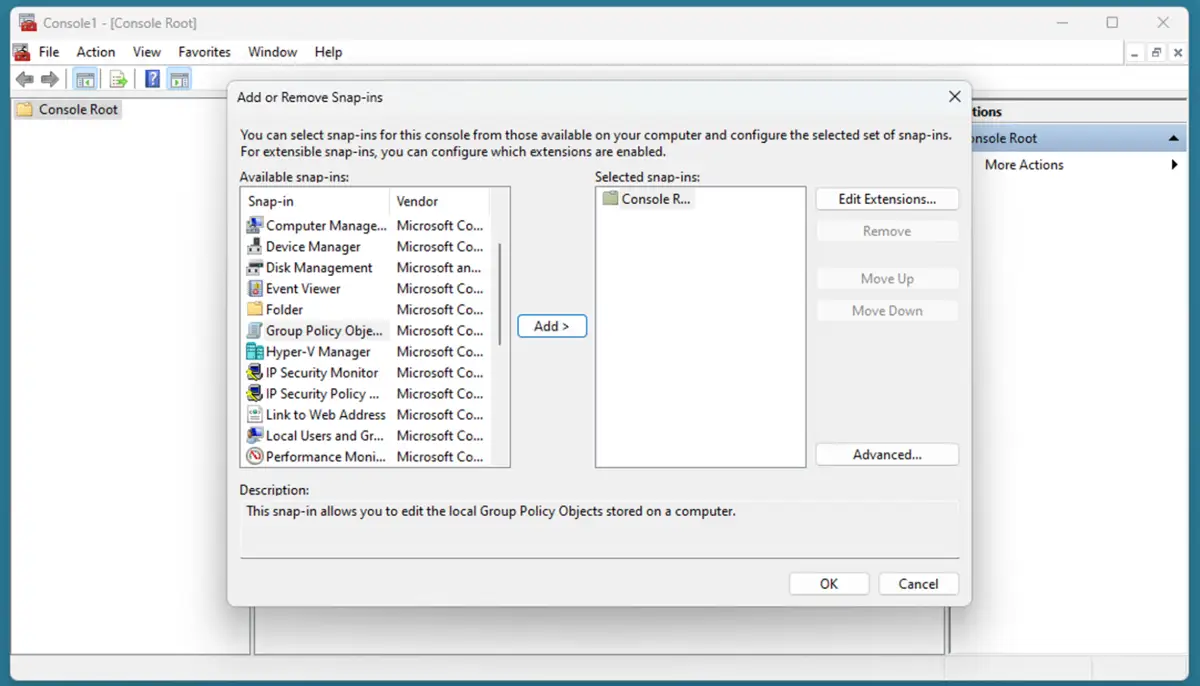
6. Click the Browse button in the Select Group Policy Object window.
7. Select the Users tab and then select the Non-Administrators user group (or alternatively, any other user group you want to specifically apply a policy to) and then press OK.
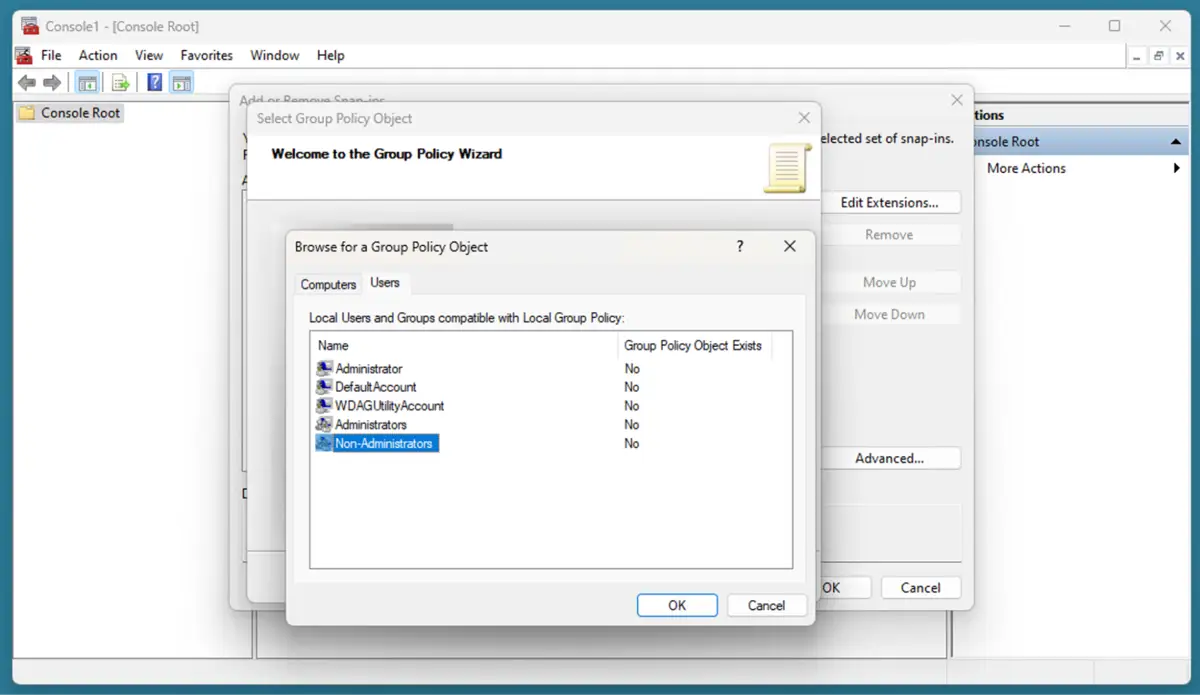
8. Click Finish in the Select Group Policy window and then press OK in the Add or Remove Snap-ins window.
9. The MMC window will now show your Local Group Policy Editor for non-administrative users in the navigation pane.
10. Click File, then Save As, and save this custom MMCe view to the desktop as Group Policy Editor for non-administrative users.
11. Now, you can skip all of the above steps whenever you want to manage user policies and use the MMC file saved to your desktop.
Any group policy changes you make in this MMC window will apply only to non-administrative users. For example, you could configure a group policy preventing non-administrative users from opening the control panel:
1. Open the MMC using the file you created above.
2. Navigate to Local Computer/Non-Administrators Policy/User Configuration/Administrative Templates/Control Panel.
3. Double-click Prohibit access to Control Panel and PC settings.
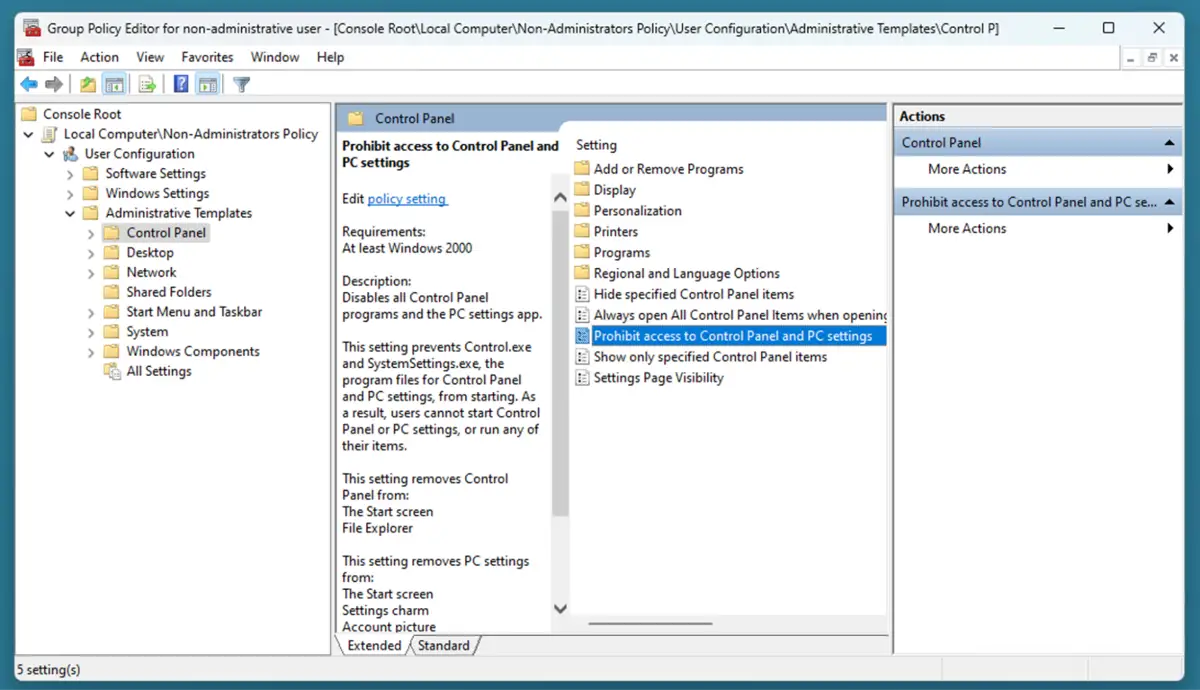
4. Select Enabled in the settings window and then click OK.
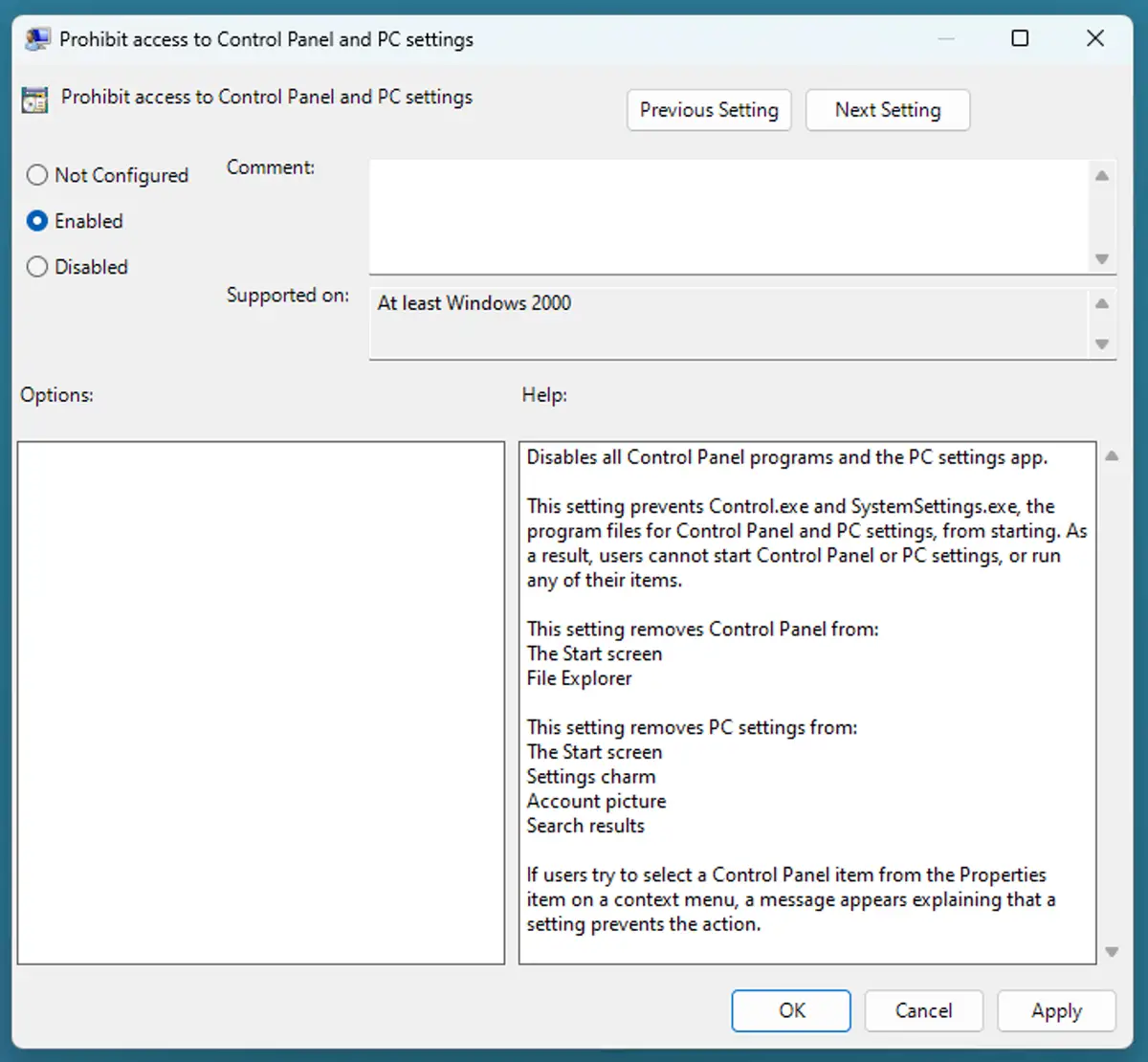
5. To apply the changes, reboot or run the command gpupdate /force from PowerShell or the command prompt.
To revert these changes, repeat the process but instead of selecting Enabled in the Prohibit access to Control Panel and PC setting, select Disabled or Not Configured.
Make sure you test any settings you alter using Local Group Policy after deploying them to ensure they are having the intended effect.
If you’d like a visual walkthrough of this process, watch our step-by-step video guide: How to Apply Local Group Policy to Non-Administrators in Windows 11 & 10.
Troubleshooting common Local Group Policy issues
If your changes to Local Group Policy are not being reflected for your non-administrative users, check the following:
- Review if the policies are assigned to the correct user group.
- Ensure that the users you are trying to manage are members of the target group.
If your changes are being applied to administrative users when they should not be, check that:
- You have not assigned the policy to the machine instead of the intended user group.
- Your policy targets the correct user group.
You can run gpresult /r to list all active group policies. The most restrictive of conflicting policies is always applied.
If you make a mistake when setting group policies and cannot determine the cause to revert an individual change yourself, you can revert all group policies by running the following commands as an administrator:
gpupdate /force
secedit /configure /cfg %windir%\inf\defltbase.inf /db defltbase.sdb /verbose
Reboot your device to complete the process – this will reset both the computer configuration and user configuration policies.
If you encounter trouble opening the Local Group Policy Editor, watch the video “How to Open the Local Group Policy Editor in Windows 10 and Windows 11” to see other ways.
→ If you need to force a Group Policy update remotely, then this GPUpdate guide can help.
Understanding Local Group Policy in Windows
Group Policy is a feature that allows for the central administration of Windows devices, including system and user settings as well as application configuration. This includes managing security policies, user permissions, network configuration, and user profiles.
Common configuration tasks performed using Windows Group Policies and Group Policy Objects include:
- Automatically configure network drives or shared printers.
- Setting login scripts.
- Automatically configure web browser settings like search engines and home pages.
- Enabling firewall and antivirus.
- Blocking access to applications or Windows features (for example, disabling access to the Registry Editor for non-administrative users).
These configurations help maintain security, consistency, and control across Windows devices and user groups.
Why apply Group Policy to non-administrators?
Usually, Group Policy is used in enterprise environments within an Active Directory domain for centralized control of Windows devices. However, administrators of small-scale Windows deployments for businesses and home users can benefit from adding restrictions to non-administrative users, as it allows them to:
- Prevent users from changing system settings and breaking their machines, or disabling critical features such as firewalls or antivirus software.
- Prevent users from installing software and running scripts if they are prone to installing malware or opening suspicious email attachments.
- Make sure Windows updates are regularly installed.
- Enforcing default applications, such as a specific web browser or mail client.
Additionally, teams use GPOs to enhance the overall security and reliability of the Windows devices they oversee by ensuringe that configuration changes are tested and documented by authorized personnel.
Read our guide, “How to Reset All Local Group Policy Settings to Default in Windows“
How to manage Windows Group Policy at enterprise scale?
Windows Group Policy in Active Directory enables centralized management of thousands of devices based on location, user role, or device type. Dedicated endpoint management solutions simplify and enhance this process, making it easier to deploy, verify, and test changes to prevent security gaps. This proactive approach ensures both security and operational efficiency across enterprise environments or MSP tenants.
Related topics:
- How to Apply Local Group Policies to Specific Users in Windows 11 and Windows 10
- How to Apply Local Group Policy to Administrators in Windows 11 & 10
- How to Back Up and Restore Local Group Policy Editor Settings
- How to Open the Local Group Policy Editor in Windows 11






