Effortless iPad Enrollment

iPad enrollment is the foundation of modern Apple device management, enabling organizations to quickly configure, secure, and support endpoints at scale. 


NinjaOne simplifies iPad device enrollment, strengthens security, and supports diverse use cases, from mobile professionals to classroom environments and field operations. Centralized management reduces overhead, enhances end-user experience, and aligns with organizational goals, empowering teams to do more with their Apple fleet. 
iPad Enrollment
IT business logo
Provide logo
Advantage Technologies logo
Dedicated IT logo
Alticap logo
Network Coverage logo

Core Values

Simplicity

Streamlines onboarding with intuitive workflows, allowing both personal and corporate iPads to be enrolled quickly and consistently—with minimal IT intervention. 

Security

Applies policies, restrictions, and app deployments automatically to help safeguard users, data, and network resources across all enrolled devices. 

Efficiency

Enables centralized management at scale, reducing manual effort and empowering IT teams to support large iPad fleets with ease. 

Features

Zero-Touch Deployment

Automatically provisions company-owned iPads through Apple Business Manager or Apple School Manager, reducing setup time and ensuring consistent configurations out of the box. 

Location-Based Policy Assignment 

Applies apps, restrictions, and configuration settings based on the device’s assigned location, making it simple to standardize and adjust deployments across teams or sites. 

Centralized App & Settings Management 

Allows IT to remotely deploy applications, enforce security controls, and adjust configurations from a single console—no physical access to the device required. 

Use Cases

Field and Mobile Workforces

Equip technicians, sales teams, and remote staff with secure, preconfigured iPads that keep data protected and users productive wherever they go. 

Education & Shared Classrooms

Simplify iPad management in schools by standardizing apps and restrictions across student groups, supporting both 1:1 and shared-device environments. 

Retail & Point-of-Sale (POS) 

Deploy iPads as kiosks or checkout terminals with locked-down configurations, ensuring secure and reliable customer interactions. 

Healthcare & Patient Intake

Provide clinicians and staff with managed iPads to access records, update patient data, and use approved apps, while maintaining strict security controls. 

Take Control of Your iPad Fleet with the best MDM for iPad

  • Enroll and configure devices in minutes 
  • Protect users and data with automated policies 
  • Manage every iPad from a single, unified console 

Related Resources

This is why customers love us

Ready to simplify the hardest parts of IT?

iPad Enrollment FAQs

iPad enrolment is the process of registering an iPad into a Mobile Device Management (MDM) like platform – Like NinjaOne, so the device can be centrally configured, secured, and managed by IT. This enrollment establishes trust between the iPad and the MDM server. 

There are three ways to enroll an iPad into NinjaOne: BYOD mode, supervised enrollment for devices purchased through an authorized Apple dealer, and supervised enrollment via Apple Configurator. 

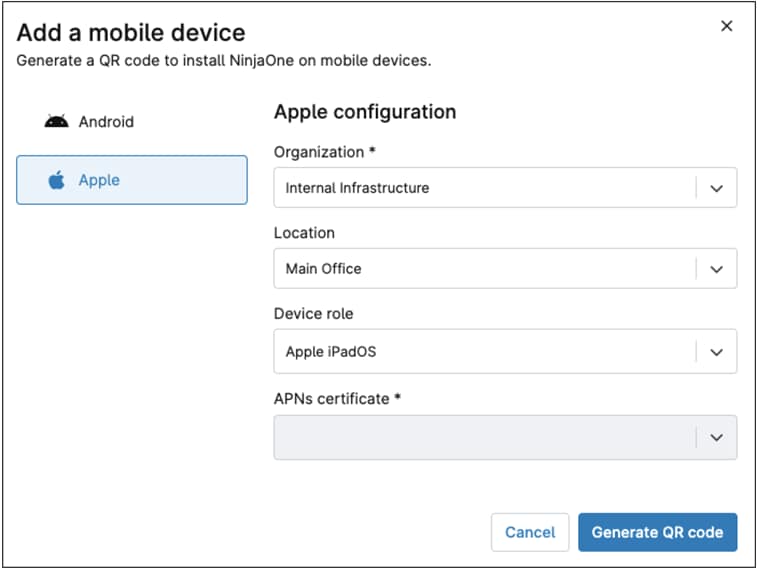
To enroll an iPad in BYOD mode, simply scan the NinjaOne-generated QR code and follow the on-screen prompts. 

To enroll an iPad purchased through an authorized Apple dealer, the device is added to Apple Business Manager by the dealer. When the device appears in ABM, an administrator assigns the device to the NinjaOne MDM server. When the device is first powered on, the zero-touch supervised enrollment takes place automatically. 

To enroll an iPad via Apple Configurator, connect the device to a Mac or iPhone, prepare it with the Apple Configurator app, and add it to ABM/ASM. Once it appears in ABM/ASM, assign the device to the NinjaOne MDM server. The rest of the process continues in the iPad following on-screen instructions. 

To be able to enroll iPads into ABM or ASM, there are some prerequisites: 

  1. You must have an Apple verified ASM or ASM account. 
  2. In NinjaOne, you must enable the NinjaOne MDM Apple app. and add at least one ADE profile. 
  3. In your ABM or ASM account, you must add an MDM server, like NinjaOne, this establishes a trust relationship between ABM/ASM and the MDM, enabling automated device enrollment. 

Note: steps 2 and 3 happen simultaneously when the ADE profile is added in NinjaOne. 

Yes, this can be done by enrolling the iPad in BYOD mode. The management will not be “supervised”, but it will still be managed by NinjaOne. 

While NinjaOne doesn’t use Apple “configuration profiles” directly, it applies settings and apps through organization and location-based MDM policies. When an iPad enrolls, it automatically receives the policies for its assigned organization and location, and you can move devices between locations at any time. 

Yes, NinjaOne does not impose restrictions for multi-user iPads. The configurations and apps are applied at the device level, not per user. 

In most environments, no special firewall changes are required to enroll iPads. However, if your organization enforces strict outbound rules, ensure that outbound TCP 443 (standard HTTPS port) is allowed so devices can communicate with Apple and the MDM server. 

If you plan to use NinjaOne Remote, also allow outbound TCP 7075 as a fallback communication port should 443 be unavailable. 

You can confirm that the iPad is properly enrolled when it appears in the NinjaOne console, under the organization and location selected when the enrolling QR code was generated. 

The steps depend on the enrollment type: 

BYOD devices: 

Simply delete the device from the NinjaOne console. This removes management, and the device can be re-enrolled at any time. All apps and settings applied by NinjaOne will be removed, without touching personal apps and data. 

Supervised devices (company-owned): 

First, delete the device from the NinjaOne console. The device will remain in ABM/ASM, where you can re-assign it to the NinjaOne MDM server to trigger re-enrollment (this works as a device reset, since it will be wiped out.) 

To fully remove the device from management, delete it from ABM/ASM after removing it from NinjaOne. This action will erase all data on the device and return it to factory-reset condition.