Key Points
- Remote Desktop Protocol (RDP) enables you to view a connected remote machine’s desktop, as if you were sitting in front of it, and allows you to control it from your local device.
- First, enable Network Level Authentication in the Advanced Settings to prevent unauthorized access.
- Enable Remote Desktop on supported Windows systems: Go to Settings > System > Remote Desktop and take note of the PC name.
- Connect to the remote desktop: Launch Remote Desktop Connection, enter the PC name or IP address of the target device. Adjust settings if needed, then click “Connect”
- You can dismiss a warning about an unverified identity to enable a remote connection.
- Remote Desktop Protocol (RDP) enables you to view a connected remote machine’s desktop, as if you were sitting in front of it, and allows you to control it from your local device.
- First, enable Network Level Authentication in the Advanced Settings to prevent unauthorized access.
- Enable Remote Desktop on supported Windows systems: Go to Settings > System > Remote Desktop and take note of the PC name.
- Connect to the remote desktop: Launch Remote Desktop Connection, enter the PC name or IP address of the target device. Adjust settings if needed, then click “Connect”
- You can dismiss a warning about an unverified identity to enable a remote connection.
Secure remote access is now a necessity for organizations, particularly as the hybrid work model is projected to increase from 42% in 2021 to 81% in 2024. To secure remote access and provide support for hybrid or fully remote teams, businesses rely on remote access protocols, such as Remote Desktop Protocol (RDP). With this post, you can dive deeper into various aspects of RDP, including its pros, cons, and use cases, to gain a better understanding of this essential protocol.
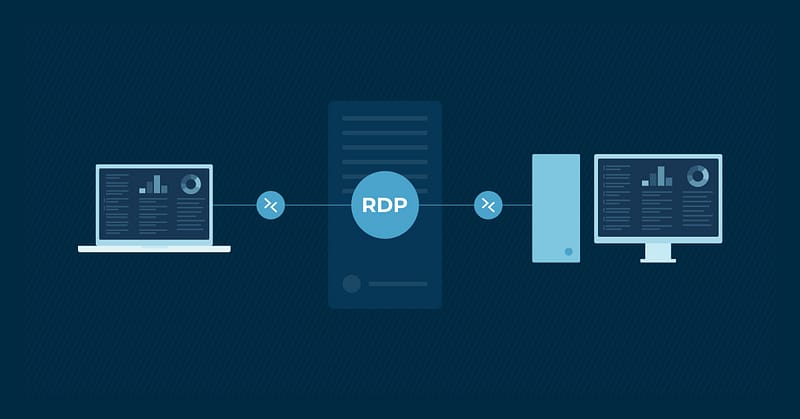
Remote desktop protocol (RDP) is Microsoft’s protocol or set of technical standards for remotely accessing a desktop. It allows two remote devices to exchange information safely over a secure and encrypted communications channel through an RDP server. IT departments use RDP to ensure that they can support and view an entire remote IT infrastructure in a secure manner.
Origins of RDP
Remote Desktop Protocol has been around for a while; to be specific, RDP has been around since 1998. Even though RDP was created over a couple of decades ago, it’s still “an extremely popular protocol for remote access to Windows machines. In fact, there are more than 4.5 million RDP servers exposed to the internet alone, and many more that are accessible from within internal networks,” CyberArk writes. While another protocol may replace RDP in the future, it’s clear that the IT community will continue to use RDP for some time.
How does RDP work?
RDP allows IT professionals to access an endpoint remotely by sending data between two devices, allowing them to communicate over network port 3389. To ensure that all information sent between the devices remains secure, RDP encrypts all transmitted data. This data includes keystrokes, mouse movements, desktop displays, and other essential information. With RDP, a technician will have a complete view of a user’s desktop on their own device and will be able to control or manage the device as well.
Cloudflare clarifies the concept of RDP with this example, “Think of a remote-controlled drone or toy car. The user presses buttons and steers the drone or car from afar, and their commands are transmitted to the vehicle. Using RDP is somewhat like that: the user’s mouse movements and keystrokes are transmitted to their desktop computer remotely, but over the Internet instead of via radio waves. The user’s desktop is displayed on the computer they are connecting from, just as if they were sitting in front of it.”
Eliminate the risks of RDP cons by leveraging NinjaOne Remote Access.
Remote desktop protocol (RDP) use cases
TechTarget explains that there are currently three main use cases for RDP, which are:
Remote access
Remote work has continued to rise ever since the COVID-19 pandemic of 2020, and many companies are choosing to adopt a remote work model permanently. Remote workers can rely on RDP to access a home or office PC from different locations or while traveling.
Remote support
A popular use case for RDP is remote support. Using RDP, a tech support team can access a desktop to troubleshoot and solve issues. It’s a fast, easy, and efficient way for help desk teams to see and access users’ devices. Remote support software can help streamline troubleshooting and improve your team’s efficiency.
Remote administration
With RDP, technicians can remotely configure devices and install applications. With certain RMM tools, such as NinjaOne, you can configure RDP remotely on a device before accessing and using. If you’re looking to streamline your remote management process, a remote administration software can help you manage devices more efficiently and securely across your network.
Pros and cons of remote desktop protocol
All technical solutions have their own pros/cons, and RDP is no exception. Some pros and cons of RDP include:
Remote desktop protocol pros
Effective and well-known
One of the main reasons IT teams use RDP is because it works. No one wants to spend time trying to use a tool that’s ineffective or doesn’t perform properly. Additionally, RDP has been around for a while, so it’s easy to find remote access tools that use it and personnel who are familiar with it.
Safe and secure connection
From ransomware to spyware, there are all kinds of cybersecurity threats that businesses defend against on a daily basis. When using RDP, MSPs and internal IT members can rest easy knowing that any transmitted data is encrypted and secure.
Enables remote work & support
RDP has allowed businesses to transition from on-premise to remote or hybrid workforces. Using RDP, organizations can enable and support their employees regardless of their physical locations and provide timely remote support to minimize downtime.
Remote desktop protocol cons
Limited multi-user access
Most versions of Windows only allows one user to be actively logged in through RDP at a time. When a remote user connects, the local session is locked, preventing anyone else from using the device simultaneously. This can prevent IT administrators from remotely monitoring, managing, and supporting large-scale enterprise environments. To support multiple concurrent sessions, organizations would need to use Windows Server with Remote Desktop Services (RDS) enables or a third-party remote access software.
Restricted functionality
Compared to third-party remote access software, RDP offers more limited capabilities. In addition, RDP by itself does not provide administrative privileges. Leverage remote access solutions alongside this protocol to gain administrative access and greater control over remote devices.
Security issues
Using RDP can expose systems to serious security risks if not properly secured. By default, RDP uses port 3389 to connect remote clients and hosts, which makes it a common target for cybercriminals to exploit via brute-force attacks, man-in-the-middle attacks, and credential stuffing. RDP also has known security vulnerabilities, such as BlueKeep. If left unpatched, these vulnerabilities can be used as an attack vector for hackers
How to use remote desktop protocol
It’s worth noting that you can’t enable Remote Desktop in all Windows versions. Only Windows Pro, Enterprise, and Server include the ability to act as an RDP host, which allows other systems to connect to them remotely. Home editions of Windows can initiate RDP connections to other machines, but cannot be accessed remotely using RDP.
That said, using these steps, you can generally enable remote desktop on Windows.
For Windows 10 Pro and later systems.
- Click on the Start button, go to Settings, click System Settings, and select the Remote Desktop option. Take note of the PC name so you can use it later during the Remote Desktop Connection.
- If possible, enable Network Level Authentication in Advanced Settings to ensure that only authorized users in your organization can connect to the RDP server.
Connect to the remote desktop
- Type “remote desktop connection” in the search bar and choose Remote Desktop Connection. You should see a screen like this:
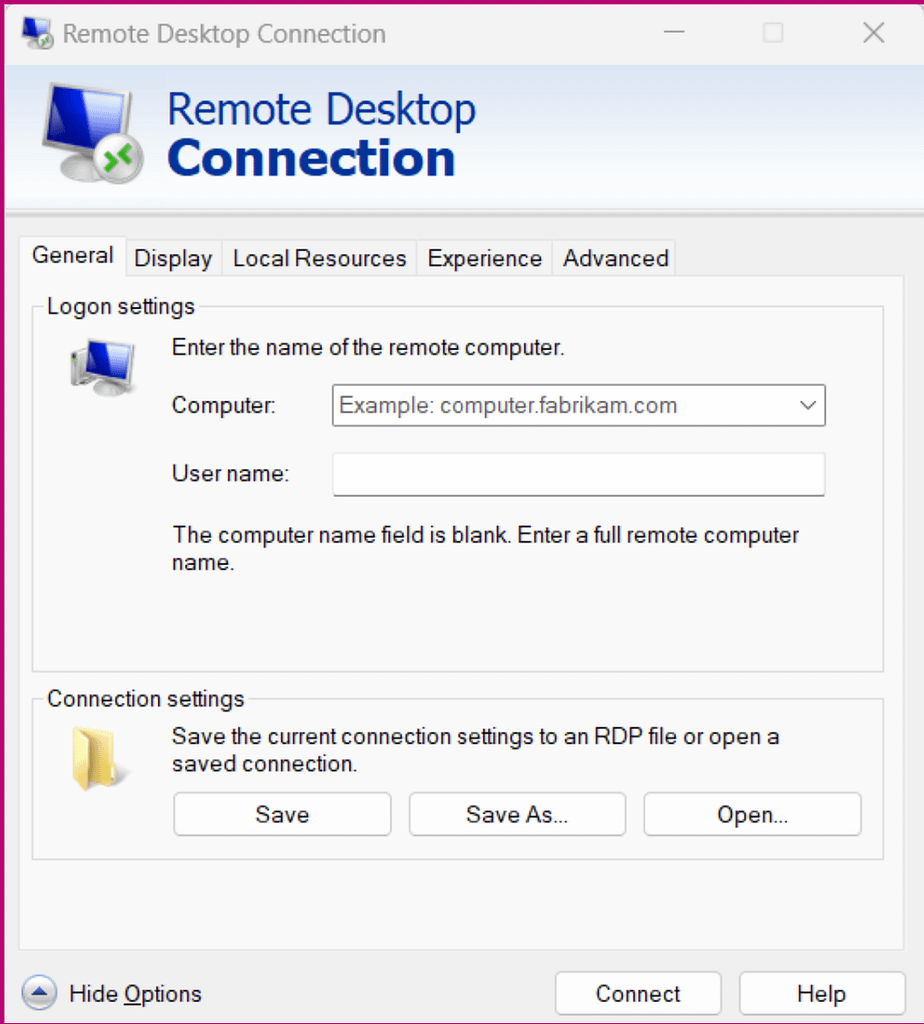
- In the Computer section, type the PC’s name or the computer’s IP address you want to connect to.
- You can change the connection settings from the adjacent tabs, including the display, local connection, and connection quality. Adjust these settings as needed.
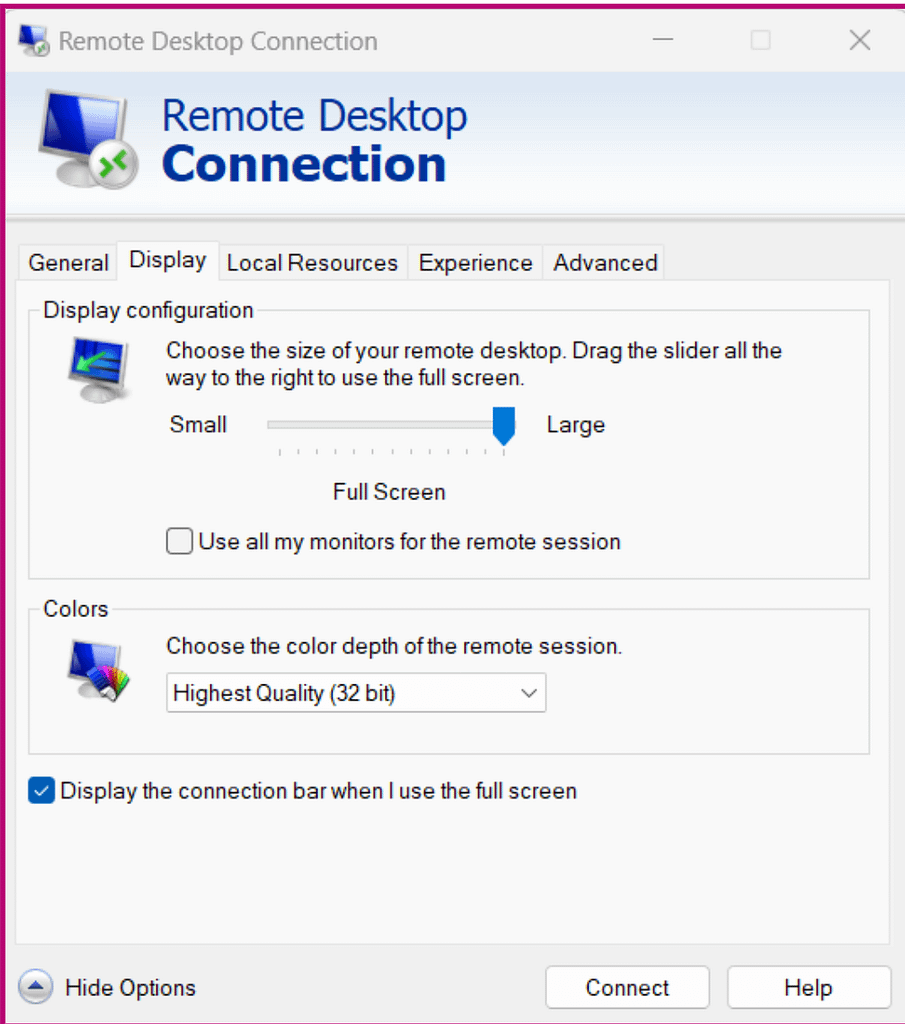
- Once done, click Connect.
- Occasionally, you will be prompted with a warning message stating that the computer’s identity hasn’t been verified. You can discard this message and continue to connect. This enables your remote connection.
Reduce security risks associated with direct RDP connections by depending on NinjaOne Remote Access.
Secure your remote access using RDP with NinjaOne
With NinjaOne remote access, you can customize your RDP experience to use single or multi-monitor viewing, automatically provision endpoints for RDP access, set up credential exchange integrations for administrative privileges, and much more. By using NinjaOne as your remote access tool, you can eliminate various RDP limitations and provide your IT team with more tools to provide efficient remote support. In addition, you can enhance your security posture by protecting against security risks that RDP typically faces. Sign up for your free trial of NinjaOne to get started today.