If you’re running a helpdesk, print queues, and VPN resets probably aren’t what’s keeping you up at night, but they’re still eating hours your team could spend on higher-value work. Every one of those routine tickets pulls a technician away from problems that need real expertise, and when you’re accountable for ticket volume or team headcount, that’s a cost you feel every month. With NinjaOne’s system tray, administrators can grant access to IT-approved actions directly on your endpoints, so your end users can resolve common issues themselves without opening a ticket. The result is a better experience for your end users and more time back for your team to focus on work that requires specialized knowledge.
Key Points
- NinjaOne’s system tray can put commonly needed actions directly in the hands of your end users, reducing repetitive helpdesk tickets without sacrificing your oversight.
- Control exactly what actions are available. Your users can only do what you explicitly allow.
- Create unique system tray configurations per organization or department, including custom branding, and assign them individually or in bulk.
- System tray actions aren’t limited to preset options. You can expose script execution (PowerShell, batch, JavaScript, and more), file transfers, application installs, and live device information directly to your users.
- Scripts triggered from the system tray can run with stored credentials, meaning automations execute with the permissions they need regardless of who clicks the button.
What belongs in the tray (and what doesn’t)
When your users complain about wait times, your first instinct is to give them more access, local admin rights, temporary elevation, open software repositories, you name it. The problem is that more access without guardrails creates new issues, and your team ends up cleaning up messes that never should have happened.
NinjaOne’s system tray takes a fundamentally different approach. Instead of elevating user permissions, you build a menu of approved actions and put that menu on your endpoints.
The system tray works best when it’s a curated set of actions your users need, not a dumping ground for every automation in your library. A menu with twenty options isn’t empowering it’s overwhelming, and most users will ignore it entirely.
A good rule of thumb is if a user could reasonably handle it themselves without creating a new problem, it belongs in the tray. If there’s real risk of something going wrong without a technician involved, keep it restricted to the help desk.
Actions that work well in the tray:
- Common troubleshooting fixes such as clearing print queues, flushing browser cache, resetting network adapters
- Approved software installs for applications your users legitimately need but don’t have yet
- Help ticket submission providing a direct line to your ticketing system without hunting for a portal
- Device information including IP address, hostname, and domain surfaced on demand
Actions worth keeping internal:
- Anything not approved for installation or remediation
- Anything that modifies system settings in ways a user wouldn’t understand
- Actions that could cause data loss if triggered at the wrong time
The goal is a tray your users open, find what they need immediately, and trust.
It’s important to note that scripts triggered from the system tray can run as system or with stored credentials, not only as the logged-in user. That means your automations execute with the permissions they need to actually work. A standard user can trigger a script that clears a system-level print queue, installs a protected application, or flushes a network cache without you ever granting them elevated access.
Building your system tray menu
Automations:
Automations are the core of your menu. Each one runs a script, installer, or workflow from your library when a user clicks it. The key is choosing automations that solve real, repeatable problems and naming them for the outcome, not the action. For example,
Instead of “Clear Browser Cache,” try “Fix my browser.” Instead of “Flush Print Queue,” try “Fix my printer.”
The NinjaOne Template Library is a great starting point if you don’t have custom scripts ready to go. It’s stocked with pre-built automations, and anything in there can be surfaced directly in the tray.
Useful Template Library automations for the system tray:
- Clear Browser Cache
- Clear DNS Cache
- Troubleshoot Printers and Clear Print Queue
- System Performance Check
Automations can also be chained together behind a single menu item. Instead of one script tied to one action, several can run in sequence.
Fix my VPN could run:
- Release the IP address
- Renew the IP address
- Restart the VPN service
The same approach applies to “my computer is slow,” one of the most common tickets any help desk gets.
A Speed Up My Computer item could chain:
- Run SFC Scan now
- Clear DNS cache
- Remove bloatware
- Clear temp files
- Empty recycle bin
The tray isn’t only for actions users interact with, it’s also a convenient trigger point for diagnostics that report back to you. A system performance check runs well from the tray but is more useful when written to a custom field for your team.
Groups:
Groups let you nest related automations under a single parent menu item, keeping your top-level menu clean. A “Quick Fixes” group might contain your common troubleshooting automations. An “Install Apps” group might contain your approved software installs — Zoom, Chrome, Adobe Reader, whatever your organization has granted.
A well-built Quick Fixes group might include:
- Empty Recycle Bin
- Fix my printer
- Fix my browser
- Fix my VPN
Name your groups the same way you name your items, plain language and outcome-focused. “Install Apps” and “Quick Fixes” are clear to the user.
Help Request Form:
Instead of your users hunting for a ticketing portal link or sending an email into the void, they can submit a help request directly from their taskbar. You configure where it routes — NinjaOne Ticketing, your PSA integration, or an external email address — and that’s all you have to do.
The form automatically pulls in device information via environment variables: device name, organization, IP address, and more. That means when the ticket lands in your queue, it already has the machine details attached.
URL:
A URL item links your users directly to any web resource whether that’s your knowledge base, IT portal, a commonly used services status page, or a self-service catalog with links for how-tos like creating an Outlook signature or setting up an out-of-office reply. A well-placed link can deflect tickets before a user even attempts an automation.
About:
The About item does more than surface device information, it removes a step from almost every helpdesk call. Before troubleshooting can even start, a technician usually has to walk a user through finding their hostname or IP address, adding a few minutes on each call.
With About in the system tray, that information is one click away. The user opens the tray, clicks About, and reads off exactly what the technician needs, without having to be navigated through settings. The call moves straight into troubleshooting instead of starting with an information hunt.
Available variables include ${IP_ADDR}, ${HOSTNAME}, ${USERNAME}, ${DOMAIN}, ${TIMESTAMP} and more, all pulled live at the time the user opens the tray.
Here’s what a well-organized, practical tray configuration looks like in practice:
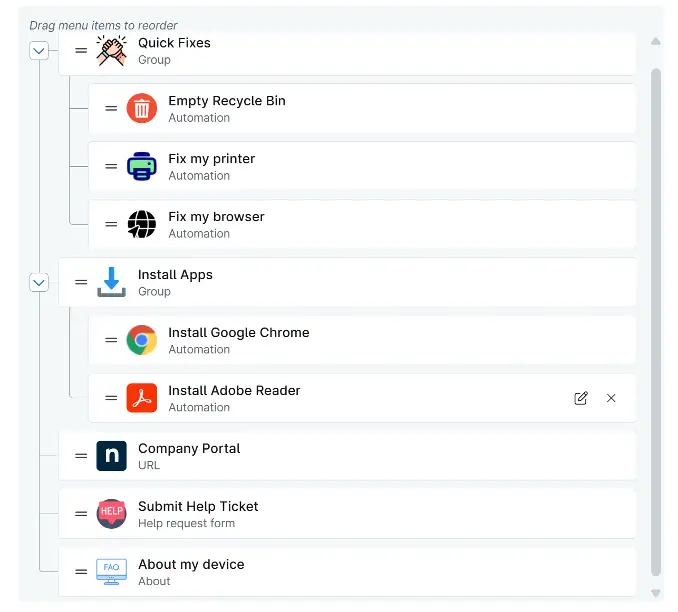
Two groups keeping the menu clean, a URL sending users to the company portal, an about section for showing device details, and a help request form for anything that needs a human.
Why this matters
Every ticket your end users submit for a routine task is a small tax on your team’s time, and those taxes add up fast. Printer issues, VPN problems, software installs, none of these require your full attention, but without a better option, your users have no choice but to ask.
With NinjaOne’s System Tray, your users can get immediate resolution without waiting on a queue. Every action is logged, every result recorded, and the whole experience feels seamless to the person on the other end.
The impact scales with your environment. Whether you’re supporting a single organization or managing dozens, a well-configured system tray delivers consistent, branded self-service across every endpoint without proportionally increasing the work on your team’s plate. Set it up once. Let it work.