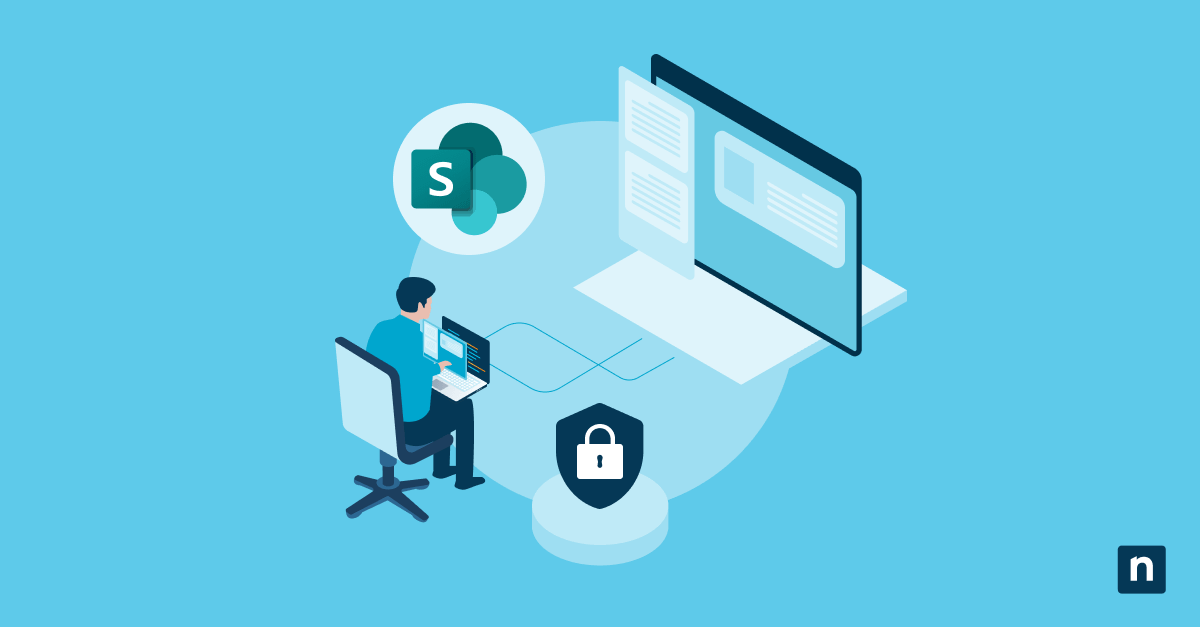
SharePoint is the linchpin of many businesses, providing an out-of-the-box information collaboration and sharing platform. SharePoint can be self-hosted on-premises using SharePoint Server, or increasingly commonly, deployed as part of Microsoft 365 for businesses.
Whichever SharePoint product your business leverages for its day-to-day operations, you must keep it backed up for operational and compliance purposes. However, there are limitations you may need to mitigate, and your SharePoint backup solution will depend on both how SharePoint is hosted and what kind of data you need to back up.
This guide explains how to back up SharePoint Online and SharePoint on-premises servers to protect against accidental deletions and ransomware, as well as sync issues and other errors.
Does SharePoint do backups?
Understanding the differences between SharePoint products is essential to ensuring they are properly backed up. While self-hosted SharePoint Server deployments can be covered by comprehensive backup solutions that operate at the operating system level, SharePoint Online is an entirely managed service and does not give you this level of access for backup purposes.
SharePoint Online is limited to basic features like a Recycle Bin and data retention, which, while useful for end-users to rectify a recent mistake, do not constitute backup (for neither practical nor compliance purposes). Complicating this is the deep integration of SharePoint with other Microsoft tools like OneDrive, Teams, and Power Platform, which also store data in SharePoint.
Microsoft offers its cloud services, including SharePoint Online, under a shared responsibility model. In this model, Microsoft is responsible for the operation and availability of services, and you are responsible for the data on it – including keeping it backed up. This, along with the native limitations of SharePoint, makes it necessary for IT departments and managed service providers (MSPs) to deploy third-party solutions to ensure that SharePoint data is fully backed up.
SharePoint backup native limitations
SharePoint offers the following native data recovery tools:
| Feature | Native SharePoint | Limitation |
|---|---|---|
| Recycle Bin | Yes | 93-day retention max, no cross-site restores |
| Version History | Yes | Subject to quota and user settings |
| Site Retention Policies | Optional (E5) | Complex to configure, limited recovery scope |
These native tools only offer short-term, user-initiated recovery, not true backups. There is no point-in-time recovery, and administrators lack control and oversight. The native tools available for SharePoint backup and recovery do not meet many of the requirements for compliance with data protection laws such as CCPA, HIPAA, FINRA, and GDPR.
What you need to back up SharePoint
Before planning and deploying your SharePoint backup strategy, you should have:
- An understanding of the legal obligations and the laws that cover both your business and the subjects of the data you hold
- Details for your SharePoint Online (Microsoft 365) or SharePoint Server (on-premises)
- Administrative access to SharePoint sites, and your Microsoft 365 tenant if using SharePoint Online
- A third-party backup tool that supports API or Microsoft Graph access to your SharePoint product
Backup frequency, scope, and versioning
When implementing your SharePoint Online or on-premises backups, you should automate as much as possible and ensure the key data you need to retain is captured using tools that support capturing entire site hierarchies and individual objects. You should identify and automate the backup of critical data, including:
- Lists, metadata, and permissions
- Site collections and subsites
- Workflows and page content
Metadata includes data such as document creation/modification timestamps and authorship, while permissions cover who has access to what. Both of these are important backup considerations for operational continuity, ensuring that restored backups are correctly configured.
Version history and audit logs should also be backed up if they are enabled or required for compliance reasons. Note that Audit logs may be stored in Microsoft Purview and need to be backed up separately.
You should also test your restoration process regularly and validate restored data, as well as configure your backup frequency to ensure your organization’s RTO (Recovery Time Objective) and RPO (Recovery Point Objective) are met.
Granular vs. full-site SharePoint recovery
It’s best practice to choose solutions that allow for both a granular and a full-site recovery – in many cases, you only need to restore a small amount of data, and performing a full-site recovery would be time-consuming. It may also result in changes that have since been made being overwritten.
| Recovery Type | Use Case Example | Must Support |
|---|---|---|
| Granular | Restore a deleted file or corrupted list | Searchable backup snapshots with versioning |
| Full-Site | Ransomware attack or accidental deletion | Full site restore with structure and permissions |
Differential or incremental backups will also help optimize storage and bandwidth to lower costs.
Testing, monitoring, and reporting SharePoint backups
To prove that your SharePoint Online and on-premises backups are functioning correctly, you need to continuously monitor your backup system and regularly verify your backups by restoring them in a test environment. You can do this by:
- Monitoring for failed backup jobs, skipped or unsupported content, and unusual behavior
- Generating automated reports for SLA, compliance, and internal visibility
- Retaining logs of backups and restorations, and all access and administrative actions
Security and compliance integration
Backups should be encrypted at rest and in transit, and stored with redundancy consisting of multiple backups in different locations, so that a single failure does not result in data loss. Backups should be secured with role-based access control (RBAC) to prevent unauthorized access, and made immutable if required for compliance with regulations or internal policies.
SharePoint backup tools and additional SharePoint backup tips
There are a few other tips to keep in mind when backing up SharePoint data:
- If you’re operating in a hybrid environment, keep SharePoint Online and on-premises servers in sync
- Account for other products that store data in SharePoint like Teams and OneDrive, and third-party apps
- Ensure that your chosen enterprise-grade backup solution covers all data, including the above, and is compliant with the same regulations that cover your own business
NinjaOne SaaS Backup targets Microsoft 365 deployments and can back up SharePoint Online and on-premises, while also covering OneDrive and Teams data. It provides instant, granular recovery and lets you define automated retention policies to meet governance standards.