Microsoft Edge lets users sync browsing data across different devices using a Microsoft account. Synced Edge browsing data means favorites, settings, passwords, history, open tabs, extensions, etc., are consistent and up-to-date on different devices. However, you could experience synchronization issues requiring manual data re-syncing.
This article’ll explain how to re-synchronize Microsoft Edge’s browsing data and provide other useful and related information.
Methods to manually re-sync Microsoft Edge’s browsing data
There are several ways to re-sync Microsoft Edge’s browsing data: via Microsoft Edge, with the Registry Editor, via Command Prompt, using PowerShell, and with the Group Policy Editor. The methods vary in difficulty and specific uses.
Refer to the table below to pick the best method for your needs.
📌 Prerequisites:
- Windows 10 or 11
📌 Recommended deployment strategies:
| Click to Choose a Method | 💻 Best for Individual Users | 💻💻💻 Best for Enterprises |
| Method 1: Using Microsoft Edge Settings | ✓ | |
| Method 2: With the Registry Editor | ✓ | |
| Method 3: Via Command Prompt | ✓ | |
| Method 4: Using PowerShell | ✓ | |
| Method 5: With the Group Policy Editor | ✓ |
Method 1: Using Microsoft Edge Settings
Navigating Microsoft Edge’s settings is an easy way to re-sync Microsoft Edge’s browsing data. It’s straightforward and best suited for individual users.
📌 Use Cases: Individual users looking to re-sync their Edge’s browsing data without scripting or coding.
- Open Microsoft Edge
- Click on the three dots on the upper right, then press Settings.
- Click Profiles, then Sync.

- Tap on the Re-sync button under Re-sync data to this device.
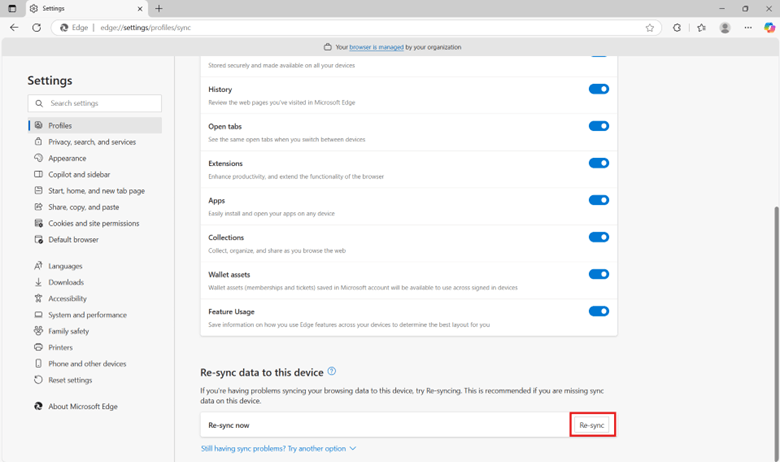
- Press Re-sync to confirm.
- You should see a message that says, “We’ll merge your local browsing data with your sync data stored on the Microsoft servers.”
- Click Got it when the process is finished.
💡 Note: This method deletes the sync cache on the device and merges local browsing data with the data stored on Microsoft servers.
Method 2: With the Registry Editor
This method uses the Registry Editor to force Edge to synchronize browser data without user consent, making it ideal for managing Microsoft Edge on remote devices.
📌 Use Cases: IT administrators looking to automate Edge’s browser data synchronization on a remote device.
📌 Prerequisite: Administrator privileges
- Press the Windows key + R, type regedit, then press Enter.
- Navigate to:
HKEY_LOCAL_MACHINE\SOFTWARE\Policies\Microsoft\Edge
- If you can’t navigate to the Edge key, create one by right-clicking on Microsoft, selecting New > Key, and then naming it Edge.
- Right-click the Edge key, select New > DWORD (32-bit) Value, and name it ForceSync.
- Double-click on ForceSync and set its value to:
- 1 = Force synchronization without user consent
- Click OK and close the Registry Editor.
- Restart Microsoft Edge for the changes to take effect.
⚠️ Warning: Modifying the registry can have unintended consequences. Proceed with caution and back up the registry beforehand. (For more info, refer to: Things to look out for.)
💡Tip: You can copy and paste and then enter the address into the address bar instead of clicking through the folders.
Method 3: Via Command Prompt
This method automates the registry modification using Command Prompt. Using the Command Prompt is the same as manually editing the registry, but it’s faster and more automatable.
📌 Use Cases: IT administrators looking to deploy the setting across multiple machines via logon scripts, Group Policy startup scripts, and more.
📌 Prerequisite: Administrator privileges
- Press the Windows key, type cmd, then press Run as administrator.
- Copy and paste the command below into the prompt, then press Enter.
reg add "HKLM\SOFTWARE\Policies\Microsoft\Edge" /v ForceSync /t REG_DWORD /d 1 /f
- Restart Microsoft Edge for the changes to take effect.
⚠️ Warning: Ensure you copy and paste the proper code, as typos may result in silent failures. (For more info, refer to: Things to look out for.)
Method 4: Using PowerShell
Using PowerShell to modify the registry is another viable option similar to the Command Prompt method. PowerShell is slightly more robust and can be extended into full configuration management or compliance scripts.
📌 Use Cases: IT administrators who want to deploy the setting across different endpoints.
📌 Prerequisite: Administrator privileges
- Click the Windows key, type PowerShell, then tap on Run as administrator.
- Copy and paste the script below into the command prompt, then press Enter.
New-Item -Path "HKLM:\SOFTWARE\Policies\Microsoft\Edge" -Force
New-ItemProperty -Path "HKLM:\SOFTWARE\Policies\Microsoft\Edge" -Name "ForceSync" -PropertyType DWord -Value 1 -Force
- Restart Microsoft Edge for the changes to take effect.
⚠️ Warning: When deploying PowerShell scripts, it’s advisable to first test the script on a local machine before proceeding. (For more info, refer to: Things to look out for.)
Method 5: With the Group Policy Editor
This method forces browser data synchronization without displaying the sync consent prompt to the user. It’s best for IT administrators in enterprise or school environments because it ensures a consistent experience and policy enforcement across different endpoints.
📌 Use Cases: IT administrators looking for streamlined data consistency across sessions.
📌 Prerequisite: Administrator privileges
- Click Windows key + R, type gpedit.msc, then press Enter.
- Navigate to:
Computer Configuration > Administrative Templates > Microsoft Edge
- Double-click the Force synchronization of browser data and do not show the sync consent prompt.
- Set it to Enabled.
- Click Apply, then OK.
- Restart Microsoft Edge for the changes to take effect.
⚠️ Things to look out for
| Risks | Potential Consequences | Reversals |
| Editing without backup | Editing without backup may result in permanent registry corruption. | Export registry key before changes by pressing File > Export. |
| Typos in scripts or codes | Registry changes silently fail or apply to the wrong locations. | Validate registry manually and ensure you copy and paste the correct script or code. |
| Not properly testing before deployment | Issues like registry key incompatibility and script misconfiguration could arise. | Apply the changes on a local machine, then verify if the configuration reflects the intended results. |
Additional considerations when re-syncing browsing data
Re-syncing data, especially in enterprise environments, has various risks because it involves data. When you re-sync browser data, keep in mind and consider the following information.
Privacy implications
Forcing synchronization without user consent could have privacy implications, especially in systems that collect, store, or transmit personal data. If needed, obtain informed consent before initiating synchronization or provide clear user-facing documentation and notification mechanisms.
Review synchronization settings
It’s also recommended to review synchronization settings to maintain compliance and user satisfaction. From a user standpoint, forced syncs could create confusion or anxiety if they’re unaware that their data is being replicated.
Troubleshooting common re-syncing errors
You may encounter situations where changes don’t take effect immediately or appear to be ignored. When this happens, refer to the following to ensure the system properly applies and recognizes your changes.
Changes not taking effect
Microsoft Edge caches configuration settings during runtime, meaning updates made while the browser is open won’t reflect until you restart Edge. Consider using scripts or system management tools to enforce a restart after deployment for managed environments.
Registry modifications not applying
Improper implementation or insufficient permissions may prevent the settings from being recognized when you edit the Windows Registry. It can result in incorrect key paths, malformed value types, or a lack of administrative rights.
You can combat the issues by verifying that you have the correct registry key path, value names, and data types and made changes in the correct Registry Editor hive.
Group Policy settings not applying
If you used Group Policy Objects to deploy Edge settings in managed environments, it’s possible the policy changes may not take effect immediately. GPO misconfiguration or network latency can also delay or prevent settings from applying.
If you encounter these issues, open Command Prompt as administrator and run the following command to refresh user and computer group policies forcibly:
gpupdate /force
Ensure consistency by re-syncing Microsoft Edge’s browsing data
Managing Microsoft Edge’s browsing data synchronization helps maintain consistency and efficiency across multiple devices. There are different methods to do so, including GUI (Graphical User Interface) and registry-based options. You can utilize the methods above to effectively control Edge’s re-syncing settings to align with organizational requirements.
Related topics:
- How to Turn On or Off Caret Browsing in Microsoft Edge
- How to Enable or Disable InPrivate Browsing in Microsoft Edge in Windows 11
- How to Enable or Disable Autofill in Microsoft Edge in Windows 10
- How to Disable Microsoft Edge from Launching at Startup in Windows
- How to Install Progressive Web Apps (PWAs) on Microsoft Edge in Windows 10