

Modern Windows 11 laptops offer many customization options for Precision touchpad settings. These allow users to tailor gestures, scrolling, tapping, and sensitivity to their preferences. However, some situations may require restoring the touchpad configurations to their default settings to troubleshoot issues, prepare for device reimaging, and standardize system behavior.
Keep reading if you’re an IT administrator or advanced user looking to reset your touchpad configurations. This article will discuss resetting Windows touchpad gestures and settings using the Settings app, Registry Editor, PowerShell, and Device Manager.
How to reset touchpad settings in Windows 11
Admins and power users have multiple methods for resetting touchpad configurations, depending on their goals and technical knowledge. See the methods below.
📌 Prerequisites: The following instructions only apply to laptops with Precision touchpads.
💡An external mouse or touchscreen option is recommended in case the touchpad becomes inaccessible during the process. We also recommend checking Things to look out for before proceeding.
📌 Recommended deployment strategies:
| Click to Choose a Method | 💻 Best for Individual Users | 💻💻💻 Best for Enterprises |
| Method 1: Settings App (GUI) | ✓ | |
| Method 2: Registry Editor (Advanced) | ✓ | ✓ |
| Method 3: PowerShell (Script) | ✓ | |
| Method 4: Device Manager (Optional) | ✓ |
Method 1: Reset touchpad settings via the Settings app (GUI)
This method is the safest and most accessible way to reset touchpad configurations for end users with limited technical knowledge.
📌 Use Cases: Performing basic troubleshooting and fixing minor gesture behavior inconsistencies
📌 Prerequisites: Standard user permission
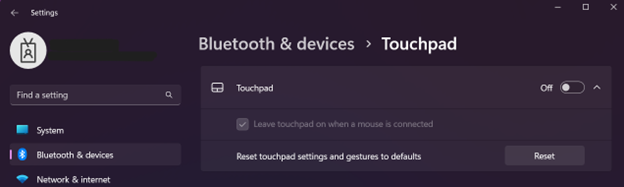
- Open the Settings app. Press Windows + I or manually find it using the Start menu search bar.
- On the left pane, select Bluetooth & devices.
- On the right pane, click Touchpad.
- Locate and click Touchpad to expand it.
- Click the Reset button beside Reset touchpad settings and gestures to defaults.
💡 You cannot select the Reset button if the touchpad is on, so switch the toggle to Off. If you were using the touchpad and it stopped working after being turned off, navigate the Settings app using the keyboard (Tab, Enter, and Spacebar keys) or an external mouse to complete the process.
Method 2: Reset touchpad settings via Registry Editor (advanced)
This method manually removes the Precision touchpad configuration from the registry to force Windows to recreate the default settings on subsequent use.
📌 Use Cases: Fixing touchpad issues on locked-down systems where the Settings app is restricted and resetting configurations on a per-user basis in shared environments
📌 Prerequisites: Administrator permission
⚠️ Warning: Before you proceed, make sure to back up the registry. Errors while editing the registry can cause serious system issues.
- Open the Registry Editor. Press Windows key + R, type “regedit,” and press Enter.
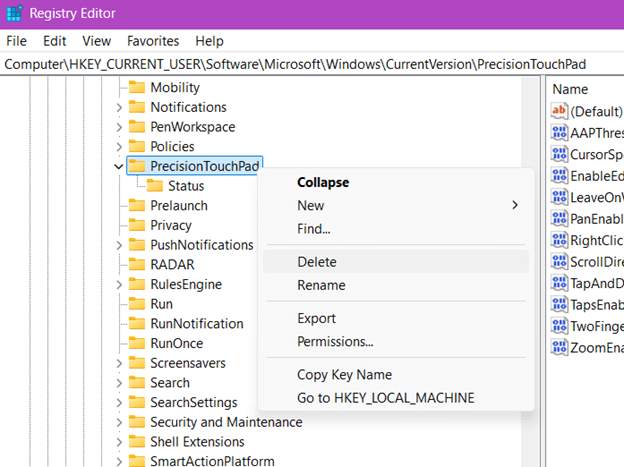
- On the left pane, follow this path:
HKEY_CURRENT_USER\Software\Microsoft\Windows\CurrentVersion\PrecisionTouchPad
- Right-click the PrecisionTouchPad key and choose Delete.
- Confirm deletion.
- Sign out and back in, or restart the system to allow Windows to recreate the deleted key with the default touchpad settings.
Method 3: Reset touchpad settings via PowerShell (Script)
This method programmatically deletes the PrecisionTouchPad registry key using PowerShell for automation or mass deployment. It supports scripting for repeatability and scalability.
📌 Use Cases: Standardizing touchpad settings and enforcing clean configurations across an enterprise image
📌 Prerequisites: Administrator permission
- Open PowerShell. Press Windows key + R, type “powershell,” and press Enter.
- Copy and paste this command:
Remove-Item -Path "HKCU:\Software\Microsoft\Windows\CurrentVersion\PrecisionTouchPad" -Recurse -Force
- Press Enter.
- Sign out and back in, or restart the system to allow Windows to recreate the default configuration.
Method 4: Reset touchpad settings via Device Manager (Optional)
This method restores the touchpad to its factory configuration by removing and reinstalling the device driver.
📌Use Cases: Resetting devices that use Synaptics, ELAN, or other third-party drivers and performing hardware-level resets as part of troubleshooting
📌Prerequisites: Administrator permission
- Press Windows key + X or right-click the Start button to open the Quick Link menu.
- Select Device Manager from the list.
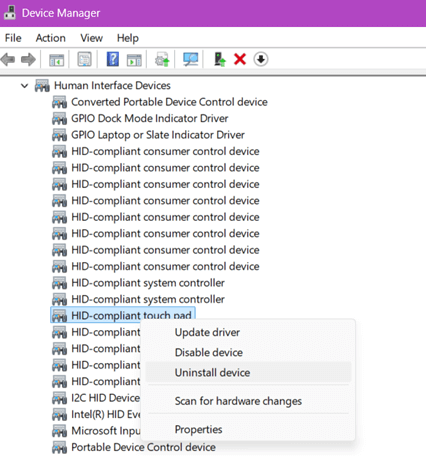
- Expand Human Interface Devices or Mice and other pointing devices
- Right-click your touchpad device (e.g., Synaptics Touchpad, HID-compliant touchpad, or Precision Touchpad).
- Select Uninstall device.
- On the pop-up dialog box, click Uninstall.
⚠️ Do not mark the checkbox for deleting the device driver, as this may prevent Windows from automatically reinstalling the device itself.
- Restart the system to allow Windows to reinstall the device’s default settings.
⚠️ Things to look out for
| Risks | Potential consequences | Reversals |
| The touchpad may not reinitialize properly upon reboot | The touchpad stops working after the reset and loss of pointer control |
|
| Accidental deletion of the existing touchpad driver in Device Manager without an OEM or replacement driver available | Windows may install a generic driver with limited gesture support or no touchpad functionality at all |
|
| Accidental deletion of unrelated keys or modifying incorrect values |
|
|
Why reset touchpad settings?
Resetting touchpad settings in Windows 11 can be practical and strategic, especially in troubleshooting scenarios or enterprise environments. Here are some reasons why:
Troubleshoot gesture-related issues or touchpad malfunctions
Users can customize multi-finger gestures, tap behaviors, and sensitivity. However, they can misconfigure these settings and cause unexpected behaviors, such as inconsistent scrolling or cursor movement, wrong actions triggered by gestures, and touchpad lag or unresponsiveness. Restoring factory default touchpad settings should help identify whether the problem lies in user customization, third-party software, or hardware.
Remove customizations before re-imaging or repurposing a device
When reassigning, refurbishing, or preparing devices for new users, setting up a clean and standardized user experience is crucial. Resetting Windows gestures settings will remove individual user customizations, ensuring predictable configurations for the next user and minimizing support requests from inherited settings. This can be useful for IT departments managing classroom laptops and device pools.
Restore default gestures for standard training or accessibility workflows
When organizations implement gesture-based navigation as part of employee training or accessibility practices, resetting touchpad configurations makes the environment compatible with training materials or accessibility aids. This ultimately simplifies user onboarding and technical support.
Standardize settings across managed devices in enterprise environments
Enterprise IT must maintain uniform configurations across all endpoints to reduce variability, improve manageability, and lower support costs. Resetting to the default touchpad settings should help align user experience across departments and prevent user errors from over-customization.
Additional considerations when resetting touchpad settings
When resetting touchpad configurations in Windows 11, you must be aware of hardware, software, and environment-specific factors that can influence the reset’s behavior and effectiveness.
Device compatibility
The methods only apply if the device is recognized as having a Precision touchpad. To confirm, go to Settings > Bluetooth & devices > Touchpad. If the page exists and provides gesture options, your device likely qualifies. If no settings appear, it may be using a legacy or OEM-specific driver.
Synaptics and ELAN devices
Not all devices use Microsoft’s Precision touchpad standard. If your system relies on third-party drivers, such as Synaptics or ELAN, the Windows touchpad reset will not apply because OEM control panels may override Windows settings. Instead, open the manufacturer’s control panel (e.g., Synaptics Settings or ELAN Smart-Pad) and look for a “Defaults” or “Reset” option there.
User scope
All reset methods covered apply only to the current user account. Other user profiles on the same machine retain their own gesture and touchpad preferences. They are unaffected unless each profile is manually or programmatically reset.
Group Policy and Enterprise Deployment
There is no native Group Policy Object (GPO) to reset Precision touchpad settings directly. However, administrators can use GPO Preferences or scripts to delete or configure the appropriate registry keys. This lets IT teams enforce baseline settings during login or provisioning.
Ensuring a smooth touchpad experience in Windows 11
Resetting touchpad settings and gestures in Windows 11 can help restore a consistent user experience, troubleshoot erratic behavior, and prepare devices for new users. With several methods to do so via the Settings app, Registry Editor, or PowerShell, IT professionals and advanced users can choose the best approach for their environment. Make sure to understand the limitations and requirements of each method to confidently restore touchpad functionality and ensure smooth operation going forward.
Related topics:






