


Paint’s Generative Fill was introduced in version 11.2410.28.0 and allows users to integrate AI-generated images into their projects. This article discusses methods to toggle Generative Fill per user and system-wide. Additionally, let’s walk you through precautions and considerations to keep an eye out for when doing such a change.
Methods to toggle Generative Fill in Paint on Windows 11
Copilot+ PCs boast generative AI support that enhances the Paint app’s offerings through the generative fill feature. By selecting a specific area on a canvas, users can create context-aware AI-generated images through prompts. Although powerful, some users and organizations will prefer having control over their creative preferences and workflow.
📌 Prerequisites:
- Microsoft Copilot+ PCs with Snapdragon X Series processors.
- Paint version 11.2410.28.0.
- Microsoft account or Entra ID.
- Internet connection for cloud service access.
- Administrative privileges for system-wide configurations.
📌 Recommended deployment strategies:
| Choose a Method | 💻 Best for Individual Users | 💻💻💻 Best for Enterprises |
| Method 1: Enable or disable Generative Fill via the Registry Editor | ✓ | |
| Method 2: Automate the configuration of Paint’s Generative Fill via CMD | ✓ | ✓ |
| Method 3: Use PowerShell scripts to automate Generative Fill tweaks | ✓ | ✓ |
| Method 4: Deploy Generative Fill configurations via GPO | ✓ |
Method 1: Enable or disable Generative Fill via the Registry Editor
The Registry contains keys and values that affect system and app behaviors, which include controls for Generative Fill. Modifying these can enable or disable device-level access to the feature, but should be done carefully to avoid misconfigurations.
⚠️ Warning: Misconfigurations when editing the Registry can cause system instability and can break app functionality. (See ⚠️ Things to look out for.)
📌 Use Case: The Registry allows administrators to toggle Generative Fill in Paint system-wide, enforcing it across all users on a local machine.
📌 Prerequisite: Windows Registry backup
- Press Win + R, type regedit, and press Ctrl + Shift + Enter.
- Go to:
HKEY_LOCAL_MACHINE\SOFTWARE\Microsoft\PolicyManager\default\WindowsAI\DisableGenerativeFill
- Inside DisableGenerativeFill, look for the following DWORD (32-bit) values.
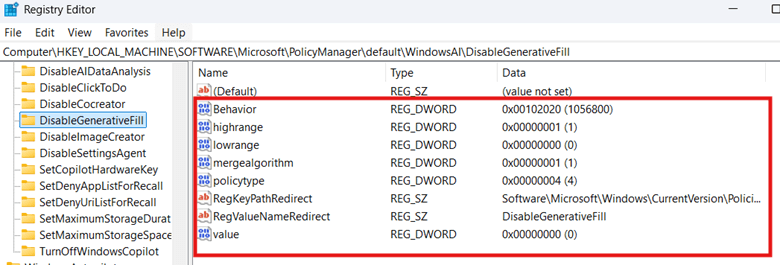
- If DisableGenerativeFill doesn’t exist, right-click WindowsAI, select New > Key, name it DisableGenerativeFill, and set the following values inside it:
- Behavior = 102020
- highrange = 1
- lowrange = 0
- mergealgorithm = 1
- policytype = 4
- RegKeyPathRedirect = Software\Microsoft\Windows\CurrentVersion\Policies\Paint
- RegValueNameRedirect = DisableGenerativeFill
- value = 00000000
- If DisableGenerativeFill doesn’t exist, right-click WindowsAI, select New > Key, name it DisableGenerativeFill, and set the following values inside it:
- After ensuring the keys and values in Step 3 exist, navigate the following path:
HKEY_LOCAL_MACHINE\SOFTWARE\Microsoft\Windows\CurrentVersion\Policies\Paint
- If the path doesn’t exist, right-click the parent key and press New > Key to manually create the path.
- Find DisableGenerativeFill inside the target path.
- Modify DisableGenerativeFill according to the configuration you prefer:
- To enable Generative Fill, delete the DWORD and press Yes to the subsequent prompt.
- To disable Generative Fill, change the DWORD’s value data to 1, then press OK.
- Open the Paint app to validate the changes made.
- If Paint is open during configuration, close and reopen it to apply the changes.
Method 2: Automate the configuration of Paint’s Generative Fill via CMD
The Command Prompt allows management of Generative Fill using commands, speeding up and automating the manual Registry configuration process.
⚠️ Important: Although great for automation, knowing how to use the Command Prompt is important due to its limited safety checks. (See ⚠️ Things to look out for.)
📌 Use Case: Leverage the Command Prompt to speed up and automate the configuration of Generative Fill consistently for multiple devices.
📌 Prerequisite: Windows Registry backup
- Press Win + R, type cmd, and then press Ctrl + Shift + Enter.
- Enter the command that reflects the configuration you prefer:
- Execute the following command to enable Generative Fill.
REG DELETE "HKLM\SOFTWARE\Microsoft\Windows\CurrentVersion\Policies\Paint" /v DisableGenerativeFill /f
- Execute the following command to disable Generative Fill.
REG ADD "HKLM\SOFTWARE\Microsoft\Windows\CurrentVersion\Policies\Paint" /v DisableGenerativeFill /t REG_DWORD /d 1 /f
- Restart Paint or your device to apply the changes.
Method 3: Use PowerShell scripts to automate Generative Fill configurations
PowerShell boasts advanced scripting capabilities ideal for both simple and complex automation, streamlining tasks across local and remote systems consistently.
📌 Use Cases: PowerShell scripts provides administrators the ability to automate manual Registry configurations, minimizing errors and misconfigurations. Additionally, these scripts are suitable for non-domain deployment of Registry modifications through remote commands and tools.
📌 Prerequisites: Windows Registry backup
- Press Win + R, type PowerShell, and then press Ctrl + Shift + Enter.
- Input the command that suits the change you want.
- To enable Generative Fill for all users:
Remove-ItemProperty -Path "HKLM:\SOFTWARE\Microsoft\Windows\CurrentVersion\Policies\Paint" -Name "DisableGenerativeFill" -Force
- To disable Generative Fill for all users:
New-Item -Path "HKLM:\SOFTWARE\Microsoft\Windows\CurrentVersion\Policies\Paint" -ForceSet-ItemProperty -Path "HKLM:\SOFTWARE\Microsoft\Windows\CurrentVersion\Policies\Paint" -Name "DisableGenerativeFill" -Value 1 -Type DWord
- Restart the device or the Paint app to apply the change.
Method 4: Deploy Generative Fill configurations via GPO
By linking GPOs to Active Directory containers, administrators can centrally manage and configure computer settings consistently across domain-joined organizations.
⚠️ Important: Test configurations on a local machine before deploying them across an environment. (See ⚠️ Things to look out for.)
📌 Use Case: Pushing a GPO across a domain ensures consistent Generative Fill configuration across an organization. Additionally, administrators can leverage GPOs to enforce Generative Fill configurations on the Paint app, preventing users from reversing the change.
📌 Prerequisites:
- Domain-level admin rights.
- Group Policy Management Console access.
- Press Win + R, type gpmc.msc, and press Enter.
- Right-click the target domain or OU, then select Create a GPO in this domain, and Link it here….
- Name your GPO with an easily-recognizable name (e.g., Paint’s Generative Fill Toggle), then press OK.
- Right-click the newly-created GPO, then select Edit.
- Navigate the following path:
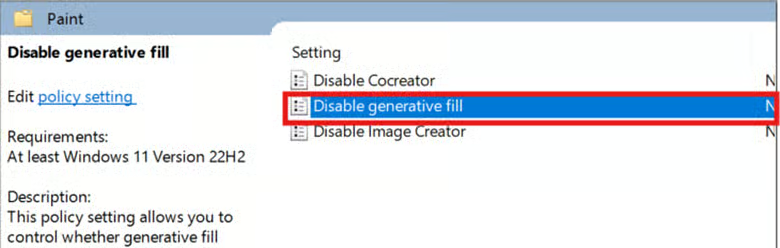
Computer Configuration > Administrative Templates > Windows Components > Paint
- Inside Paint, find and double-click the Disable generative fill policy.
- Select the policy configuration according to your organization’s preference:
- To enable Generative Fill, select the radio button beside Disabled or Not Configured.

- To disable Generative Fill in Paint, select the radio button beside Enabled.
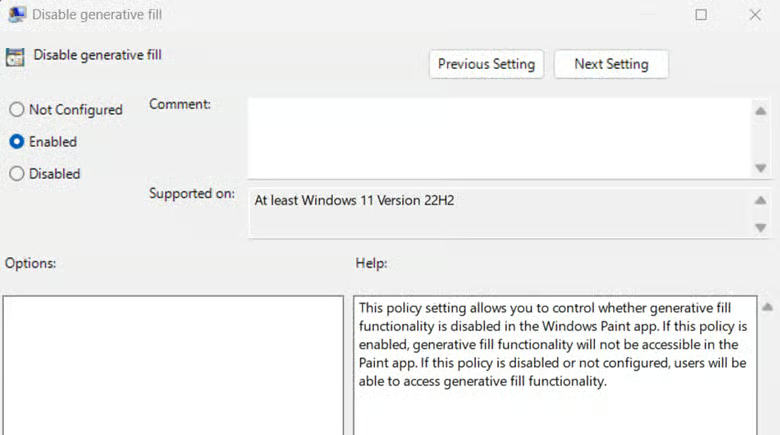
- Press Apply and then OK to save the policy change.
- In the target machine, launch PowerShell, then enter gpupdate /force to apply the changes.
💡 Note: The Disable generative fill policy can be modified through the Local Group Policy Editor for local, system-wide configurations.
⚠️ Things to look out for
| Risks | Potential Consequences | Reversals |
| Manually editing Registry keys and values. | Manual modifications to the Registry are error-prone, potentially leading to device instability and broken functionality. | Create a Windows Registry backup before making manual edits or running scripts to prevent misconfigurations. |
| Limited safety checks on CMD. | CMD assumes you know what you’re doing, so it doesn’t prevent you from making critical mistakes and misconfigurations. | Always double-check commands before executing CMD scripts, as they offer limited safeguards, like a built-in undo function, to reverse mistakes. |
| Not testing configurations before deployment. | Misconfigurations and harmful changes can hide behind seemingly harmless configurations, causing unexpected behavior across systems when deployed at scale. | Regardless of your deployment method, it’s important to first test configurations locally to verify their effect before mass deployment. |
| Modifying the wrong Registry hive. | The HKLM and HKCU hives sometimes reflect the same keys and values, confusing users when editing the Registry. | To avoid applying configurations for the wrong scope, always verify the path you’re editing. Remember, the HKLM contains system-wide settings, while the HKCU houses settings that apply on a per-user basis. |
Additional considerations when toggling Generative Fill in Paint
As Microsoft integrates AI functionalities within Copilot+ PCs, features like Generative Fill are being gradually rolled out. For a successful management of this newly introduced feature, this section will highlight key considerations to keep in mind.
Generative Fill support on specific Windows 11 devices and Paint versions
Not all devices support Generative Fill in Paint, as it’s only limited to certain Windows devices and specific Paint versions. As of writing, only Copilot+ PCs with at least Paint version 11.2410.28.0 or later support the feature. Although the feature can be toggled in unsupported builds, doing so will change nothing on the target device.
Effects of disabling Generative Fill in Paint
Disabling Generative Fill will simply hide the UI elements and halt the AI process that makes the feature work. This will not affect Paint’s functionality or existing Generative Fill images, making it safe to toggle as needed.
Rollout of UI toggles for Generative Fill
Since Paint’s Generative Fill feature is fairly new, Microsoft is still gradually rolling it out. That means the settings that control Generative Fill settings are not guaranteed to appear on all capable devices. To ensure consistent configuration across all users in an environment, use registry or policy-based enforcement during deployment.
Mix AI creativity into your work by enabling Paint’s Generative Fill
Generative Fill offers prompt-based AI images and elements that can help enhance user creativity. However, some organizations and users would prefer to limit or disable AI usage entirely in their workflow.
The Registry offers quick toggling of Generative Fill for all users on a local system. To avoid the manual and error-prone process of editing the Registry, this can be scripted via Command Prompt and PowerShell. For domain-joined devices, administrators can push a GPO to ensure setting consistency across all users in an environment.
Related topics:






