
Windows 11’s Dynamic Refresh Rate (DRR) intelligently switches your display between high refresh rates (120Hz) for smooth scrolling and low rates (60Hz) to save battery during static tasks. In this guide, you’ll learn exactly how to control DRR using simple Settings tweaks.
How to enable or disable Windows Dynamic Refresh Rate
DRR automatically balances your display’s refresh rate to extend battery life while keeping visuals fluid. Windows Settings provides the simplest way to turn your device’s Dynamic Refresh Rate on or off.
📌 Use Case: Use this method if you want a quick approach to configure your refresh rate without the need for administrative privileges. Ideal when you are switching between tasks that require high display settings and tasks that don’t take up much GPU utilization.
📌 Prerequisites: Ensure that your system has Windows 11 build 22H2 (22000) or newer versions, a 120Hz+ display supporting Variable Refresh Rate (VRR), and a WDDM 3.0+ graphics driver (Intel/AMD/NVIDIA). Take note that it can only be optimized for laptops or tablets (not desktops or external monitors).
💡 Note: If any of the requirements are unmet, the Dynamic option will not appear, preventing you from managing your DRR. We recommended checking out ⚠️ Things to look out for before proceeding.
Step-by-step procedure:
- Press Win + I to open Settings.
- Go to System, then click Display
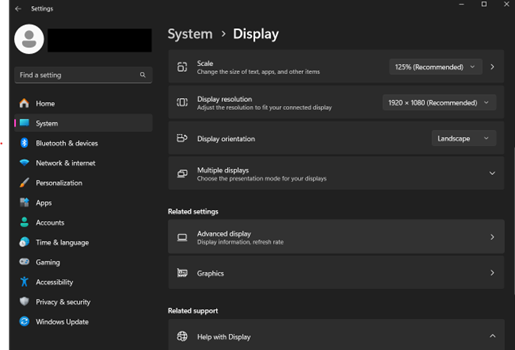
- Scroll down to Related settings, then select Advanced display.
- Under Choose a refresh rate, turn on Dynamic refresh rate (if present), then select:
- Dynamic (e.g., 60Hz – 120Hz): Enables DRR to auto-switch to extend battery life and display fluidity.
- Fixed rate (e.g., 120Hz): Disables DRR, locking a high refresh rate.
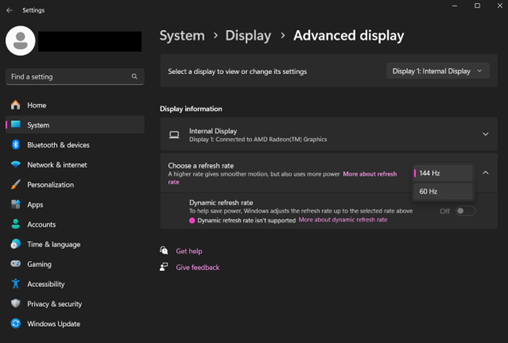
💡Note: The Dynamic refresh rate option only appears, or the toggle will not be grayed out, if your device meets all the requirements. See ⚠️ Things to look out for for more details.
- Click Apply if prompted. Changes should take effect instantly.
⚠️ Things to look out for
This section highlights potential challenges to keep in mind while following this guide.
| Risks | Potential consequences | Reversals |
| 1. Compatibility gaps | The Dynamic option is missing in Settings | Verify hardware via Settings > System > Display > Graphics, or input dxdiag in Run (Win + R); update drivers if needed |
| 2. Unpredictable refresh switching | The display is stuttering when resuming activity, especially on external monitors | Disable DRR for external displays or use a static high refresh rate |
| 3. App and gaming conflicts | Chrome/unsupported apps ignore DRR; games stutter | Disable DRR before gaming; use static 120Hz+ for creative/third-party apps |
| 4. Update-induced failures | The Dynamic toggle disappears after the Windows 24H2 update | Roll back drivers or uninstall updates via Command Prompt: dism /online /remove-package |
Pro tips for Dynamic Refresh Rate
Keep these additional considerations in mind to ensure you deploy DRR effectively or avoid it where impractical.
Battery optimization is a core benefit
DRR actively conserves power on laptops by dropping to 60Hz during static tasks (e.g., reading documents), extending battery life by 15–30% compared to fixed high rates. Pair it with Windows 11’s energy saver mode for maximum battery efficiency.
No native enterprise management tools
DRR has no Group Policy (GPO) or Intune settings to manage this in enterprise environments. It is best to use Windows Settings (GUI) or your GPU display settings to configure this feature.
Balance your display experience with Dynamic Refresh Rate
Dynamic Refresh Rate (DRR) seamlessly optimizes your device by toggling between high refresh rates, like 120Hz for smooth scrolling, and power-saving modes, with 60Hz for static tasks, extending battery life without sacrificing visual quality.
As this guide shows, enabling or disabling DRR is straightforward via Settings—but only works if your hardware meets Microsoft’s requirements: Windows 11 22H2+, a 120Hz+ VRR display, and WDDM 3.0+ drivers.
Deploy it strategically to enjoy enhanced battery life and smoother visuals where it counts.
Related topics:
- How to Calibrate Your Built-in Display for HDR Video in Windows
- IT Guide: How to Calibrate Your Monitor in Windows
- How to Change DPI Scaling Level for Displays in Windows 10
- How to Change Settings and Layout for Multiple Displays in Windows 10
- Clear and Reset External Display Cache in Windows 10
- How to Set the Default GPU in Windows 10






