Remote desktop software for IT professionals with NinjaOne Remote
NinjaOne Remote is remote desktop software for IT professionals, giving fast, secure access to troubleshoot and manage Windows, Mac, and Linux devices, from a desk or on the go.
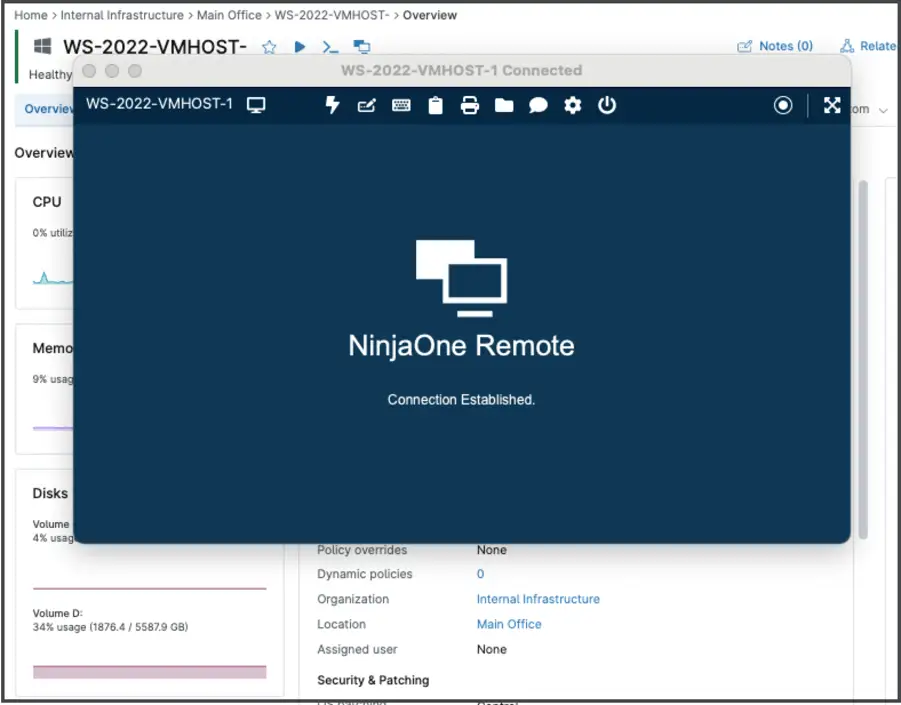
NinjaOne Remote is remote desktop software for IT professionals, giving fast, secure access to troubleshoot and manage Windows, Mac, and Linux devices, from a desk or on the go.






The following problems describe common remote support challenges, and how NinjaOne Remote addresses them.
| Problem | How NinjaOne Remote resolves it |
Switching between multiple remote tools for different operating systems slows IT professionals down. | NinjaOne Remote supports Windows, Mac, and Linux devices from the same console, so technicians don’t need a separate tool for each platform. |
Technicians away from their desk can’t always respond to urgent support requests right away. | The NinjaOne Mobile app lets technicians initiate and control remote sessions from a phone or tablet, so support isn’t confined to a desk. |
Giving every technician the same broad access increases risk if a login is compromised or misused. | NinjaOne Remote applies role-based access controls, scoped by organization and by which remote tools a technician can use, so access isn’t all-or-nothing across the fleet. |
Reviewing what happened during a past remote session is difficult without a recording to go back to. | NinjaOne Remote can record sessions, giving IT professionals a reviewable record for training, disputes, or compliance. |
Moving files between a technician’s machine and a remote device often requires a separate file transfer tool. | NinjaOne Remote includes built-in file transfer using drag-and-drop or cut-and-paste during a session. |
These are the outcomes NinjaOne Remote delivers for IT professionals.
One-click access lets technicians start working on a device immediately instead of setting up a connection first.
Bandwidth-adaptive sessions stay smooth even when a device is on a slower network, reducing dropped or laggy connections.
Manage Windows, Mac, and Linux devices from one console, without switching tools for different operating systems.
Role-based permissions, scoped by organization, and session logs give IT a clear, auditable record of technician access over time.
Technicians can respond to urgent requests from a phone or tablet, so support continues when they are away from their desk.
The following features describe how NinjaOne Remote supports IT professionals troubleshooting and managing devices.

Connect to a managed Windows, Mac, or Linux device with a single click, without complicated setup, for fast troubleshooting.

Sessions automatically adjust video quality to the connection speed, so remote access stays smooth even on slower networks.

Connect to Windows, Mac, and Linux devices from the same console, without needing a separate tool for each platform.

Initiate and control remote sessions from a phone or tablet using the NinjaOne Mobile app, so support isn’t confined to a desk.

Assign access by role, and control which remote tools each technician can use. Access can also be scoped by organization, so technicians only reach devices within the organizations they’re assigned to support.

Record sessions, giving IT professionals a reviewable record for training, disputes, or compliance.

Administrators can review a log of remote sessions, giving IT a clear record of who connected, and the connection and disconnection date and time.

Move files between the technician’s machine and the remote device using drag-and-drop or cut-and-paste, without a separate file transfer tool.

Technicians can access a command line window, multi-monitor control, and Windows and Mac keyboard shortcuts during a session, and trigger a safe reboot without losing the connection. Clipboard synchronization between the technician and remote machine can be enabled or disabled, and cleared automatically when a session ends.
The following practical applications describe how NinjaOne Remote supports IT professionals in real-world IT and MSP environments.
When an employee needs help wherever they’re working, technicians can connect to their device in one click instead of scheduling an on-site visit.
When a request comes in outside normal working hours or away from a desk, technicians can use the NinjaOne Mobile app to start a session and resolve it from a phone or tablet.
When a technician or auditor needs to understand what happened during a session, a recorded session gives IT professionals a record to go back to.
100,000
Endpoints managed
“NinjaOne is a scalable solution. It’s built on a modern SaaS architecture and it’s future-proof.”
40%
More Cost Effective
“NinjaOne’s price point is 40% less than any other endpoint management tool on the market, while being more powerful and easy to use.”

10-15
Tools Replaced
“Before, I needed 10-15 different tools to execute what NinjaOne does in its centralized, single pane of glass.”

30%
Less time for patching
“We observed a 30% reduction in the time taken for patch deployments compared to our previous solution.”

2,000
Endpoints managed
“NinjaOne gives me much more flexibility and security in my work”

30%
Annual ROI
“[NinjaOne] has already shown its value in ROI…it’s at least a hundred thousand dollars annually.”

24x
Faster Endpoint Management
“Our processes have become 24x faster with NinjaOne.”

20-40
Hours Saved Each Week
“Leveraging the automations feature within NinjaOne has enabled me to save upwards of what would likely be 20 to 30 to even 40 hours per week.”
Here’s how remote desktop access is set up and used in NinjaOne Remote, at a high level.
Administrators enable the NinjaOne Remote App and configure session settings.
Administrators configure role-based access, so only authorized technicians can start a remote session.
Technicians start a one-click session from a desktop or the NinjaOne Mobile app, on Windows, Mac, or Linux devices.
Technicians use built-in tools, such as file transfer and command line access, to resolve issues with minimal disruption.
Administrators can review session logs periodically to see who accessed which devices and when, across the team.
The King’s Trust, a UK non-profit supporting young people, uses NinjaOne Remote to keep up with hundreds of monthly support calls.
“Thanks to NinjaOne Remote, we can troubleshoot those tickets much faster–the time savings alone make it worth every penny,”
Mike Beattie, Head of Infrastructure and Workplace, The King’s Trust.
See how NinjaOne Remote helps IT professionals troubleshoot and manage devices from anywhere.
NinjaOne Remote is remote desktop software for IT professionals, giving fast, secure access to troubleshoot and manage Windows, Mac, and Linux devices, whether they’re at a desk or using the NinjaOne Mobile app on the go.
Technicians can start a session directly from the NinjaOne device dashboard by clicking the NinjaOne Remote icon next to a device, or from a support ticket by hovering over the play icon next to the device name, selecting NinjaOne Remote from the dropdown menu, and clicking Connect.
Yes. The NinjaOne Mobile app lets technicians initiate and control remote sessions from a phone or tablet, so support isn’t confined to a desk.
No. NinjaOne Remote supports Windows, Mac, and Linux devices from the same console, so IT professionals don’t need a separate tool for each platform.
Yes. Sessions can optionally be recorded locally or to the cloud, giving IT professionals a reviewable record for training, disputes, or compliance.
Yes. Technicians can move files between their machine and the remote device using drag-and-drop or cut-and-paste, without a separate file transfer tool.
Yes. Administrators can enable or disable clipboard synchronization between the technician and remote machine, and configure the clipboard to clear automatically when a session ends.
Access is controlled through role-based permissions scoped by organization, and NinjaOne logs who started and ended each remote session, and when, giving administrators a clear record of remote access activity.
Yes. Background mode lets technicians run maintenance tasks on a separate Windows desktop, independent of the signed-in user’s session, so the end user can keep working. Actions that require a reboot or logoff still need to be scheduled outside business hours, and access to background mode is gated by its own distinct permission.