With the new MDM Migration capability in macOS Tahoe and iOS/iPadOS 26, IT administrators are able to migrate devices from third-party MDMs to NinjaOne without user disruption – eliminating the need for factory resets and manually re-enrolling. By migrating devices to NinjaOne, IT admins are able to consolidate device management across platforms, enforce consistent security policies, and reduce operational complexity.
Important Note: This process does require that devices are part of Apple Business Manager or Apple School Manager already, and that they have been enrolled via Automated Device Enrollment (ADE) into the original MDM. If both these requirements are met, you can use the following steps to migrate these devices into NinjaOne MDM without requiring a full wipe of the device.
The NinjaOne advantage: With the new migration capability and NinjaOne MDM, you’ll be able to migrate your managed iOS and macOS devices without needing a full factory reset. You’ll avoid:
- Disrupting employees since they won’t need to reconfigure their phones
- Burdening IT because they won’t have to reset, re-enroll, and restore every Apple device on your network
- Data loss with NinjaOne’s unified backup as part of the NinjaOne platform ensuring you have a backup of your most recent data
1. Pre-migration – preparation and set up
1.A – Keep an inventory
Collect an inventory of all devices that you intend to migrate. This should include each device’s model and operating system, and whether it’s enrolled in supervised or unsupervised enrollment. Make sure to review Apple’s documentation, as the MDM migration feature has specific OS version requirements.
1.B – Document your current configurations
Before making any changes, document all existing configurations in your current MDM platform. This includes:
- Password and encryption settings
- Security restrictions on device functionality
- What applications were deployed, including the installation method (for example, Apps & Books content tokens, the App Store, or an application delivered by custom installer).
How we document our current settings will inform how we rebuild these configurations in NinjaOne.
1.C – Configure the APNs certificate
Follow the steps here to create and upload an APNs certificate. This certificate allows NinjaOne to securely communicate with Apple devices. Without this certificate, device management and policy enforcement cannot function.
1.D – Add NinjaOne as an MDM server to Apple Business Manager (ABM)
Next, integrate NinjaOne with ABM or ASM. This allows ABM to recognize NinjaOne as a valid MDM server, enabling device assignment and ensuring that devices are under management. At this stage, you should not yet assign devices in ABM to the configured ADE Profile.
1.E – Set up MDM Configurations in NinjaOne
Using the configurations documented earlier, begin replicating existing configurations in NinjaOne using the MDM policies, for example:
- Configure device encryption settings, including the passcode
- Configure restrictions on device functionality
- Deploy applications from your Apps and Books tokens
- Assign Wifi profile and proxy settings
- Control the deployment of MacOS patches
- Enforce FileVault encryption, plus escrowing and rotating the recovery key
Please make sure to validate the MDM configurations on a test device before assigning them to the devices you plan on migrating. This QA process is key to minimizing end user interruption as well as direct technician involvement. NinjaOne recommends enrolling a non-migrated device into NinjaOne first, to ensure that the defined configuration places the device in the expected end state. And before initiating any migration, communicate with your endpoint users first, keeping them informed to avoid any confusion. Once all of this is confirmed, you’re ready to begin migrating devices.
2. Migration – Administrator perspective
After logging into ABM or ASM, navigate to the Devices section. Select the device or group of devices targeted for migration to NinjaOne. Selecting the ellipsis on the top right of device overview interface unveils the “Assign Device Management” button.
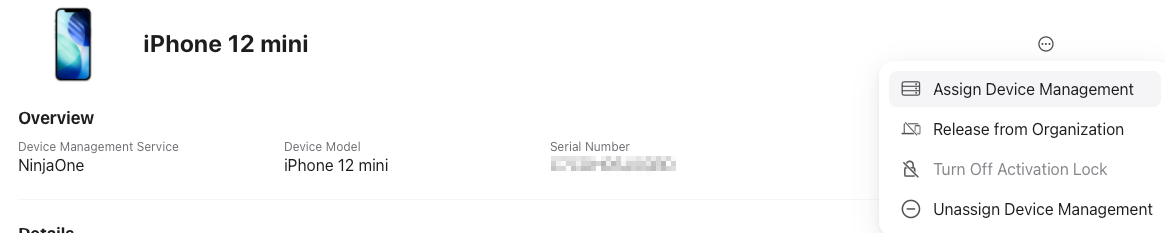
Select the server you want to migrate the device to. In our case, it’s NinjaOne – then confirm device assignment.
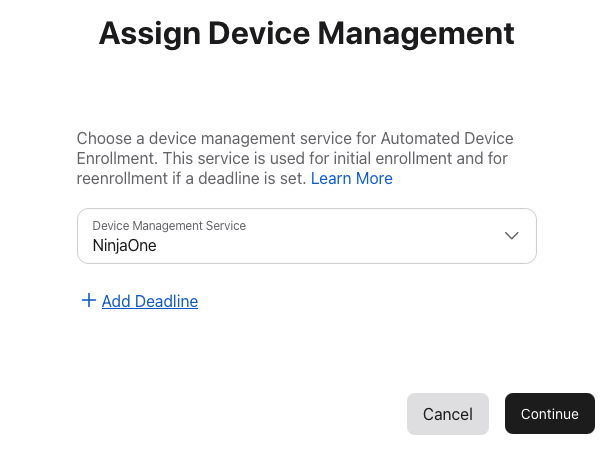

Confirm the changes, and ABM/ASM will take a few moments to assign the device to the new MDM service and initiate the migration.


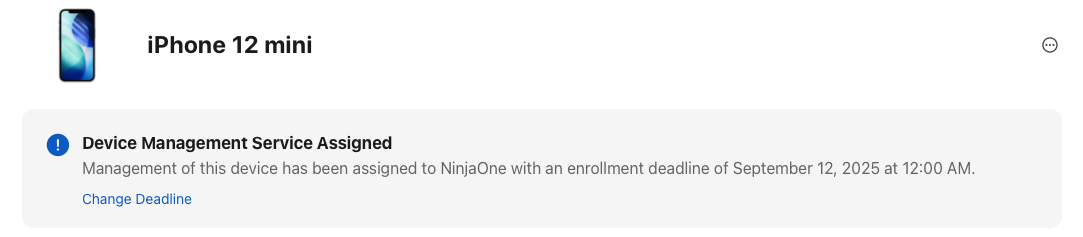
When a migration is actively scheduled for a device, the device record in ABM will reflect this as well.
3. Migration – End user perspective
When the migration is initiated, the user will receive a notification on the device. Selecting “Start Enrollment” will bring them to the VPN & Device Management page of the Settings app, where they can initiate the enrollment. If the user selects “Not Now,” they can continue using their device, but will periodically receive a follow up notification. Once the enforcement deadline occurs, the user will be forced to proceed with the migration. When the migration begins, the device will restart.
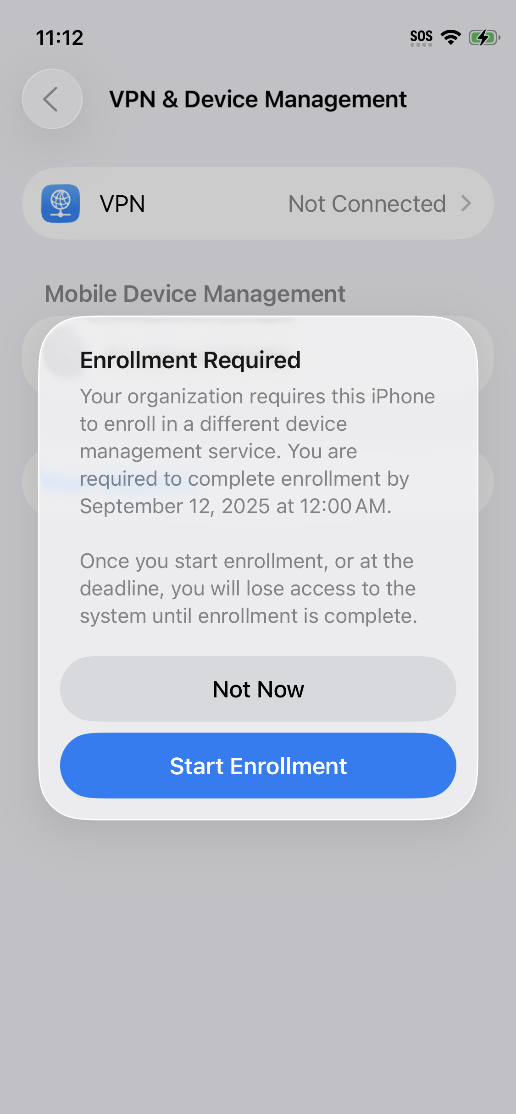
After restarting, the user will receive a prompt to enroll into the new MDM. This is their final opportunity to select “Not Now” if the enrollment deadline has not yet been reached. The device will enroll in the new MDM and indicate when it is successful. Note that if the enrollment should fail for any reason, the device would not longer be managed by the original MDM in this case. In the event of an enrollment failure, it should be treated as a currently unmanaged device. Once the enrollment is complete, the device will return to the Home Screen and all settings configured by the new MDM, such as applications, restrictions, and other configurations, will install and apply to the device over the air, just as in a new enrollment.
On a macOS device, the process is very similar. When the migration is initiated, the user will receive a notification on the device. They are brought to the System Settings app, where they can initiate the migration. Once the enrollment deadline passes, the user will be forced to migrate.

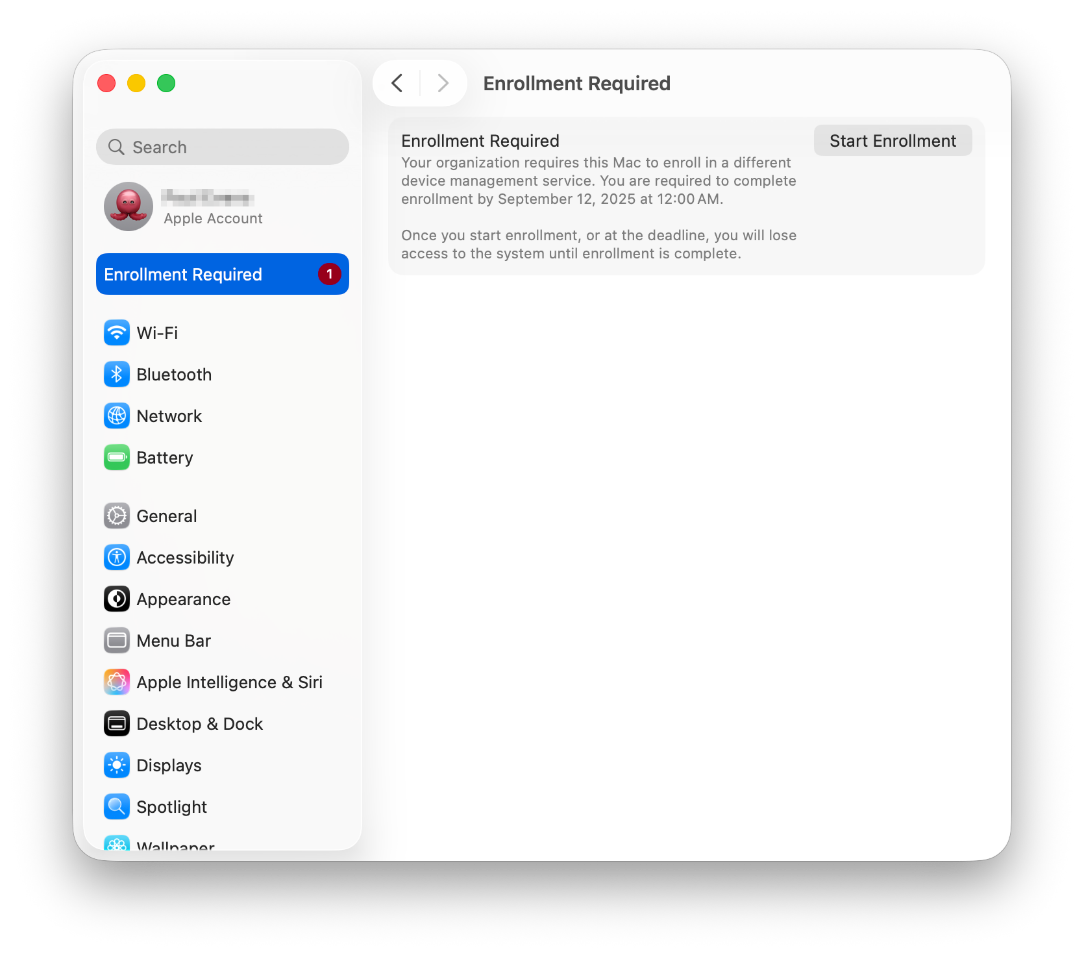
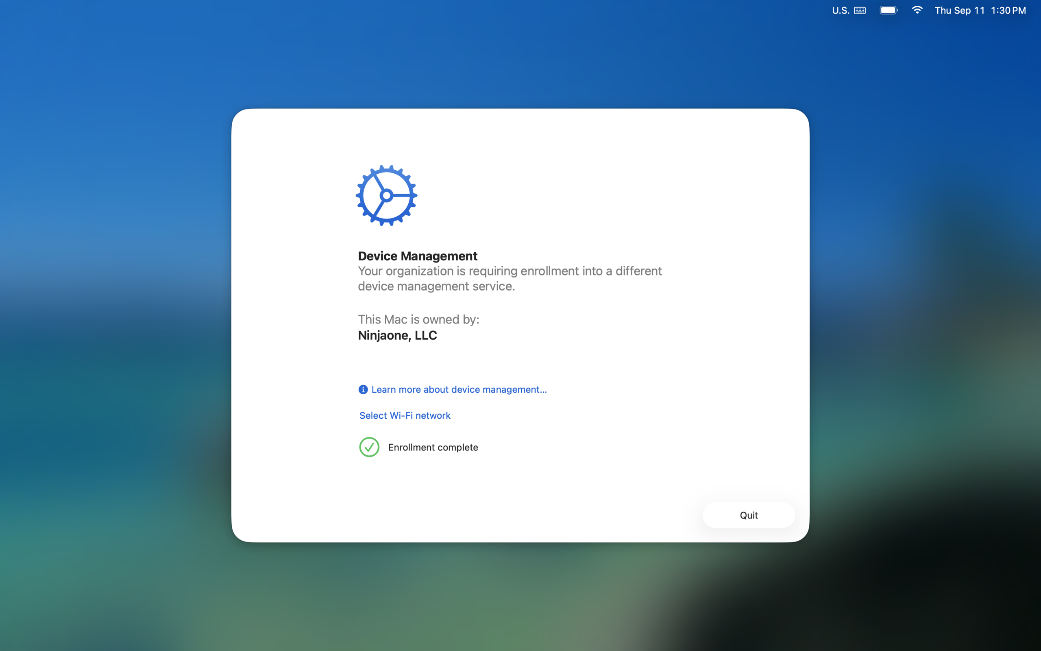
When initiated, the user will experience a flow similar to a new ADE enrollment. This is the last point they can select “Not Now” prior to reaching the enrollment deadline. When initiated, the user must enter a local administrator password on the device. The device will enroll in the new MDM and indicate when it is successful. Note that if the enrollment should fail for any reason, the device would not longer be managed by the original MDM in this case. In the event of an enrollment failure, it should be treated as a currently unmanaged device.

4. Post-migration – Reconciliation
Finally, verify the migration and enrollment successfully completed by navigating to the NinjaOne dashboard and confirming the new devices are listed.
A reminder that it’s very important to test across one device before rolling out to large numbers of machines. If you have many different configurations to manage as a part of a migration, it’s good to test each one of these configuration baselines to ensure that they operate as expected. Testing with a non-migrated device into NinjaOne and validating settings work as expected is key to minimizing disruption amongst your end users. Once you’ve worked out how settings translate between platforms and you are ready to begin migrating iOS, iPadOS, and macOS devices to NinjaOne!
Mobile devices drive efficiency by enabling employees to work anytime and anywhere. However, ineffective mobile device management can lead to technician and user frustration. For end users, the inability to access applications and resources required to support specific workflows or delays in resolving technical issues can impact their productivity. For technicians, an inefficient or ineffective MDM solution can lead to more trouble tickets, increase the organization’s attack surface, and take the IT team away from strategic business projects.
NinjaOne MDM helps MSPs and IT teams reduce cost and complexity by enabling management of Android, Apple mobile devices, and macOS endpoints alongside their Windows, Linux, VMs, and networking devices, all within the intuitive NinjaOne platform.