Key Points
- Hybrid Microsoft Entra ID Join (formerly Azure AD Join) unifies on-premises Active Directory with Microsoft Entra ID, enabling seamless single sign-on (SSO), centralized identity management, and secure hybrid access.
- Microsoft Entra Connect Sync synchronizes users and devices between on-prem AD and Entra ID, ensuring consistent authentication, compliance, and visibility across hybrid environments.
- Setup process overview:
- Install and configure Microsoft Entra Connect Sync
- Enable device registration in Entra ID
- Register and join devices to both on-prem AD and Entra ID
- Validate hybrid join status in Microsoft Entra admin center
- Best practices (2025):
- Maintain updated Windows 11 endpoints
- Regularly audit Entra Connect sync and device health
- Align with Microsoft’s Zero Trust and hybrid identity governance standards
What is Hybrid Microsoft Entra ID Join?
Hybrid Microsoft Entra ID Join connects your on-premises Active Directory infrastructure with Microsoft Entra ID, making devices visible in both environments. This lets users seamlessly access resources and services across both on-premises and cloud environments.
For a visual explanation, see the video on Integrating On-Premises and Cloud with Hybrid Microsoft Entra ID Join.
Learn the key differences between Active Directory and Azure Active Directory.
Benefits of Microsoft Entra ID Join
Using Hybrid Microsoft Entra ID Join to integrate on-premises and cloud environments offers several key advantages:
Streamlined user experience
Joining on-premises and cloud services using Microsoft Entra ID Hybrid Join provides users with a seamless and consistent experience across all resources. Users can access both on-premises and cloud-based applications using single sign-on (SSO) with the same set of credentials, eliminating the need for multiple logins and reducing user frustration.
Centralized user management
Administrators can manage user accounts for the integrated services from a single location. They can create, update, and delete user accounts in the on-premises Active Directory, and the changes will automatically synchronize with Microsoft Azure Active Directory, improving efficiency and reducing the risk of errors.
Enhanced security
Your organization can enforce stronger security measures within an integrated environment. Hybrid Microsoft Entra ID Join enables administrators to implement conditional access policies that control user access based on factors such as device compliance and location, thereby protecting sensitive data and resources from unauthorized access.
How Hybrid Microsoft Entra ID Join works
Hybrid Microsoft Entra ID Join requires these services to operate:
Active Directory Domain Services (AD DS) and Microsoft Entra ID
Active Directory Domain Services (AD DS), Microsoft’s on-premises directory service, stores and manages user accounts, computer accounts, and other directory objects. Azure AD is a cloud-based identity and access management service that provides authentication and authorization services for cloud-based resources.
Microsoft Entra Connect Sync
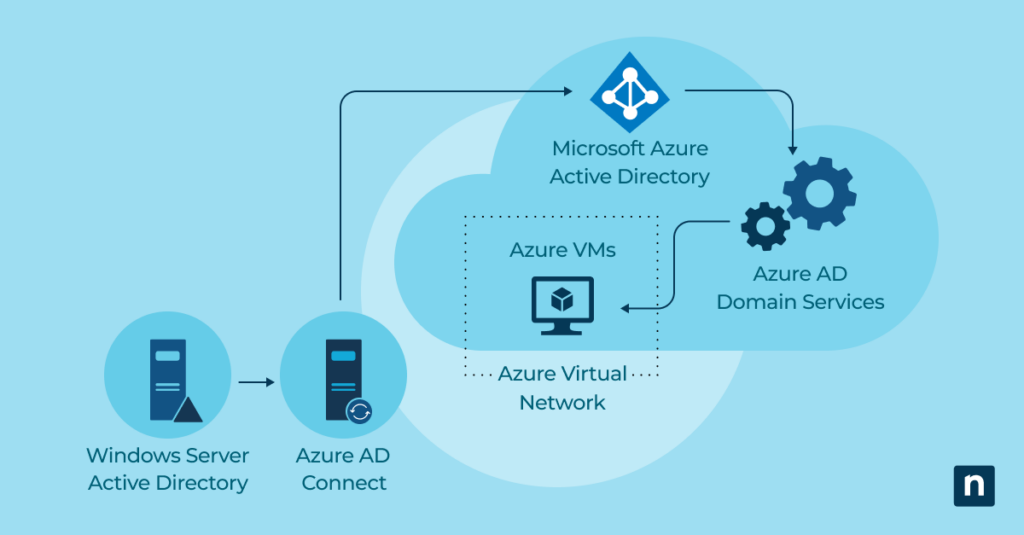
Microsoft Entra Connect Sync facilitates user account synchronization between on-premises AD DS and Azure AD. It establishes a connection between the two services, ensuring that changes made in one environment are reflected in the other.
Hybrid Microsoft Entra ID Join process
The Microsoft Entra ID Hybrid Join process involves the following steps:
- Install and configure Microsoft Entra Connect Sync on a server in the on-premises environment. This server acts as a bridge between AD DS and Azure AD.
- Synchronize user accounts from the on-premises AD DS to Microsoft Entra ID to ensure accounts and their attributes are consistent across both environments.
- Register the device that is part of the on-premises network with Microsoft Entra ID. This establishes a trust relationship between the device and Azure AD.
- Complete the Hybrid Microsoft Entra ID Join process. After registering the device, it can join both the on-premises AD DS domain and Azure AD simultaneously.
Requirements for setting up Hybrid Microsoft Entra ID Join
Check to ensure you meet the following on-premises infrastructure and requirements before setting up Hybrid Microsoft Entra ID Join:
- You must have an on-premises AD DS infrastructure in place.
- The on-premises AD DS should be running on Windows Server 2016 or later.
- You must install and configure Azure AD Connect on a server in the on-premises environment.
- You must have an active subscription to Azure AD.
- You should have Microsoft Entra Connect Health to monitor the health and performance of the Hybrid Microsoft Entra ID Join deployment.
How to Set Up Hybrid Microsoft Entra ID Join
Follow these steps to set up Hybrid Azure AD Join:
Step 1: Install and configure Microsoft Entra Connect Sync
Install and configure Microsoft Entra Connect Sync on a server in the on-premises environment by completing the following actions.
- Download Microsoft Entra Connect Sync from the Microsoft website.
- Launch the Microsoft Entra Connect Sync installation wizard and follow the on-screen instructions.
- At the prompt during installation, sign in with your Microsoft Entra ID credentials to continue with the installation.
- Choose the appropriate installation options based on your organization’s requirements.
When the installation is complete, Microsoft Entra ID will automatically start the synchronization process between AD DS and Azure AD.
Step 2: Configure device registration
To enable Hybrid Microsoft Entra ID Join, configure device registration settings in Microsoft Entra ID by completing these actions.
- Sign in to the Microsoft Entra portal using your Microsoft Entra ID
- Navigate to the Microsoft Entra Active Directory section.
- Go to the Devices tab and select “Device settings.”
- Enable the option for users to register their devices with Microsoft Entra ID.
- Save the changes and exit the Entra
Step 3: Register devices with Microsoft Entra ID
After configuring device registration settings, users can register their devices with Microsoft Entra Active Directory by completing these actions.
- Open the Settings app on the device.
- Go to the Accounts section and click on “Access work or school.”
- Click on the option to Connect.
- Enter your Entra credentials and follow the on-screen instructions to complete the registration process.
- Once the device is registered, it can simultaneously join both the on-premises AD DS domain and Microsoft Entra ID.
Managing Hybrid Microsoft Entra ID Join
After completing the Microsoft Entra ID Hybrid Join setup, you can manage it using several administrative tools and settings.
Entra portal
The Entra portal provides a comprehensive interface for managing Hybrid Microsoft Entra ID Join. Administrators can use the portal to view and manage registered devices, configure device settings, and monitor the deployment’s health and performance.
Group Policy
Group Policy allows you to manage device settings and control the behavior of devices joined to the on-premises AD DS domain. Group Policy enables administrators to enforce security policies, install software updates, and configure other device settings.
Microsoft Entra Connect Sync Connect
Microsoft Entra Connect Sync Connect provides several options for managing the synchronization process between AD DS and Microsoft Entra ID. Administrators can control which attributes are synchronized, customize the synchronization schedule, and monitor the synchronization status.
NinjaOne helps you easily manage Active Directory users directly within NinjaOne.
Limitations of and considerations for Hybrid Microsoft Entra ID Join
Hybrid Microsoft Entra ID Join offers a straightforward method for integrating on-premises infrastructure with cloud services. While it provides numerous benefits, it also has some limitations and considerations to keep in mind:
Internet connectivity
Hybrid Microsoft Entra ID Join requires a reliable internet connection for device registration and synchronization. Ensure your on-premises network has a stable internet connection to maintain seamless integration with Entra ID.
Compatibility
Not all versions of Windows Server and Active Directory are compatible with Hybrid Microsoft Entra ID Join. Check the compatibility requirements and ensure that your infrastructure meets the necessary criteria before you attempt setup.
Complexity
Hybrid Microsoft Entra ID Join takes several steps and configurations to set up and maintain. You’ll need to have experienced IT personnel or consult with a Microsoft partner to ensure smooth deployment and ongoing management.
Hybrid Microsoft Entra ID Join Best Practices
To ensure administrators can maximize Hybrid Microsoft Entra ID Join tools and capabilities, here are the best practices we recommend:
Pre-deployment preparation
Prior to setting up, ensure that your on-premises and cloud environments are compatible with Hybrid Microsoft Entra ID Join. Ensure that your organization’s devices are running the latest version of Windows 11.
Security Measures
Implement robust security measures, including multi-factor authentication, encryption, and continuous monitoring, to safeguard devices against unauthorized access and other potential threats.
Post-deployment
Once Hybrid Microsoft Entra ID Join has been deployed, perform regular health and performance checks, and continue educating administrators and users on its processes and functions.
Integrating on-premises and cloud
Integrating on-premises and cloud environments allows you to maintain your existing infrastructure while leveraging the benefits of cloud-based services. Hybrid Microsoft Entra ID Join is a straightforward method for bridging the gap between on-premises Active Directory and Azure AD, providing seamless user access, centralized management, and enhanced security.