Proving server backups actually restore shouldn’t require manual testing or wishful thinking.
For managed service providers (MSPs) and IT teams, recoverability verification has historically been time-consuming and easy to postpone, making incidents even more stressful when every minute counts.
Enter NinjaOne Boot Verification for Server Backup.
What exactly is Boot Verification?
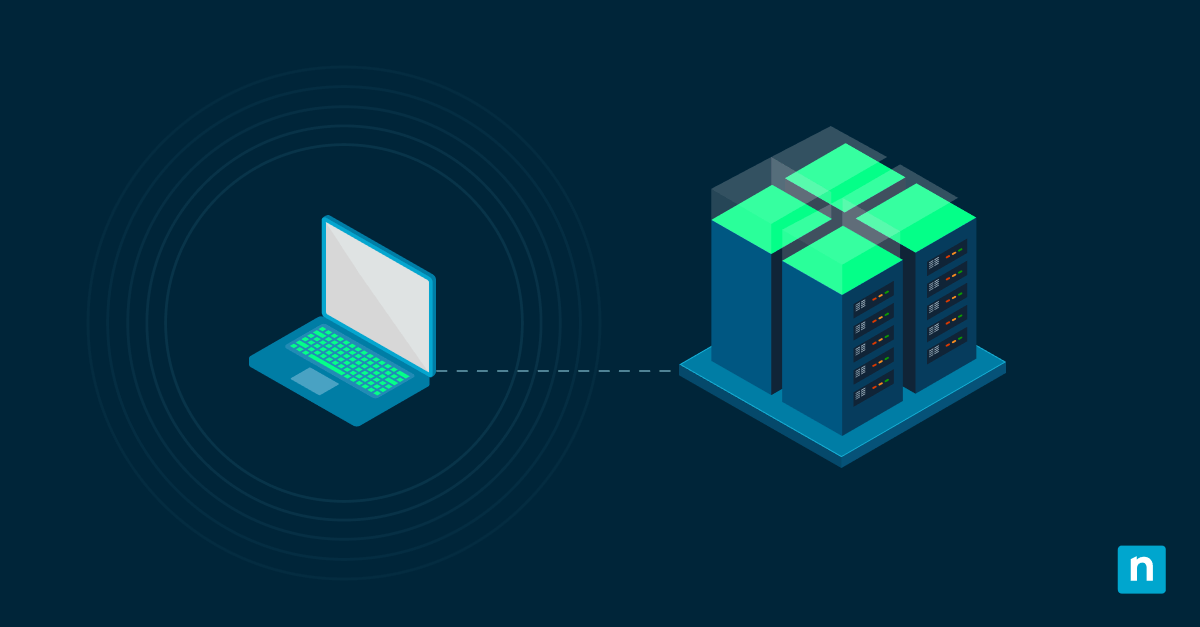
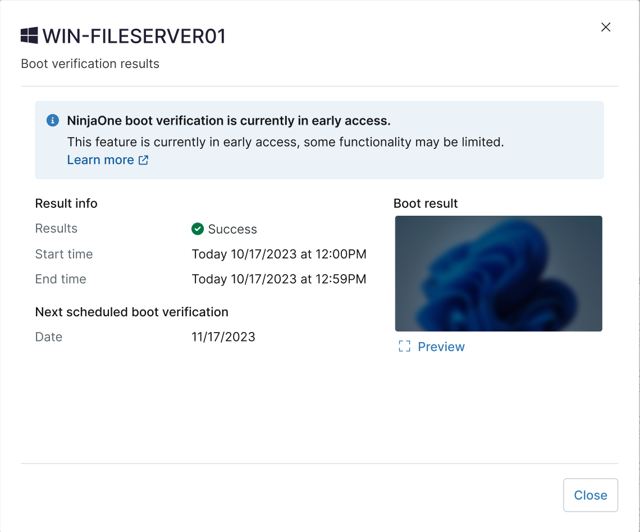
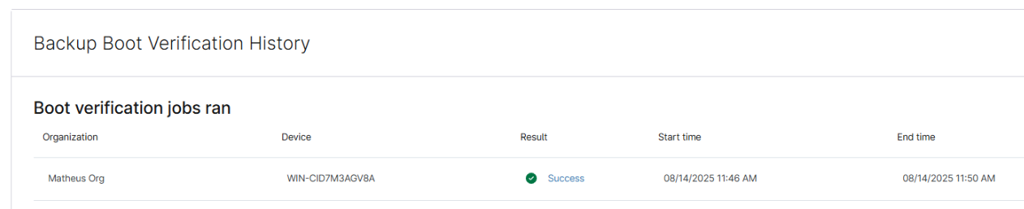
Boot Verification tests image backups on a recurring schedule to confirm they can boot successfully in the event of a restore requirement. Verification outcomes are recorded over time, and a snapshot of the endpoint screen provides evidence of bootability.
Boot Verification is available for Microsoft Windows servers using Image Backup and is supported through the Windows Server role and Windows Server policy.
Why Boot Verification matters
Backups are only as good as your ability to restore them. Boot Verification helps teams:
- Confirm backups are bootable and recovery-ready, so you’re not discovering issues during an incident
- Identify boot issues earlier, before recovery becomes urgent
- Support internal reviews and audit requirements with consistent verification activity and a record of results
How NinjaOne Boot Verification for Server Backup helps
NinjaOne Boot Verification for Server Backup automates periodic verification by testing image backups on a recurring schedule and capturing a snapshot of the endpoint screen as evidence of backup viability. This helps teams reduce restore risk, strengthen disaster recovery readiness, and support audit requirements without manual testing or added operational overhead.
Best of all, Boot Verification is included with NinjaOne Server Backup at no additional cost, so you can mature your recovery readiness without adding budget complexity.
How NinjaOne compares to manual or add-on verification approaches
Many organizations validate recoverability in one of two ways: manual testing or paid add-ons. Manual testing can work, but it’s difficult to do consistently, especially as environments scale. In some tools, automated verification is treated as a premium feature that adds cost to recovery readiness.
NinjaOne takes a simpler approach by including Boot Verification with Server Backup (not priced as an additional module), making it easier to strengthen recoverability without increasing licensing costs.
Key use cases for Boot Verification
A critical server goes down after an unexpected update, and your team needs to restore it quickly. In the past, recovery confidence was always a question mark until the moment you tried to boot the backup image.
With Boot Verification already running, you have recent evidence that backups can boot successfully, so your team can move faster and avoid unnecessary troubleshooting under pressure.
Get started
Backups should deliver confidence, not uncertainty. With Boot Verification, NinjaOne helps teams validate that Windows Server image backups can boot successfully, reduce restore risk, and support audit readiness without manual testing or added cost.
To get started, enable Boot Verification in your Windows Server policy and set a weekly schedule so the next image backup includes verification once it completes.
FAQs: NinjaOne Boot Verification for Server Backup
Q: Does Boot Verification replace restores or disaster recovery testing?
Boot Verification helps validate that backup images are bootable and recoverable on an ongoing basis. Many teams still run periodic full DR exercises, but Boot Verification reduces the manual burden and helps catch issues earlier.
Q: How often should I run Boot Verification?
It depends on your environment and compliance needs. Many teams choose a recurring schedule that provides consistent validation without creating unnecessary noise or overhead.
Q: Where can I view boot verification results?
Boot verification status is available in the Backup device overview, and you can view the verification screenshot directly from the endpoint entry.
Q: Does a failed boot verification mean my backup data is bad?
Not necessarily. A non-successful boot verification doesn’t always indicate a problem with backup data. In many cases, failures relate to boot behavior across different hardware configurations.