
Users can perform browser actions, like switching tabs and navigating pages, by pressing keyboard hotkeys in Microsoft Edge. Mouse gestures make these actions accessible by combining the right-click and mouse movements, allowing one-handed browser navigation.
Although this improves accessibility, mouse gestures can cause accidental inputs, disrupting workflow in environments where they aren’t needed. In such cases, disabling this feature may help maintain consistency and prevent unintended mouse behavior and actions.
Methods to manage mouse gestures in Microsoft Edge
It’s important to enforce the mouse gesture configuration to suit your environment. This ensures consistency across all endpoints while supplementing the workflow needs of end-users.
📌 Prerequisite: Microsoft Edge version 114 or later
📌 Recommended deployment strategies:
Click to Choose a Method | 💻 Best for Individual Users | 💻💻💻 Best for Enterprises |
| Method 1: Manage mouse gestures via Microsoft Edge settings | ✓ | |
| Method 2: Configure via the Local Group Policy Editor | ✓ | ✓ |
| Method 3: Manage Microsoft Edge mouse gestures via the Registry Editor | ✓ | |
| Method 4: Automate the Registry change using PowerShell | ✓ | ✓ |
| Method 5: Leverage a .reg file to automate the Registry change | ✓ |
(Read about potential risks, consequences, and reversals in ⚠️ Things to look out for.)
Method 1: Control mouse gestures via Microsoft Edge settings
Everyday users can control how their mouse gestures behave in a fast and straightforward manner via Microsoft Edge settings.
📌 Use Cases: This method is ideal for end users who want to customize their account’s mouse gestures in Microsoft Edge.
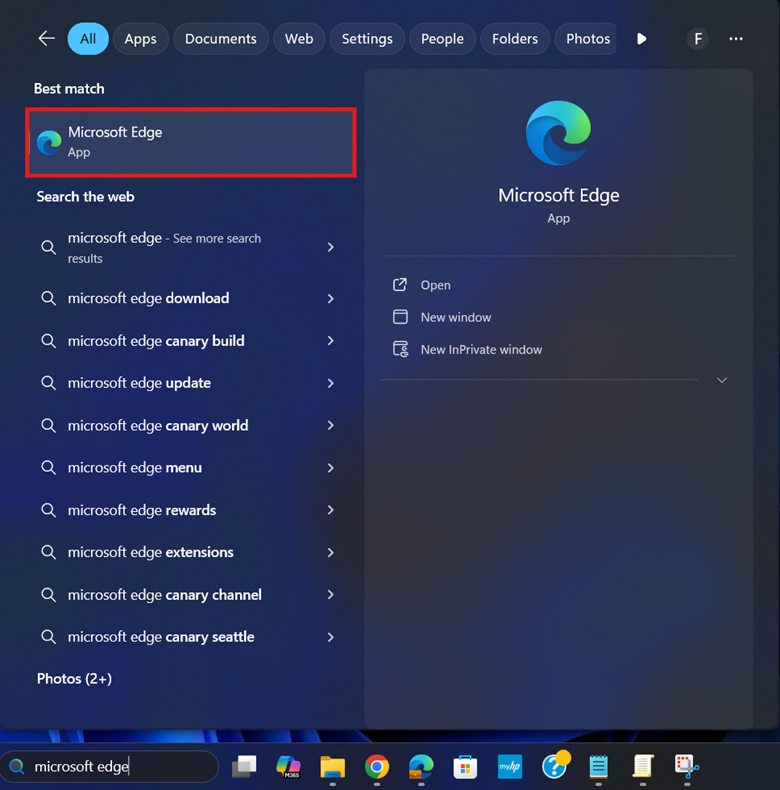
- Press Win + S, type Microsoft Edge, then click Microsoft Edge.
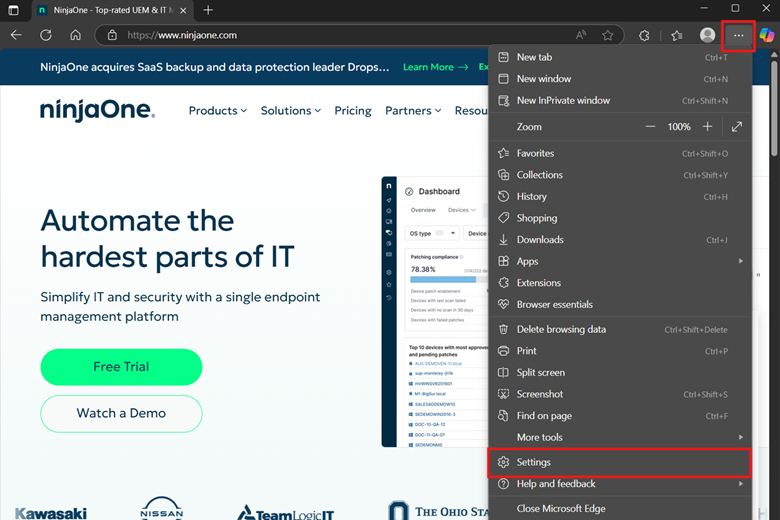
- Select the three-dot menu (•••) on the top-right and press Settings.
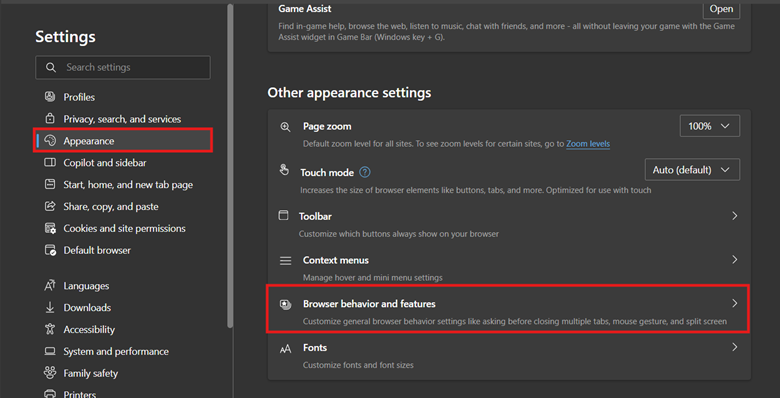
- Click Appearance, then scroll down until you find Browser behavior and features.
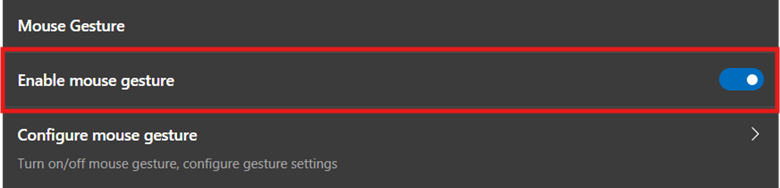
- Find and toggle Enable mouse gesture to match the setting you prefer:
- On: Allows mouse gestures for Edge.
- On: Allows mouse gestures for Edge.
- Off: Disables mouse gestures for Edge.
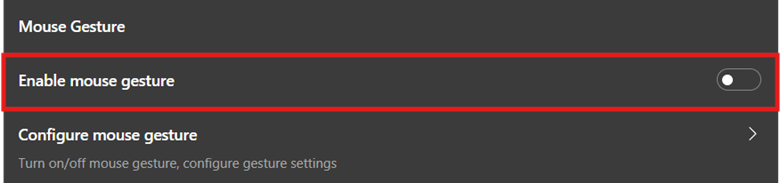
- Off: Disables mouse gestures for Edge.
💡 Tip: You can also navigate to Configure mouse gesture to customize the actions assigned for each mouse gesture.
Method 2: Configure via the Local Group Policy Editor
The Local Group Policy Editor allows for a structured way to configure policies, making changes that are well-documented and easy to reverse.
📌 Use Cases: This method is ideal for administrators who want to make system-wide changes on a local machine. When paired with the Group Policy Management Console, this configuration can be deployed as a GPO across an environment.
📌 Additional Prerequisites:
- Windows 11 Pro, Education, or Enterprise editions
- ADMX templates for Microsoft Edge
- Administrative privileges
- Download and install the appropriate Microsoft Edge ADMX templates.
- Choose the Windows 64-bit Policy that corresponds to your browser’s version.
- To know your Edge version, open Command Prompt and enter the following:
wmic datafile where “name=’C:\\Program Files (x86)\\Microsoft\\Edge\\Application\\msedge.exe'” get Version /value
- Press Win + R, type gpedit.msc, and press Ctrl + Shift + Enter.
- Navigate the following path: Computer Configuration > Administrative Templates > Microsoft Edge
- Find and click MouseGestureEnabled.

- Configure the policy by selecting the radio button beside the following settings:

- Enabled: This turns on Edge mouse gestures for all users.
- Disabled: This turns off Edge mouse gestures for all users.
- Not Configured: Allows users to toggle the feature via Microsoft Edge settings
- Select Apply and then OK to apply the policy change.
- Close the Local Group Policy Editor and open an elevated PowerShell prompt.
- Input the following command to update your device’s Local Group Policy settings: gpupdate /force
Method 3: Manage Microsoft Edge mouse gestures via the Registry Editor
Advanced users can directly modify the Registry to enforce a system-wide mouse gesture configuration for Microsoft Edge.
⚠️ Warning: It’s important to be cautious and precise when making changes in the Registry, as misconfigurations can break system functionality. (See ⚠️ Things to look out for.)
📌 Use Cases: Administrators can leverage the Registry to enforce mouse gesture configurations for local systems without Local Group Policy access. Additionally, this method is ideal for those who want to enforce this configuration without downloading additional Edge ADMX templates.
📌 Additional Prerequisites:
- Windows Registry backup
- Administrative privileges
- Press Win + R, type regedit, and press Ctrl + Shift + Enter.
- Navigate the following path: HKEY_LOCAL_MACHINE\SOFTWARE\Policies\Microsoft\Edge
- Find and double-click the MouseGestureEnabled DWORD value.
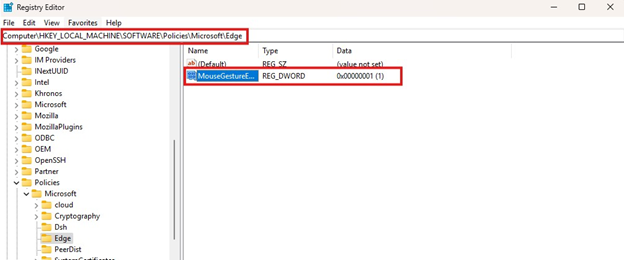
- If the DWORD value doesn’t exist, right-click the Edge subkey, select New > DWORD (32-bit) value.
- Name the newly created value MouseGestureEnabled.
- Set the value data inside MouseGestureEnabled according to the behavior you want:
- 1 = This enables mouse gestures in Edge.

- 0 = This disables mouse gestures in Edge.

- 1 = This enables mouse gestures in Edge.
- Select OK and then close the Registry Editor.
- Restart Microsoft Edge or your device to apply the changes.
Method 4: Automate the Registry change using PowerShell
Administrators can leverage PowerShell scripts to avoid manually applying Registry configurations on a local machine or across multiple endpoints.
⚠️ Important: Always test scripts and verify their effect on a local machine before deploying them across an environment. [See ⚠️ Things to look out for.]
📌 Use Cases: PowerShell automates the manual registry configuration of Microsoft Edge’s mouse gestures, making it an ideal deployment solution for non-domain endpoints.
📌Additional Prerequisites:
- Windows Registry backup
- Administrative privileges
- Press Win + R, type PowerShell, and press Ctrl + Shift + Enter.
- Enter the PowerShell script that best reflects the change you prefer:
- To disable mouse gestures in Edge:
New-Item -Path “HKLM:\SOFTWARE\Policies\Microsoft\Edge” -Force | Out-Null
Set-ItemProperty -Path “HKLM:\SOFTWARE\Policies\Microsoft\Edge” -Name “MouseGestureEnabled” -Value 0 - To enable mouse gestures in Edge:
New-Item -Path “HKLM:\SOFTWARE\Policies\Microsoft\Edge” -Force | Out-Null
Set-ItemProperty -Path “HKLM:\SOFTWARE\Policies\Microsoft\Edge” -Name “MouseGestureEnabled” -Value 1
- To disable mouse gestures in Edge:
- Wait for the PowerShell script to finish.
- Restart your device or Microsoft Edge to apply the changes.
Method 5: Leverage a .reg file to automate the Registry change
This method offers a scriptless, double-click process that quickly merges with the specified registry path in the .reg file.
💡 Note: Although administrators can quickly deploy .reg files to a limited number of endpoints, they become impractical once implemented at scale.
📌 Use Cases: A .reg file is ideal for fast manual distribution of mouse gesture configuration across a small group of endpoints.
📌 Additional Prerequisites:
- Windows Registry backup
- Administrative privileges
- Press Win + S, search Notepad, and select the Notepad app.
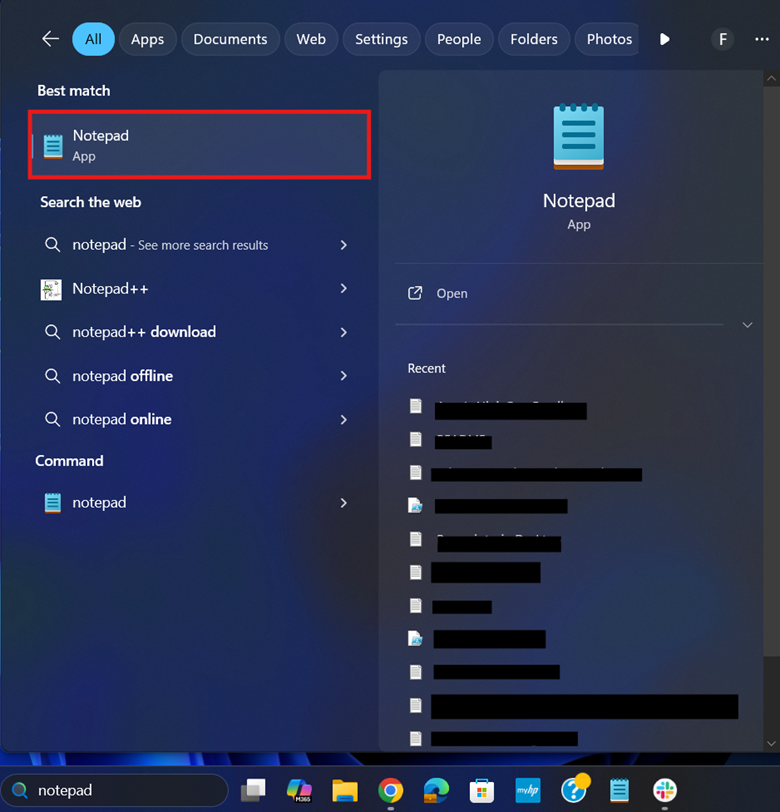
- Inside Notepad, enter the text that best reflects the mouse gesture behavior you prefer:
- To disable mouse gestures in Edge:
Windows Registry Editor Version 5.00 [HKEY_LOCAL_MACHINE\SOFTWARE\Policies\Microsoft\Edge]
“MouseGestureEnabled”=dword:00000000 - To enable mouse gestures in Edge:
Windows Registry Editor Version 5.00 [HKEY_LOCAL_MACHINE\SOFTWARE\Policies\Microsoft\Edge]
“MouseGestureEnabled”=dword:00000001
- To disable mouse gestures in Edge:
- Once you’re done inputting your preferred text, press Ctrl + Shift + S.
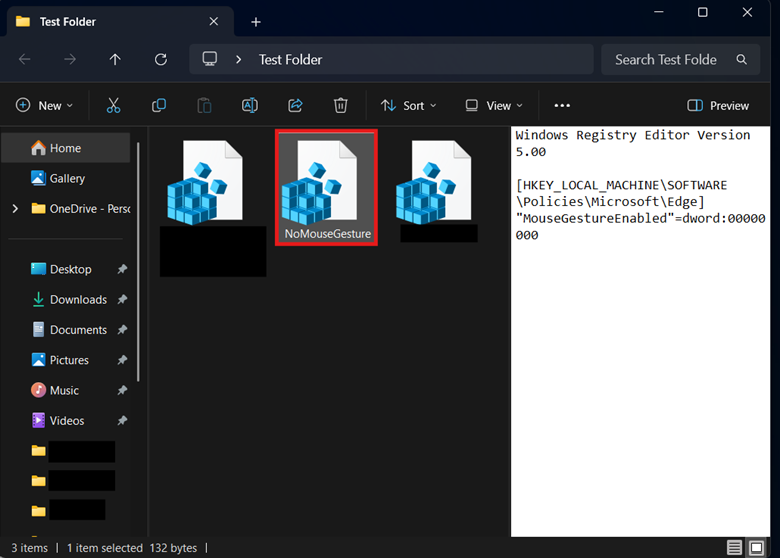
- Name your .reg file as Name.reg (e.g., NoMouseGesture.reg), and change its Save as type to All files.
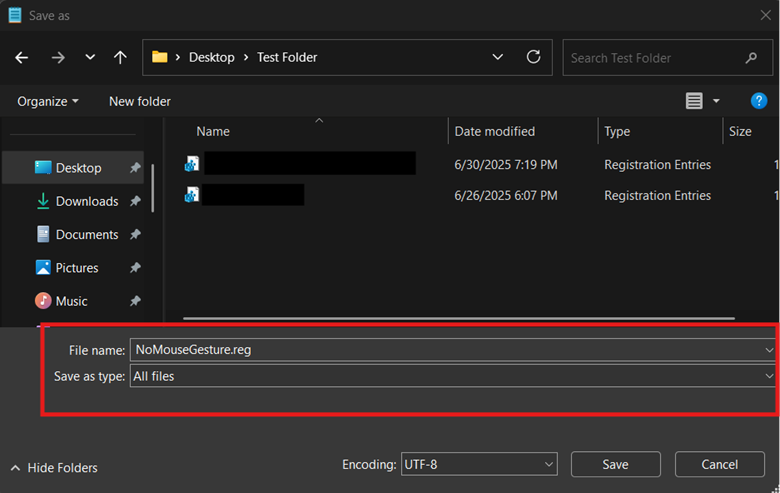
- Select an easily accessible location to save your .reg file, then click Save.
- Locate the .reg file and double-click it to merge its content into the Registry.
- Restart your device or Microsoft Edge to apply the new mouse gesture configuration.
⚠️ Things to look out for
Risks | Potential Consequences | Reversals |
| Configuring the Registry without a backup | Incorrect registry changes can break system functionality, and fixing them is difficult. | Create a Registry backup before proceeding to ensure easy rollback in case of a misconfiguration. |
| Implementing system-wide changes without administrative privileges | Without proper account elevation, system-wide configurations will fail due to insufficient permissions. | Ensure you have administrative privileges to make system-wide changes; otherwise, you can manage mouse gesture settings directly in Microsoft Edge. |
| No local machine testing before deployment | Misconfigurations can go unnoticed without proper testing on a local machine. | It’s best practice to test changes locally to confirm they work as intended and catch any misconfigurations before deployment. |
| Accidental end-user activation of mouse gestures in Edge | Users may accidentally configure mouse gestures through Microsoft Edge settings, resulting in unexpected mouse behavior and potential confusion. | Enforce mouse gesture configurations system-wide to lock the setting on the Edge UI. |
Key considerations when configuring mouse gestures for Edge
Knowing how mouse gestures in Edge behave in different scenarios is important to ensure that they suit your needs. Below are key considerations to remember when enforcing this setting locally or across an environment.
Device dependency
Before we go deeper, let’s first discuss how mouse gestures work on Microsoft Edge. As the name suggests, this feature is tailored for mouse use, requiring precise mouse movements while holding the right-click button.
Other inputs, like touchpads and styluses, may provide inconsistent movements, resulting in unintended actions. To avoid issues, it’s crucial to keep this feature disabled in mouse-free setups.
Use case testing before deployment
Gesture detection can vary based on system components. High-dpi systems, for instance, may interpret mouse gestures differently than low-dpi systems. To ensure consistency, test mouse gesture configurations on different setups in your environment before deployment.
No per-site control
Mouse gesture settings in Edge apply globally and can’t be customized per site. This can cause problems for websites that rely on right-click interactions and drag motions, as gestures can interfere with a user’s intended input.
Manage mouse gestures for Edge to optimize browser navigation
Mouse gestures in Microsoft Edge enhance browser navigation, but they may not be appropriate in every use case. That said, it’s best to configure this feature according to your organizational needs.
End users can manage mouse gestures through Edge settings for their own accounts. Administrators can enforce it using the Local Group Policy or Registry Editor, and automate the process with PowerShell scripts or .reg files.