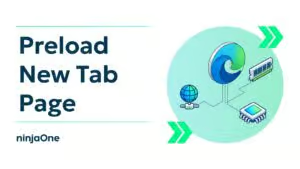
How to enable or disable preload new tab page in Microsoft Edge on Windows 11. Is there a noticeable delay when you try to open a new tab or window? Sometimes the preload new tab page feature actually causes more lag than it prevents on certain system configurations. Before we begin, be sure to subscribe to Ninja One's IT Video Hub and our YouTube channel for more tech content like this. Why you should manage preload new tab page. By default, Microsoft Edge uses the preload new tab page function so it opens instantly. While convenient, this background process can consume network bandwidth, CPU resources, and memory. For users on low-resource devices or limited data plans, disabling preload new tab page is a critical step toward optimizing overall system performance and stability. Reducing background tasks prevents the browser from competing with active applications for system resources. How to toggle preloading for individual users. The most straightforward method to manage preload new tab page is through the Edge browser settings. First, simply navigate to edge://settings/, click Start, Home, and New Tab Page, and then locate the toggle labeled "Preload your new tab page for a faster experience." Switch this off and restart your browser to reduce background resource usage without needing administrator privileges. This is the safest way for standard users to customize their browsing experience. Automating Edge settings with scripts and registry. For advanced users and IT admins, you can automate preload new tab page configurations using several powerful tools. Registry Editor. Create a DWORD 32-bit value named New in T Render Enabled to force the setting system-wide or per user. Command Prompt. Use reg add commands to quickly update registry keys for the preload new tab page via the CLI. PowerShell. Run automation scripts to create items and set properties across multiple endpoints simultaneously. Group Policy. For enterprises, use the GPO editor to link preload new tab page policies to specific organizational units. Troubleshooting and managing system risks. To ensure your preload new tab page changes take effect safely, keep these troubleshooting tips in mind. Backup first. Always back up the Windows registry before making changes to prevent system instability. Version check. Ensure you are running Edge version 102 or later, or the preload new tab page toggle will be missing. Force updates. If settings don't apply, use gpupdate/force or a full browser restart to trigger the change. Scope check. Verify if you are applying changes to the current user, HKCU, or local machine, HKLM, registry scope. Ultimately, deciding whether to keep the preload new tab page feature active depends on your device performance and resource availability. If you have plenty of RAM, the speed boost is great. However, for low-spec machines, disabling it is a game-changer. Balancing speed and resource usage is key to a stable Windows 11 experience. For more information, check out our official blog post on how to enable or disable preload new tab page in Microsoft Edge on Windows 11, linked in the description below.

How to Enable or Disable “Preload New Tab Page” in Microsoft Edge on Windows 11

Does your Windows 11 PC feel bogged down when multitasking? You might need to adjust the Preload New Tab Page in Edge. In this video, we explore five ways to configure this feature, from simple toggles to advanced Group Policy edits. Learn how to optimize your system resources for a smoother, faster computing experience.

Read the full blog on How to Enable or Disable “Preload New Tab Page” in Microsoft Edge on Windows 11
Never miss a NinjaOne video!