
Key Points
- Apple introduced native MDM migration in iOS 26, iPadOS 26, and macOS 26 Tahoe, and it works on those versions and later, including iOS 27, iPadOS 27, and macOS 27 Golden Gate.
- IT administrators can move eligible, organization-owned Apple devices from one MDM provider to another from Apple Business without a factory reset or a manual unenroll-and-reenroll process.
- Eligible devicesare organization-owned, assigned in Apple Business or Apple School Manager, and enrolled through Automated Device Enrollment (ADE).
- Before initiating any migration, administrators must document all existing MDM configurations and fully replicate and validate them in NinjaOne before a single production device is migrated.
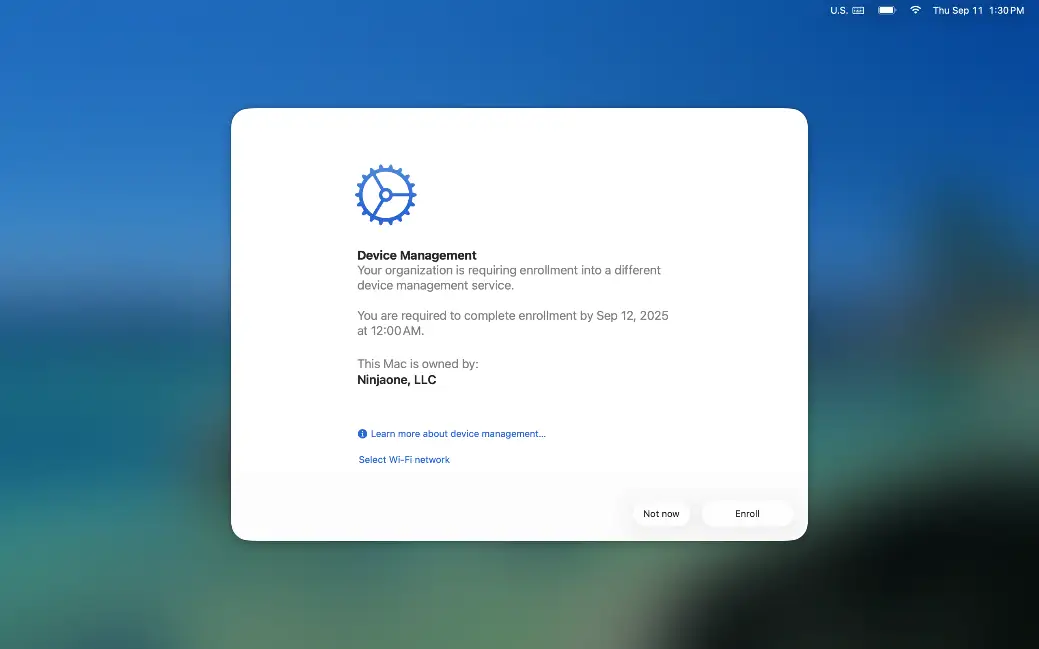
- Users can select “Not Now” until the deadline you set in Apple Business. After the deadline, migration is enforced: iPhones and iPads restart, and Macs show a full-screen prompt that can’t be dismissed.
- Post-migration reconciliation requires verifying successful enrollment in the NinjaOne dashboard, confirming all policies, applications, and restrictions have applied correctly over the air.
An MDM migration is the process of moving corporate devices like phones, tablets, and laptops from one mobile device management (MDM) platform to another.
Apple’s MDM migration capability (introduced in iOS 26, iPadOS 26, and macOS Tahoe and available in later releases) lets IT administrators move eligible devices to a new MDM from Apple Business (formerly called Apple Business Manager) without a factory reset. Moving those devices to NinjaOne MDM lets you manage Apple devices from the same console as your other endpoints, apply consistent security policies, and reduce operational complexity.
Important: Devices must already be assigned in Apple Business or Apple School Manager already and enrolled in your current MDM through Automated Device Enrollment (ADE). If your devices meet these requirements, you can use the steps below to migrate them to NinjaOne MDM without a wipe.
| Requirement | Detail |
| Operating system | iOS 26, iPadOS 26, or macOS 26 or later |
| Enrollment | Automated Device Enrollment |
| Ownership | Organization-owned devices only |
| Not supported | Shared iPads, devices set up with Return to Service app preservation, migration to or from Apple’s built-in device management service |
| If a device is ineligible | Apple Business doesn’t show the deadline option, and bulk assignments show failures in the activity log |
Why migrate to NinjaOne MDM?
With Apple’s migration workflow and NinjaOne MDM, you can move eligible iOS, iPadOS, and macOS devices without a factory reset. You avoid:
- Asking employees to set up their devices again
- Resetting, re-enrolling, and restoring every Apple device by hand
- Losing managed apps on iPhone and iPad when the new MDM delivers those apps before enrollment completes
iOS 26 pre-migration preparation and setup
1. Keep an inventory
Collect an inventory of all devices that you intend to migrate. This should include each device’s model and operating system and whether it’s enrolled in supervised or unsupervised enrollment. Make sure to review Apple’s documentation for iOS 26, iPadOS 26, or macOS 26 or later as the MDM migration feature has specific OS version requirements.
2. Document your current Apple device configurations
Before making any changes, document all existing configurations in your current MDM platform. This includes:
- Password and encryption settings
- Security restrictions on device functionality
- What applications were deployed, including the installation method (g., Apps and Books content tokens, the App Store, an application delivered by a custom installer)
How you document your current settings will inform how you rebuild these configurations in NinjaOne.
3. Configure the APNs certificate on your Apple devices
Follow the steps here to create an Apple Push Notification service (APNs) certificate and upload it to NinjaOne. This certificate lets NinjaOne communicate securely with your Apple devices, and device management and policy enforcement can’t work without it.
4. Add NinjaOne as an MDM server to Apple Business
Next, connect NinjaOne to Apple Business or ASM so Apple recognizes NinjaOne as a valid device management service. Then define an ADE profile in NinjaOne. Don’t assign devices to the ADE profile yet.
5. Set up MDM configurations in NinjaOne
Using the configurations documented earlier, begin replicating existing configurations in NinjaOne using the MDM policies, which include the following:
- Configure device encryption settings, including the passcode
- Configure restrictions on device functionality
- Deploy applications from your Apps and Books tokens
- Assign the Wi-Fi profile and proxy settings
- Approve and enforce macOS, iOS, and iPadOS updates with declarative device management
- Enforce FileVault encryption and confirm that your new MDM supports bootstrap tokens so the Personal Recovery Key can be escrowed and rotated
Make sure to validate the MDM configurations on a test device before assigning them to the devices you plan on migrating. This QA process is key to minimizing end-user interruption as well as direct technician involvement.
NinjaOne recommends enrolling a non-migrated device into NinjaOne first to ensure that the defined configuration places the device in the expected end state. Also, before initiating any migration, communicate with your endpoint users first, keeping them informed to avoid any confusion. Once all of this is confirmed, you’re ready to begin migrating devices.
6. Plan for managed apps, volume-purchased apps, and Activation Lock
Apple preserves managed apps and their data on iPhone and iPad only if
- the new MDM delivers the apps before it sends the DeviceConfigured command and
- your current MDM doesn’t send remove-app commands during unenrollment.
Confirm both conditions before you set a deadline.
If you use volume-purchased apps, remove the content token from your current MDM and upload a new content token for the same organizational unit to NinjaOne. Apple advises against a migration deadline longer than 30 days in this case. After the migration, reassign any unassigned apps in NinjaOne.
Apple also removes the existing Activation Lock during migration and invalidates its bypass codes. The new MDM can then apply an organization-linked Activation Lock and create new bypass codes.
iOS 26 MDM migration — Administrator perspective
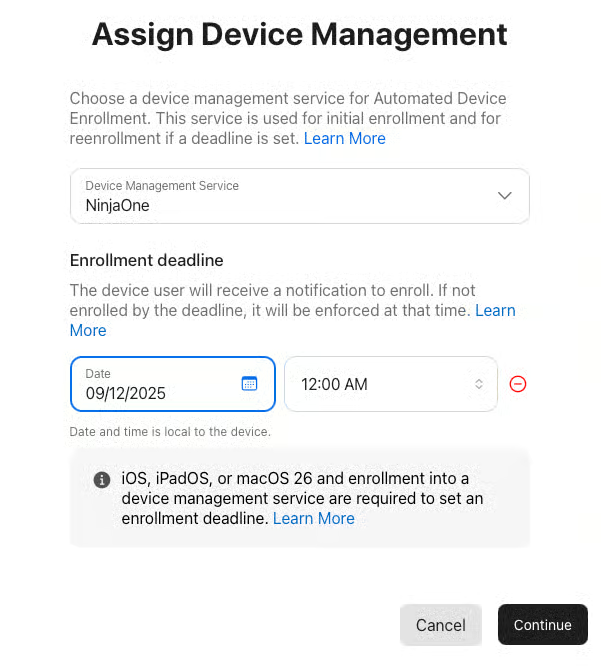
After logging into Apple Business or ASM, navigate to the Devices section. Select the device or group of devices targeted for migration to NinjaOne. Selecting the ellipsis on the top right of the device overview interface unveils the Assign Device Management button.
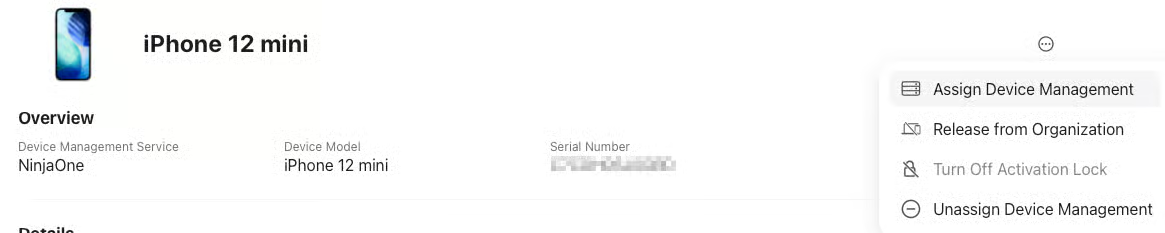
Select the server you want to migrate the device to. In our case, it’s NinjaOne. Then confirm device assignment.
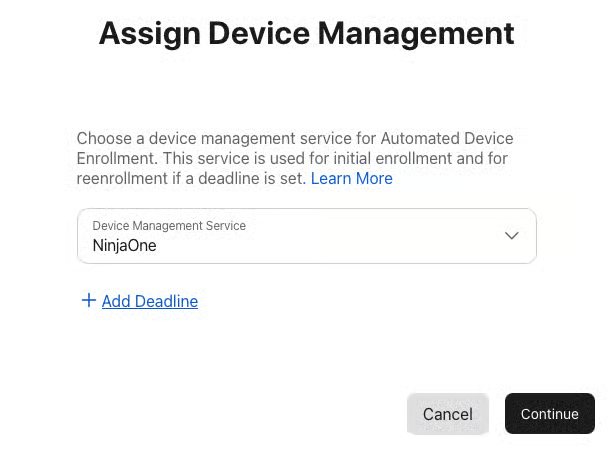
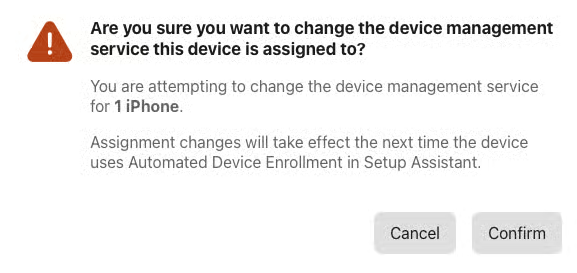
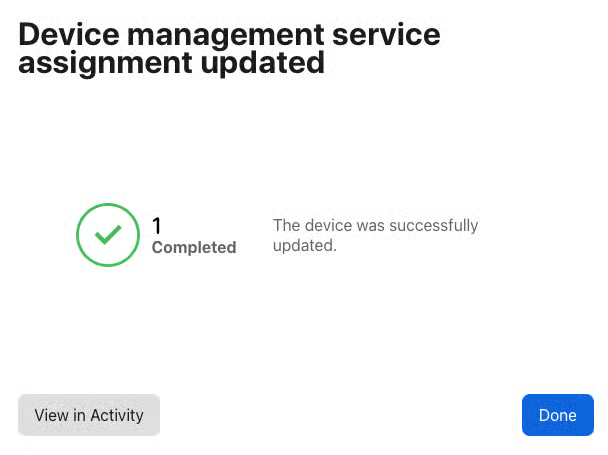
Confirm the changes, and Apple Business/ASM will take a few moments to assign the device to the new MDM service and initiate the migration.
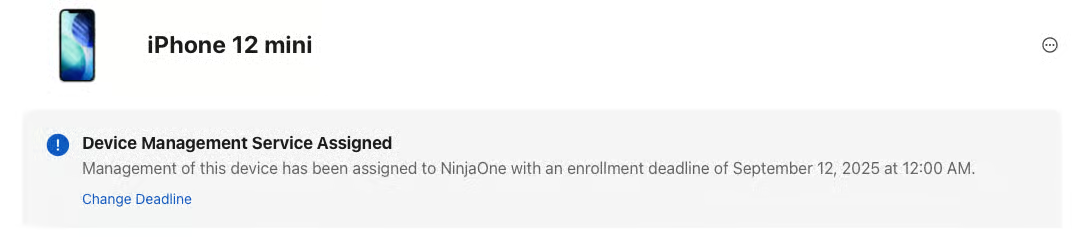
When a migration is actively scheduled for a device, the device record in Apple Business will reflect this as well.
iOS 26 MDM migration — End user perspective
Warning: If enrollment fails, the device is no longer managed by your original MDM, so treat it as an unmanaged device. Apple Business also removes any prior Activation Lock, invalidates its bypass codes, and then turns Activation Lock on. Only an Organization Administrator in Apple Business can remove it. Migrate a small pilot group first.
When the migration is initiated, the user will receive a notification on the device. Selecting Start Enrollment will bring them to the VPN & Device Management page of the Settings app, where they can initiate the enrollment.
If the user selects Not Now, they can keep using the device. Apple sends reminders daily, hourly during the final 24 hours, and at 60, 30, 10, and 1 minute before the deadline. Once the enforcement deadline occurs, the user will be forced to proceed with the migration. When the migration begins, the device will restart.
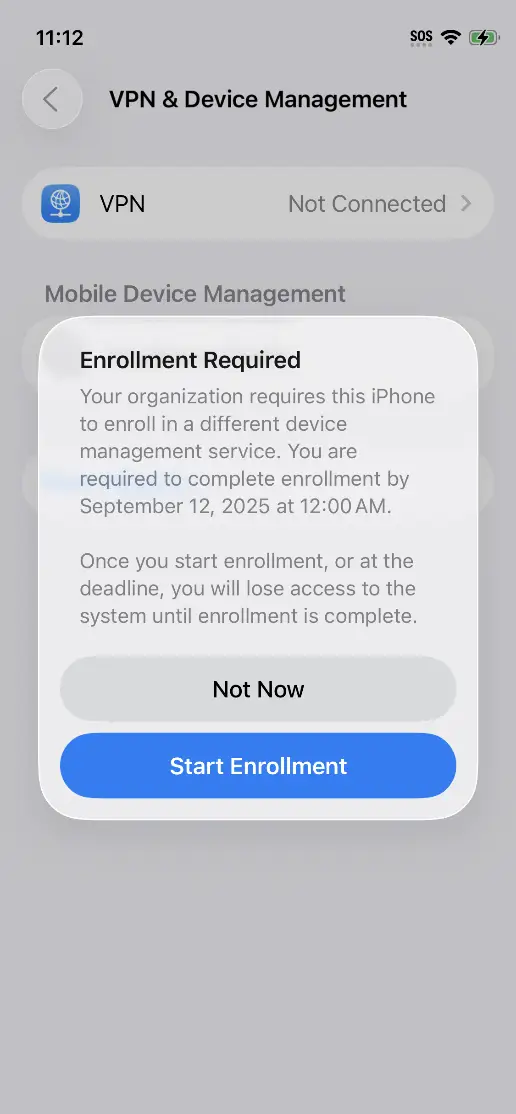
After the device restarts, the user will receive a prompt to enroll in the new MDM. This is their final opportunity to select Not Now if the enrollment deadline hasn’t been reached yet. The device will enroll in the new MDM and indicate when it’s successful.
Once the enrollment is complete, the device will return to the Home Screen, and all settings configured by the new MDM (such as applications, restrictions, and other configurations) will install and apply to the device over the air, just as in a new enrollment.
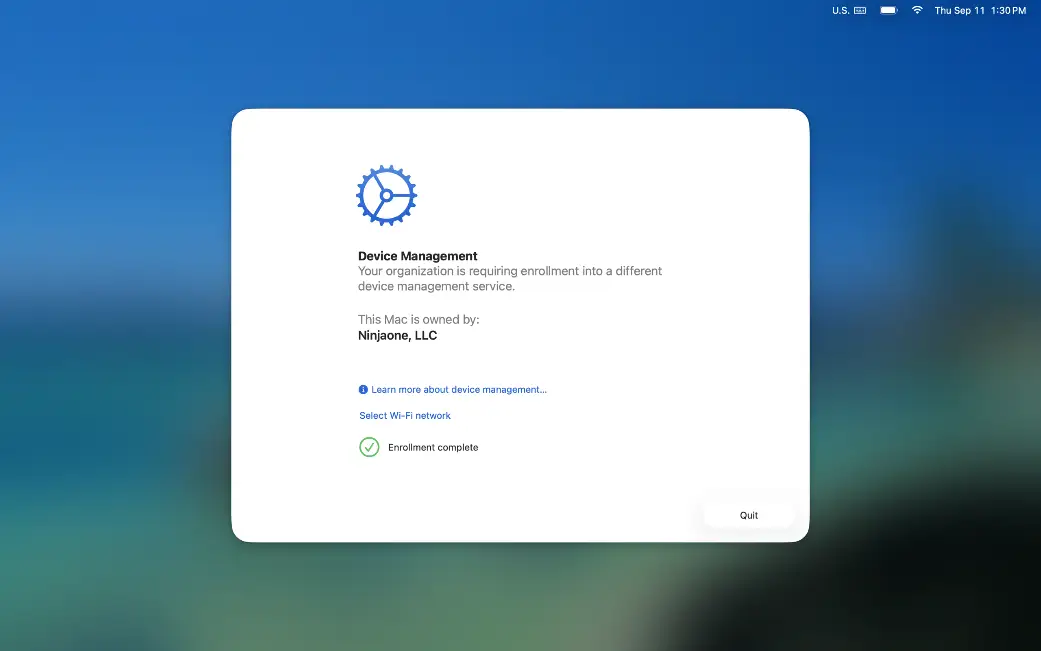
On a macOS device, the process is similar. When the migration is initiated, the user will receive a notification on the device. They’re brought to the System Settings app, where they can initiate the migration. Once the enrollment deadline passes, the user will be forced to migrate.
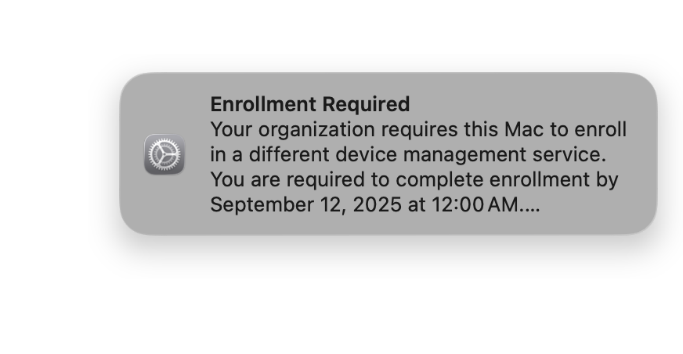
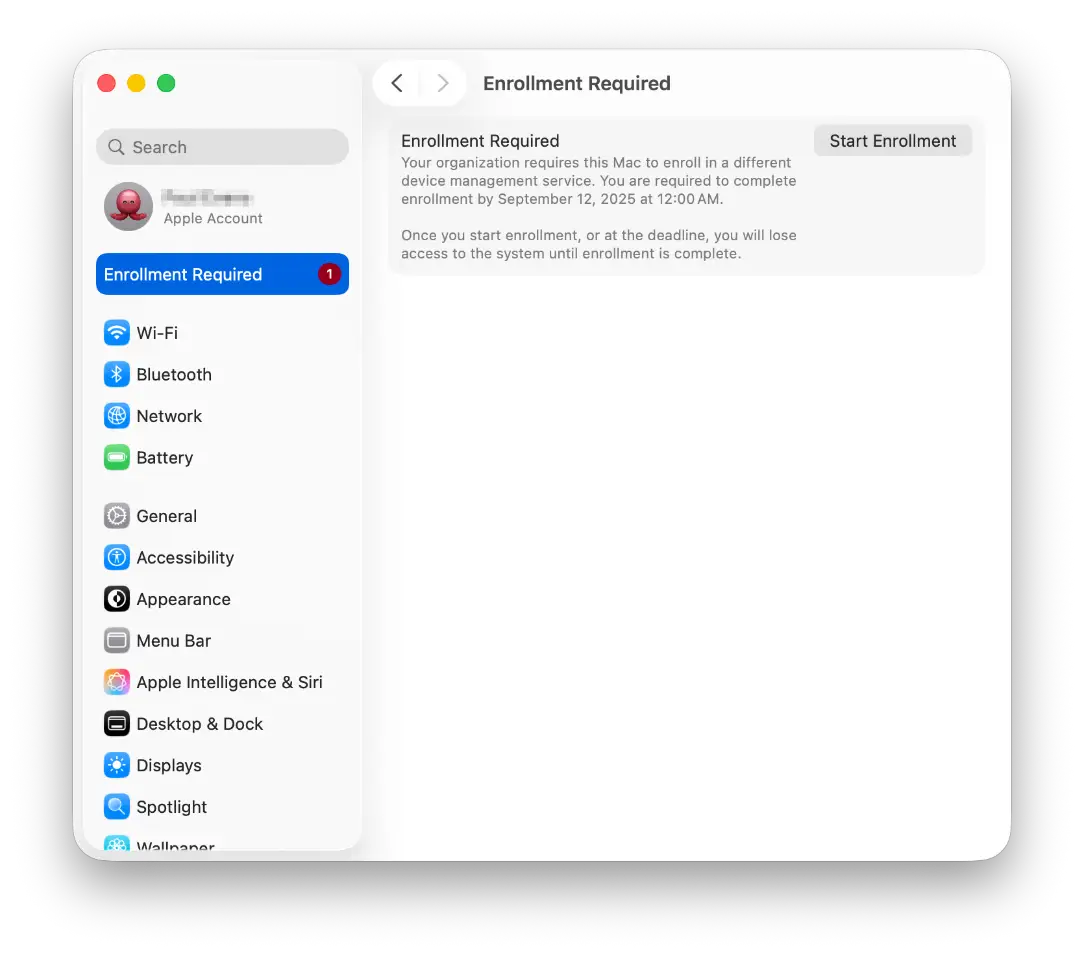
When enrollment is initiated, the user will experience a flow similar to a new ADE enrollment. This is the last point where they can select Not Now prior to reaching the enrollment deadline. When this is initiated, the user must enter a local administrator password on the device. The device will enroll in the new MDM and indicate when it’s successful. In the event of an enrollment failure, it should be treated as a currently unmanaged device.
iOS 26 MDM post-migration — Reconciliation
Finally, verify the migration and enrollment were successfully completed by navigating to the NinjaOne dashboard and confirming the new devices are listed.
Remember to test on one device before rolling out to large numbers of machines. If you have many different configurations to manage as part of a migration, it’s good to test each one of these configuration baselines to ensure that they operate as expected. Enrolling a non-migrated device in NinjaOne and validating that settings work as expected is key to minimizing disruption amongst your end users. Once you’ve worked out how settings translate between platforms, you are ready to begin migrating iOS, iPadOS, and macOS devices to NinjaOne.
Move Apple devices to NinjaOne MDM with less disruption
Mobile devices drive efficiency by enabling employees to work anytime and anywhere. However, ineffective MDM can lead to technician and user frustration. For end users, the inability to access applications and resources required to support specific workflows or delays in resolving technical issues can impact their productivity. For technicians, an inefficient or ineffective MDM solution can lead to more trouble tickets, increase the organization’s attack surface, and take the IT team away from strategic business projects.
NinjaOne MDM helps MSPs and IT teams reduce cost and complexity by enabling the management of Android, Apple mobile devices, and Macs alongside their Windows, Linux, virtual, and networking devices, all within the intuitive NinjaOne platform. IT teams and MSPs get one place to enforce policies, deploy apps, and support users, which reduces tool sprawl and technician effort.
Start a free trial of NinjaOne MDM to build and test your configurations or watch a free demo of the software in action.