Key Points
PowerShell automates failover clustering installation in Windows Server for high availability and consistent configuration
- Launch PowerShell as administrator and import the Failover Clusters module using Import-Module FailoverClusters
- Create a new cluster with New-Cluster, specifying nodes and a static IP address
- Add additional nodes using Add-ClusterNode, and configure storage or networks with cmdlets like Add-ClusterSharedVolume and Set-ClusterNetworkRole
- Use Test-Cluster to validate configuration and Restart-Service to troubleshoot Cluster service issues
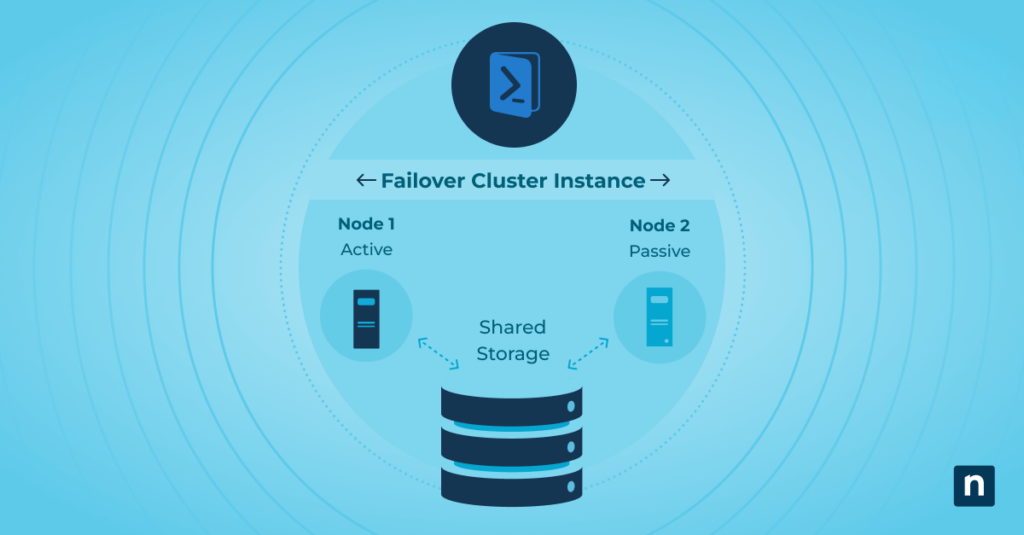
Failover clustering provides high availability and fault tolerance for critical services in Windows Server environments. Use PowerShell to automate the installation and management of failover clustering. This approach streamlines deployment and ensures consistency across systems. This guide details the steps for installing failover clustering with PowerShell and highlights its capabilities and benefits.
Prerequisites for PowerShell failover clustering
Before we look at the details of failover clustering installation with PowerShell, it’s essential to ensure that your environment meets certain prerequisites:
- Hardware and software requirements: Verify that your servers meet the hardware requirements for failover clustering, including CPU, memory, and disk space. Additionally, ensure that all servers are running a supported version of Windows Server.
- Permissions and administrative access: You’ll need administrative privileges on all servers involved in the clustering process. Make sure you have the necessary permissions to install and configure failover clustering.
- Network configuration: Proper network configuration is critical for failover clustering. Ensure that all servers have network connectivity and are configured with appropriate IP addresses and DNS settings.
Getting started with PowerShell for failover clustering
PowerShell is a scripting language and command-line shell that simplifies Windows Server administration. Learn its functions to automate tasks efficiently. Use PowerShell to deploy and manage failover clustering programmatically. Configure execution policies and import necessary modules to support clustering operations.
Common PowerShell cmdlets for failover clustering
Understanding essential PowerShell cmdlets for failover clustering management is crucial. Here are some common cmdlets you’ll frequently use:
- Get-Cluster: Retrieves information about the Failover Cluster, including its nodes, resources, and configuration.
- New-Cluster: Creates a new failover cluster with specified parameters.
- Add-ClusterNode: Adds a node to an existing failover cluster.
- Test-Cluster: Performs cluster validation tests to ensure proper configuration and readiness.
- Move-ClusterGroup: Moves a cluster group or resource to another node in the cluster.
Step-by-step guide to installing failover clustering with PowerShell
- Launch PowerShell with administrative privileges: To begin, launch PowerShell with administrative privileges on your Windows Server. Right-click on the PowerShell icon and select “Run as administrator” to ensure you have the necessary permissions to perform clustering tasks.
- Import the failover clustering module: Before you can use PowerShell cmdlets for failover clustering, you need to import the failover clustering module. Run the following command in PowerShell:
Import-Module FailoverClusters
This command imports the failover clustering module, allowing you to use the necessary cmdlets for cluster management.
- Create a new failover cluster: To create a new failover cluster, use the New-Cluster cmdlet in PowerShell. Specify the cluster name, IP address, and other relevant parameters. Here’s an example:
New-Cluster -Name “MyCluster” -Node “Server1”, “Server2” -StaticAddress 192.168.1.100 -NoStorage
Replace “MyCluster” with your desired cluster name, “Server1” and “Server2” with the names of the servers you want to include in the cluster, and “192.168.1.100” with the desired IP address for the cluster.
- Add nodes to the failover cluster: If you have additional servers (nodes) to add to the failover cluster, you can use the Add-ClusterNode cmdlet. Run the following command in PowerShell:
Add-ClusterNode -Cluster “MyCluster” -Name “Server3”, “Server4”
Replace “MyCluster” with the name of your cluster, and “Server3” and “Server4” with the names of the additional servers you want to add to the cluster.
- Configure cluster resources: After creating the failover cluster, you can configure cluster resources such as shared storage and network settings. Use the appropriate cmdlets based on your specific requirements:
To add shared storage to the cluster, use the Add-ClusterSharedVolume cmdlet:
Add-ClusterSharedVolume -Name “Cluster Disk 1” -Cluster “ClusterName”
Replace “Cluster Disk 1” with the name of the shared disk you want to add, and “ClusterName” with the name of your cluster.
To set the role of a network interface (e.g., cluster or client access), use the Set-ClusterNetworkRole cmdlet:
Set-ClusterNetworkRole -Name “ClusterNetworkName” -Role “ClusterOnly”
Replace “ClusterNetworkName” with the name of the network interface and “ClusterOnly” with the desired role.
- Enable high availability services: To enable high availability services and applications within the cluster, configure cluster resources and settings accordingly. This may include setting up clustered roles, virtual machines, and other resources.
- Test failover scenarios: Once the failover cluster is configured, it’s essential to test failover scenarios to ensure the cluster’s resilience and performance. Use the appropriate cmdlets to initiate failover and validate that services and applications continue to function seamlessly.
By following these step-by-step instructions, you can install failover clustering using PowerShell efficiently and effectively.
Best practices for PowerShell failover clustering
To ensure optimal performance and reliability of your failover cluster, follow these best practices:
- Plan your cluster configuration: Before you start configuring the cluster, thoroughly plan your cluster configuration, including the number of nodes, network settings, storage requirements, and the services or applications you want to make highly available.
- Follow a standard naming convention: Adopt a standard naming convention for cluster objects, including nodes, networks, and resources. Consistent naming conventions make it easier to identify and manage cluster components, especially in larger environments with multiple clusters.
- Enable Cluster-Aware Updating (CAU): Cluster-Aware Updating (CAU) automates the patching and updating of failover cluster nodes, minimizing downtime and service interruptions. Use PowerShell cmdlets to enable and configure CAU to ensure that your cluster stays up-to-date with the latest updates and patches.
- Document configuration and procedures: Maintain detailed documentation of your failover cluster configuration, including cluster topology, network configurations, resource dependencies, and failover procedures. Use PowerShell scripts to generate and update documentation automatically, ensuring accuracy and consistency.
Troubleshooting failover clustering issues with PowerShell
When troubleshooting failover clustering issues with PowerShell, you can use various cmdlets and scripts to identify and resolve common problems. Here are some examples:
- Check cluster service status: Use the Get-ClusterNode cmdlet to check the status of cluster nodes and ensure that all nodes are online and reachable.
Get-ClusterNode
- Verify cluster resources: Use the Get-ClusterResource cmdlet to list all resources in the cluster and check their status.
Get-ClusterResource
- Check cluster events: Use the Get-ClusterLog cmdlet to retrieve the cluster log and search for error messages or warnings that indicate potential issues.
Get-ClusterLog -Node <NodeName> -StartTime (Get-Date).AddHours(-1)
- Validate cluster configuration: Use the Test-Cluster cmdlet to perform a cluster validation test and identify any configuration issues.
Test-Cluster
- Restart cluster service: Use the Restart-Service cmdlet to restart the Cluster service on a specific node.
Restart-Service -Name ClusSvc -ComputerName <NodeName>
PowerShell for automation and efficiency
Failover clustering provides high availability and fault tolerance in Windows Server environments. Use PowerShell to install and manage failover clusters to streamline deployment, increase efficiency, and ensure consistency. Apply PowerShell to other administrative tasks to expand automation and operational control.
See the video guide on How to Use PowerShell to Install Failover Clustering.