Key Points
- Control Automatic File Downloads in Windows: Navigate to “Settings” > “Privacy & Security” > “Automatic file downloads,” depending on your Windows version.
- Block Automatic Downloads Per App: When an app attempts to download a cloud-only file, Windows displays a notification that lets you block future automatic file downloads for that app.
- Use the Windows Registry: Manage automatic file download permissions under
HKEY_CURRENT_USER\Software\Policies\Microsoft\CloudFiles\BlockedApps;
set the “Enabled DWORD value” to 1 (blocked) or 0 (allowed). - Understand Enterprise Policy Enforcement: In Windows 11 23H2 and newer builds, the “Automatic file downloads” setting may not appear if controlled via Group Policy, MDM, or OneDrive enterprise policies.
- Optimize Strategies: Blocking automatic file downloads isn’t a standalone security feature, but it supports bandwidth management and zero trust access strategies.
This guide provides instructions on how to allow or block automatic file downloads for apps in Windows 10 and Windows 11. It demonstrates how to block app downloads by managing file download permissions in the Windows Settings app and using the Registry.
If you prefer a visual guide, watch our video “How to Allow or Block Automatic File Downloads for Apps in Windows“.
Step-by-step guide: How to manage automatic file downloads in Windows 10 and Windows 11
OneDrive, Dropbox, and other cloud storage providers integrate with Windows 10 and Windows 11, allowing for files stored in the cloud to be automatically downloaded when an app needs them. This enables apps to request access to files that are not stored locally on your PC (e.g. when you choose to use online-only cloud storage to save disk space).
If an app attempts to download an online-only file, you’ll receive a notification allowing you to effectively cancel the in-progress download and optionally prevent the app from making additional attempts to automatically download files from the cloud storage.
How to block automatic file downloads for a single app
To block this behavior for a single app, you’ll need to wait for it to attempt to download an online-only file from cloud storage and block it using the button in the displayed notification. You may also trigger this event yourself by opening an online-only file.
Looking to reduce recurring manual tasks?
→ Raise service levels and morale with efficient IT automation
Using the Windows Settings app to allow automatic file downloads
Once an app has been blocked from automatically downloading files, it’ll appear in the Windows Settings app where you can unblock it from automatically downloading files:
- Right-click the Start button and select Settings.
- Navigate to Privacy & security > Automatic file downloads.
- In the list of blocked apps, click Allow to unblock apps from showing automatic file download notifications.
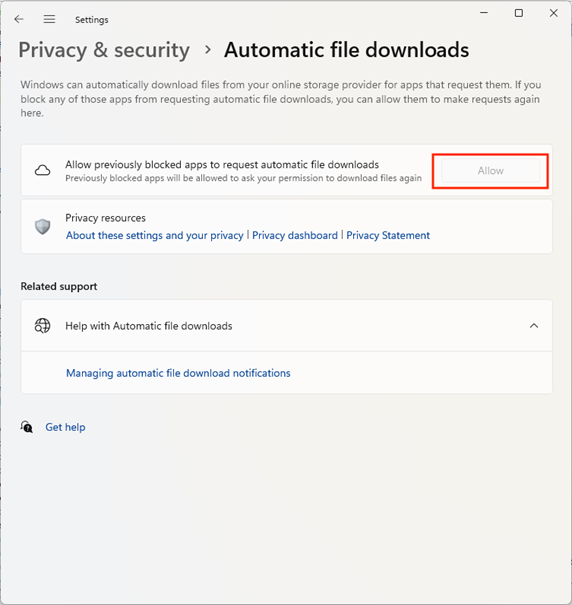
When the Allow button appears disabled or grayed out, it means you haven’t blocked any apps yet.
⚠️Important: The Automatic file downloads permission may not appear in specific Windows 10 builds as well as Windows 11 23H2 and newer builds, especially in managed enterprise environments or where OneDrive is controlled via policy. In this case, you may need to control this setting through OneDrive settings or by editing the Windows Registry.
Editing the Windows Registry to enable or disable automatic file downloads (advanced users)
You can also use the Windows Registry Editor to configure automatic file downloads for particular apps.
- Press Win + R, type regedit, and press Enter.
- In the Registry Editor, navigate to Computer\HKEY_CURRENT_USER\Software\Policies\Microsoft\CloudFiles\BlockedApps (if this location does not exist, it means no apps are currently blocked.)
- Each application that has been blocked will have its own subkey or folder.
- In each subkey, look for the Enabled DWORD value:
- 1 = Blocked
- 0 = Allowed
- Double-click the Enabled DWORD value to change its value.
⚠️ Important: This method is intended for advanced users only and requires administrator privileges. Be sure to back up your registry before making any edits. Additionally, in enterprise-managed environments, this key may be overwritten by Group Policy or MDM; manual changes may not persist.
Learn more how NinjaOne simplifies Windows device management at scale in the Endpoint Management FAQ.
Disabling automatic download notifications
To disable automatic file download notifications, follow these steps:
- Open Settings > System > Notifications
- Scroll to Automatic file downloads (if listed) and toggle it off or disable notifications for the specific application that triggered the alert.
Once again, if Automatic file downloads isn’t listed as a system notification category, you may need to adjust notifications for the specific cloud storage provider (e.g., OneDrive).
Additional notes for managing automatic file downloads
Preventing apps from automatically downloading files isn’t a security feature and isn’t designed to prevent apps from accessing sensitive data.
Most users choose to block apps from automatically downloading files from cloud storage to avoid unexpected bandwidth usage that could lead to increased data charges or limit the bandwidth available to other applications,especially on mobile connections. Stopping apps from automatically downloading files can also be useful on devices with limited disk space.
Furthermore, while this isn’t a standalone security control, blocking automatic file downloads can support
- data governance,
- bandwidth management, and
- zero trust strategies
when combined with endpoint management policies.
Once an app has been blocked from automatically downloading files, it’ll be prevented from showing any further notifications and will simply not have access to online-only files. This may cause unexpected behavior, so if an app is not working correctly, check whether it has been blocked. If necessary, unblock the app to allow access to the required files.
Set up new endpoints with ease, as you scale.
Remotely managing Windows privacy settings for multiple PCs
NinjaOne Endpoint Management provides a comprehensive browser-based interface for managing Windows devices. With NinjaOne, you can not only configure security settings and monitor access to resources remotely but also
- audit registry changes,
- monitor bandwidth spikes,
- automate remediation via scripting, and
- report on OneDrive sync health.
This solution as lets you deploy applications and updates to users, so that they always have the tools and files they need to complete their work, wherever they are.
Start your free 14-day trial of NinjaOne’s endpoint management solution today or watch a free demo of the software in action.