
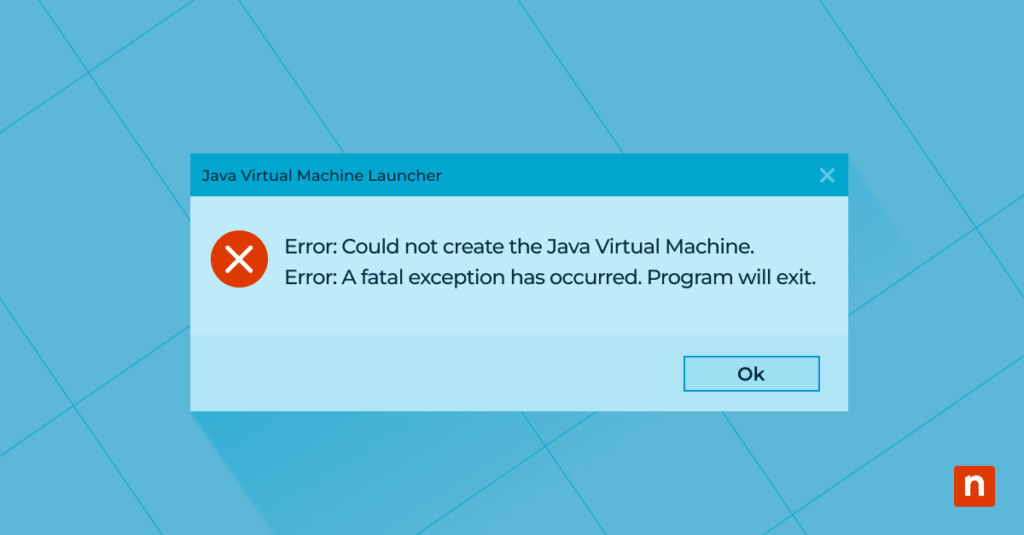
Key Points
- “Java Virtual Machine launcher error” signals the Java environment can’t properly run your application.
- Error messages:
- “Could not create the Java Virtual Machine”
- “A JNI error has occurred.”
- “Invalid maximum heap size”
- Common causes include: insufficient memory, version conflicts, misconfigured environment variables, or a corrupted Java installation.
- Quick fixes:
- Check system resources and increase memory if needed.
- Reinstall or update Java from a trusted source (Oracle or java.com)
- Verify environment variables and match Java versions with your application.
- Review application logs for clues and remove classpath conflicts.
- Advanced troubleshooting:
- Analyze error logs and stack traces to identify patterns.
- Use debuggers and profilers (e.g., VisualVM, Java Mission Control) for in-depth performance analysis.
- Adjust JVM memory settings (heap size) and optimize configurations.
- Apply platform-specific fixes (Windows Registry, Linux/Mac symbolic links).
- Best practices to prevent future JVM errors:
- Regularly update Java and patch software.
- Standardize Java versions to avoid conflicts.
- Manage classpaths and settings
- Log JVM arguments
- Monitor system resource
- Address configurations proactively
Java Virtual Machine launcher errors typically surface when there is an issue starting a Java application, and can manifest through various error messages like the following:
- “Could not create the Java Virtual Machine”
- “A JNI error has occurred.”
- “Invalid maximum heap size”
Understanding these errors is crucial as they are indicative of underlying problems that can affect the performance and functionality of Java applications.
This guide walks through the causes of the error and provides a step-by-step solution to the common Java Virtual Machine launcher error, as well as actionable steps to fix it. It also offers tips to help readers avoid similar issues in the future.
Don’t have time to read? Watch the video version of this blog post: How to Fix Java Virtual Machine Launcher Errors [Video]
NinjaOne’s third-party patch management software reduces the risk of security threats to all your software applications, including Java.
Causes of the Java Virtual Machine launcher error
The Java Virtual Machine launcher error message is a symptom of underlying issues that can vary widely, but it generally indicates that the Java environment cannot execute an application as expected. Understanding what the error message is trying to tell you is the first step in troubleshooting. Here are the common causes that trigger the Java error notifications:
- Inadequate system resources (e.g., memory, CPU): This often occurs in environments where multiple applications compete for limited resources, causing the JVM to fail to allocate the necessary memory or processing power.
- Misconfigured Java settings or environmental variables: Incorrect settings can prevent Java applications from locating necessary libraries or accessing certain system capabilities, leading to startup failures.
- Outdated or corrupt Java installations: An outdated Java version may lack support for newer software features, while corrupted installations could result in missing or damaged files critical for JVM operation.
The impact on Java applications
- Inability to launch the application, leading to downtime and productivity loss.
- Partial application functionality that can cause unpredictable behavior or incorrect data processing.
- Potential data integrity issues if the application deals with transactional operations.
How to fix the Java Virtual Machine launcher error applications and why they need to be addressed
As we all know, these issues would bear consequences, especially on Java applications. Here are some of its impacts:
- Inability to launch the application, leading to downtime and productivity loss.
- Partial application functionality that can cause unpredictable behavior or incorrect data processing.
- Potential data integrity issues if the application deals with transactional operations.
Addressing JVM errors promptly is essential for several reasons:
- Smooth application performance: Ensures that applications run smoothly without unexpected crashes or performance degradations.
- Data loss prevention: Prevents data loss that can occur if applications do not shut down properly.
- Security compliance: Maintains system security by ensuring that all Java-based applications operate within the parameters set by the latest security updates.
How to fix the Java Virtual Machine launcher error
To effectively address the Java Virtual Machine launcher error, there are quick fixes and also advanced troubleshooting that you can follow:
Quick fixes
- Check system requirements and compatibility:
- Low memory or CPU resources can trigger JVM errors. Ensure that the host system meets the specifications recommended for the Java version in use.
- Include memory sufficiency and CPU capabilities in your check list.
- Verify Java installation and configuration:
- Confirm that Java is installed correctly and that environment variables, such as PATH and JAVA_HOME, are set up correctly.
- Ensure that the version of Java installed is compatible with the application you are trying to run.
- Match or update Java versions:
- A mismatch (or using 32-bit vs 64-bit incorrectly) can cause the launcher error.
- Update or revert Java versions to match the application requirements if the error stems from a version mismatch.
- Reinstall Java:
- Uninstall Java completely by downloading the latest stable version from Oracle or any trusted source first.
- Once downloaded, reinstall Java. Corrupted or incomplete installations are a common cause, so reinstallingoften resolves persistent launcher errors.
Advanced troubleshooting
When basic troubleshooting isn’t enough to resolve JVM issues, a more thorough investigation is often required. Here’s how to conduct this deeper analysis:
- Log analysis and monitoring: Error logs and stack traces are critical for pinpointing the exact location and nature of JVM errors.
- Locate and examine the logs: Find the error logs and stack traces – usually found within either the application’s or Java runtime environment’s log directories.
- Decode the information: Look for the exception name, the specific error message, and the sequence of method calls leading to the error – each line in a stack trace provides a method call, showing the path that the application took before it encountered an issue.
- Identify patterns: Repeated errors can indicate deeper systemic issues that require attention.
- Enhance logging: Add more detailed logging to help capture critical information during execution, aiding in preemptive troubleshooting and ongoing monitoring.
- Debugging and profiling techniques: Advanced debugging tools like debuggers and profilers are essential for diagnosing more complex issues.
- Use debuggers: These tools allow you to pause the JVM, inspect variable values, and trace the execution flow to understand where and why an error occurs.
- Apply profilers: Profilers monitor the JVM’s operations, such as memory and CPU usage, helping to spot performance bottlenecks and resource inefficiencies.
- Memory tuning:
- Adjust heap size: Errors like “Invalid maximum heap size”happen when JVM arguments request more memory than is If the error is related to insufficient memory, you can resolve it by adjusting the JVM heap size settings.
- Adjust RAM: If you have sufficient RAM, increasing the value may also solve the error.
- Classpath conflict resolution:
- Detect conflicts: Identify classpath conflicts where multiple Java applications might be interfering with each other.
- Delete classpath conflicts: Remove duplicates or outdated references.
- Review of application-specific issues:
- Check application logs for any error messages that provide clues to the problem.
- Ensure that any application-specific configurations, such as heap size or custom properties, are correctly set.
- Platform-specific troubleshooting:
- Windows: Check Registry entries and ensure environment variables are properly set.
- macOS/Linux: Verify symbolic links (update-alternatives on Linux, brew reinstall java on macOS).
Best practices for preventing future issues
- Update Java regularly: Keep Java updated to mitigate security risks and bugs.
- Audit Java versions: Verify that you’re only using one version of Java. Standardize Java versions by avoiding the installation of multiple versions.
- Manage classpaths and settings: Manage classpaths and environment settings to prevent conflicts. This can be especially tricky when developing in Java for cross-platform and embedded computing use cases.
- Log JVM arguments: Consistently document JVM options and memory settings used in your environment for future reference.
- Monitor system resources: Monitor application performance and system resource usage to catch potential issues early.
- Address configurations proactively: Be proactive in addressing application-specific configurations and potential incompatibilities.
Safeguard your organization against potential vulnerabilities, including those from popular third-party ones like Java.
Try NinjaOne’s third-party patch management today.
Helpful tools and resources
Leveraging community forums, expert consultations, and detailed documentation can further enhance the troubleshooting process.
- Use JVM diagnostic tools: JVM diagnostic tools like VisualVM or Java Mission Controlcan provide deeper insights into the JVM’s performance and help pinpoint the cause of errors.
- Engage with online communities: Online forums and communities, such as Stack Overflow or the Oracle Java forums, where developers share solutions and advice.
- Seek professional assistance: Professional help from IT support or consultants specializing in Java applications can be crucial when in-house expertise is insufficient to resolve the issue.
Maintaining Java application performance
Swiftly addressing Java Virtual Machine launcher errors is crucial for maintaining the performance and reliability of Java applications. By following the troubleshooting steps and best practices outlined in this guide, developers and IT professionals can ensure a smoother, more secure Java application experience. Remember, proactive management and regular updates are key to minimizing the potential for these errors.






