Windows Event Logs include detailed information about how your endpoints are behaving: from security incidents to update failures, IT administrators and MSPs must have visibility over the contents of these logs.
Windows Event Log monitoring is a key requirement for overseeing and securing networks for both small businesses and enterprises; however, manual checks present a scalability challenge due to the large range of often inconsequential events recorded. This guide explains how you can automate Windows Event Log monitoring across multiple clients, so that noteworthy incidents are reported and all logs from multiple devices are available in a central location.
Windows Event Log monitoring/forwarding prerequisites
The primary goal of your Windows Event Log monitoring solution should be to ensure that no security signals are missed. Other goals should include ensuring the detection and notification of important events or suspicious behaviour, centralizing the storage of critical logs, and allowing for the scripted remediation of known issues.
To monitor and forward Windows Event Logs on Windows 10, Windows 11, and Windows Server 2016+, you’ll need the following:
- Administrative access on all machines
- Access to PowerShell
- An Active Directory Domain if deploying Group Policy Objects
Note that while some of the examples below script the sending of emails for notifications, it may be preferable instead to use a third-party solution to send notifications or forward the relevant log entries to a central platform (for example, using a client application or via a REST API). As with all critical IT and MSP functionality, you should confirm that any implemented solutions meet your requirements and work in your specific environment.
Method 1: Using Event Viewer and Task Scheduler for GUI-based automation
The Windows Event Viewer can be used to automate forwarding event log entries using the Windows Task Scheduler. To do this:
- Open the Windows Event Viewer from the Start Menu or by running eventvwr.msc from the Run dialog
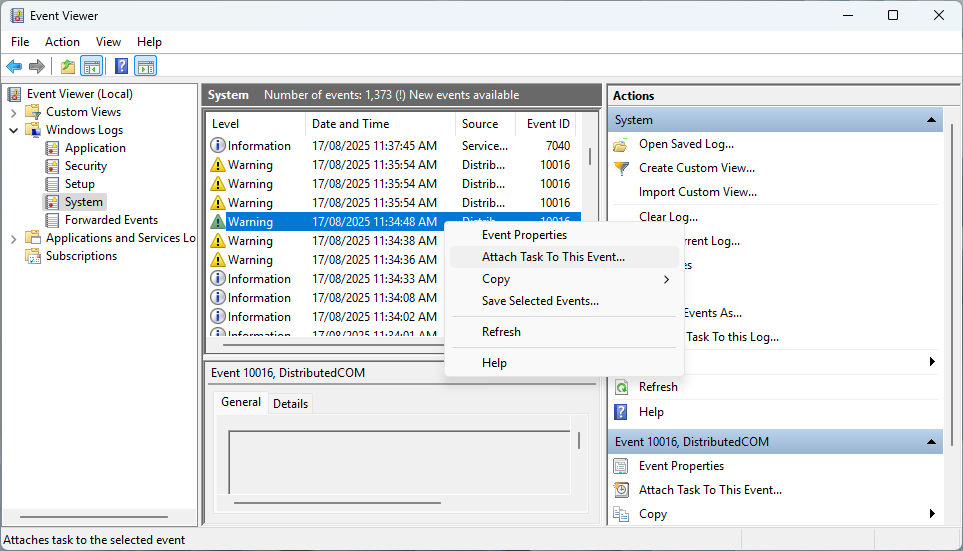
- Locate the required event in the log (for example, Windows > System > Event ID 1001 for crash reports)
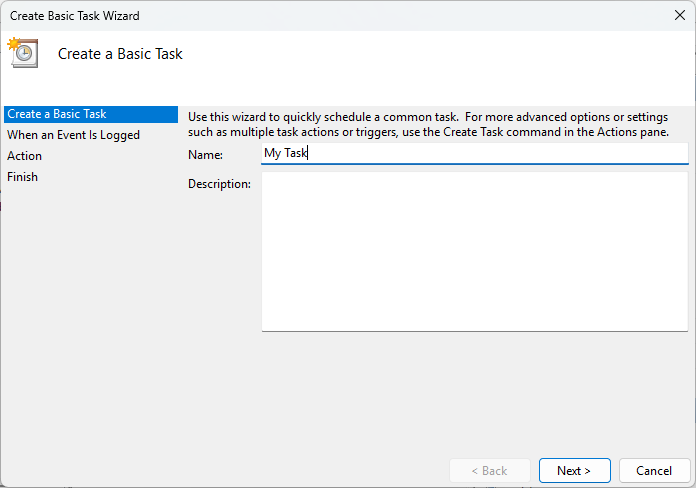
- Right-click on the event, followed by selecting Attach Task to This Event… and give the task a Name
- When prompted for an Action to take, select Start a program (while you can send an email or display a message instead, these actions are deprecated)
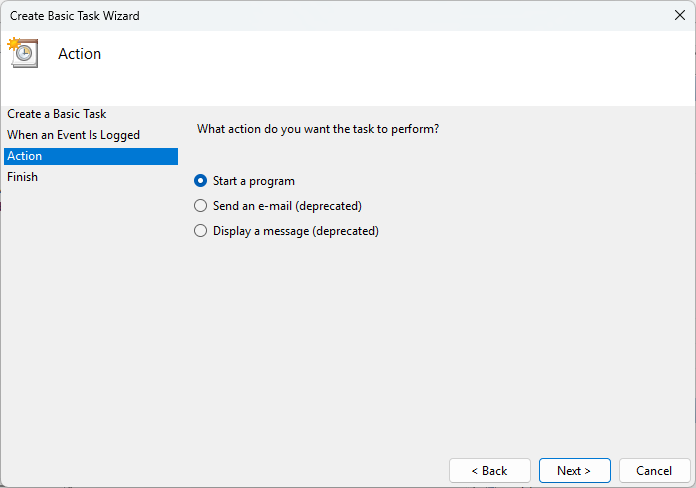
- Enter the path to the program or script, as well as any arguments
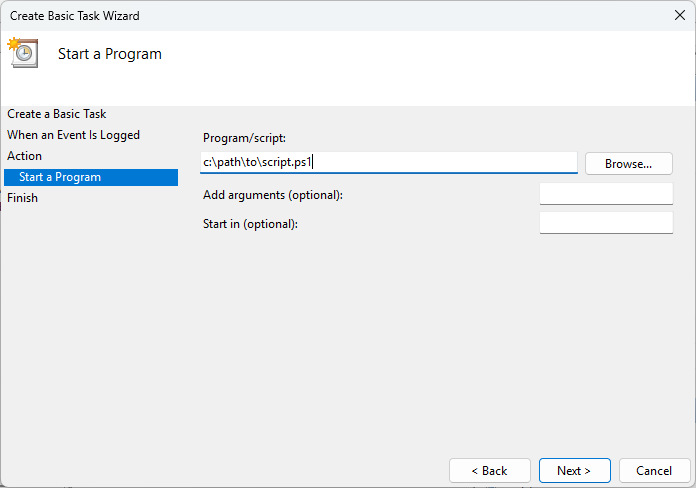
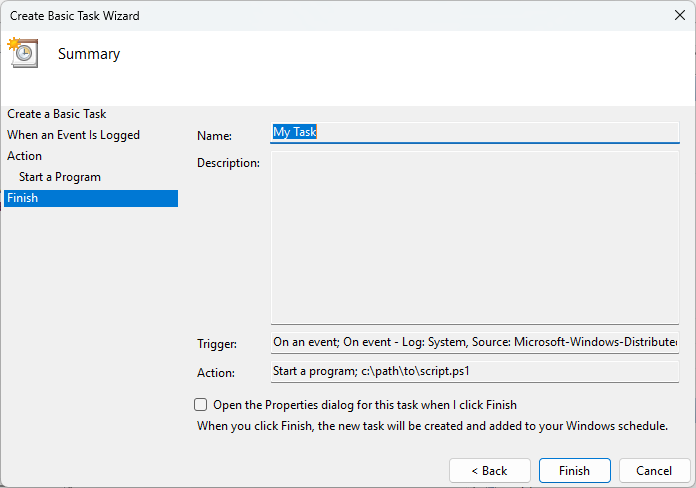
- Confirm the details and click Finish
This task will then run whenever the event occurs, with the details from the event. The program or script you use as the action could be a third-party client for sending notifications, or a script that runs diagnostics, then restarts services before sending a notification or forwarding the diagnostic data to another service.
Method 2: Using PowerShell for centralized monitoring and response
You can alternatively use a PowerShell script to poll for specific events and send alerts, as shown in the example script below:
$Events = Get-WinEvent -FilterHashtable @{LogName=’Security’; ID=4625; StartTime=(Get-Date).AddMinutes(-5)}
foreach ($e in $Events) {
$message = $e.Message
# Custom action: send email, trigger flow, or write to external log
Send-MailMessage -To ‘[email protected]’ -From ‘[email protected]’ -Subject ‘Failed Login Attempt’ -Body $message -SmtpServer ‘smtp.example.com’
}
This uses the Get-WinEvent cmdlet to search for events with the specified ID (in this case, 4625 for a failed logon) from the last 5 minutes. Note again that Send-MailMessage is deprecated, and you should instead rely on your RMM alerting, or APIs for Slack or other notification services in production.
You can either use the Task Scheduler or Register-ScheduledTask cmdlet to automate the running of this (setting it to run at the same interval as set in the script). You can also deploy the script using an RMM solution such as NinjaOne, or using Group Policy.
Method 3: Using Command Prompt for manual polling or script triggering
You can also detect the creation of new log entries using wevtutil in the Windows Command Prompt or using a batch file.
The below command uses wevtutil to query for events with the ID 4625 and returns the latest matching entry:
wevtutil qe Security “/q:*[System[(EventID=4625)]]” /c:1 /f:text
This command can be triggered from the Task Scheduler, or from a batch or PowerShell script, allowing you to test for various conditions on the last matching log entry for an Event ID, and trigger further action if required.
Method 4: Using Group Policy for policy-based log forwarding and auditing
Group Policy in Active Directory can be used to enable and configure Event Log Forwarding across machines joined to Windows domain. To do this:
- Open the Group Policy management console
- Navigate to Computer Configuration > Administrative Templates > Windows Components > Event Forwarding
- Configure the Configure target subscription manager (define collector URI), Enable event forwarding and Use WinRM for secure communication settings

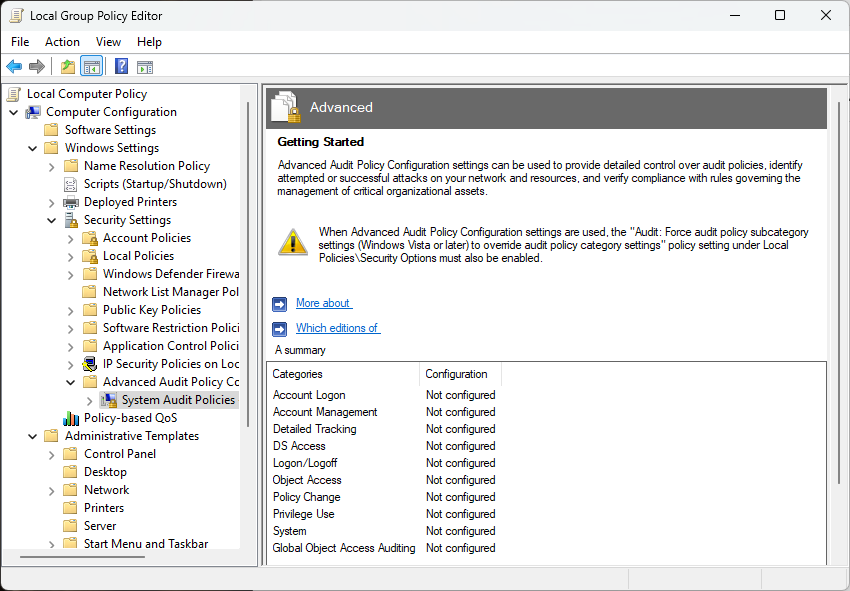
Audit policy enforcement can be configured by navigating to Computer Configuration > Windows Settings > Security Settings > Advanced Audit Policy Configuration > System Audit Policies and enabling audit policies for events such as logon events, and object access. Log size, retention, and overwrite policies can also be optionally configured using Group Policy.
Using the Windows Registry to set event log size, retention, and behavior
You can control log size and retention using the Windows Registry Editor by modifying the registry values in the EventLog key at HKEY_LOCAL_MACHINE\SYSTEM\CurrentControlSet\Services\Eventlog\<LogName>
- MaxSize (DWORD): Maximum log size in bytes
- Retention (DWORD): 1 = overwrite as needed, 0 = do not overwrite
- AutoBackupLogFiles (DWORD): 1 = enabled, 0 = disabled
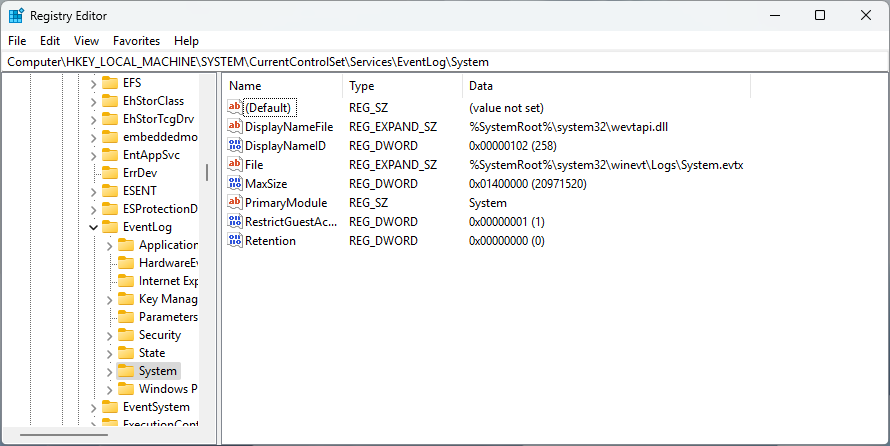
You can use PowerShell to set these registry values and deploy your script via Group Policy or your endpoint management platform:
Set-ItemProperty -Path “HKLM:\SYSTEM\CurrentControlSet\Services\Eventlog\Security” -Name MaxSize -Value 104857600
Additional considerations and troubleshooting
When implementing your Windows Event Log forwarding or monitoring solution, you may also want to consider some of the following factors, depending on your scenario and requirements:
- Log forwarding limitations: Native forwarding is pull-based and not real-time, so it’s best to use scripting or SIEM if live alerts are required
- Log size: Monitor log size and retention to avoid overwriting relevant data
- Security logs: These important logs should be backed up and/or ingested to a SIEM for analysis
- Automation frequency: Use a balanced schedule (for example, 5-minute polling intervals) to minimize performance impact
If you find that your event monitoring solution is not behaving as expected, you should check:
- Event Forwarding not working: Check WinRM status and firewall rules
- Scripts not triggering: Validate Event ID match and that the user account has the correct permissions
- Missing or incomplete logs: Check retention policies and ensure logs are not rolling over
- Script permissions: Ensure PowerShell script execution policy allows running unsigned scripts
Centralized Windows event log monitoring without the need for complex scripts
It is critical for internal IT teams and MSPs to monitor Windows Event Logs for all endpoints to ensure operational insight, security, and compliance. Endpoint management by NinjaOne simplifies this task with real-time monitoring and alerting (supporting SMS, email, and push notifications), so that when something goes wrong, technicians can immediately start taking steps to resolve the issue.
In addition to this, you can tailor your own Event Log Monitoring with script deployment, configurable alerts based on Event IDs, and automatic remediation scripts based on specific event log triggers. Everything is highly visible in a unified web dashboard, streamlining diagnostics and making your IT apparatus proactive to identifying and resolving cybersecurity threats, end-user problems, and malfunctions.