

Windows 11 records recently used desktop wallpapers in Settings > Personalization > Background. This feature offers convenience for rapidly switching between past wallpapers.
However, it can be a concern in shared environments and managed devices where personalization should be limited. Deleting wallpaper history will remove traces of personal images and enforce a uniform look across multiple systems.
This guide details different ways to delete recent wallpaper images on your desktop, including the Registry Editor, LocalAppData, and PowerShell.
How to delete recently used wallpaper images in Windows 11
📌 Prerequisites:
- Windows version: Windows 11 Home, Pro, Enterprise, or Education
- Administrator privileges: Most methods do not require administrator privileges since they operate under the user’s profile (HKCU) in the Registry.
📌 Recommended deployment strategies:
| Click to Choose a Method | 💻 Best for Individual Users | 💻💻💻 Best for Enterprises |
| Method 1: Registry Editor | ✓ | x |
| Method 2: LocalAppData | ✓ | x |
| Method 3: PowerShell Script (for automation) | x | ✓ |
| Method 4: .reg file | ✓ | x |
Method 1: Delete wallpaper history via Registry Editor
📌 Use Cases:
- This method is helpful for users who want to remove the previously used wallpapers from the Personalization > Background settings page.
- You can use this method to ensure shared setups have a uniform desktop state.
- This is ideal for removing user customizations from a machine.
📌 Prerequisite:
- No need for administrative privileges when editing HKEY_CURRENT_USER
⚠️ Important: Be sure to back up the Windows Registry before making any changes.
Here are the steps:
- Open the Registry Editor.
- Press Win + R to open Run.
- Type regedit and press Enter to open the Registry Editor.
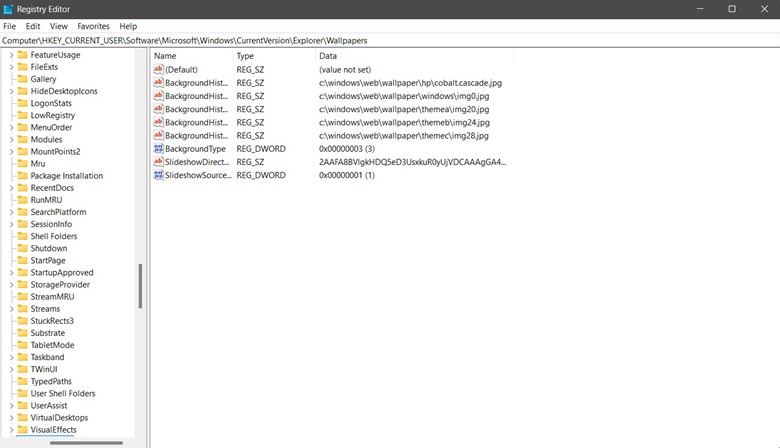
- Navigate to:
HKEY_CURRENT_USER\Software\Microsoft\Windows\CurrentVersion\Explorer\Wallpapers - In the right-hand pane, find the following string values, right-click on each one individually, and select Delete.
- BackgroundHistoryPath0
- BackgroundHistoryPath1
- BackgroundHistoryPath2
- BackgroundHistoryPath3
- BackgroundHistoryPath4
- You can apply the changes by restarting File Explorer (via the Task Manager), signing out and back in, or rebooting the system.
💡Notes:
- This will only apply to the currently logged-in user. If there are multiple users on the computer, you will need to perform this method on every account for the wallpaper history to be cleared system-wide.
- You must restart File Explorer or sign out and back in to implement the changes.
- Deleting wallpaper history is a per-user action by default. It must be scripted or repeated manually for each profile to apply it across multiple users.
Method 2: Clear manually stored backgrounds from AppData (optional)
💡 Note: This method only applies to the current user.
Windows may store cached wallpaper previews and theme files in the user’s profile. You can delete these files in AppData, ensuring remnants of previous wallpapers are removed from the system.
📌 Use Cases:
- This method is useful for clearing residual previews after the registry has been used to clear wallpaper history. In a way, it complements method #1.
- Ideal for resetting a user profile or preparing a computer for reassignment.
- This is helpful in shared, kiosk, or provisioned environments, ensuring no leftover data remains.
📌 Prerequisites:
- No administrator privileges needed.
Here are the steps:
- Open File Explorer and navigate to: %AppData%\Microsoft\Windows\Themes\CachedFiles
- Delete the image files in this folder.
- Optionally, also check: %AppData%\Microsoft\Windows\Themes
- Delete these files if present:
- TranscodedWallpaper
- CachedImage_X.jpg
- Apply the changes by signing out and back in or restarting File Explorer.
💡 Note: You must restart File Explorer or sign out and back in for the changes to occur.
Method 3: PowerShell Script for automation
This method automates wallpaper history deletion using PowerShell, so you won’t have to do it repetitively. It is best for shared/managed environments, onboarding workflows, or situations wherein cleanup occurs across user sessions.
📌Use Cases:
- This is ideal for automating wallpaper history cleanup.
- This is useful on shared computers where multiple users log in.
- You can use this method when setting up new PCs so they can start fresh without personalization from their earlier state.
- This can be bundled into Intune and other provisioning tools.
📌Prerequisites:
- This script only affects the signed-in account, so you will need to run it while logged in as the user whose wallpaper history you want to delete.
- No admin rights required since it only targets HKCU.
- Users should not actively set wallpapers during execution for the script to be fully effective.
Here is the PowerShell script that deletes all five recent wallpaper history entries (you can copy, paste, and enter simultaneously):
$wallpaperKey = “HKCU:\Software\Microsoft\Windows\CurrentVersion\Explorer\Wallpapers”
Remove-ItemProperty -Path $wallpaperKey -Name “BackgroundHistoryPath0” -ErrorAction SilentlyContinue
Remove-ItemProperty -Path $wallpaperKey -Name “BackgroundHistoryPath1” -ErrorAction SilentlyContinue
Remove-ItemProperty -Path $wallpaperKey -Name “BackgroundHistoryPath2” -ErrorAction SilentlyContinue
Remove-ItemProperty -Path $wallpaperKey -Name “BackgroundHistoryPath3” -ErrorAction SilentlyContinue
Remove-ItemProperty -Path $wallpaperKey -Name “BackgroundHistoryPath4” -ErrorAction SilentlyContinue
Stop-Process -Name explorer -Force
Start-Process explorer
Method 4: Clear background wallpaper history via .reg file
💡 Note: This method only affects the currently logged-in user.
You can delete wallpaper history by using a pre-built or freshly created .reg file. It is quick, repeatable, and works well when you need a non-script solution for individual systems and quick deployments.
📌 Use Cases:
- Suitable for users who prefer not to use PowerShell or Registry Editor.
- This is useful in shared environments where IT technicians provide .reg files to clear user settings.
- It can be bundled into onboarding tools, support kits, or cleanup utilities without scripting.
📌 Prerequisites:
- No need for administrator rights since it only modifies the HKCU.
- Be sure to orient users to what the .reg file is and how to use it before applying it.
Here are the steps:
- Open Notepad.
- Copy and paste the following content:
Windows Registry Editor Version 5.00[HKEY_CURRENT_USER\Software\Microsoft\Windows\CurrentVersion\Explorer\Wallpapers]“BackgroundHistoryPath0″=-“BackgroundHistoryPath1″=-“BackgroundHistoryPath2″=-“BackgroundHistoryPath3″=-“BackgroundHistoryPath4″=- - Go to File > Save As. Set Save as type to All Files.
- Name the file with something recognizable, like Clear_Wallpaper_History.reg.
- After saving, double-click the .reg file and confirm the prompt to add it to the registry.
- Restart File Explorer or log out and back in. Check if it worked by checking Settings > Personalization > Background.
💡 Note: You must restart Explorer and log out and back in for the changes to appear.
⚠️Things to look out for
| Risks | Potential Consequences | Reversals |
|---|---|---|
| Deleting the wrong values in the Registry | It may cause UI glitches and break personalization settings. | Before making changes, back up the Registry, and restore it after deletion. |
| The methods only affect the current user | Wallpaper history will remain for other users if steps aren’t repeated per account. | Repeat steps under each user profile or deploy via logon scripts. |
| Not deleting cached files | Wallpaper from the previous user may still appear due to cached files. | Manually clear files in %AppData%\Microsoft\Windows\Themes\CachedFiles |
Additional considerations when deleting recent wallpapers in Windows 11
- This process does not change your current wallpaper. It only removes the list of recent wallpapers from the settings app.
- There is no Group Policy setting to clear wallpaper history. The only options are the Registry Editor, PowerShell, the LocalAppData, or a .reg file.
Delete recent wallpaper images to enforce uniformity and consistency across devices
Clearing the desktop background history in Windows 11 enables users and admins to maintain privacy and enforce uniform device aesthetics. It will also help clean up unneeded user customizations for onboarding. Although Windows does not provide a GUI toggle, you can delete recent wallpapers in Windows 11 using the Registry, LocalAppData, and PowerShell.






